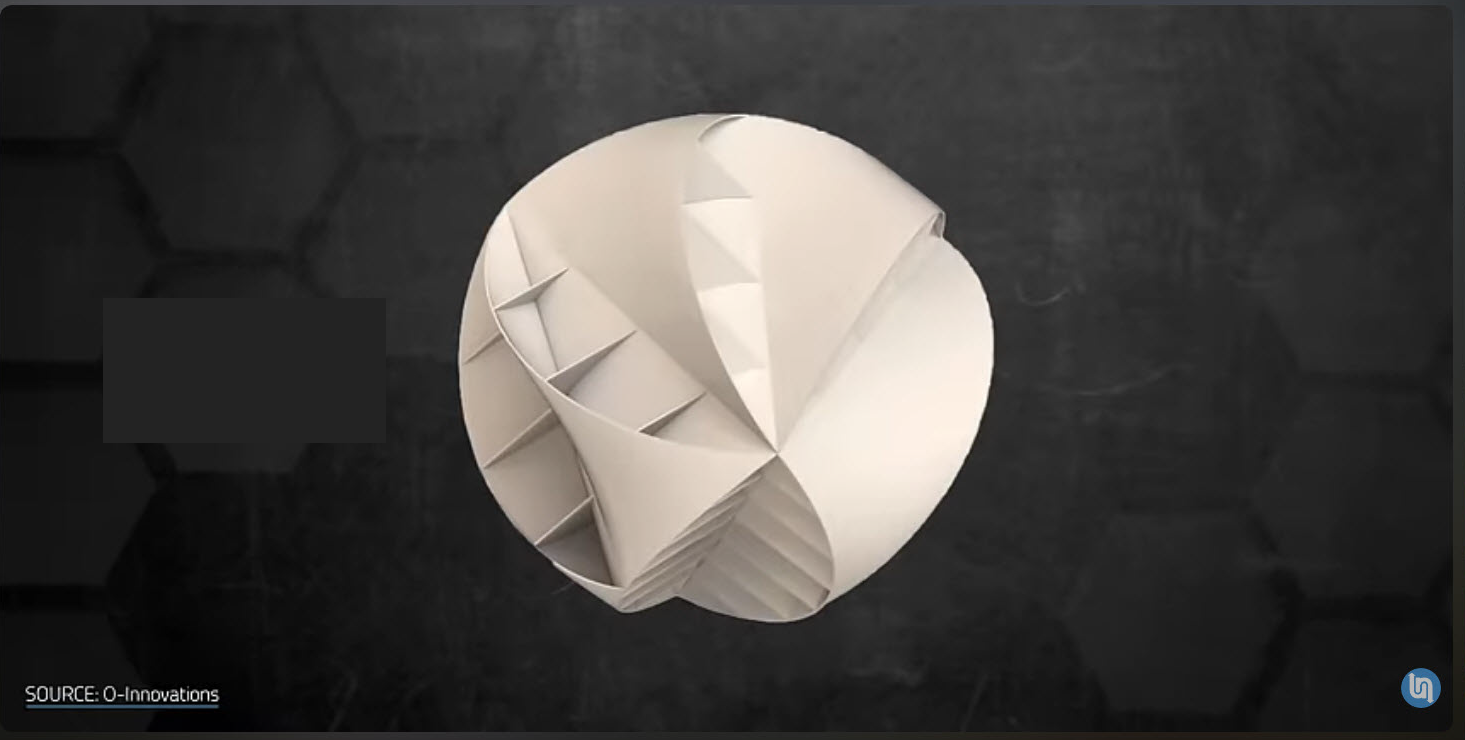
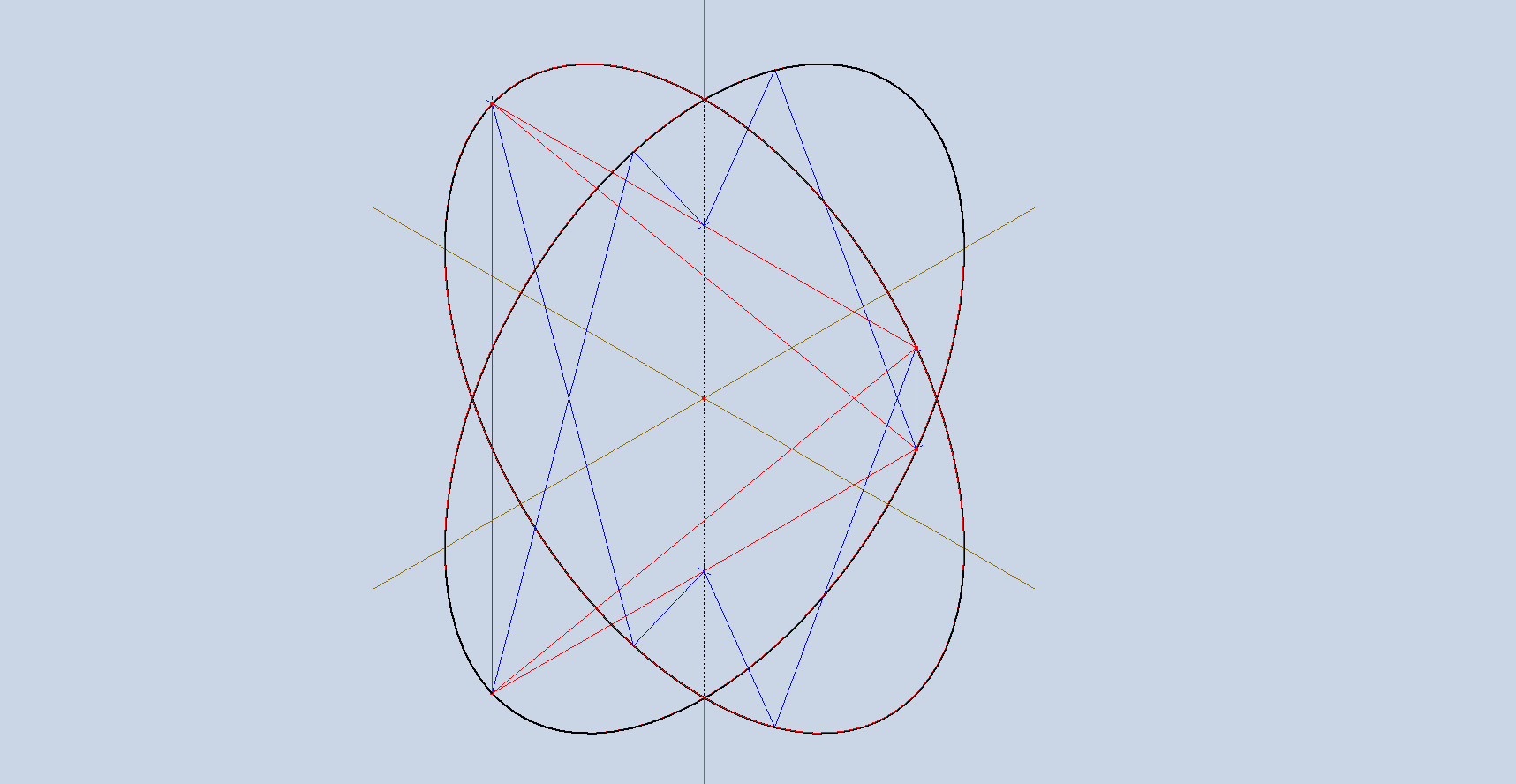
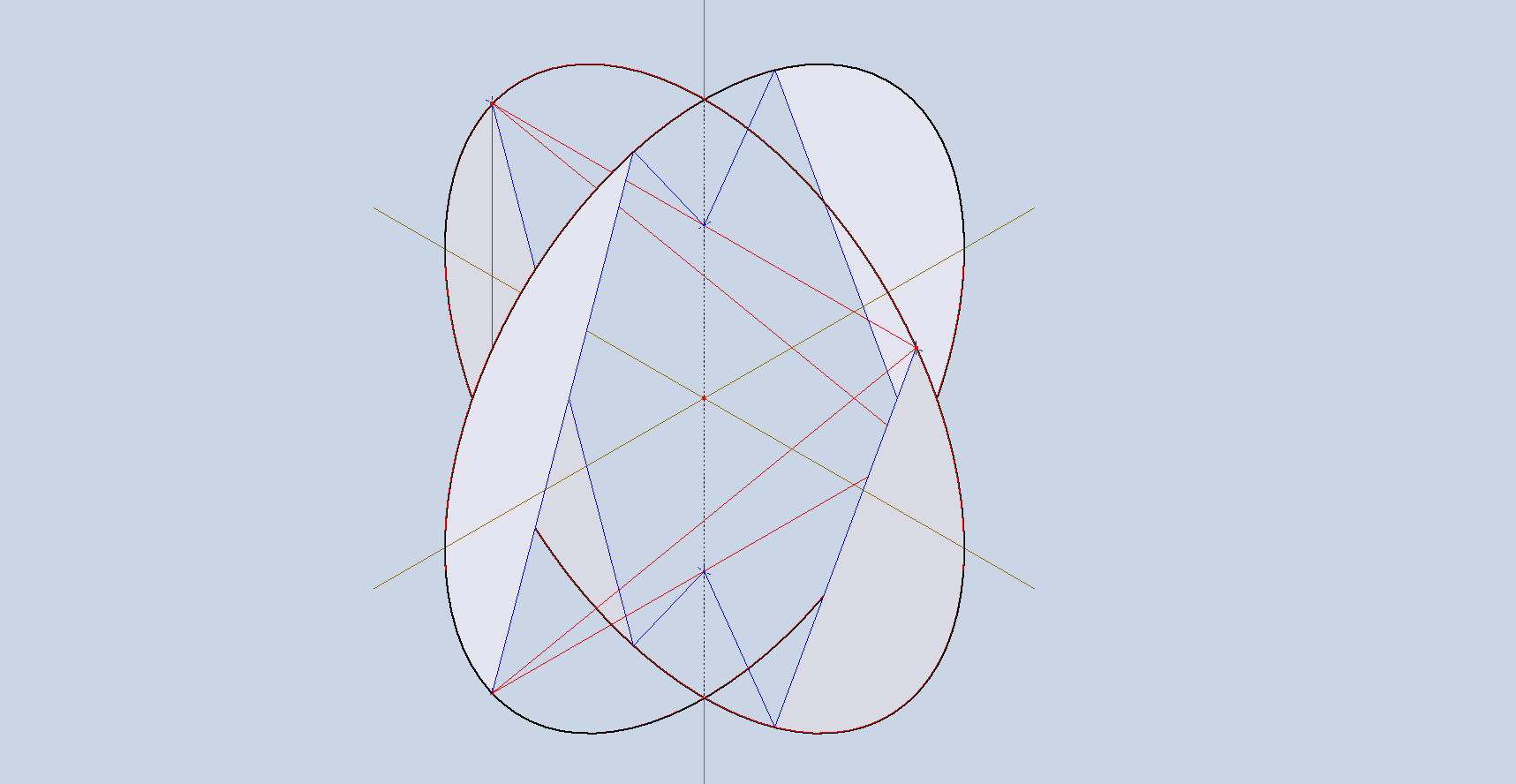
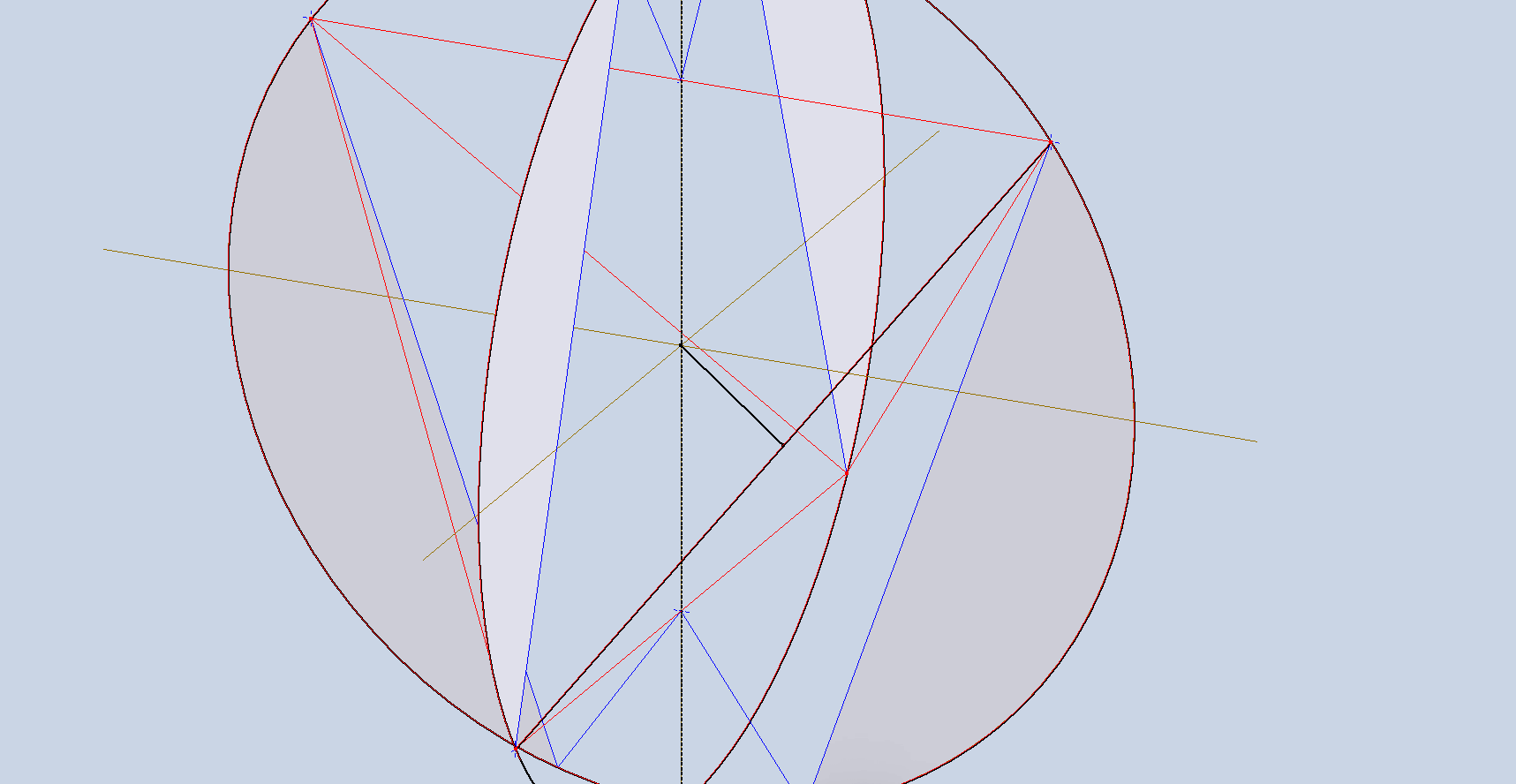
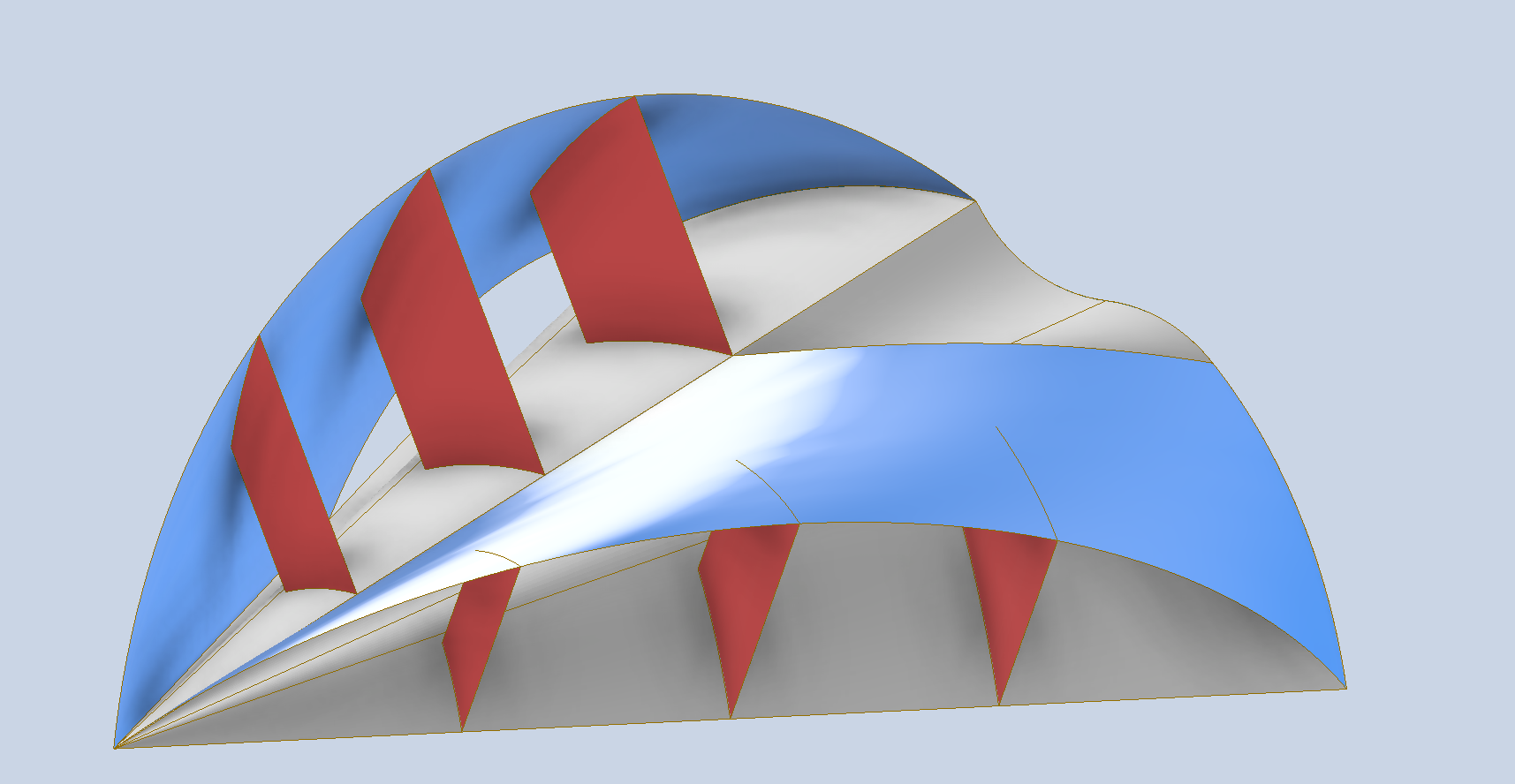
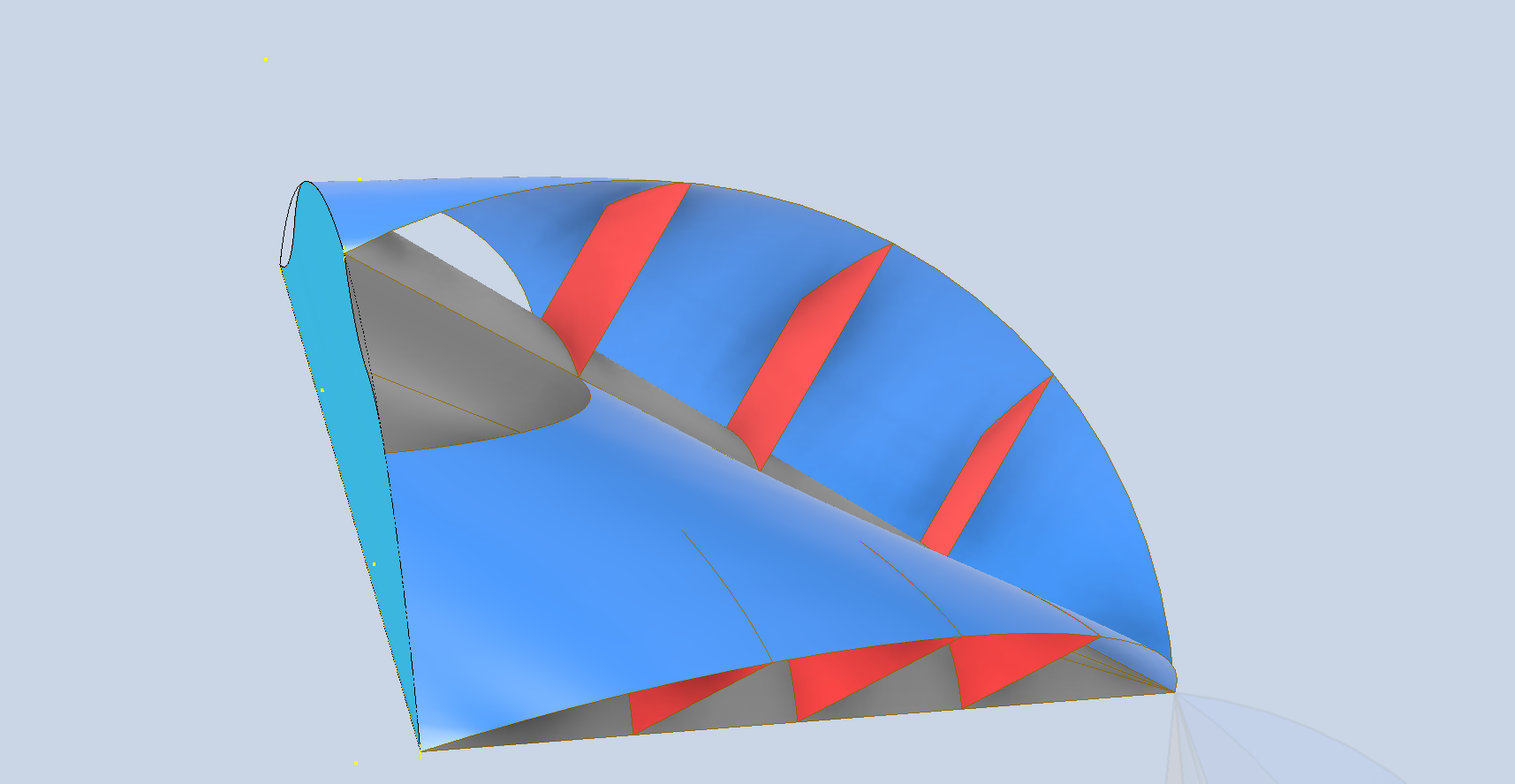
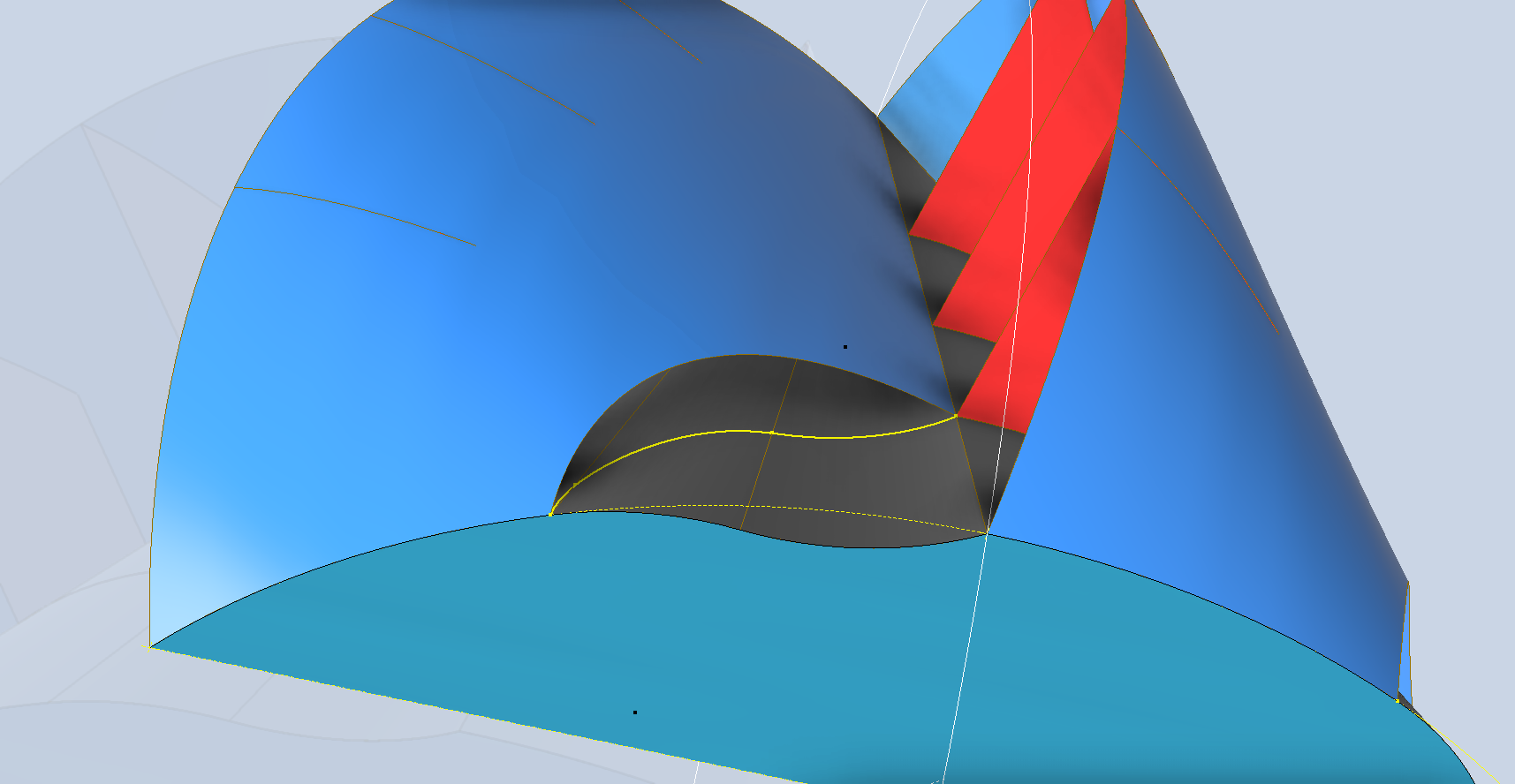
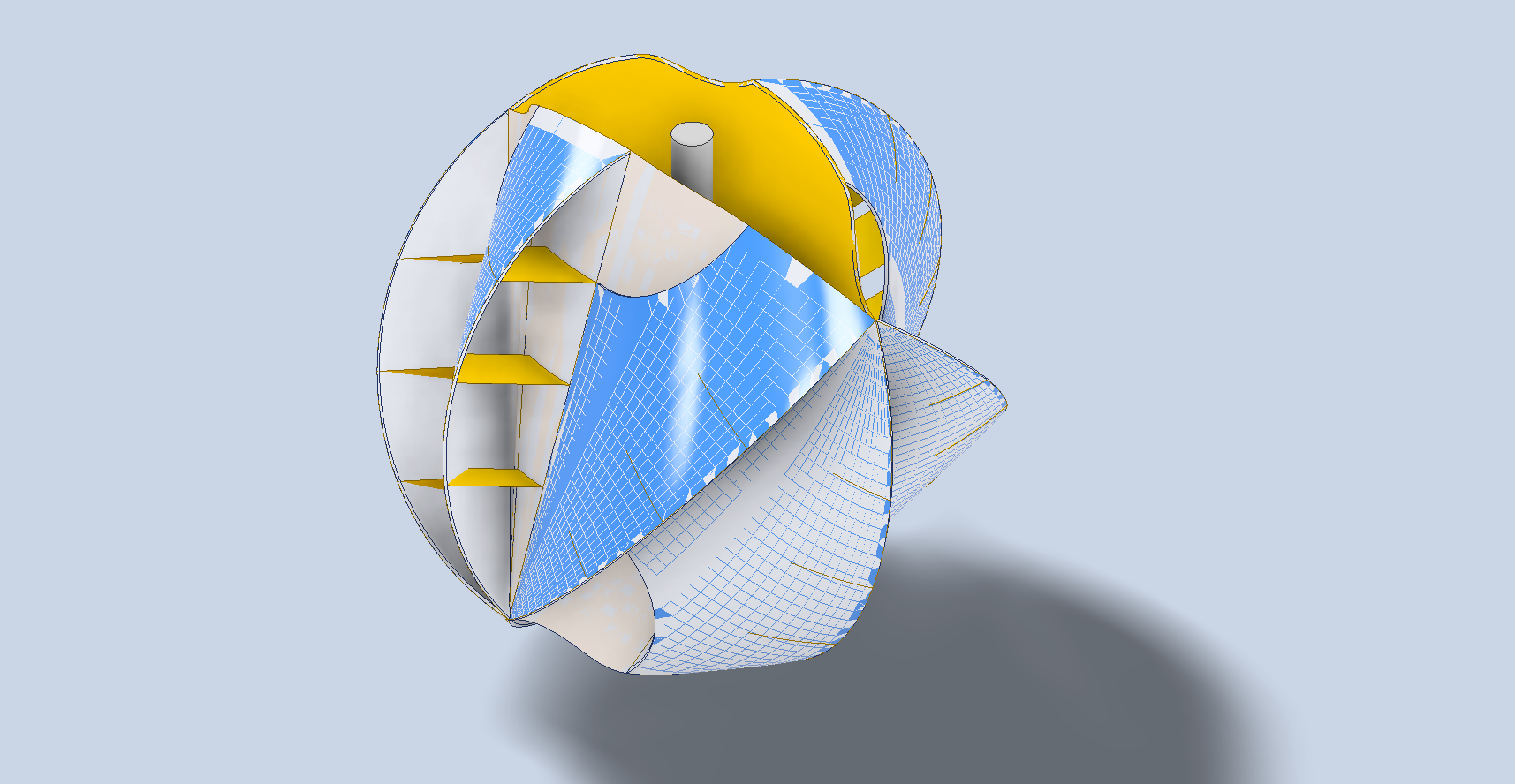
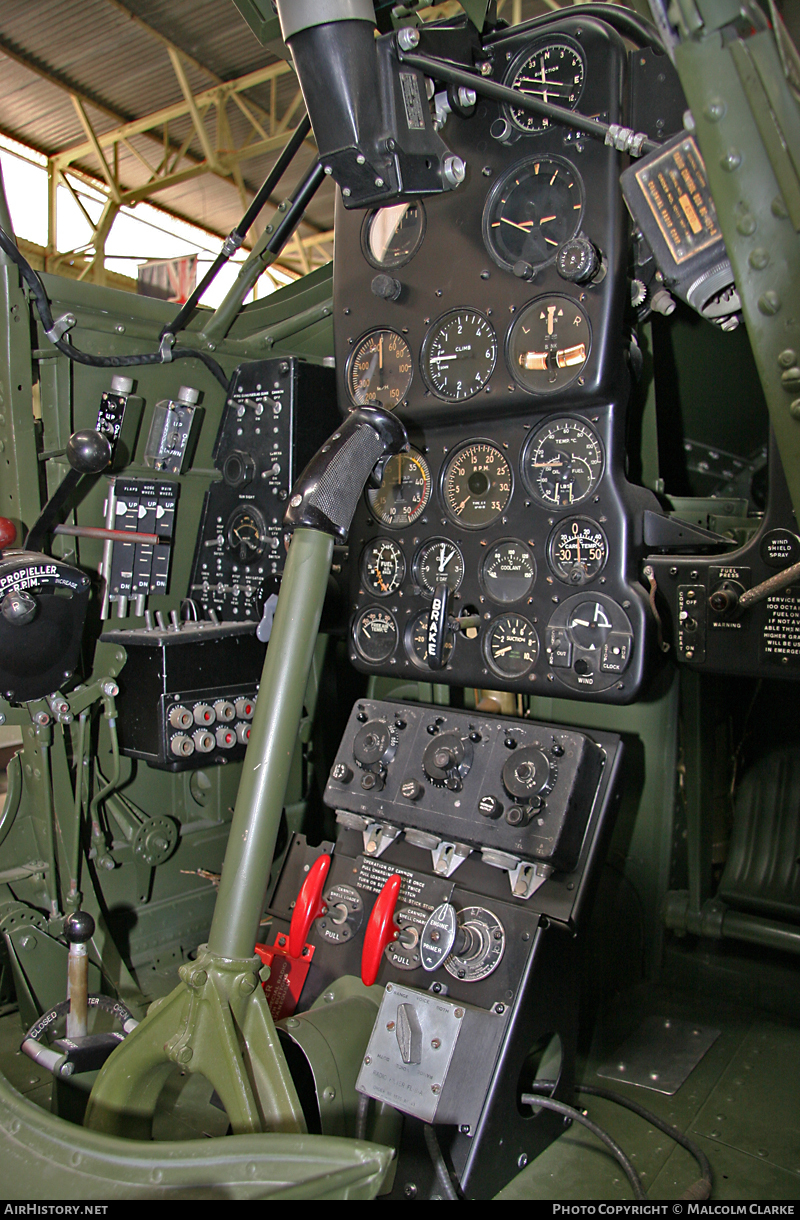
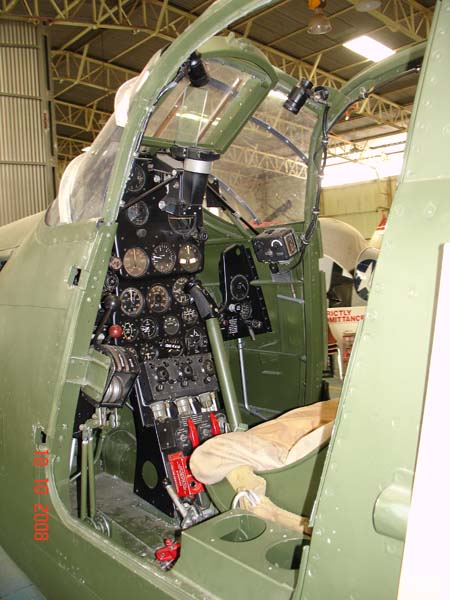
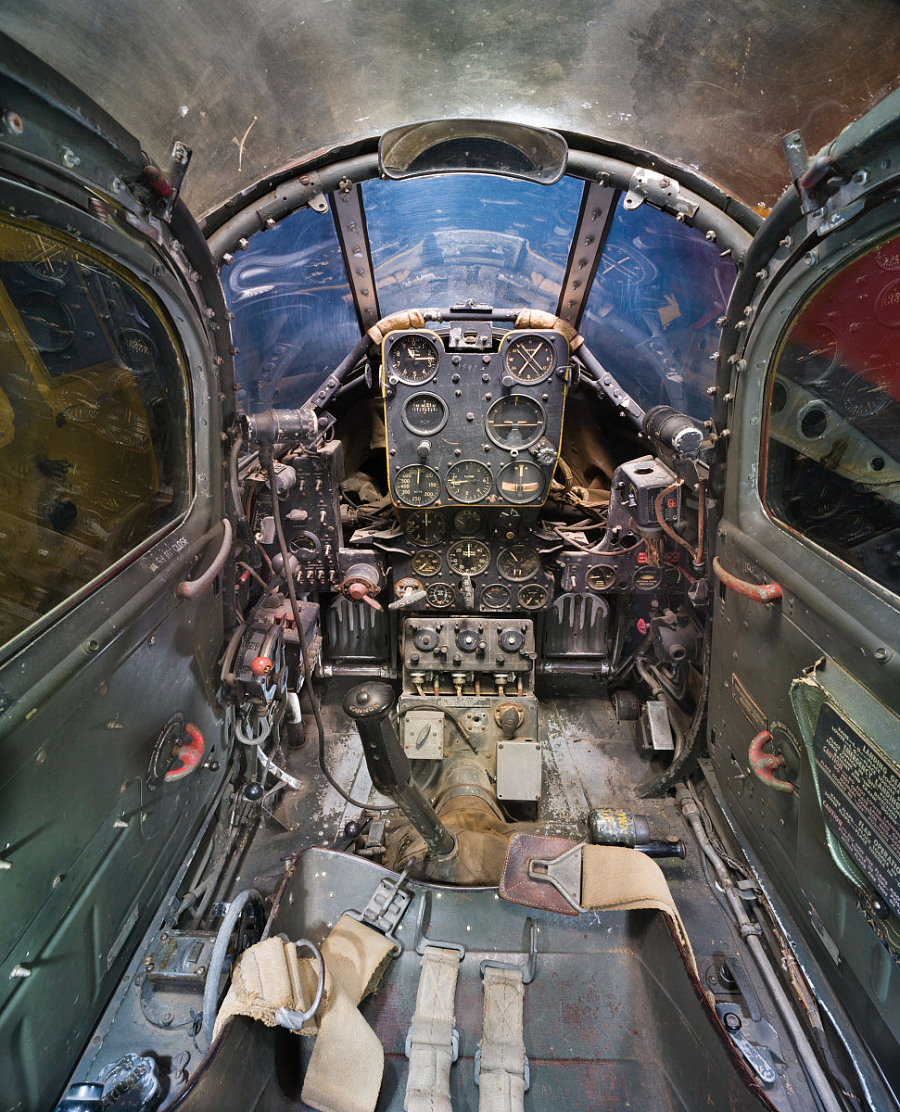
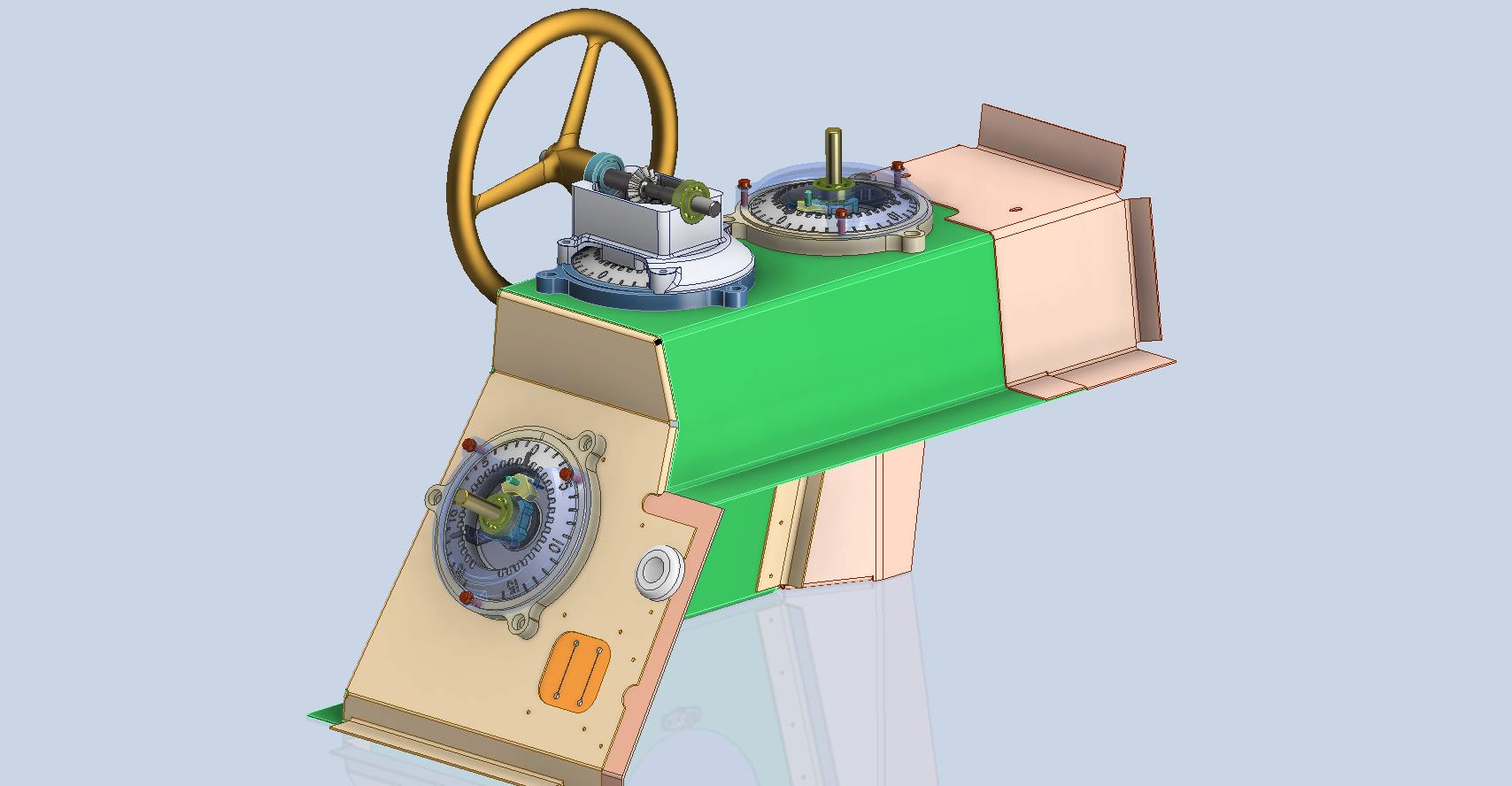
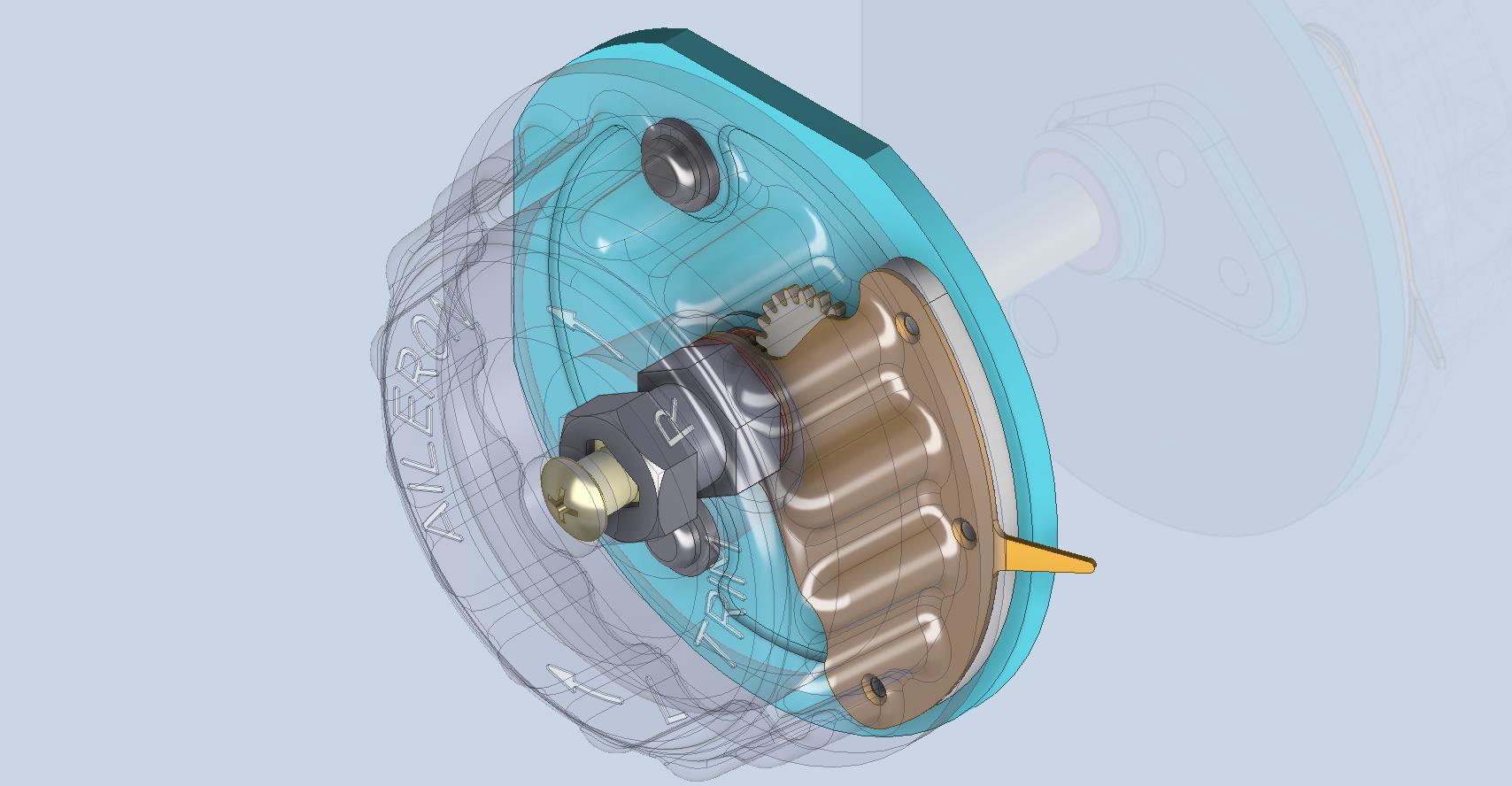
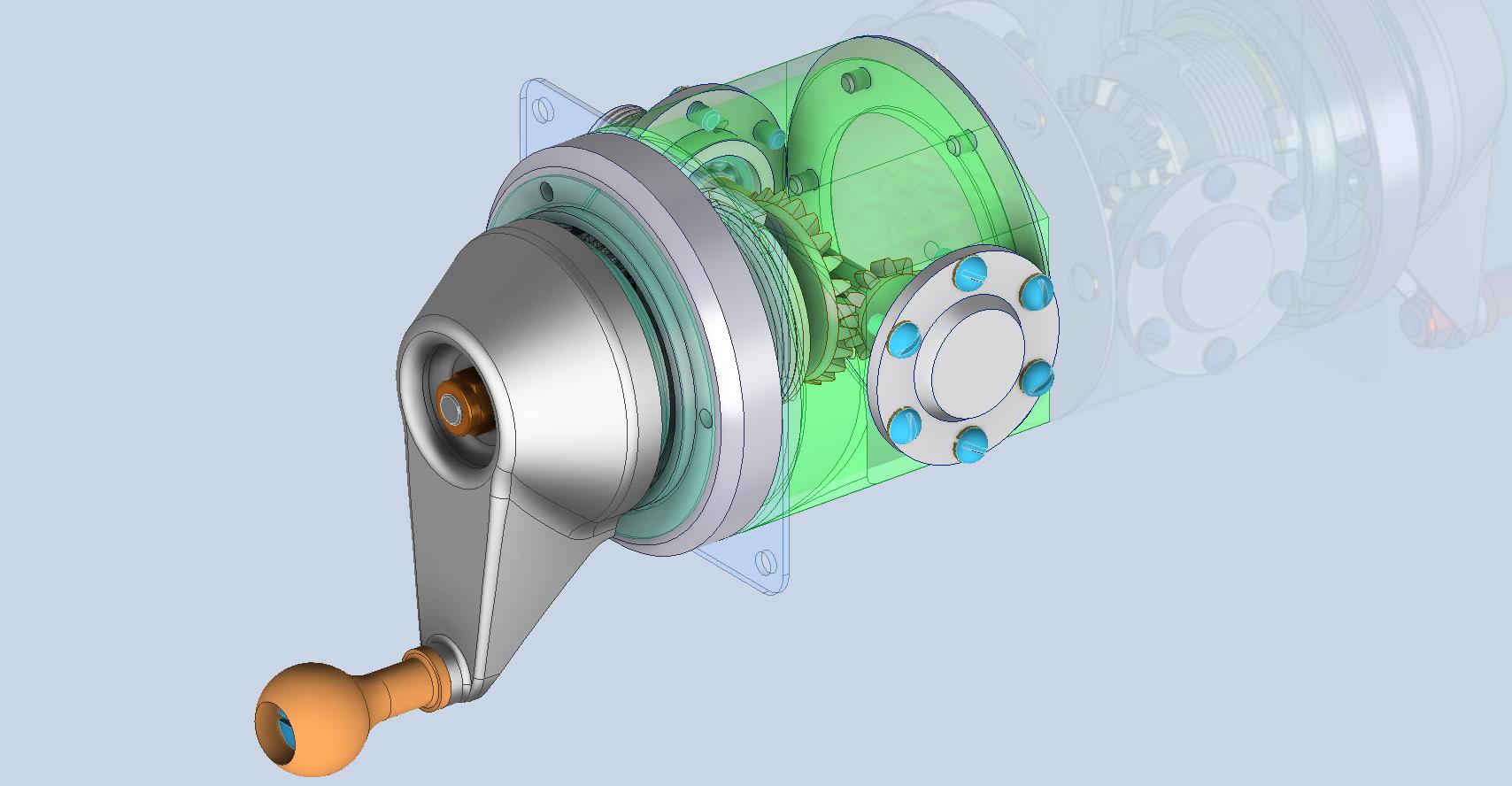
Working on the controls and instruments for the P-39 spawned a plethora of questions about how these controls actually worked. So I endeavored to incorporate the inner workings in the Trim Tab Control CAD models. This was specifically to get a better understanding of how they work. This was not a mandated requirement. The initial work scope was replicating the external components for a static display P-39 restoration.
Often enough in museums and private collections, we only see the external controls. For many, this is all they want to see. But what if we also see the internal gears, pulleys, shafts, and bearings to understand how they operate? This is exactly where I now want to go with my future projects.
The Trim Tab controls for the Elevator, Rudder and Aileron are already modelled for the P-39 including the internal components. These dials and controls are currently being manufactured for the restoration project. The decision has now been made to incorporate the working mechanisms as functional replicas. This is great and will actually have some form of function, however, the mystery of operation still eludes the operator. I want to take this a step further and produce desktop models with Clearview casings so that the internals are visible. The exact method is still under review. It will mainly comprise 3D printing techniques for the main components attached to perspex casings.
The dials for all 3 controls are similar with the Rudder and Aileron dials operated by a control knob (not shown) and the Elevator Tab controlled by a wheel as shown. At the base of each control dial there is a sprocket for a short Roller Chain which in turn is attached to operating cables. Out of curiosity I decided to have a look at other aircraft to see how alternative mechanisms were developed for the P-51 and the FM2.
For the P-51 the Trim tab controls are comparable in their operation with the internal gearing arrangements but differ slightly in design.
The dials for the Aileron, Elevator and Rudder are all similar to the CAD model shown. The Elevator and Rudder have cable drums attached to a long shaft for direct cable operation whilst the Aileron has a chain sprocket similar to the P-39 Trim Tab controls.
The plan for the P-51 is to fully model all the components in the assembly shown, complete with cables and chains to simulate operation.
A small point of interest; the various aircraft designed by the same manufacturer often share common parts; for example the NAA drawings for the B-25 share the same Trim Tab control knobs as the P-51 and listed accordingly. For some reason, the P-51 drawings do not reciprocate.
If you can’t find drawings for a particular part, check collections for other aircraft by the same manufacturer. Occasionally, this can be worthwhile. Similarly, with Grumman, many parts were shared with the FM2 and the Grumman Goose.
The above model is the FM2 Elevator Trim tab control, the main body of which is typical for the Aileron and Rudder on Grumman drawing 13690. The Grumman Goose has similar controls shown on the Grumman Drawing 13693. Shared components across the various aircraft are listed on the Grumman FM2 drawings.
This Trim Tab control for the FM2 is probably the most complex I have studied so far…requiring very fine manufacturing tolerances. I am not entirely sure yet how this works as there is a complex array of tabbed washers that act as stops for the dial in both directions; it is unclear at this stage how they should be configured…I will get it worked out in due course.
A lot of work to do on these projects which will definitely keep me busy through 2025.
Developing the CAD standards for Rivets has been on my to-do list for far too long..so with the progression of the P-39 cockpit instruments it has become a priority. Typically on the Bell drawings and other aircraft manufacturers’ drawings we may only have the hole sizes noted, the rivet designation or information pertaining to the same but unreadable. Also occasionally even when we do have the hole sizes and the rivet designation often we don’t have the length required.
Something needed to be done to make this task a lot easier, particularly when you have instrument panels that incorporate many different types and sizes of rivets.
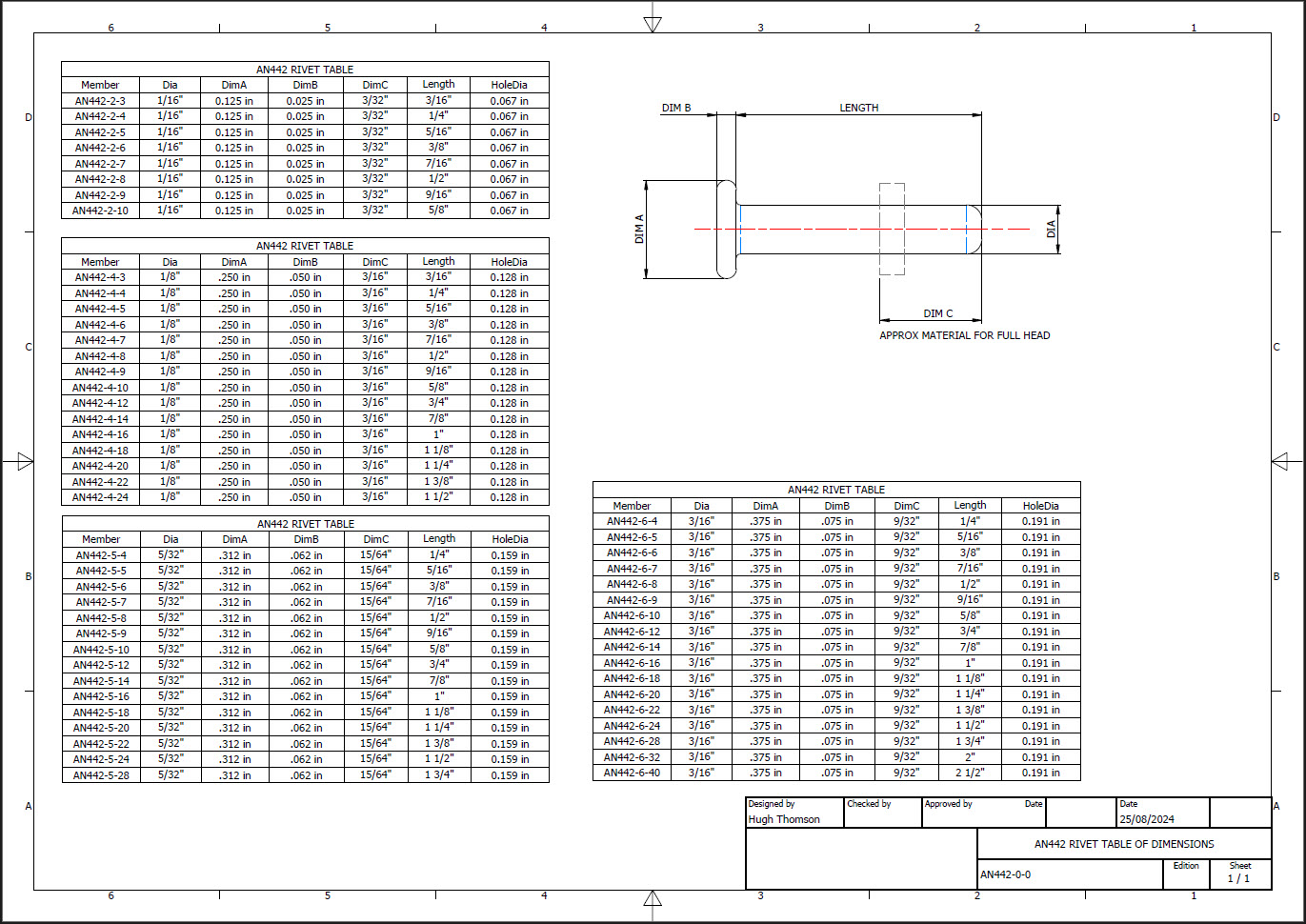
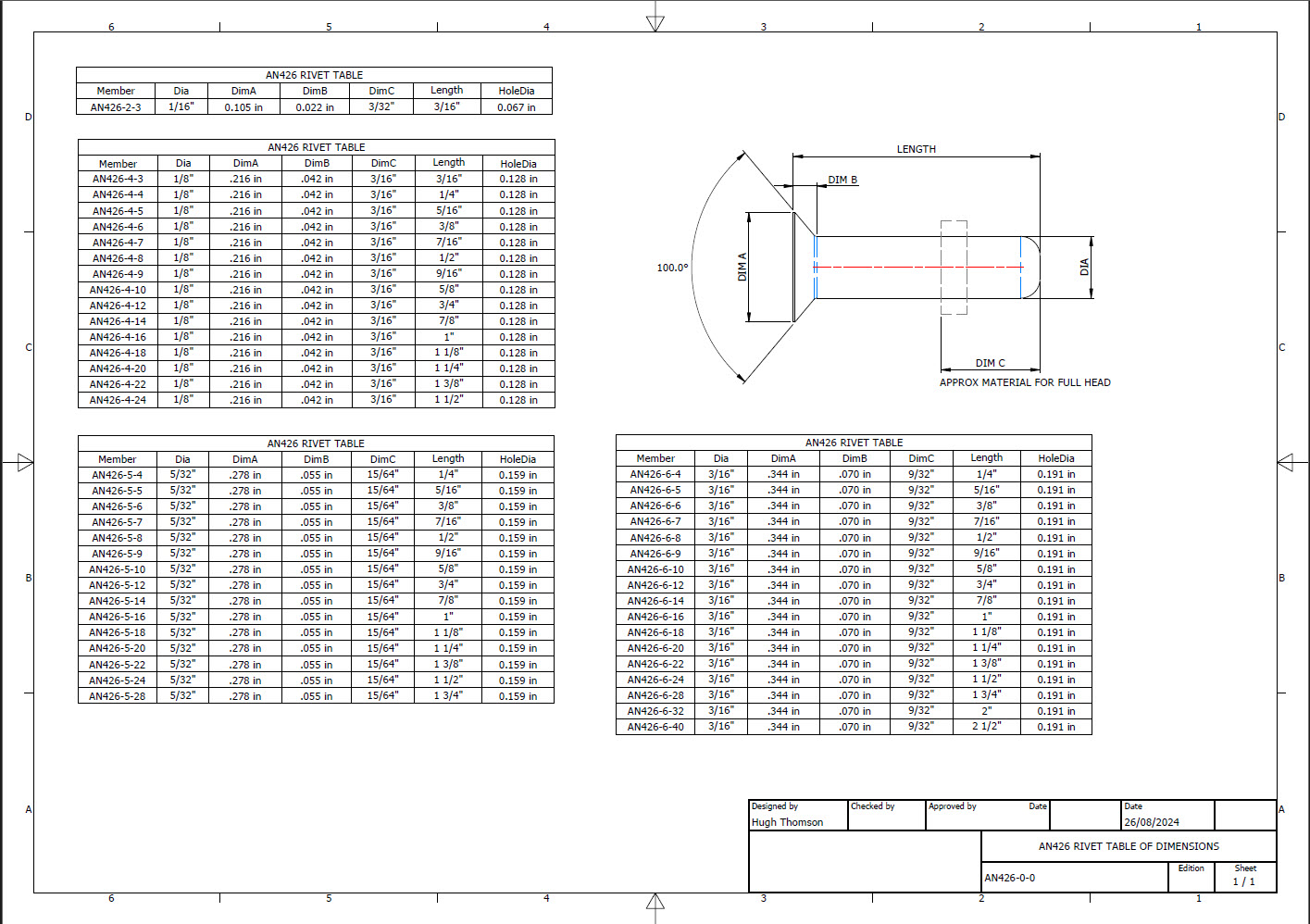
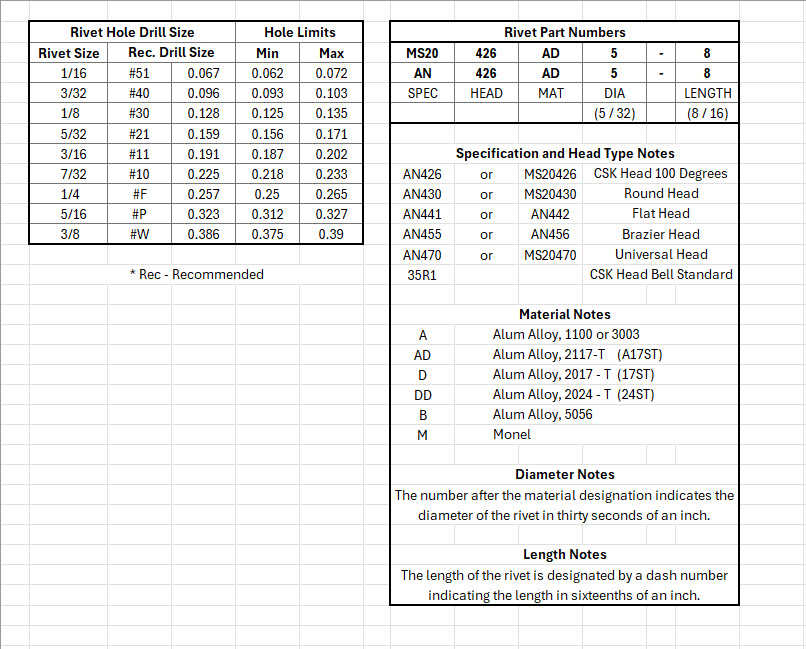
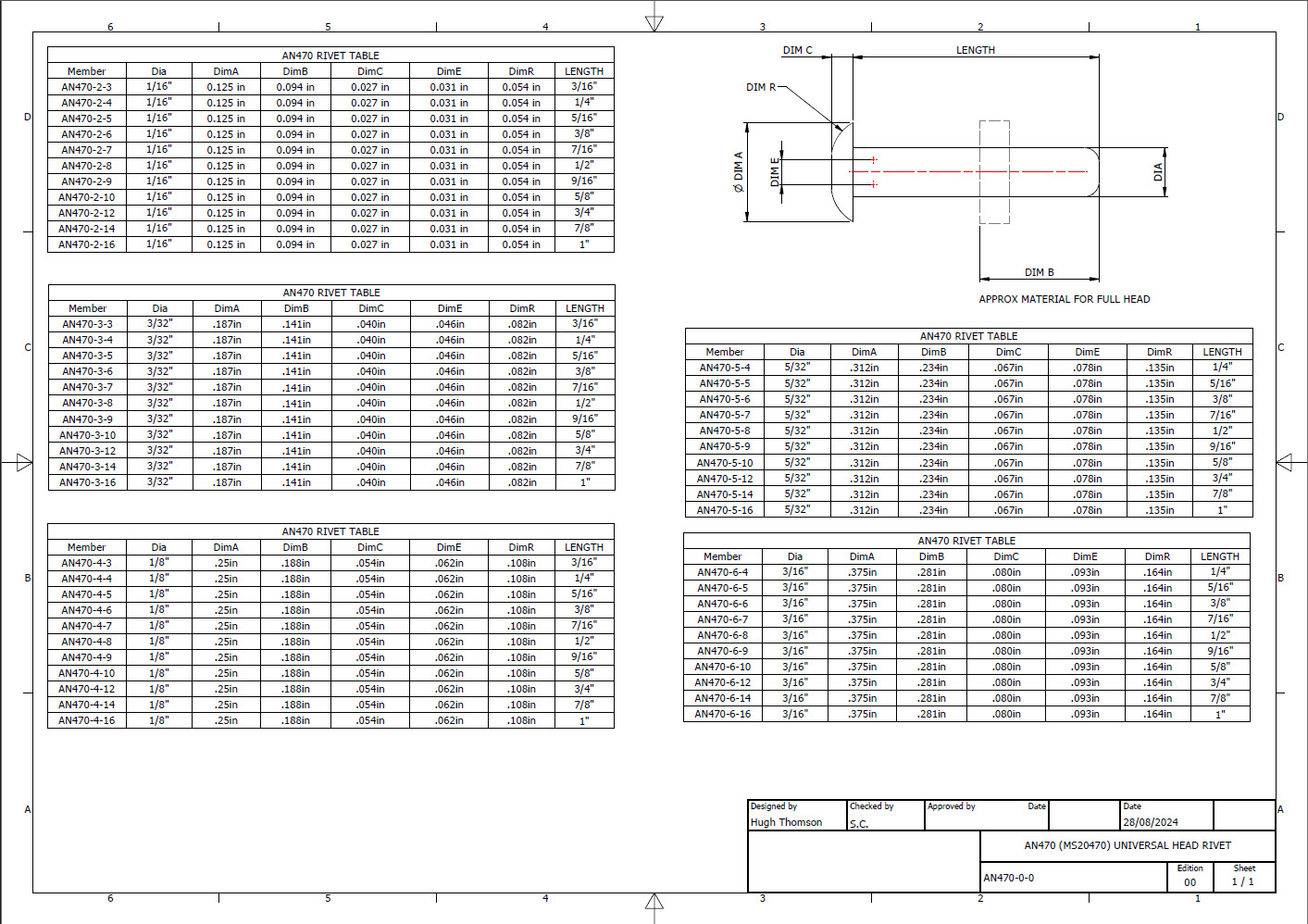
The first part of the process is to create several parts for the various types of rivets; which at the moment are listing the most common sizes I need right now. You will notice that the Rivet Name does not include the material type as doing so would require an extraordinarily large table of data. So the name is simplified to make this task easier to correlate but also because the priority at this time is dimensional correctness for rivet type, diameter, hole sizes and rivet length. At some stage, I will invest some time into deriving the various information sources to correctly name the rivets according to the AN and MS standards.
To complement the CAD iParts I also have a few spreadsheets listing key parameters and fabrication criteria.
The above tables are self-explanatory with the inclusion of a designation for a Bell Standard Rivet 35R1. I have actually found dimensional information for this type which I will include in the CAD library. This is where things get interesting because of the scarcity of historical components that may no longer be available, it may be necessary to find suitable alternatives.
You will notice that the Rivet Grip tables are in inches and mm…as I tend to work using metric mm templates (although the dimensions are input as inches) it makes it easier to measure the material thicknesses in mm and determine from that the rivet length. There is a technote somewhere on my blog that describes the process of inputting inch dimensions in metric mm templated models.
This will be an invaluable asset moving forward with the cockpit rebuild on the P-39. For example where there are issues with the legibility of key information on the Bell assembly drawings I can refer to other connecting part drawings that may only have hole diameters but will be sufficient to determine the correct rivet type and size.
This is very much a work in progress and will be updated as needed.
Update: 28th August 2024:
I have updated the Rivet CAD files which now include AN426, AN430, AN442, AN470 and of course the Bell standard 35R1.
All Rivet CAD data files (iParts) are now included in the CAD Standard library (see CAD resource tab for further details) along with original spreadsheets of Rivet Grip and general details.
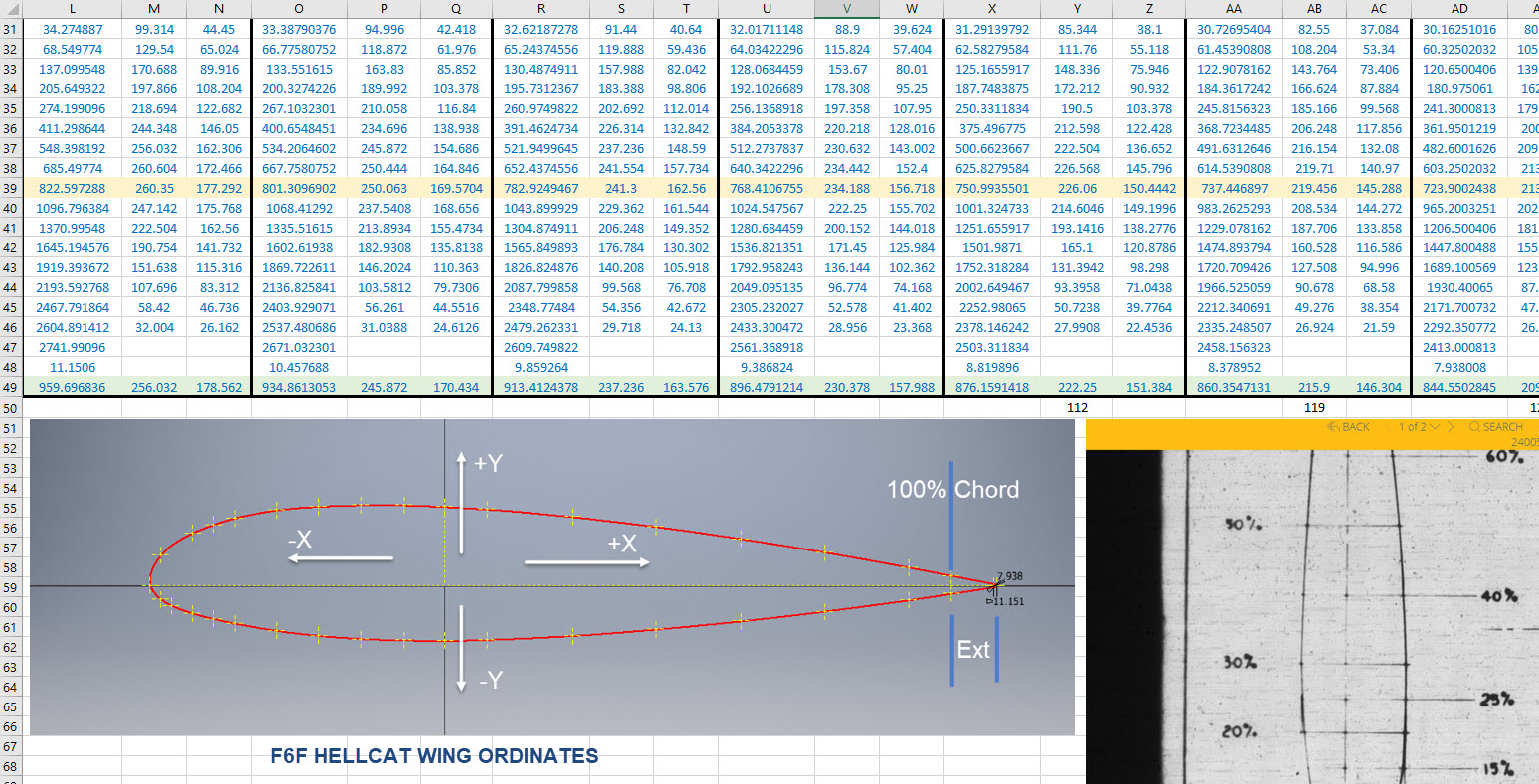
I am currently updating the F4F (FM-2) Wildcat Ordinate dataset which required transposing Excel Rows to Columns so I figured I should write a quick Technote on the process involved.
Before I get into the detail it is necessary to appreciate that I could have saved myself a bunch of work if I simply created the table in the first place with the columns and rows reoriented to better suit the required end goal. When I develop these tables it is important that the layout is the same as the original data so that ongoing cross-referencing and updating are much easier to achieve. As you can see in the screenshot of the original drawing the tabulated information is not very clear, in fact, some of it is completely illegible… which incidentally is the primary reason why I do this in the first place…initially, I develop the coordinates as best I can and then create the profiles whereupon any variations can be visualized and therefore corrected…essentially working from what we know to determine what we don’t know.
Getting back on track. What I need to do is to create a live link to the rows (highlighted) but in a columnar format to list the required X, Y coordinates for each profile. You could of course just simply copy the rows and use the Paste Special function to transpose the values to a column…however, the copied data is not linked so any changes will not be apparent in the column values. The best way I found is to use the INDEX function.
With the INDEX function, you first need to establish a range of values to be indexed…in this case, it is the values from the table shown in the red border… which give us the range from L64 to P90 (press F4 to lock that in).
The value A1 after the Column and Row values is related to the first entry in the range…it does not relate in any manner or form to the actual cell A1. I have shown alphabetically in the first image above how this A1 would change according to the values selected. So you would write this formula at the top of the column where you want the values transposed, select this cell, and use the + sign at the bottom right to pull the values down. For each column you would have a different starting point…for example, in the very first column (X-Coord) the Formula would be written as follows:
It is alphabetically the 3rd row from the first selected cell in the specified range and numerically in the first column. For each group of values you need you would adjust the starting point of the selection to the first value in the row required. When you get the CAD/Ordinate dataset for the F4F Wildcat the spreadsheet is fully editable and you will see for yourself how this was done.
As usual for further details get in touch hughtechnotes@gmail.com
I had promised an article on the P-38 Flap CAD development as a follow-up to my earlier article on this topic…but I deviated slightly to address a question from a reader about Forged Parts.
Typically for all these aircraft Forged parts are the main element in the process of manufacturing complex parts that may be used in such applications as Landing Gear. Such is the case with the P-38 Lightning where we have the main support members that are machined forged parts.
I have touched on this briefly in previous posts: Technote P-39 Inventor Face draft and P-51d Mustang Tailwheel Down Position support. Those articles tend to focus on using the Face draft feature in Inventor and using Derived model parts to differentiate between model states i.e. Forged and machined. I should note that with the later versions of Inventor, it is possible to contain the various Model states in one part file but I prefer to use separate derived Part files. The reason is that they are in fact 2 very different manufacturing processes and the drawings for each model may be sent to different departments or indeed different companies. So it makes sense to keep them separate.
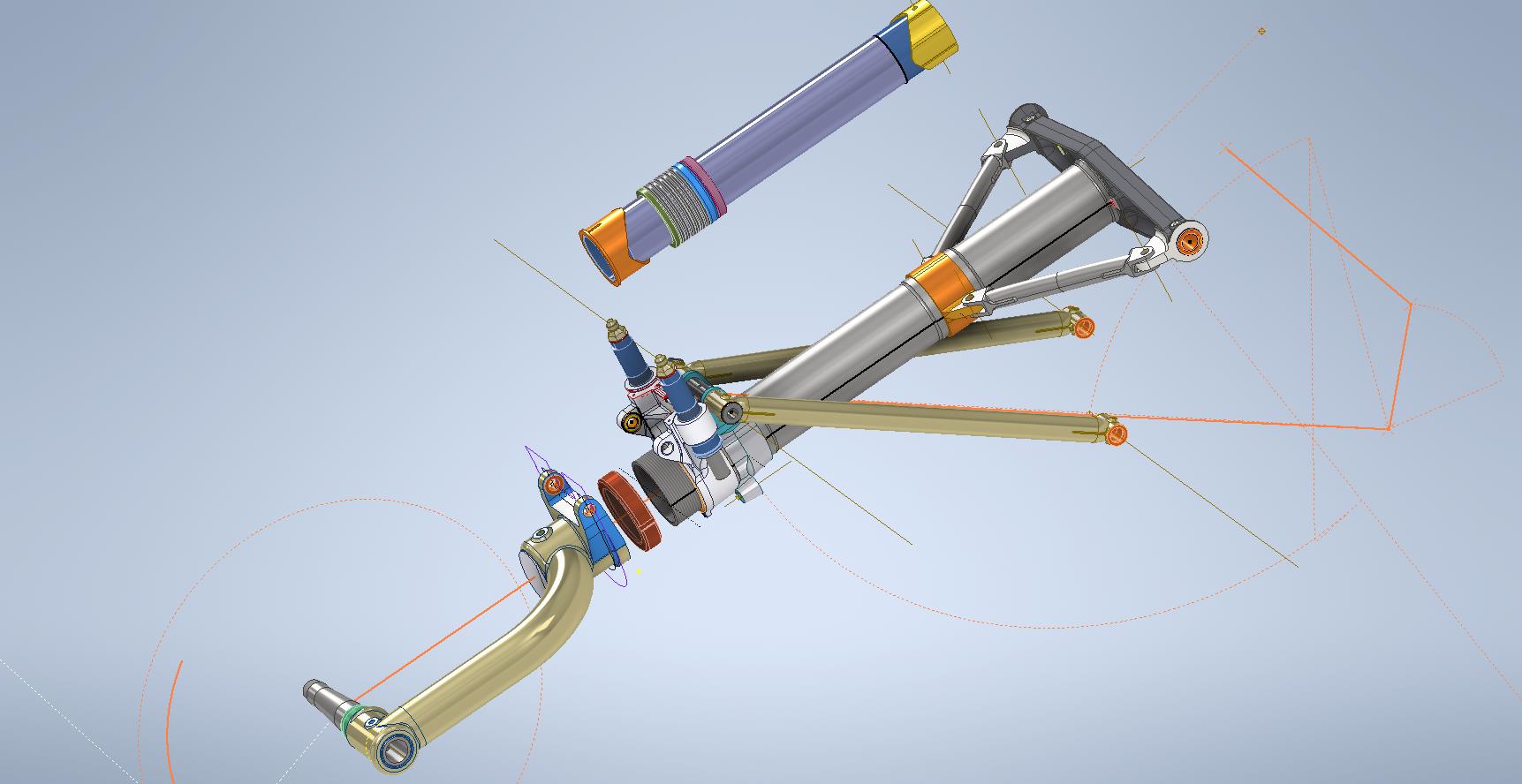
In the example above we have 2 components for the Main Landing Gear and the Nose Landing Gear. Both examples use the derived parts process as you can see. In this article, I wanted to cover some of the frustrating differences that you will likely encounter when building these models.
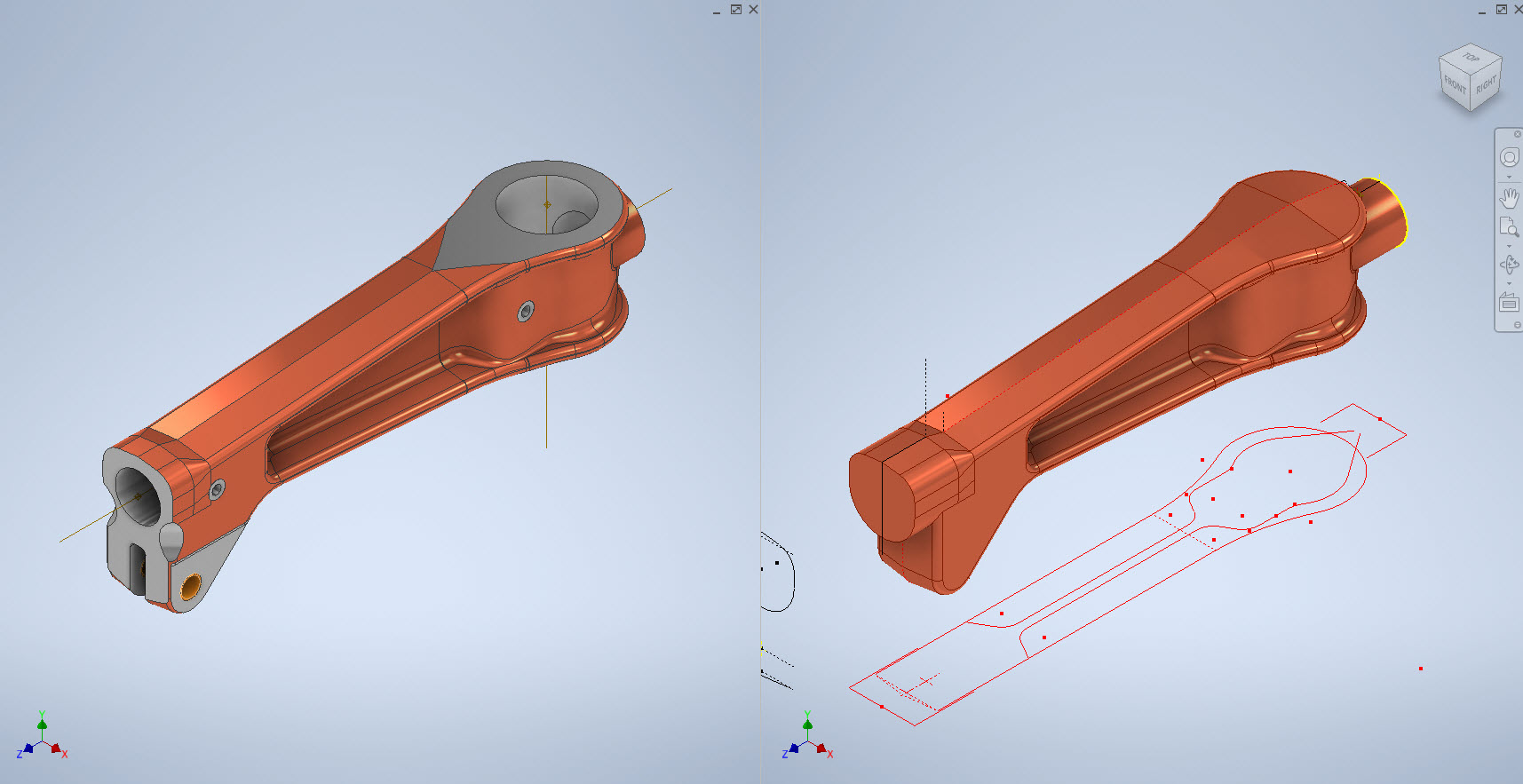
Forged Parts are notoriously complex and the Lockheed drawings tend to only provide the main dimensions and key elements often omitting small details that are likely to have been decided by the mold maker. To determine missing details I often build the models as a surface and then turn that into a final solid.
In the above images, this part had an elevated top and bottom section interspersed with a waveform for the main body. The 2d sketches were drawn outside the main part body to make it easier to visualize and manipulate the part data. This part used 3d intersection curves to generate a sweep path for the top and bottom profiles and the surface trim command to profile the main body.
Incidentally, although the sketches do not share the same space as the main model you can still select a single line from any of the sketches in order to trim parts and surfaces in the model…they do not need to be connected. I have often seen folks extrude surfaces from external sketches and then trimmings to that surface but you don’t have to do that…just select the line.
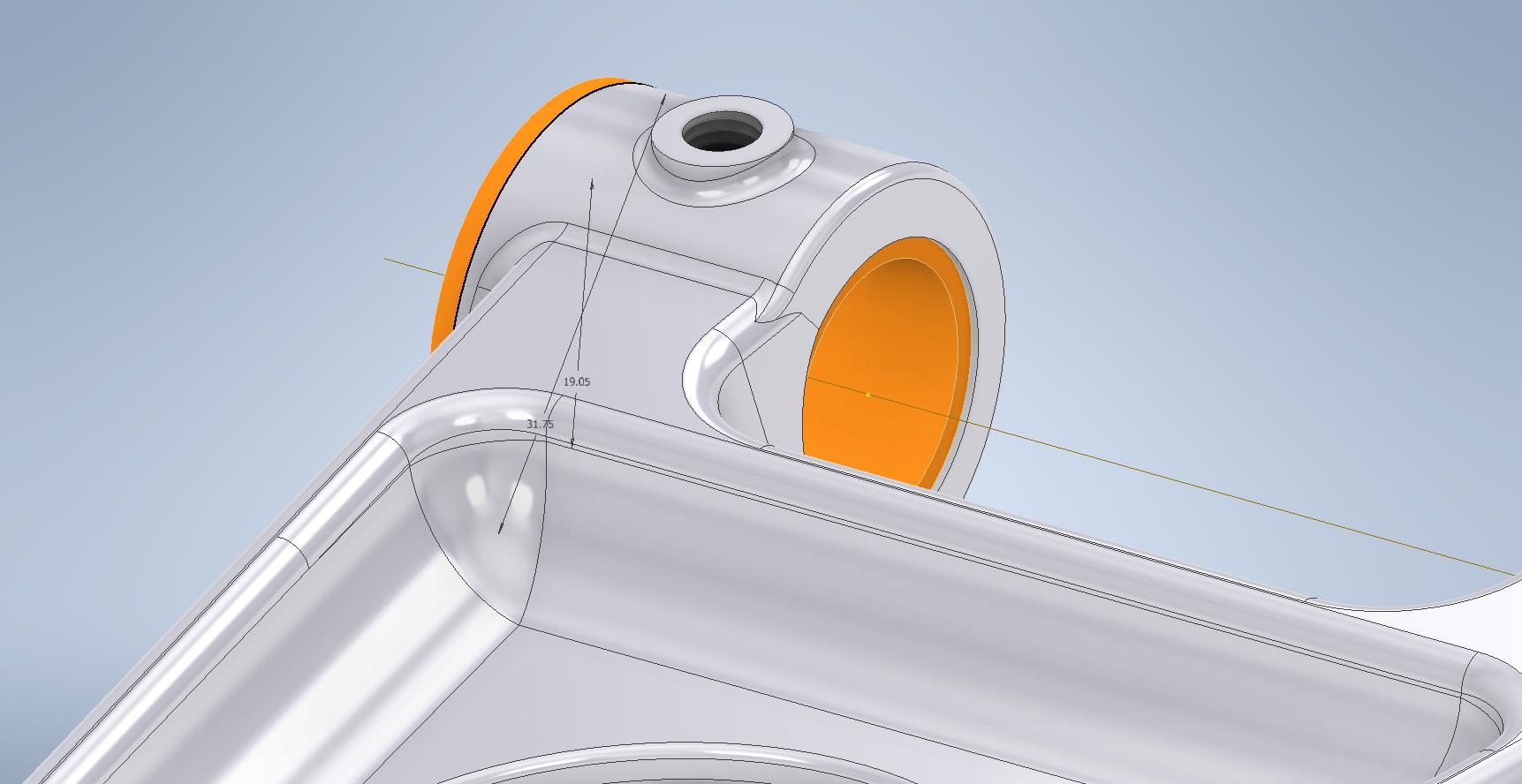
One of the key details that is not clear in this particular example was the protrusion just above the cylinder at the front of the model. All you have on the drawings is a line on elevation and 2 lines on the plan sketches..the specific details of how this small detail interfaces with the main body is down to interpretation. I modeled it with the flat upper surfaces tangent to the curved edge and applied a fillet to the intersecting sides. I did look at a number of variations but I think the end product is close to how it will actually be. This is the frustrating bit when trying to decipher designer intent with limited information.
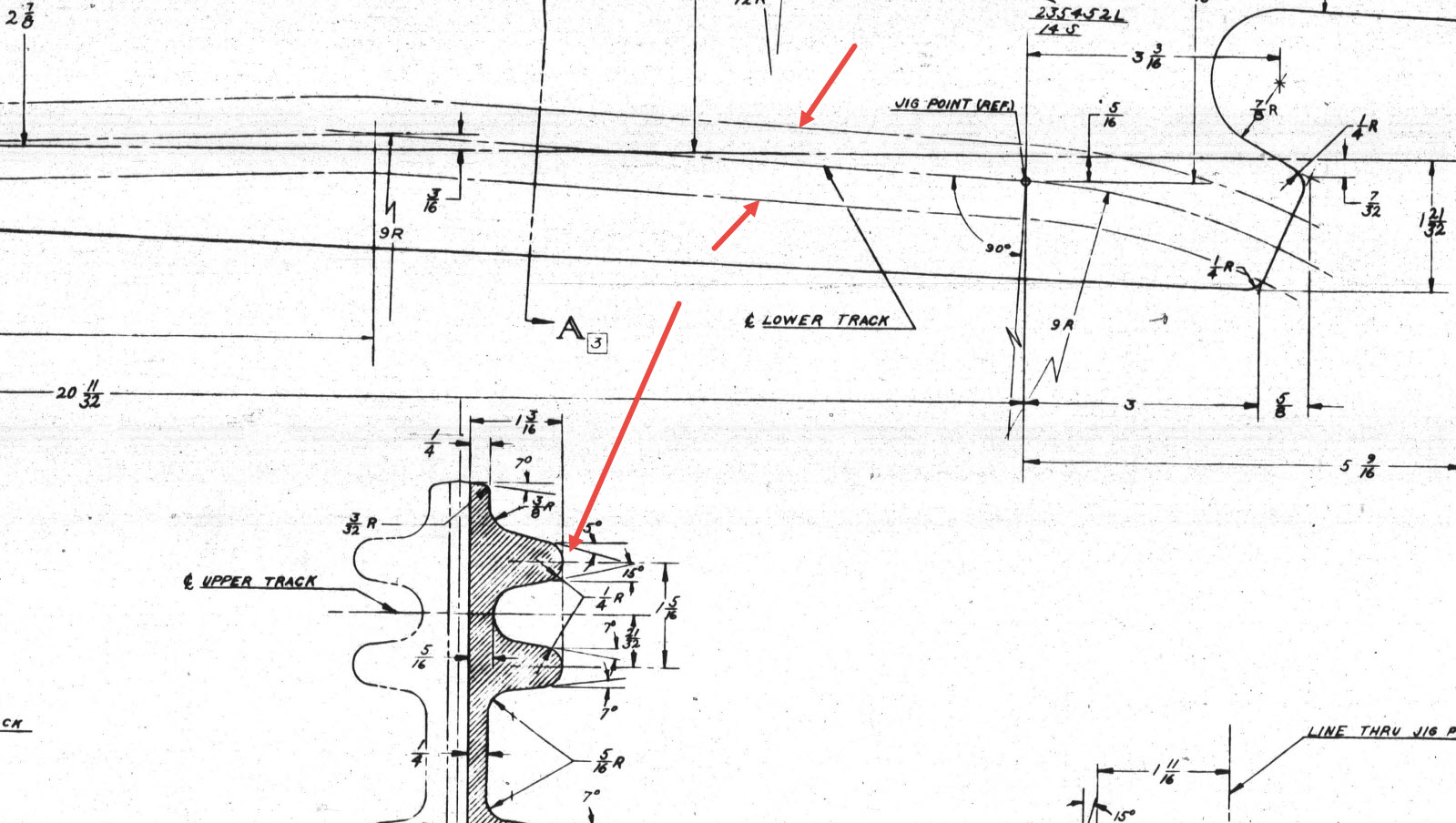
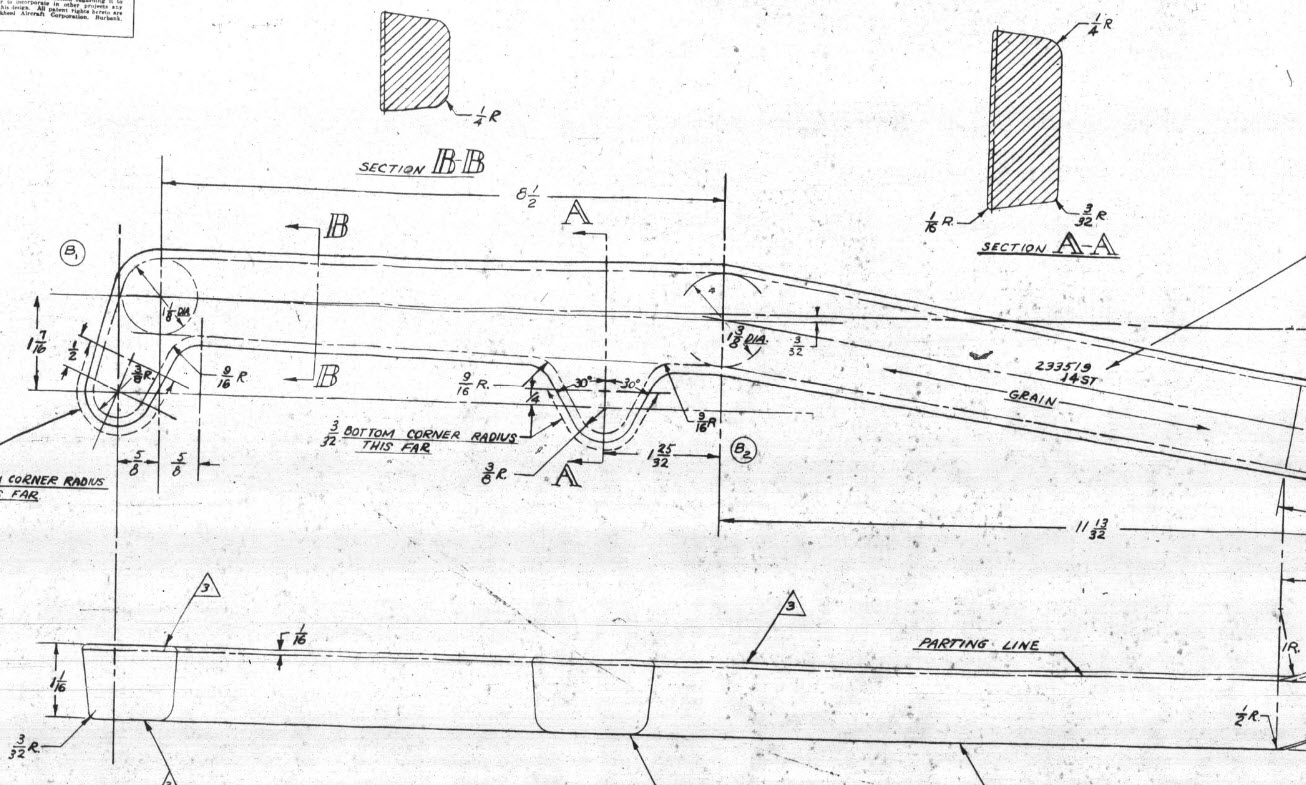
Some of the complexity comes from how the drawings themselves depict the dimensions of the profiled sections. In the first image above we have the criteria shown as the center line of the section’s curved profile. The second image shows a different part however this time the dimensions are to the projected edge intersection of the curved profile. The third image is also similar where the dimensions shown are to the projected intersections. The final image is the Flap carriage arm with the dimensions shown to a dotted line which is not clearly defined on either the sections or the main views to determine what this actually is. After much deliberation, I deiced to interpolate this line as the projected intersection of the drafted sides with the top and bottom faces. I had initially suspected this was to the corner tangent but that would entail a very complex development process due to the varying corner radius.
As you look through the dozens of forged part drawing there are all sorts of variations on the theme with few consistencies. This is where you can spend a lot of time determining how these dimensions relate to the model and how best to incorporate this information in such a manner to keep the model as simple as possible. Consequently, it is not unusual to spend upwards of between 3 and 4 hours modeling the forged parts. I think for the most part where doubt exists to work to a projected intersection as the point of dimension…it will be a lot easier to model and saves a whole lot of frustration.
To give you some idea of progress on the Nose Landing Gear models:
In the latter 2 images, you may notice small differences which relate to the various model variances. I am modeling the P-38H and the comparison photo is the P-38J.
TechTip: Variable Fillets:
When modeling these complex parts often applying fillets can yield unexpected and undesirable results.
In the images above you can see how applying just standard fillets of different radii can result in quite an undesirable intersection between the flat plane and the circular node. What we need is continuity to achieve a smooth transition from one edge to the next as shown in the second image above. This can be achieved by using the Variable fillet feature.
Variable Fillets give us the option to vary the radius of the applied fillet. When you first apply the Variable Fillet you have a radius specified for the beginning and the end of the selection…you can apply additional points anywhere along the length of the selection to which we can adjust the radius at those points.
You can also add selection sets of edges to the original selection which have their own capacity for separate adjustment. To achieve our goal here for fillet continuity I have 4 selections: the top planar edge (1), the node circumference (2), the lower planar edge (4), and the remaining node circumference (3). It is important for each selection set fillet to have the same radius at each intersection to ensure continuity.
Each selection set is listed separately in the dialogue box and the way to adjust them is to simply select the edge selection as I have highlighted with the first one…this shows the applied points and values in the area below under the heading “Variable Fillet Behaviour”. I have added additional points to the planar fillets at 1 and 4 where the value is set to 2mm which then defines the radius between those 2 points. A small point worth noting is the diagonal draft parting line on the face of the round node that prevents selection continuity which is why we have 4 selections and not just one continuous.
It does not take long to do this and the end result is much more agreeable.
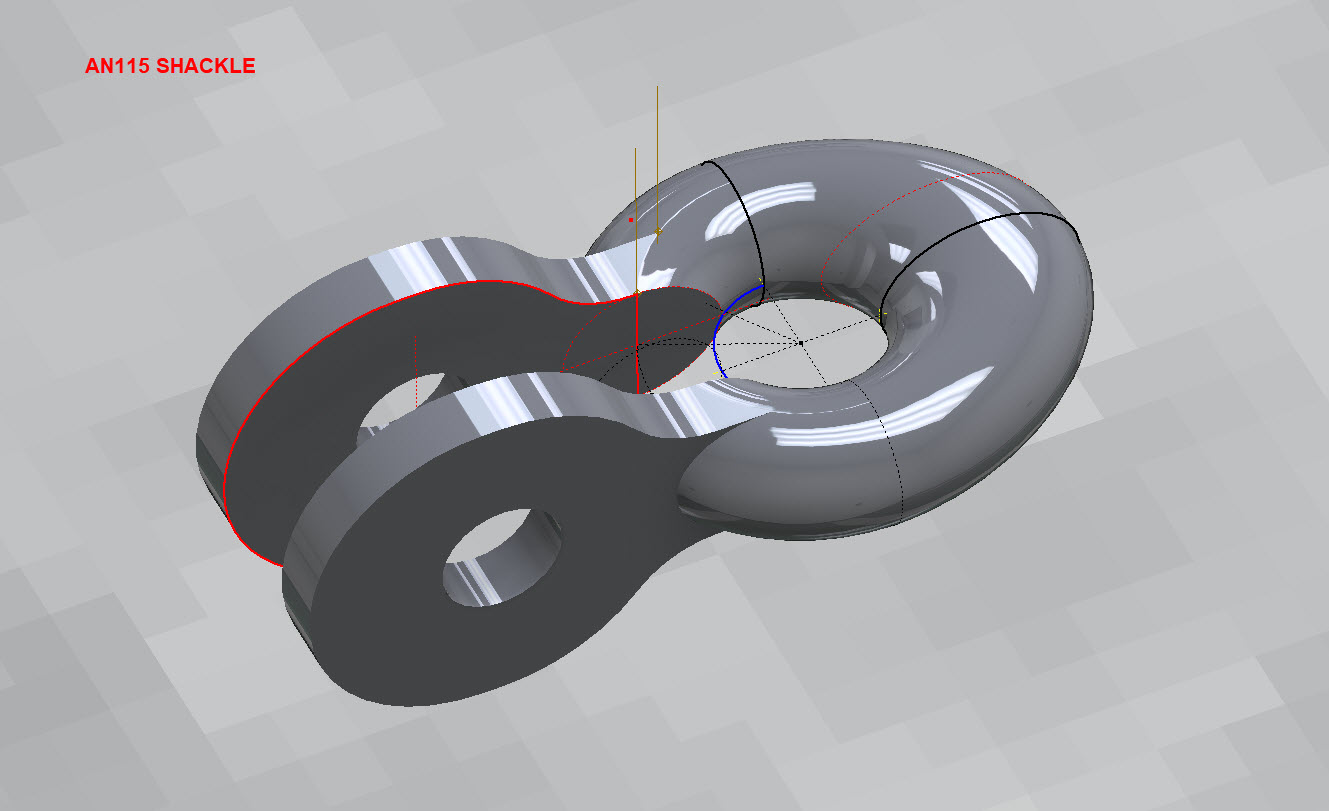
Working my way through the various AN Standard components I thought it may be prudent to write up a quick Technote on modelling the AN115 Shackle.
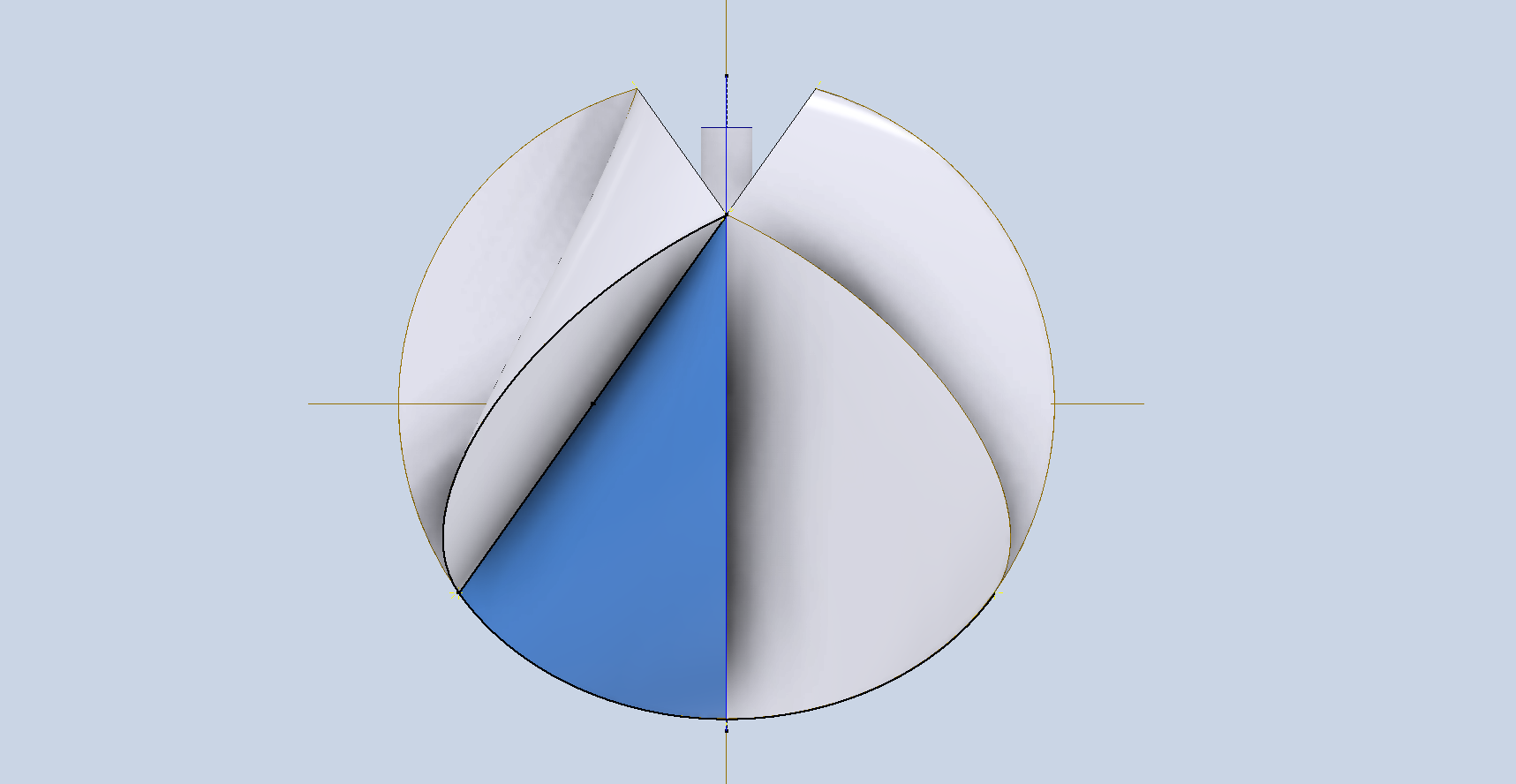
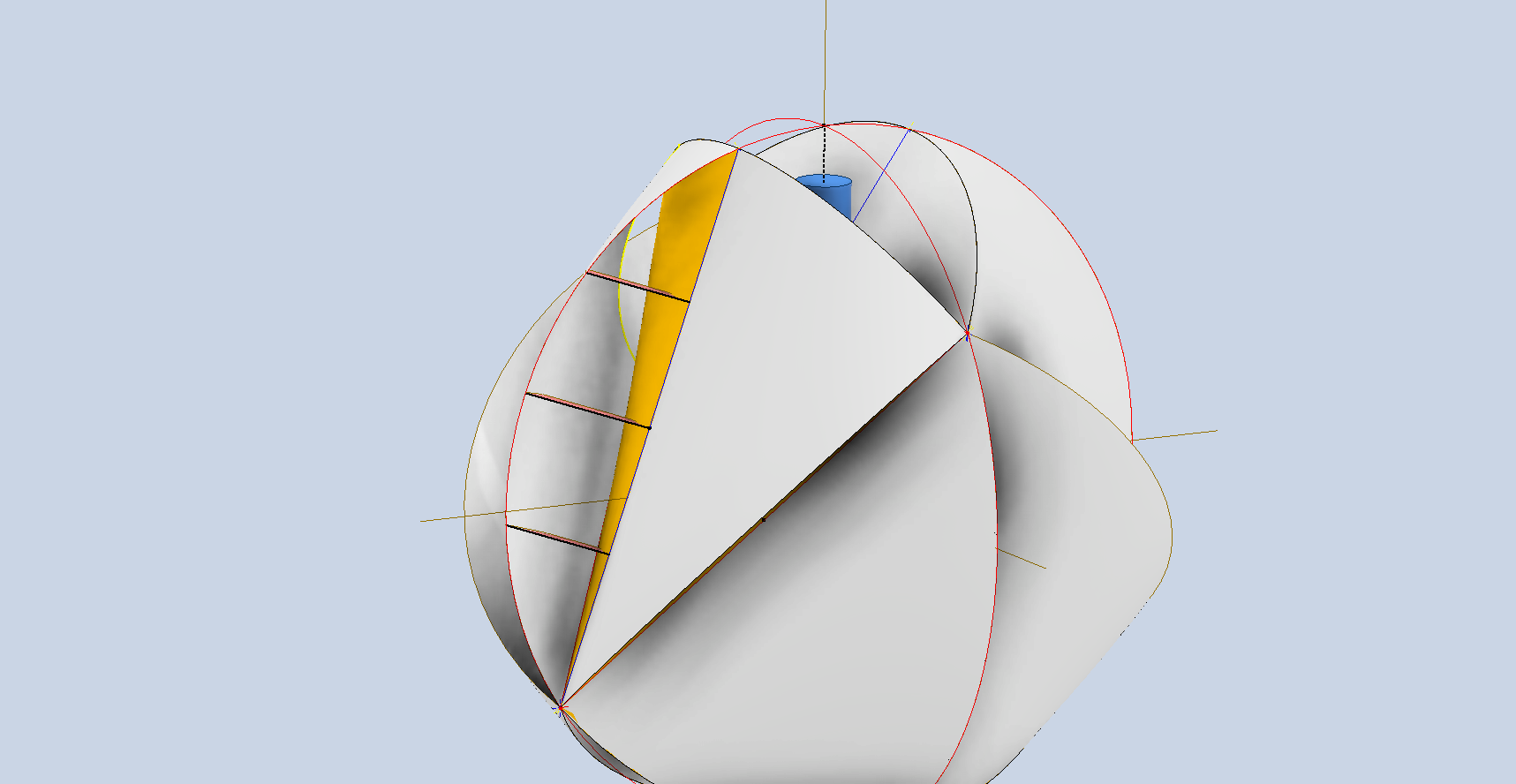
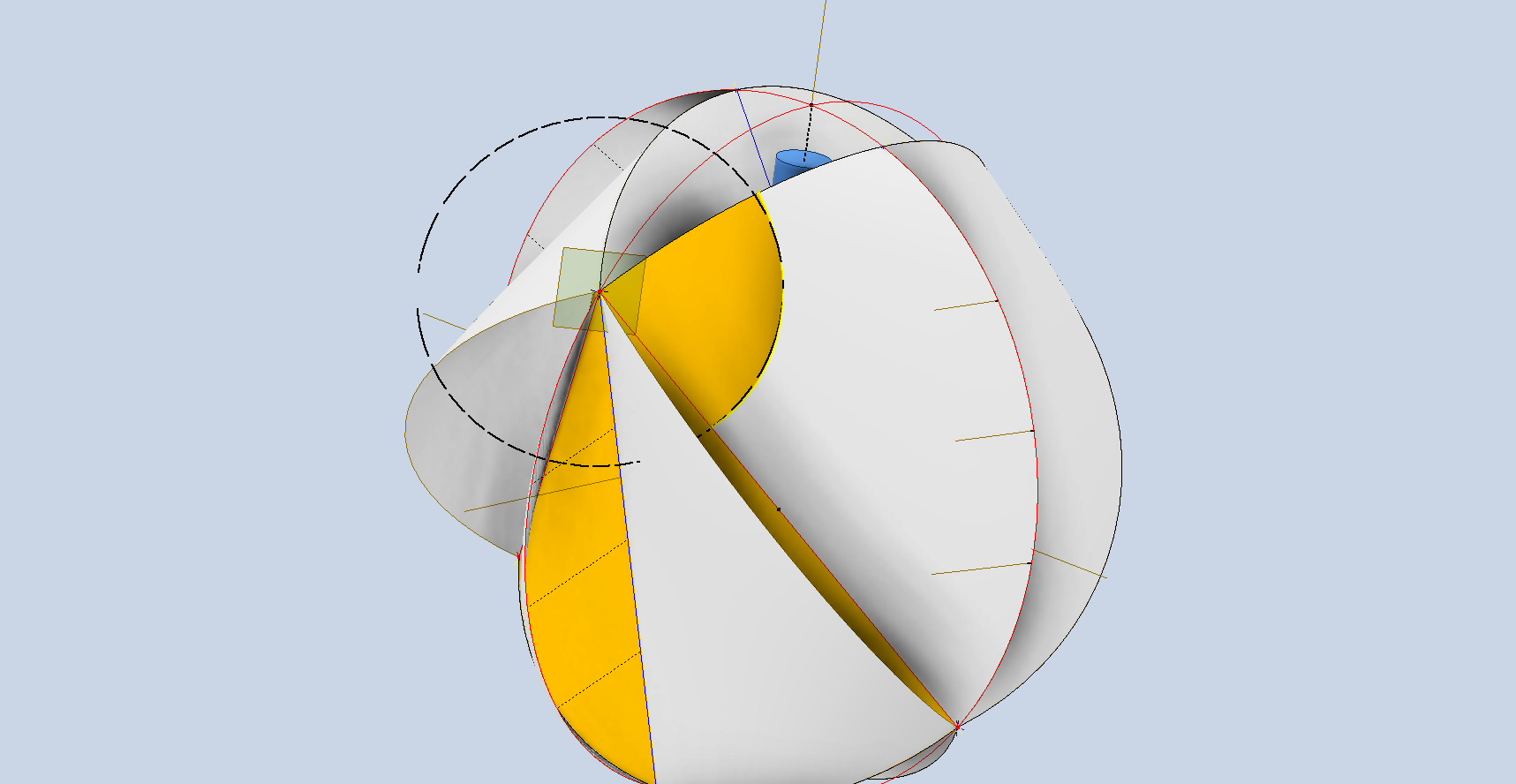
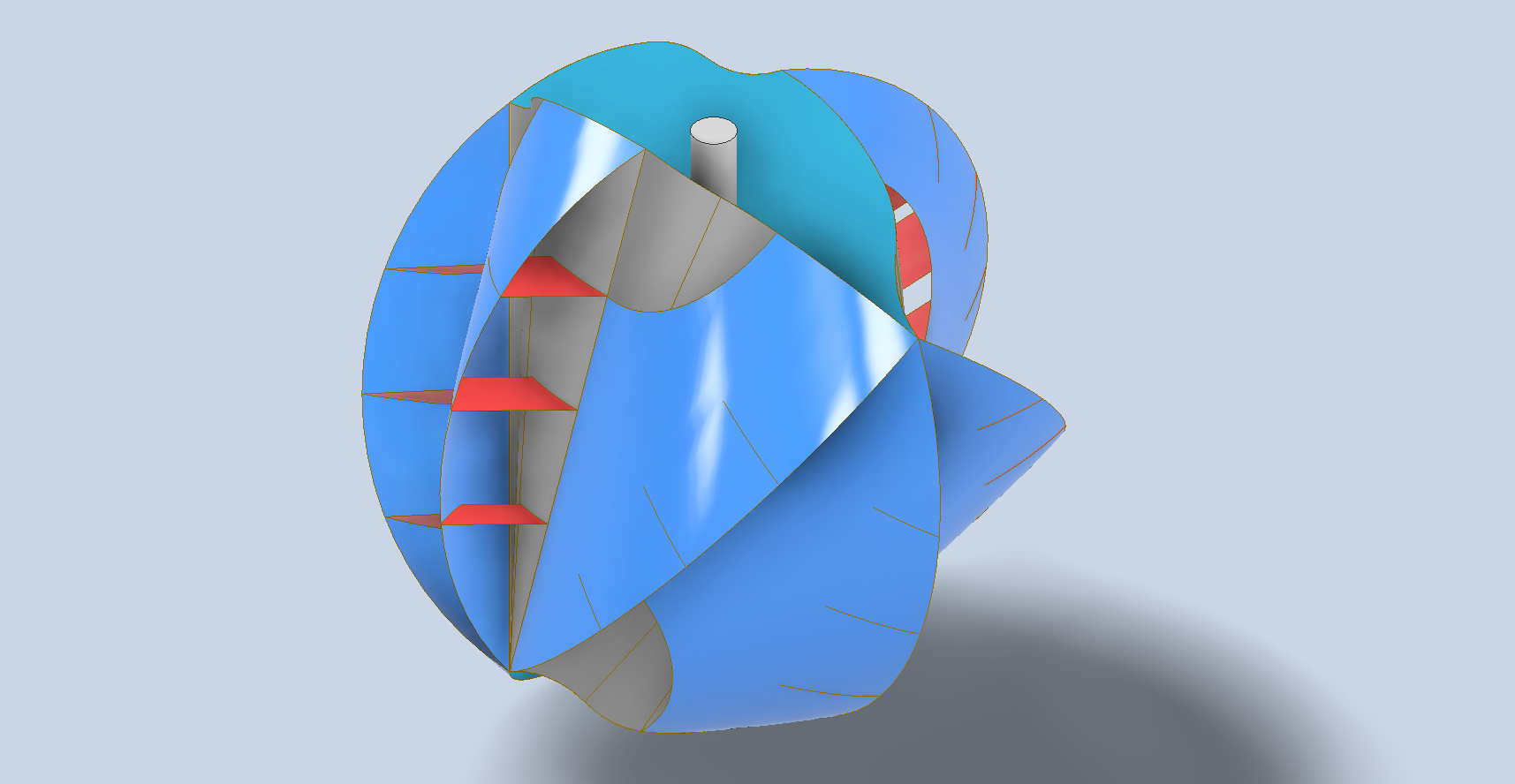
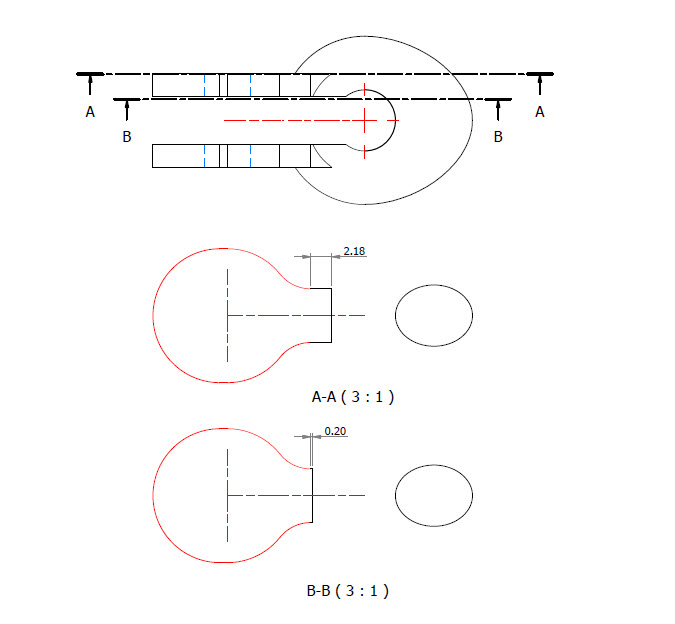
At first glance, this seems to be a fairly straightforward item to model, however, getting the transition from the flat section to the curved ring is rather tricky. When you view this item on Google and look through the various images of the finished product there are visibly small variations in how this has been interpreted. Needless to say that I have my own interpretation to achieve a smooth integration while ensuring the integrity of the finished model.
First of all, ignore the bulge on the right-hand side…for some part numbers this area is elliptical and not round…so for development reasons I have purposely exaggerated the profile to test the iPart creation.
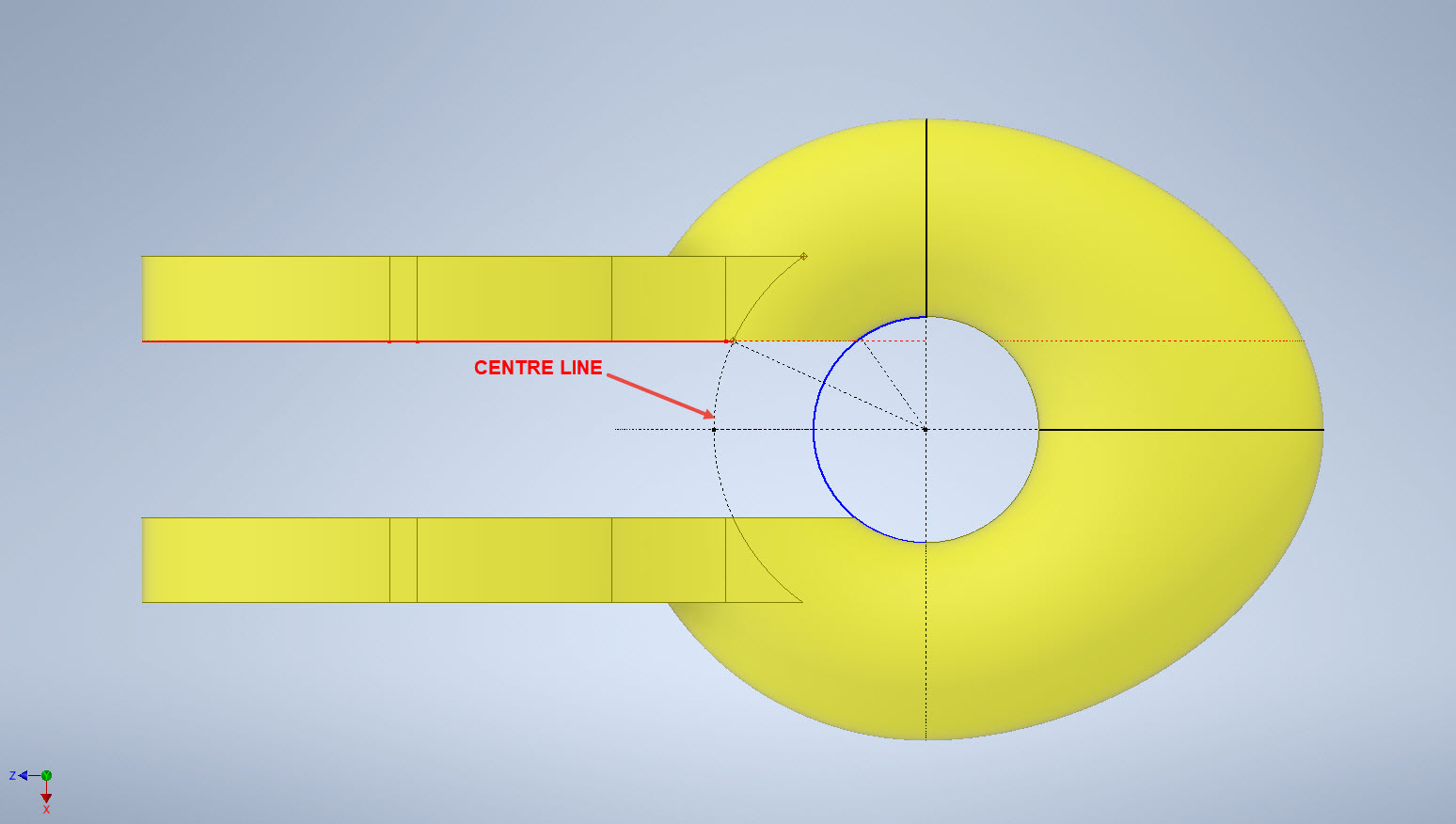
What I was looking for was to achieve a smooth transition along the edges of the flat portion to merge with the round profiles of the ring section. My first attempt was simply to have a curved edge at point “1” that was tangent to the ring and the edge of the flat section. However, that did not achieve a good result because the top and bottom surfaces of the flat section coincide with the ring at different points which created a small twist when lofting the sketch profiles.
I found the best way of solving this was to introduce a small horizontal line tangent to the ring section profiles. For the inner sketch, this was only 0.2mm which translates to just over 2mm for the outer sketch. The points shown as “1” and “2” are the centre points projected from the ring centre line which is the start point for those sketched horizontal lines.
Now when we loft the 2 sketches we have a good square edge for the flat section…by the way, I should note that the flat section is initially lofted as a separate solid because we still have one step to do before we merge the solids into one. After lofting the flat sketches we still have to trim the resulting solid to follow the centre of the ring surface.
This is simply done by extruding a surface from the centre line of the ring as shown and then trim back the excess from the flat section model. Now we merge the 2 solids and we end up with a shackle that has a smooth transition from flat to ring without any twists or surface anomalies.
The bulge is still there on the final image…that will be gone once I finish filling out the table with the various part number dimensions.
So sometimes when you are modelling a complex item like this it often helps to introduce a minor feature (in this case a small 0.2mm line) to ensure that lofting and extrusion activities provide the desired end results.
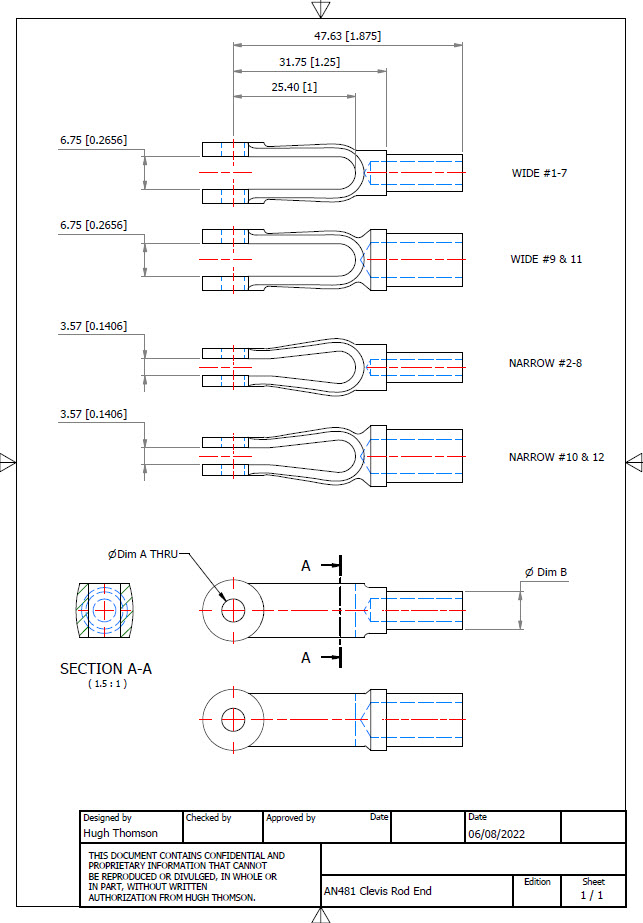
AN481 Clevis Rod End:
Another tricky item to model is the AN481 Clevis Rod End. There are 4 variations on the same model that comprise 2 sets each with a narrow gap and a wide gap. Technically it is possible to create all variations in one part file and use Suppress and Unsuppress options to exclude or include features…however, I decided not to do that because it can be a real pain adapting the model if the regeneration does not quite work the way one expects it to. The model is not that complicated so it was just as easy and to be honest much tidier to create separate part files for each variation.
As usual for further information please get in touch at Hughtechnotes@gmail.com
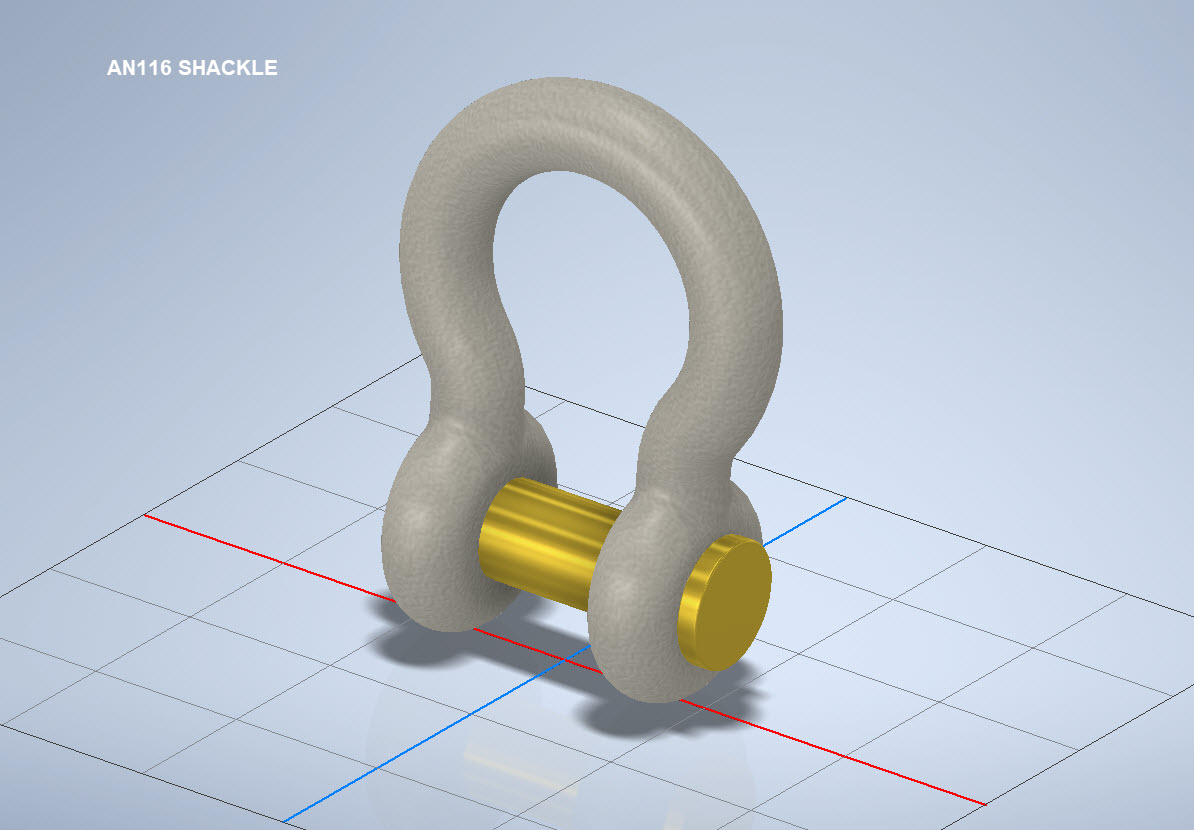
AN116 Shackle:
The AN116 Shackle PIn is shown with a rounded head which I decided not to model due to the lack of detailed information for this pin. I tend to shy away from modelling components where there are no specific dimensions. I am not sure this is critical except where accessibility for tightening the pin is a consideration.
The new Parts Library should be finished at the end of August…I will advise.
I wrote an article on using the Ordinate datasets many moons ago, which is now rather dated so I figured it was time to write an update with a better explanation.
First of all the reason why? It’s like every other construction project where you first start with a skeletal framework and then develop the project’s envelope. Whether it be a building with a steel frame, a boat, even the human body relies on having in place the skeleton on which to build the construction elements.
Aircraft projects are no different and to this end, many manufacturers provide this information in the form of ordinate dimensions. This information occasionally is listed in tables or included on the individual part blueprint drawings. I firmly believe that once you have the basic framework dimensionally accurate then everything else falls into place…so it is incredibly important.
Basic Ordinate Overview:
Let’s take an example from the Bell P-39 Airacobra.
For this aircraft, the ordinate dimensions are noted on the actual part blueprints so I have developed a series of tables listing this information in excel spreadsheets as shown. They list the Station Location from the aircraft Zero plane (this is usually identified by the manufacturer). The Station number is actually the station dimensions from this plane which defines the Z component. The next column on the table is the Vertical Y-component or the dimension to the Waterline and finally, we have the Horizontal X-Dim which lists either the Buttock Line position or Half Breadth dimension.
Commonly the Horizontal axis on the aircraft is known as the Fuselage Reference Line (FRL) or occasionally the Thrust Line. The Vertical Line is simply known as the Centre of the Ship to the Aircraft.
Waterline (WL): Horizontal Axis, Buttock Line (BL): Vertical Axis. An example of this is where we commonly have a designation like WL4…which means the Waterline at 4″ above or below the Centre of the Fuselage. So when it is not specifically dimensioned you would know from the designation where it is located.
Once I have the tables of known dimensions I would occasionally extrapolate this data to list the actual X,Y,Z dimensions in separate tables to make it easier to copy and paste into any CAD system.
As you can see from the above image, the dimensions are initially listed in 3 columns, X,Y,Z and next to that is the same data listed with comma delimiters. The reason for this is because Mechanical design packages like Inventor and Solidworks will recognise separate columns of data in the requisite order as stated whereas Autocad will require combined data for Mulitple Point input as comma-delimited.
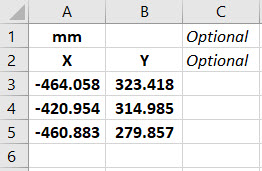
The way I do this is to have a separate excel spreadsheet which I keep on my desktop which I call Scrap.xlsx. The format is common as shown in the image on the left though I should note the top 2 rows are optional. If there are no units specified it will default to the CAD template units. I usually don’t bother with the top 2 lines. Once the points are imported into CAD I tend to delete the values in the spreadsheet Scrap.Xlsx and start again.
The comma-delimited column data in the above image can also be copied onto a Notepad Text file and used in Autocad. Worth noting is that if you try to import X, Y, Z coordinates onto a 2D sketch it will only import the first 2 lines and ignore the third…so make sure the columns are in X, Y, and Z-order.
An important consideration is that not everyone uses Inventor or Solidworks or even Autocad which is why the spreadsheets are critical because then everyone can use the data to build their own models.
Actually building the model can be done in several ways. You can build a part file with multiple workplanes on which to sketch the profiles from the input ordinate data or individually in separate part files. You can model the parts in context, i.e. taking into consideration the Station (Z-axis) dimensions so when input into the assembly they locate correctly in 3d space. Or just the X, Y, ordinates in the part file and locate to the Z-axis offset in the assembly.
Dealing with problem data:
This is perhaps one of the main driving initiatives behind the development of Ordinate datasets with regards to the legibility of the original manufacturer’s blueprints.
This example is actually quite reasonable whilst others are quite illegible. As most of these datasets are listed in Inches; which are normally factions; it is easy to confuse whether a fraction is 3/16, 5/16 or 9/16 when all you have is a blob of dark matter.
What I tend to do in these circumstances is develop what I do know and develop the profile using splines to connect the points and then apply the curvature to help determine the missing point location or check that a point is correct.
Occasionally points you need to complete a profile just don’t exist on the blueprints or are completely illegible which will then require more extensive research. Sometimes this information is included in the maintenance or Repair manuals or in the case of the P-51 Mustang a missing point was actually found in correspondence. Either way compiling this data and building the profiles is very time-consuming.
Another fairly common problem is wrong dimensions. Every aircraft project I have worked on from this era has this problem, not because they are bad draughtsman (very much to the contrary) it is because many of the drawings are only records of the Template Lofts and occasionally the dimension is recorded incorrectly. The skill is identifying that the dimension is wrong; it is unwise to assume that because something does not look quite right that it is actually a mistake. So you have to check with associated parts and layouts to be sure.
The image above is the Horizontal Stabiliser leading edge. The rib in blue (1) was obviously wrong because of a distinct kink in the curved edge, which when corrected aligns well with its neighbours. The one in red (2) also appears to be wrong even though the curvature looks fine the forward edge does not match with the projected alignment (I tend to use an Axis feature to check this). Before I apply any corrections I will check the part drawing and then the assemblies to determine if there is an error or if it is actually a design feature.
Locating Sketch Datum Points:
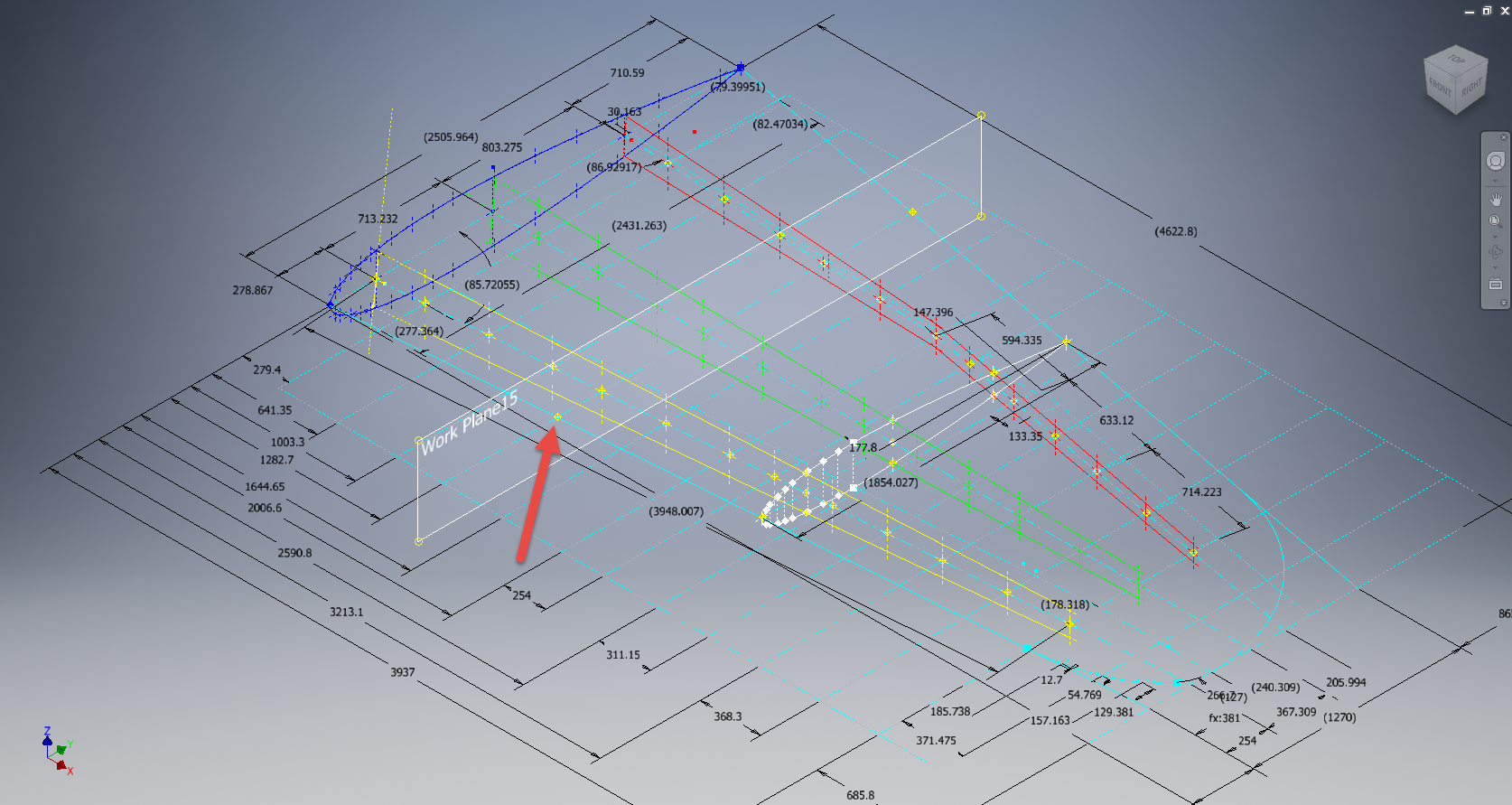
Creating workplanes for sketches as offsets from the primary X, Y or Z planes tends to copy the originating plane datum point which is not always where we need it to be when importing a series of points. The best option is to use the Parallel To Plane Through Point when creating a workplane as this allows you to select the point which will be the datum point on that sketch plane for locating the point data.
Some of the datasets are setout specifically to make it easier to input the data from the spreadsheet. For example, the extrapolated X, Y, and Z, coordinates for the P-51 Mustang wing have been compiled and calculated so they will input at the location of the 25% wing chord. This is assumed to be the logical setout point from the CAD World Coordinate system which saves you a lot of hassle.
If however, you have to create a workplane on an incline this option may not be available in which case you need to adapt the local sketch coordinate system to suit the required datum point.
In Inventor, you would right-click the Sketch in the model browser and select the Edit Coordinate System option which initiates an adjustable Coordinate icon on the sketch.
Suffice to say this icon can be manipulated, moved and rotated to any point on the sketch to suit your requirements. I will do a more comprehensive article on this shortly.
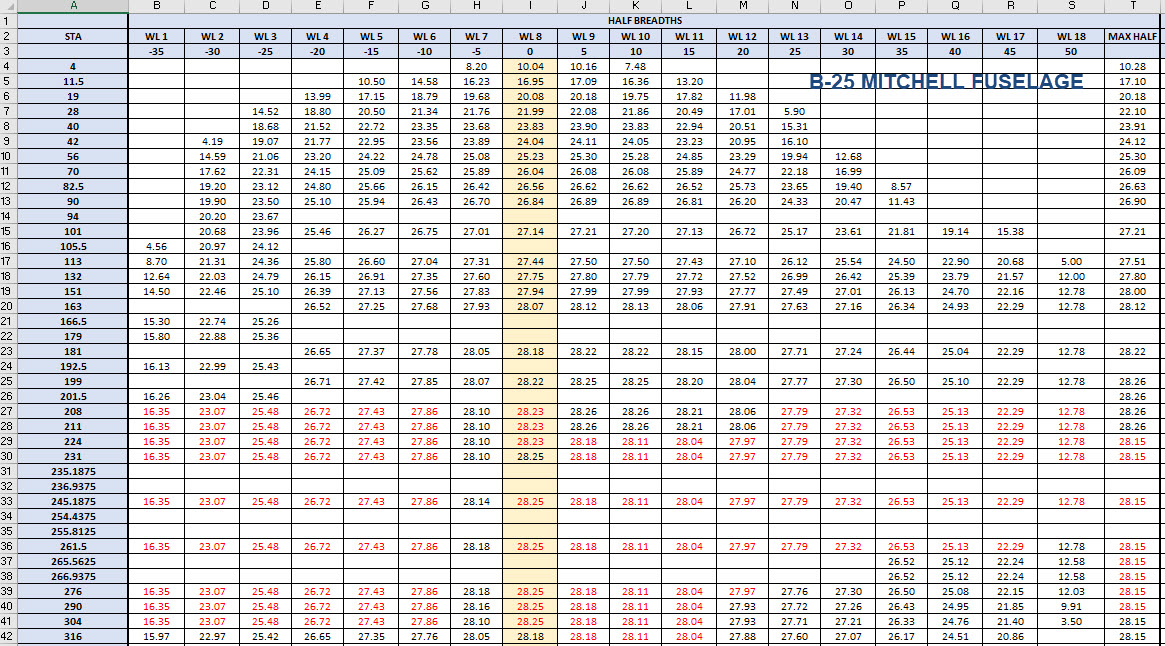
Other Excel Ordinate Examples:
The actual layout of the Ordinate spreadsheets depends entirely on the form from which the data is developed. Where the original blueprint data are listed in tables I will generate the excel spreadsheet in exactly the same format…which helps when checking the data input. If there are no tables but data from the part drawings then I will generate tables according to how the dimensions are noted.
All the dimensions are listed in Inches and Millimetres. I normally extrapolate the X, Y, and Z coordinates to millimetres as this is easier for me to work with…but it is easy to change that to inches if required. All the spreadsheets are fully editable and not restricted in any way.
Finally a quick Excel tip:
If you work with percentages a lot you will find this useful. When entering the value in the cell just add the % sign after the numbers and Excel will automatically format the cell as a percentage value.
Ordinate Data set Availability.
The NAA P-51 Mustang (probably the most comprehensive study) is available as a separate package from the Blueprints archive. The B-25 Mitchell is also a separate package and the Grumman Goose. The F6F and F4F are currently included in the Blueprint archive as they are not so well organised (work in progress) for now.
The Bell P-39 Airacobra is currently included with the blueprints but as I am now working on a new update this will shortly only be available as a separate package.
The P-38 Lightning is brand new and will not be available until June.
Final Note: All the Ordinate packages include the 3D cad model as developed in Inventor. This should not be an obstacle to anyone wanting to interrogate the model as a 30-day evaluation of the Autodesk Inventor is readily available for download. You can even extract sketches from the model as DWG files if required.
Many of the Ordinate packages include fully dimensioned Autocad 2D drawings and PDFs. These are mainly layout drawings and critical location information where it is essential to better understand relationships between wings, fuselage and empennage. Again all these are fully editable.
For all inquiries and feedback please get in touch: hughtechnotes@gmail.com
New Ordinate/CAD Project: The Lockheed P-38 Lightning is an American single-seated, twin piston-engined fighter aircraft that was used during World War II. Developed for the United States Army Air Corps by the Lockheed Corporation, the P-38 incorporated a distinctive twin-boom design with a central nacelle containing the cockpit and armament.
This project will dissect the complexity of the aircraft dimensions with fully developed spreadsheets, CAD models and drawings. I have drifted back and forth on this project over the last few months, studying the blueprints in detail to determine the best way of presenting the data in a usable format.
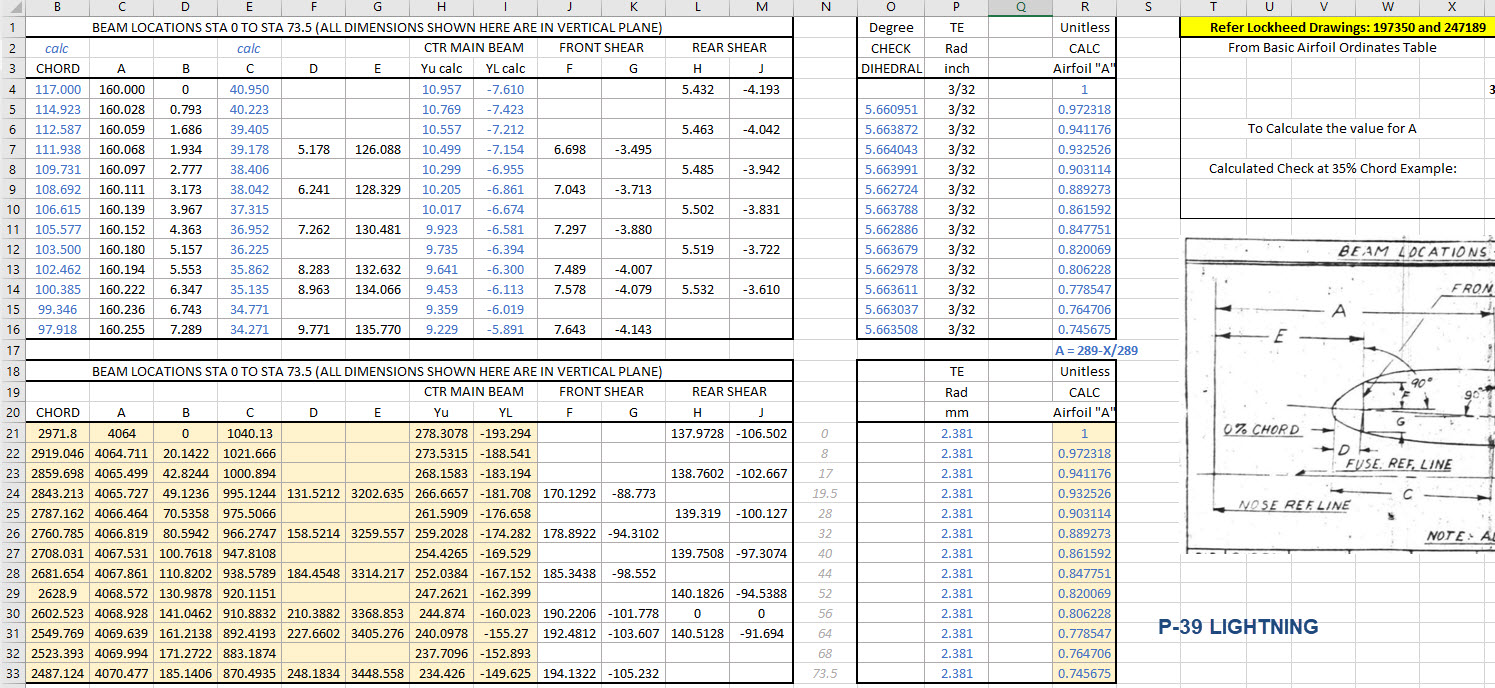
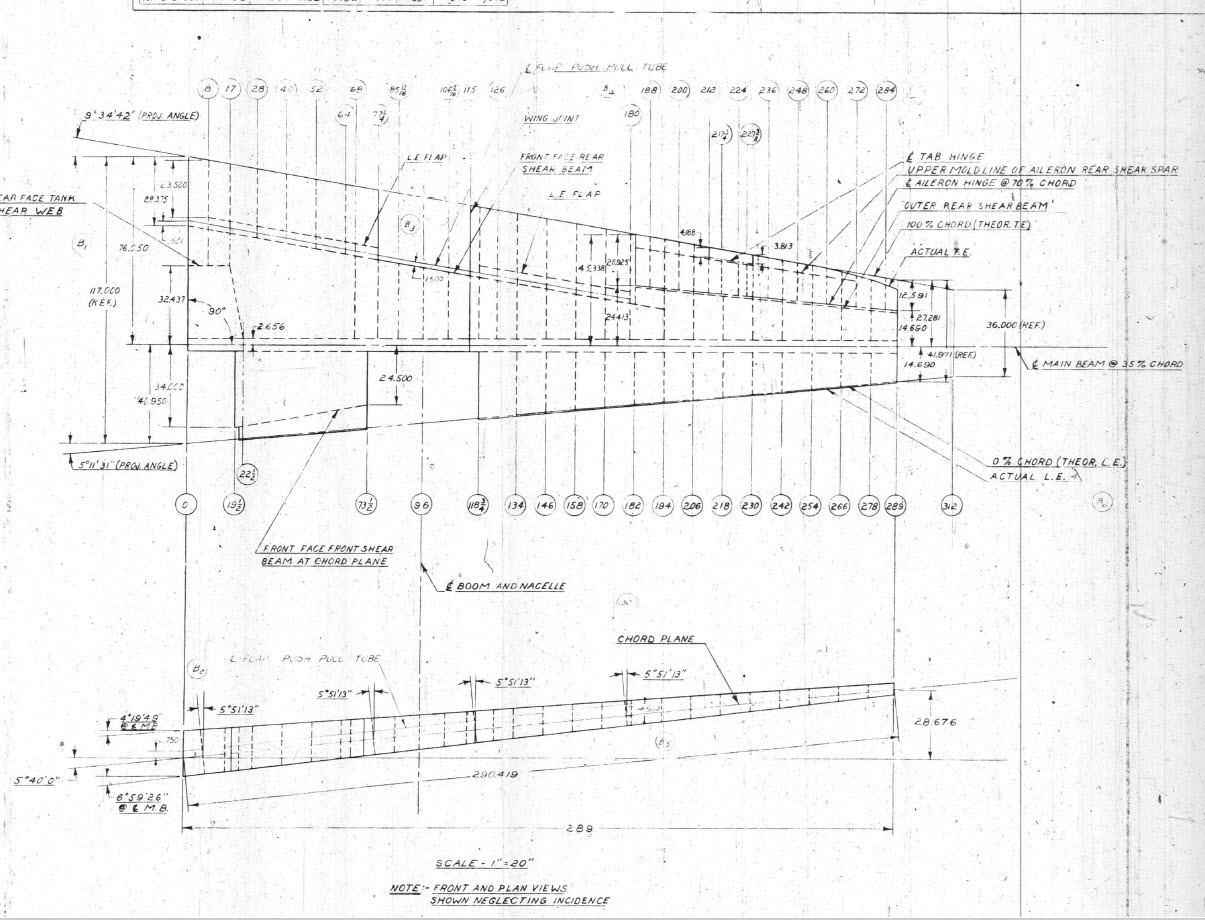
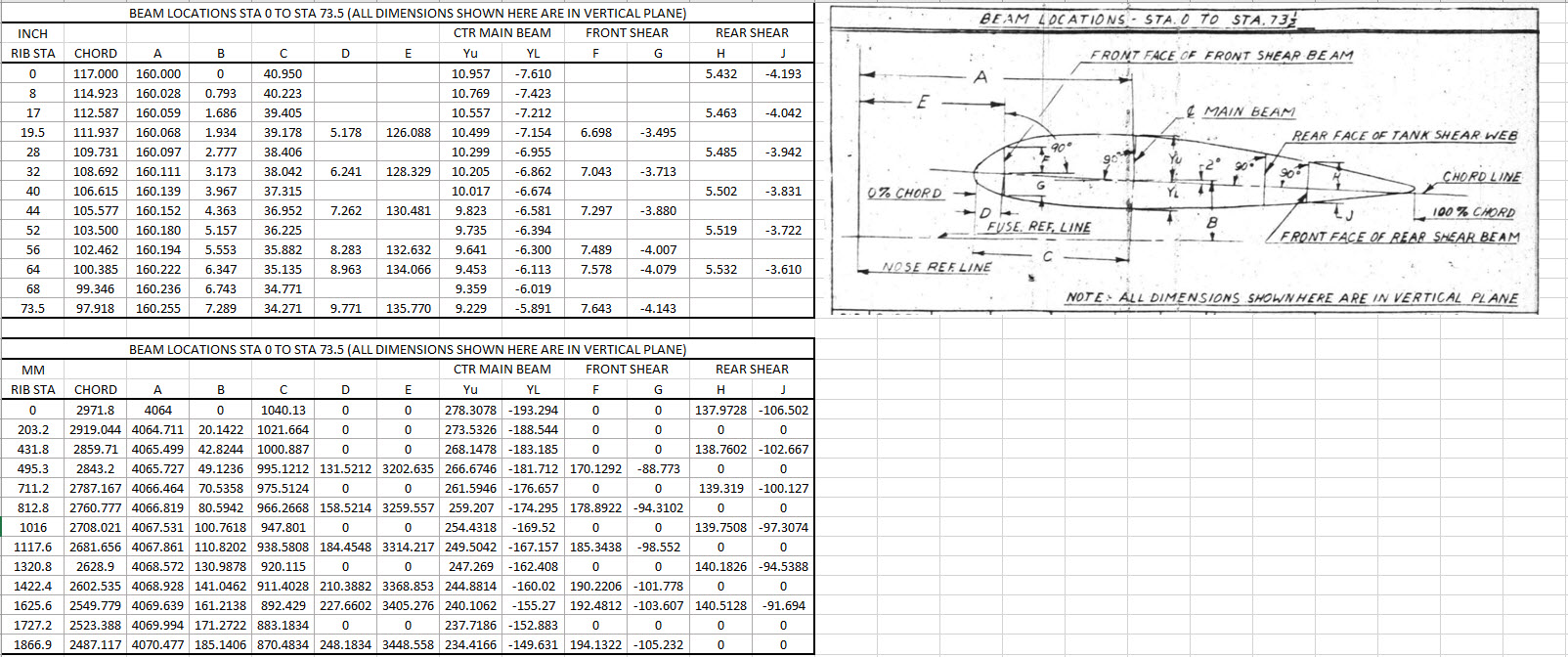
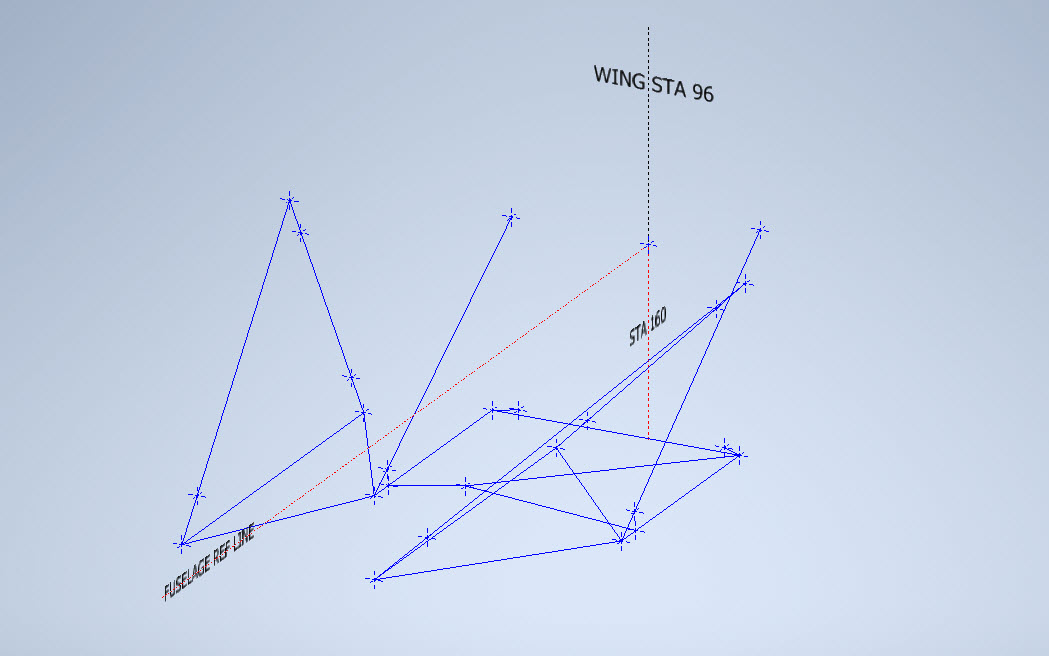
Surprisingly the wings are probably one the most complex parts of this study. The complexity comes about as a consequence of how the dimensional data has been recorded. For example, the wing chord is at a dihedral angle of over 5 degrees with the wing ribs actually perpendicular to the ground plane.
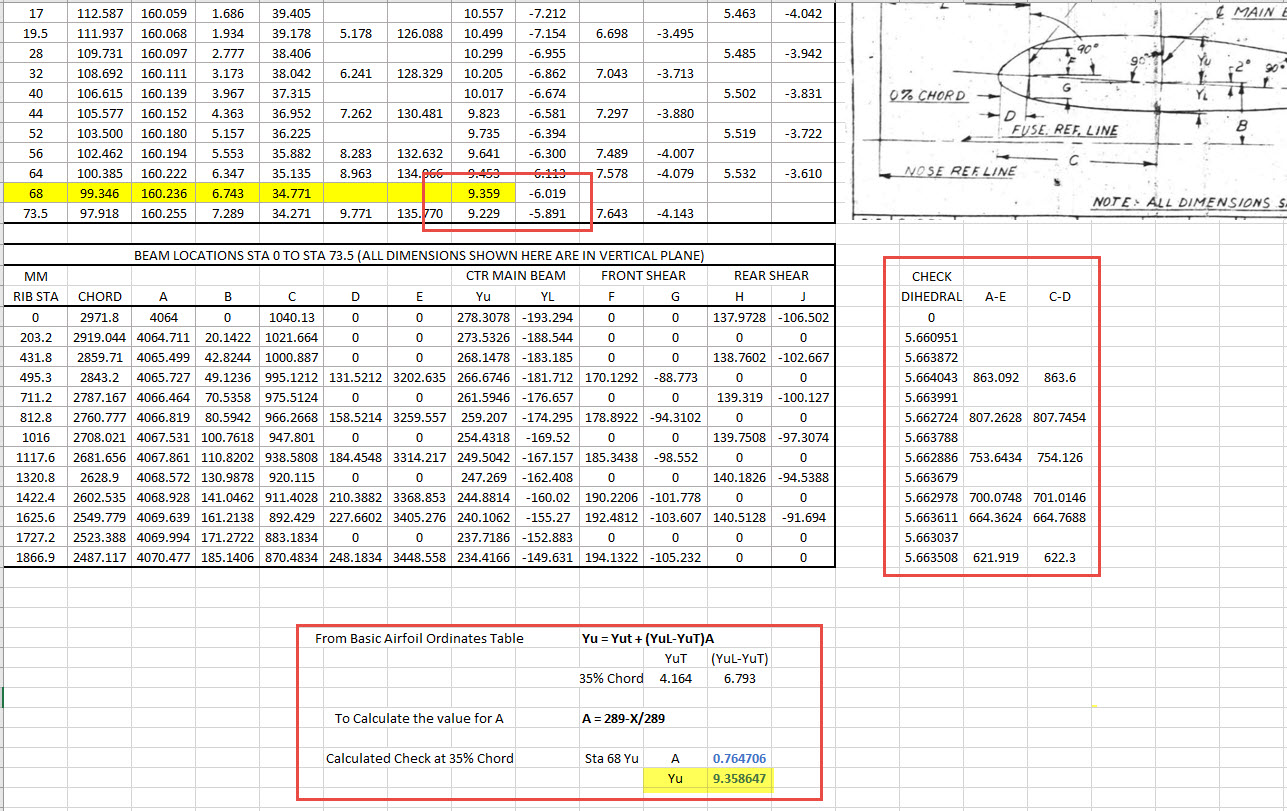
When we define the wing ribs we are actually working on a vertical plane angled to the wing chord line with the main beam and rear shear beams perpendicular to the chord on section. We also have the dimensions for the basic wing airfoil profile. Initially, I will record the rib dimensional information and generate the correct array of points at each Station. Then I shall calculate the airfoil profile at each station based on the given formulae Yu = YuT+(YuL-YuT)A. This should give us a means of verifying the tabulated data, for example; the table values for the Main Beam on 35% chord should match with the calculated airfoil values.
The plan is to record the dimensions as noted, vertical, horizontal and chord aligned in inches and millimetres exactly as defined on the original blueprints. Then I will extrapolate the X, Y, Z, coordinates for each point taking into account the chord angle of 2 degrees so that we can simply transpose these points directly into CAD at the correct positions relative to the origin point where the Nose Ref Line intersects with the Fuselage Ref Line.
The other caveat to all this is the 0% chord line is actually set back from the leading edge. There is yet another table of dimensions that relates the curvature of the leading edge to the 0% chord line. Ultimately to define the wing ordinates will involve a lot of work and then checking to ensure accuracy and correct alignment with the airfoil claculated profiles. At the end of the day, it is about making sense of all this fragmented information into a workable solution that makes it easier to interpret and use in any CAD system.
This is essentially how I work with all these Ordinate/CAD datasets. It is not just about recording information but also to check that the information works and that the end-user can transpose this into whatever system they are using. It is quite common for the information on the blueprints to be obscured, missing or simply illegible which usually requires a fair amount of time searching for answers. To complete this project I estimate something in the region of 300 manhours.
Update: 26th April 2022:
I have not yet decided on how best to present the Wing Ordinate dataset. I am looking at establishing check tables that will effectively compare the noted tabulated dimensions on the Blueprints with the calculated values. Also, we need to derive locational information directly from the wing plan CAD drawing for the Rear Shear beam and do a calculated check. Just to give you some idea of where I am going with this see screenshot below. As I mentioned above, the information on the drawings is fragmented so it is important that the excel spreadsheet data is presented in a clear and legible manner. Just now it is a bit of a muddle.
A quick update: Have rearranged the spreadsheet now with calculated values in lieu of listed values so the CAD model will be considerably more accurate. Calculated values are in blue text.
The rest of the Rib station tables will be added with similar calculated values and then I shall create a second worksheet with the airfoils for each corresponding station. The final sequence will be the extrapolation of 3D Ordinate points from a single datum so it will be possible to build an entire wing just from one collection of X, Y, and Z coordinates in one step. At least up to STA 254…still need to figure out the intricacies of the wingtip geometry.
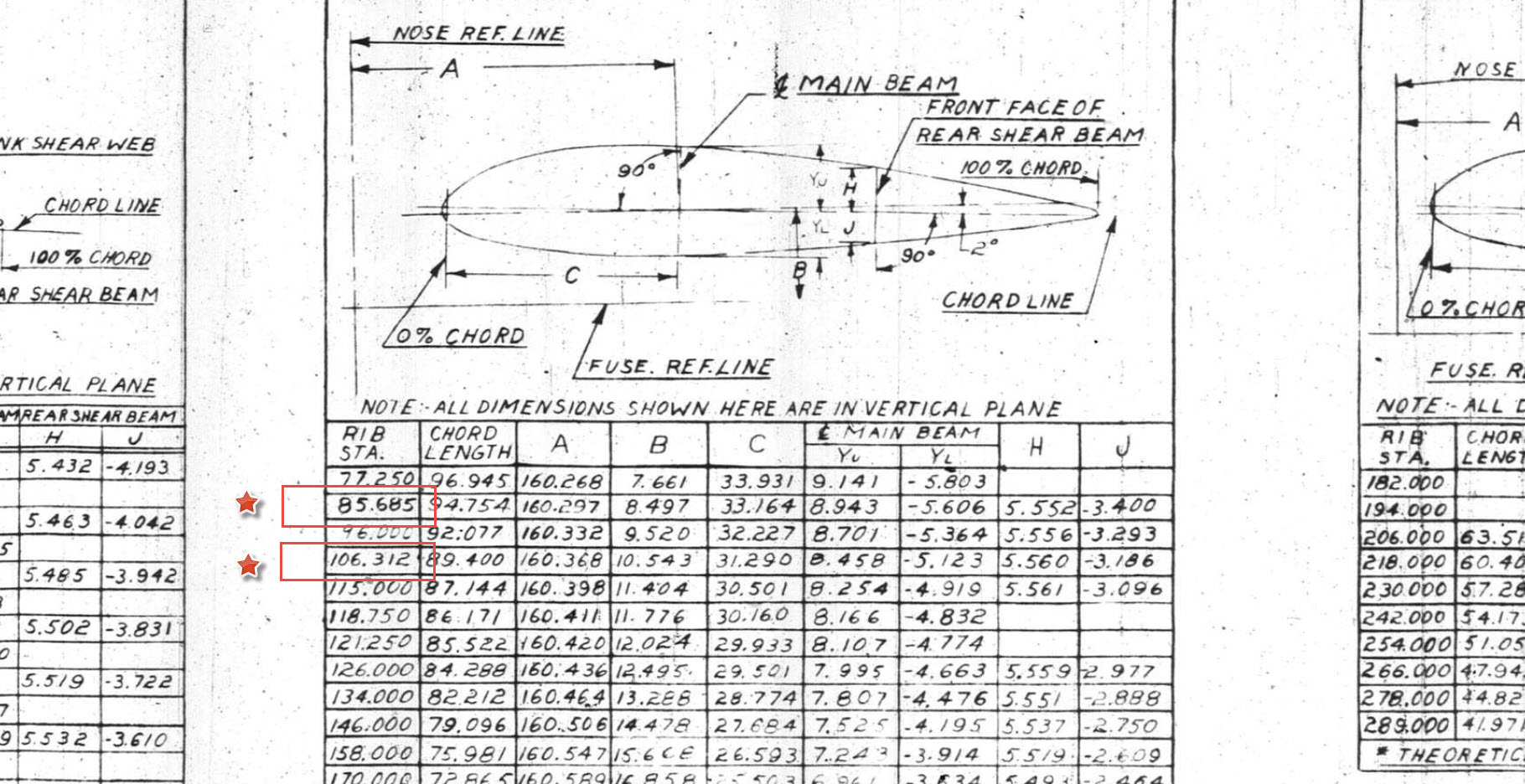
Ordinates for each wing STA profile are calculated and recorded as shown. The highlighted rows at the 35% chord, are checked with those corresponding values listed in the tables above from the Lockheed original drawings. By the way, the drawing on the right is the Basic Layout Engine Mounts…there are 2 variations on this; both of which will be developed.
In the above screenshot, I have highlighted 2 minor corrections to the wing rib locations. They should be the decimal value for 85 11/16″ and 106 5/16″.
Update 3rd May 2022:
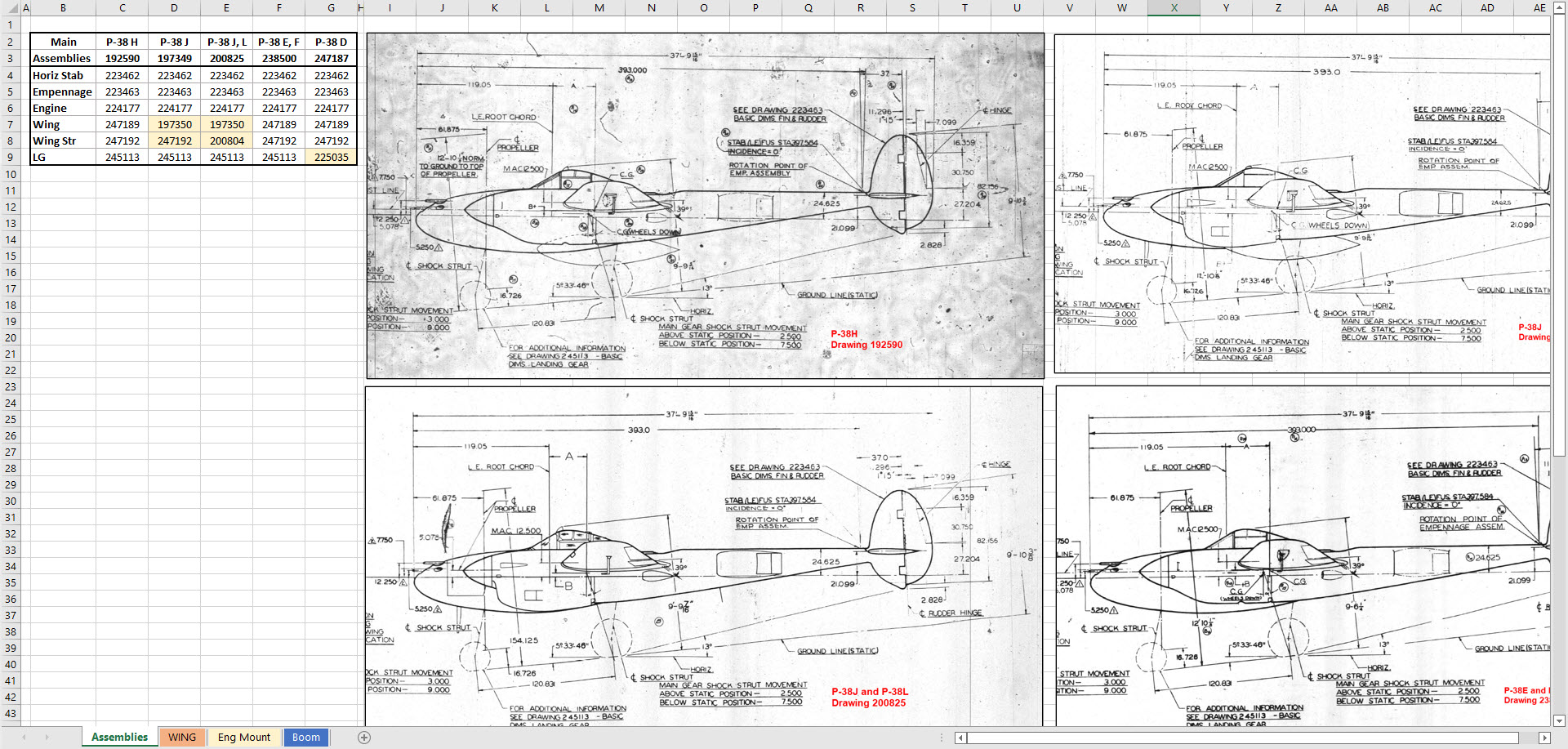
Have made good progress on the datasets for the Wing, Boom and Engine Mounts. Whilst working on this project I thought it may be prudent to compile an assembly list for each aircraft type for the basic dimension layouts as shown below. I plan to do a Technote shortly updating work methods using the ordinate dataset from Excel spreadsheets and include information on Sketch coordinate systems; manipulating the X, Y, Z-axis locally…so look out for that.
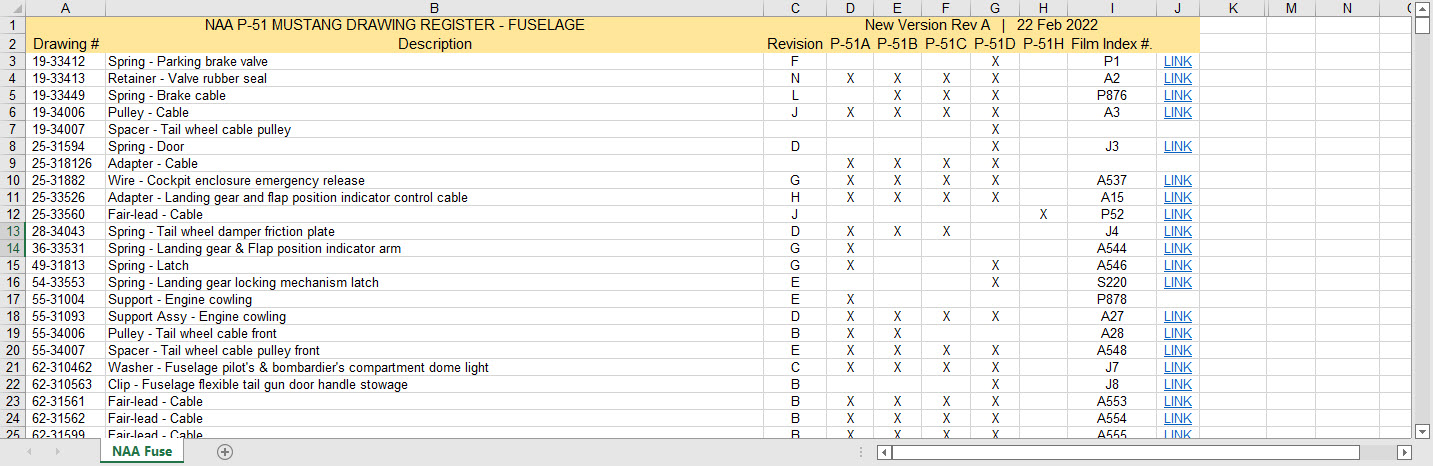
There seems to be a theme developing here…following on from my efforts to organise the chaos of large blueprint collections I endeavoured to continue my efforts with a long-overdue update to the P-51 Drawing register.
The P-39 Airacobra register was a breeze by comparison to this P-51. That was only a matter of 4-5 hours of work which was aided by the fact the drawing filenames were already fully described…all I had to do was add the Film Index numbers alongside the filenames. The P-51 on the other hand only had obscure filenames that were somewhat inconsistent…which meant this exercise ran into a few days. Occasionally my enthusiasm tends to thwart common sense!
Getting back to the P-51 Drawing register. The update is now inclusive of hyperlinks contained within the excel spreadsheets that will open the associated drawing. This is a huge step forward in managing and working with such a large archive and though it took ages it is a major improvement.
As you can see LINKS have been added to the right column (J) with hyperlinks recorded in column L. This column is hidden but can easily be viewed by using the option to UNHIDE. The Film Index reference is the actual microfilm reference hard coded onto the original film which differs from the actual filename that was generated when the film was scanned.
I should note at this stage that a number of folders in the archive will require renaming as Excel does not like #hashtags in naming conventions. The download section includes a word document describing the file-naming convention.
The hyperlinks are plain text entries originally copied from the development process that utilised the Vlookup function referencing a separate spreadsheet. I had considered including the separate spreadsheet in the download section but I think that just over-complicates things. About that development process!! It may be prudent to provide a quick overview of how things were developed.
The Development Process (briefly)
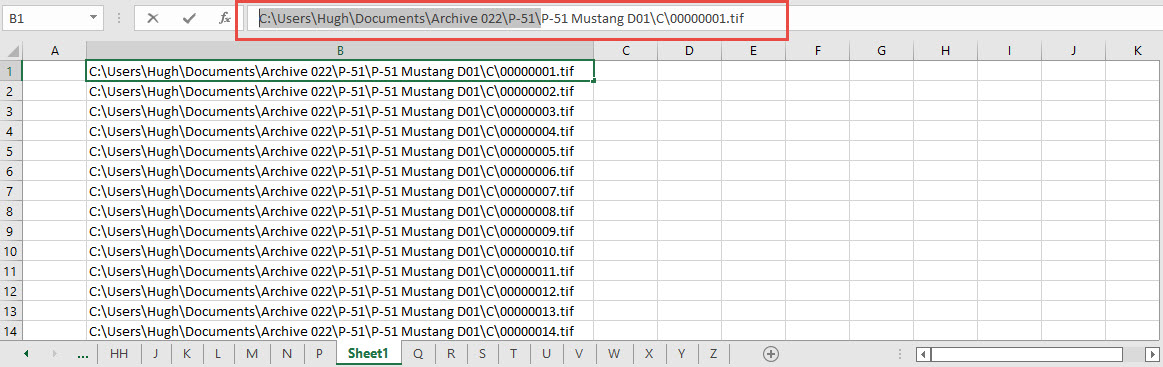
The initial process was to extract the filenames from Windows Explorer and deposit those records into a separate spreadsheet. The way to do this is to select all the files in the folder and click the Copy Path option in the windows explore toolbar.
Paste this into a spreadsheet and then remove the first part of the path (highlighted) so the location parameters now become a relative path to the root folder. This was done using the Replace (CTRL+H) function by copying the highlighted portion and applying a null space to all of the records.
This is now the actual hyperlink path which we need to associate with the actual Film Index. As mentioned above the Film Index is recorded on the scanned images and therefore a fair amount of manual intervention is required to record this value in column A. Using the Vlookup function necessitates that we use the column on the left for the value sought to return the value on the right. As you can see from the many tabs on this spreadsheet I filtered out all the filenames from every folder and then proceeded to populate the column in each case with the Film Index number…that drove me nuts!
There are several ways of accessing the values using Index and Match or even Indirect in conjunction with Vlookup…but we shall stick with the simple option of using Vlookup.
The Vlookup function asks for an initial lookup value; in this case “I10” then it asks for the corresponding Table Array; essentially the array of data from which to search. In this example, the array is defined as the values from the spreadsheet called “FILELIST” Tab “A” from cell A1 to B1043. The “2” refers to the column from which to extract the value you are seeking…which refers to the second column. “False” is for an exact match to the value in I10.
The Link is simply the =HYPERLINK function referencing the value in column K with a text value defining the label “LINK”.
You can combine the HYPERLINK function with the VLOOKUP in one formula like this…though it does take a fraction longer for the link to open.
That’s the basics of how this was done. using Indirect in conjunction with Vlookup enables you to search for the tab designation from a tab list that would look through the entire spreadsheet for the sought value. I didn’t think this was necessary for this exercise.
I mentioned the folder name changes that are required for this to work. The 3 main folders should now be changed to P-51 Mustang D01, D02 and D03.
The updated drawing registers will be available for download this evening so watch this space for an update.
As usual, the spreadsheets are fully editable so you can adapt the data to suit your own requirements. I would note that the Vlookup formulae are not embedded within these drawing registers as the hyperlinks are just copied text values and not live links. The recordset “FILELIST” is not available for download but if you would like a copy to play around with Vlookup or similar then please just drop me a line.
Update (earlier than expected)
The updated P-51 Mustang Drawing Registers are now online and available for download. Please let me know any comments or feedback.
This folder also includes the Aviation Manufacturers Standard Parts file which I am trying to consolidate as they tend to pertain to more than one aircraft.
Comments or feedback as usual to hughtechnotes@gmail.com
Occasionally when trying to Emboss text in Inventor the command will fail. Most likely the problem will relate to intersecting lines for the font style..invariably it will tell you why it doesn’t work.
This can be very frustrating with few solutions other than reconstructing the font style would be apparent. However, there is a way to resolve this…well at least the particular font I am trying to use for the P-51 Mustang instrument panels. In a previous article, I had opted for an alternative to the MS33558 TTF as this font style is flawed.
I have now found something more compatible and it is called TGL0-17 ALT. This is actually very close to the MS font…however I have still encountered problems.
The solution is to first open the text editor in Inventor and select the font type, set the height, width and spacing. You may need to select Exact for the latter and type in a value to achieve the correct spacing instead of using the defaults. Once you are satisfied with the formatting close the text editor and try to emboss it. If the emboss fails move on to the next step.
Select and open the text editor again and this time highlight all the text, then copy and paste this into MS Word as Text Only. Refresh the font style by selecting an alternative and then select again the TGL0-17 ALT. Copy and paste back into the Inventor text editor, close it and voila now it will emboss.
Before you ask, I have absolutely no idea why this works only that it does in this case So next time you have a problem embossing text in Inventor try this workaround and see if that works for you.
This is one of those instances where you do something on a regular basis and don’t really appreciate the significance of the process. What I am referring to is when you create a sketch Plane using the option “Parallel to Plane Through Point”.
It transpires that this selected point becomes the datum for the particular sketch created on this plane. For this example, for a P-39 wing rib, we have selected a point for the Plane location along the wing leading edge as shown.
The Bell P-39 and similarly for the P-51 Mustang the wing ordinates are set out from the leading edge of the wing so it makes sense that the rib sketch is setup with a suitable datum point. You can tell the location of the temporary datum in the sketch applied to this plane by the position of the main axis.
This is the really interesting part, when you now import a set of points from the Ordinate spreadsheets it will recognize this sketch datum and import the points relative to this point irrespective of the model origin.
This is very useful particularly for these aircraft projects as we tend to use a lot of ordinate data for the outline geometry.
Another Quick Tip:
To automatically apply a tangent constraint to a sketch line just select and drag the line from an existing line and the tangent constraint will be applied.