Technote: P-38 Lightning Cockpit Canopy

Technote: P-38 Lightning Cockpit Canopy

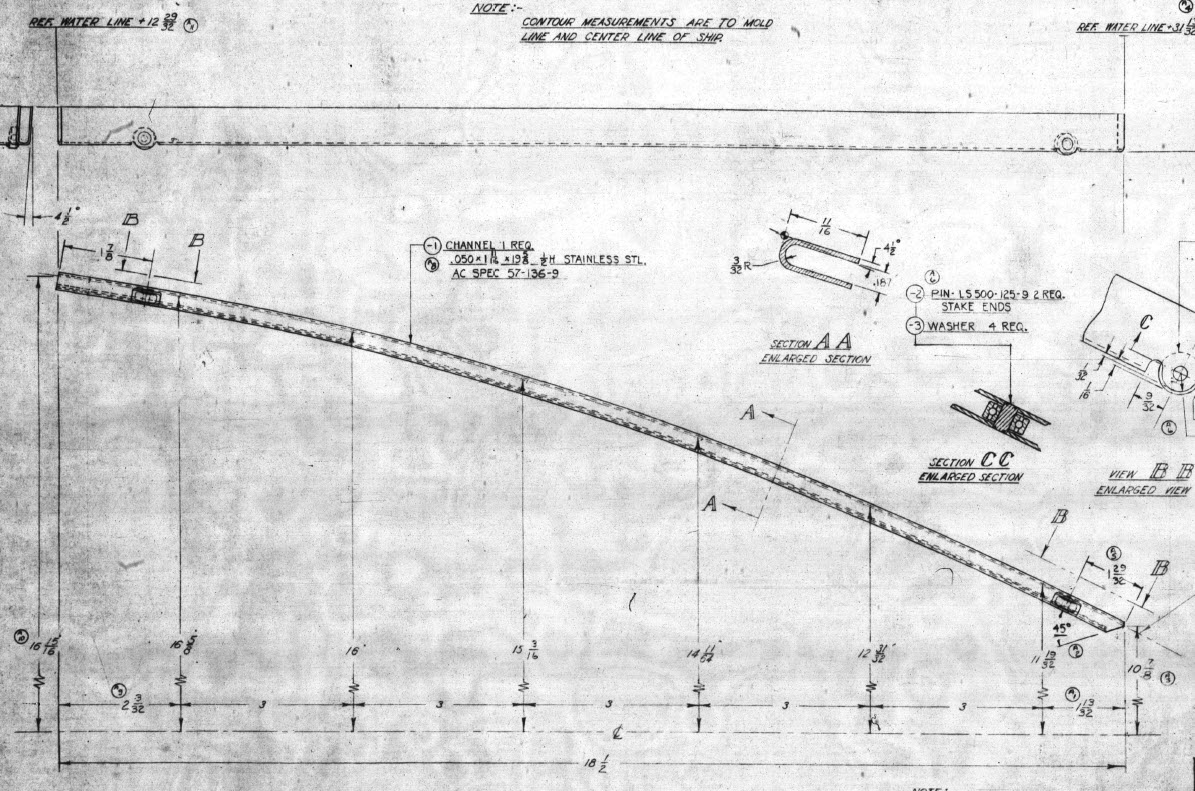
These are the basic profiles for the P-38 Cockpit Canopy glass panels derived from the XP-38 drawings. Knowing that there were differences between the prototype XP-38 and the production models I was initially reluctant to accept the XP-38 dimensions for developing the cockpit canopy. The production drawings do not contain any useful information to develop these profiles nor indeed was there any drawing stating the inclination angle of the windshield. There was also not enough information from the Lockheed ordinate drawings for the fuselage frames which left me with the only option to use the XP-38 information.
It transpires the dimensions on the XP-38 drawings are indeed pertinent to the production models. There are exceptions which relate to the side windows.

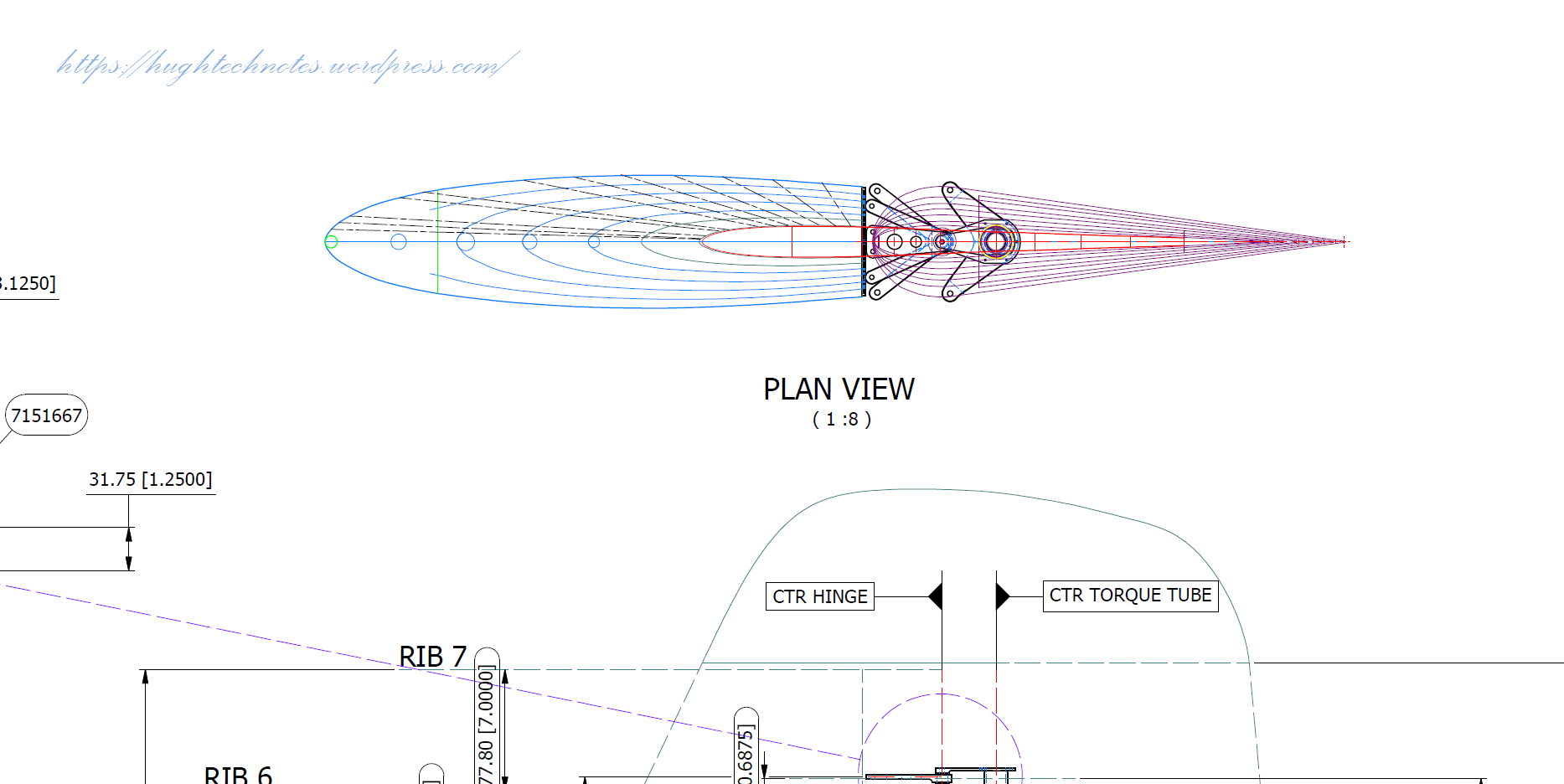
The drawing on the left is the P-38H side glass frame and you can see this is dimensioned as a radius value which differs from the XP-38, which is defined by ordinate dimensions. There is also a slight variation in the overall length, so I naturally presumed that there may be other variables that conflicted with the prototype model. The only way to know for sure was to build the model based on the XP-38 and cross-check against known information with the production models.

So after 3 days of frustrating intensive work, I now have the base model for the XP-38 glass profiles and I have concluded that the profiles for the front, top and rear panels dimensionally are compatible with production variants. The only area that has marginally changed is the side panels, although changing from ordinate to radial dimensions still retains alignment with the known fuselage frames.

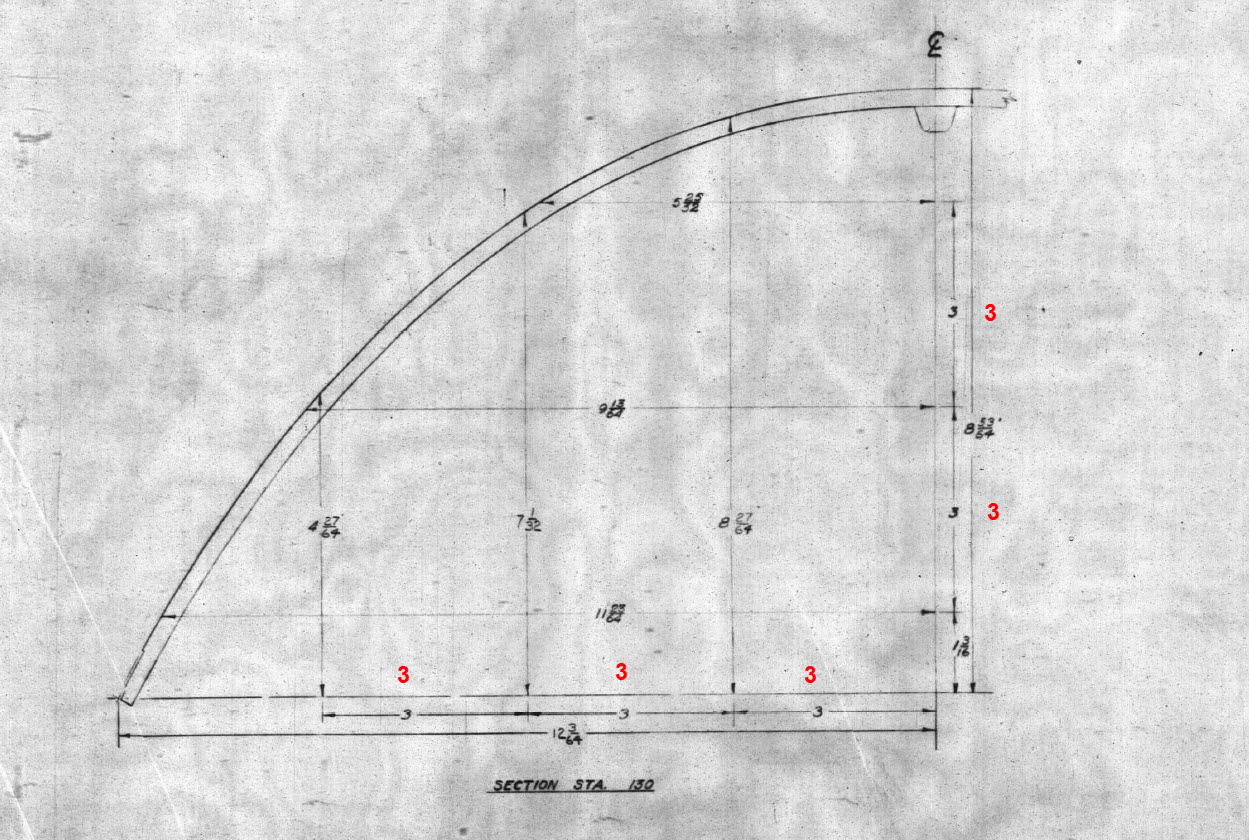
Also worth noting is that Lockheed uses a 3-inch grid system for aligning all the fuselage components which are useful when you are trying to locate these panels where no location is noted…you just have to align the 3-inch offsets to the grid. Each of the 3-inch offsets on this drawing section for example can be matched with the full-size grid to locate the correct elevation for the top glass panel and so on.

It is actually a really clever idea and helps obviate any doubt about where an item should be located.

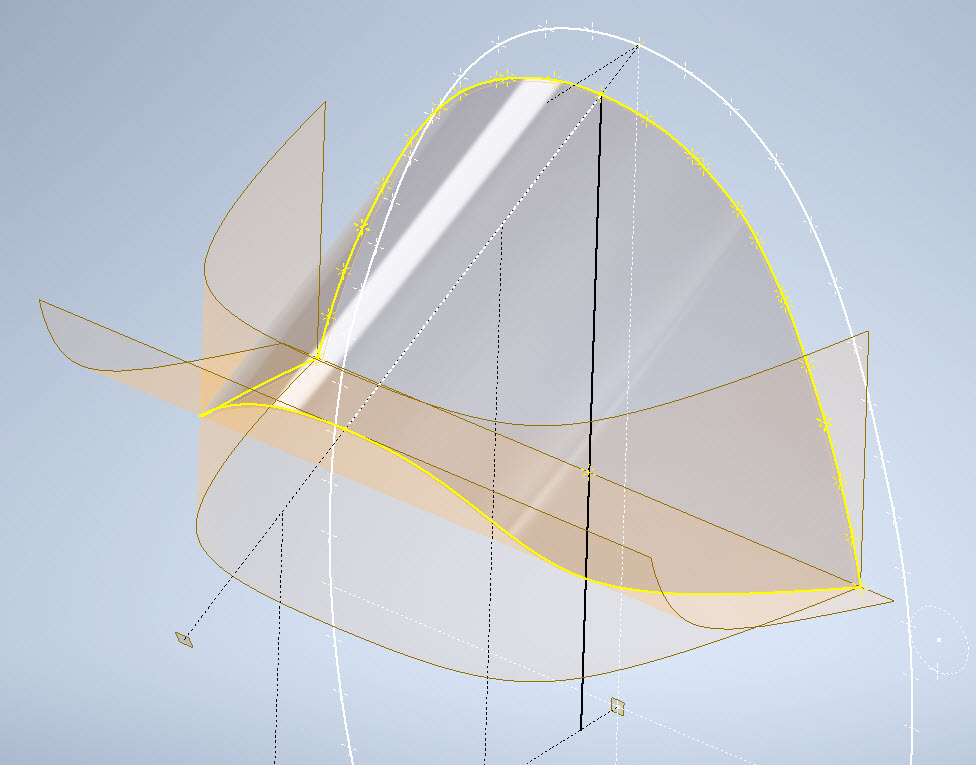
One further tip when working with these Lockheed drawings is that for plan views and elevation views there may not be enough dimensions to fully locate a 3d point for determining a complex curved line.

For the windshield, there was sufficient information in the vertical plane and the horizontal plane but as they were not related I could not derive specific 3d points from this data alone.

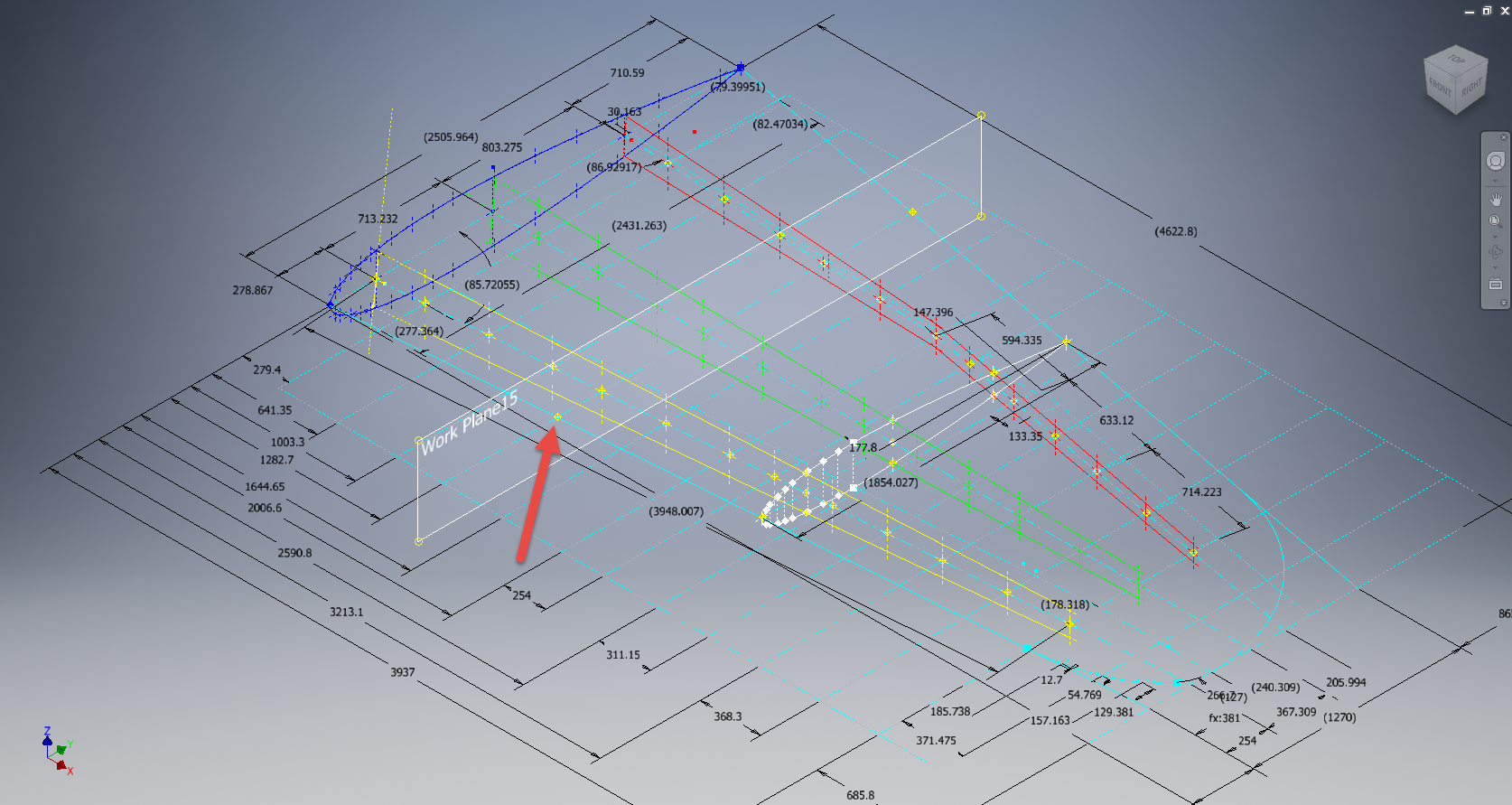
So I resolved to replicate this on 2 sketches and extrude a surface profile for each sketch. The intersection of the surfaces gave me the requisite 3d glass mold line.

The final check; that ensures this is correct; is to view the final glass panel along its axis to check that the curvature matches exactly with the top of the ordinate fuselage profile at STA 126…which it does.

For some reason, the ordinate dimensions are on STA 123 instead of STA 126 which means the end result will need to be projected to get the full glass panel model…I haven’t done that here. These are primarily dimensional studies and I tend to only include 3d models where this benefits the purpose of confirming data integrity. Oh by the way the inclination angle for the windshield is 27 degrees…don’t be sidetracked by the frame connectors that show 26.5 degrees…the reason for the 0.5-degree variance relates to the interface with the rubber sealing. Hopefully, you will find this useful.

Technote: Text Emboss Problem

Technote: Text Emboss Problem:

Occasionally when trying to Emboss text in Inventor the command will fail. Most likely the problem will relate to intersecting lines for the font style..invariably it will tell you why it doesn’t work.

This can be very frustrating with few solutions other than reconstructing the font style would be apparent. However, there is a way to resolve this…well at least the particular font I am trying to use for the P-51 Mustang instrument panels. In a previous article, I had opted for an alternative to the MS33558 TTF as this font style is flawed.

I have now found something more compatible and it is called TGL0-17 ALT. This is actually very close to the MS font…however I have still encountered problems.

The solution is to first open the text editor in Inventor and select the font type, set the height, width and spacing. You may need to select Exact for the latter and type in a value to achieve the correct spacing instead of using the defaults. Once you are satisfied with the formatting close the text editor and try to emboss it. If the emboss fails move on to the next step.

Select and open the text editor again and this time highlight all the text, then copy and paste this into MS Word as Text Only. Refresh the font style by selecting an alternative and then select again the TGL0-17 ALT. Copy and paste back into the Inventor text editor, close it and voila now it will emboss.

Before you ask, I have absolutely no idea why this works only that it does in this case So next time you have a problem embossing text in Inventor try this workaround and see if that works for you.

Technote: Sheetmetal; Avoid Bend Stress Points

Technote: Sheetmetal; Avoid Bend Stress Points:

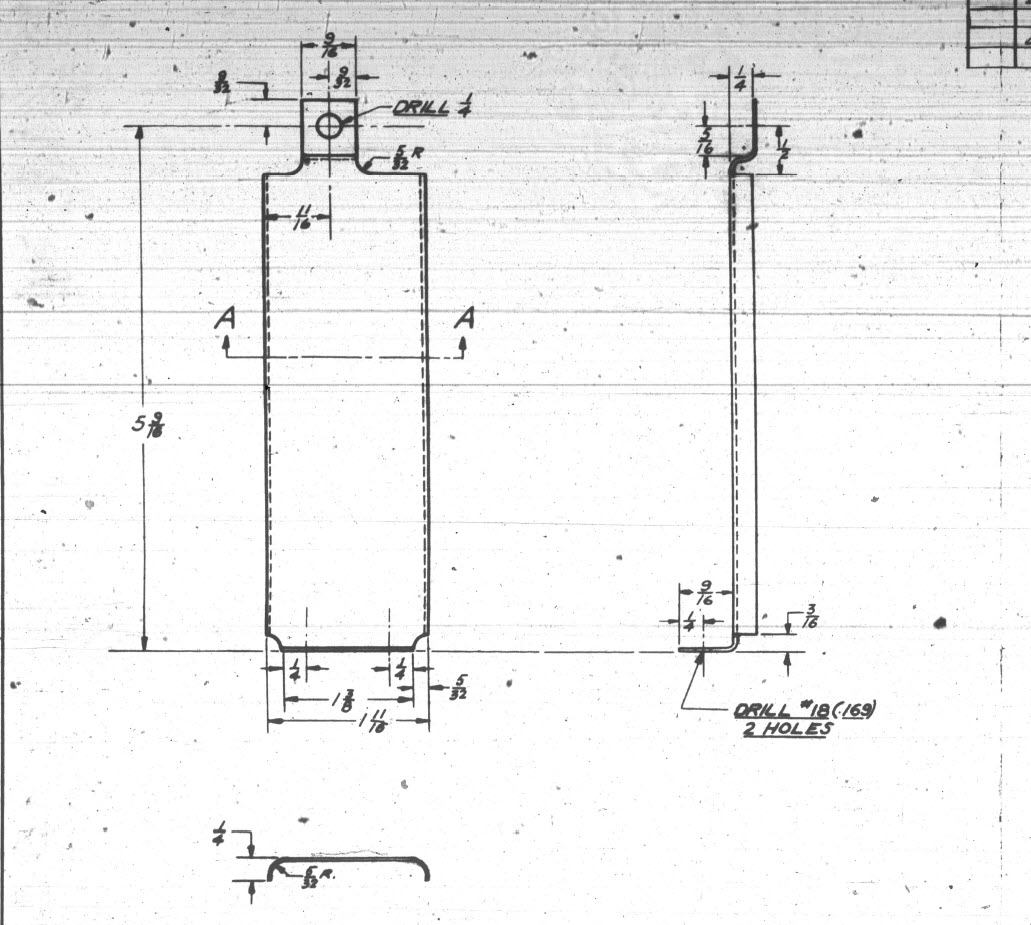
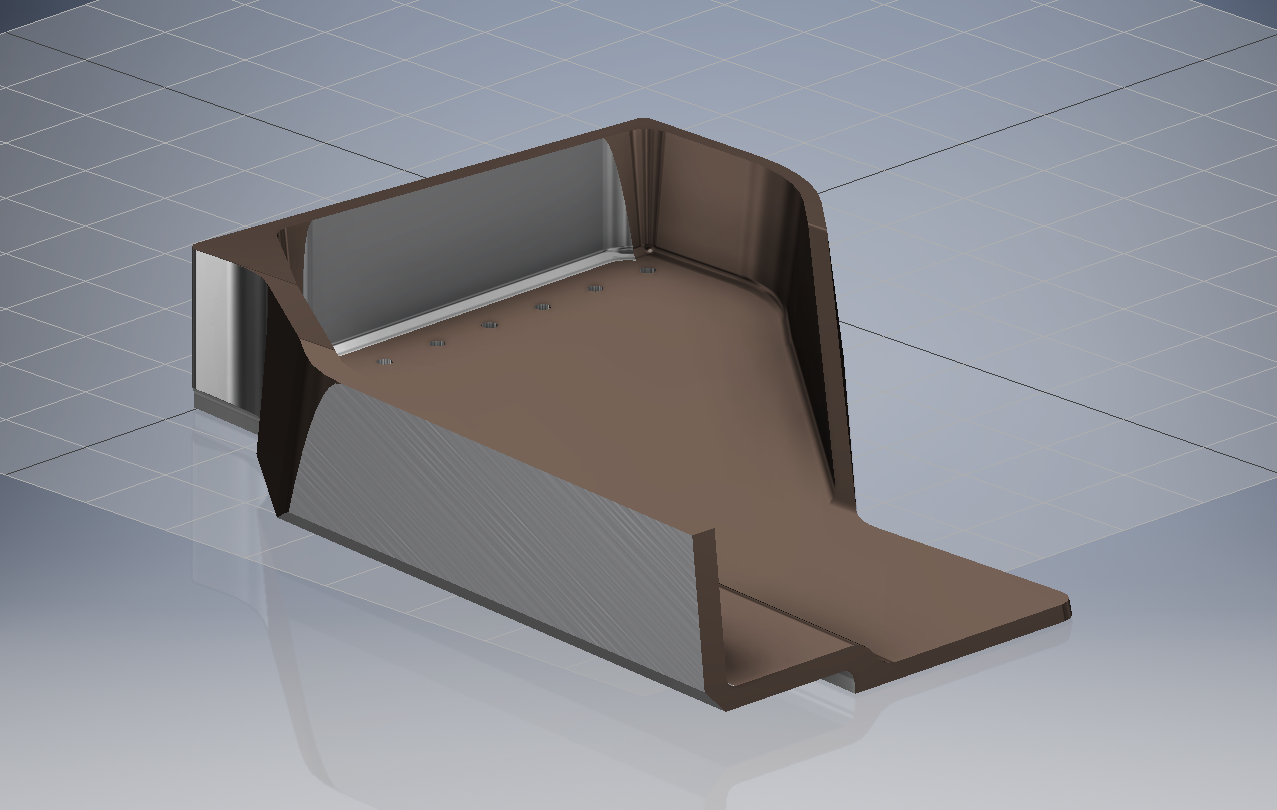
This is a sheet metal part for the P-39 Airacobra (#12-509-052) sent to me by a fellow enthusiast for comment. Before I get immersed in discussion on this subject I would just say that this part is a cable cover that is unlikely to be under any substantial stress and thus would probably be fine as modelled.

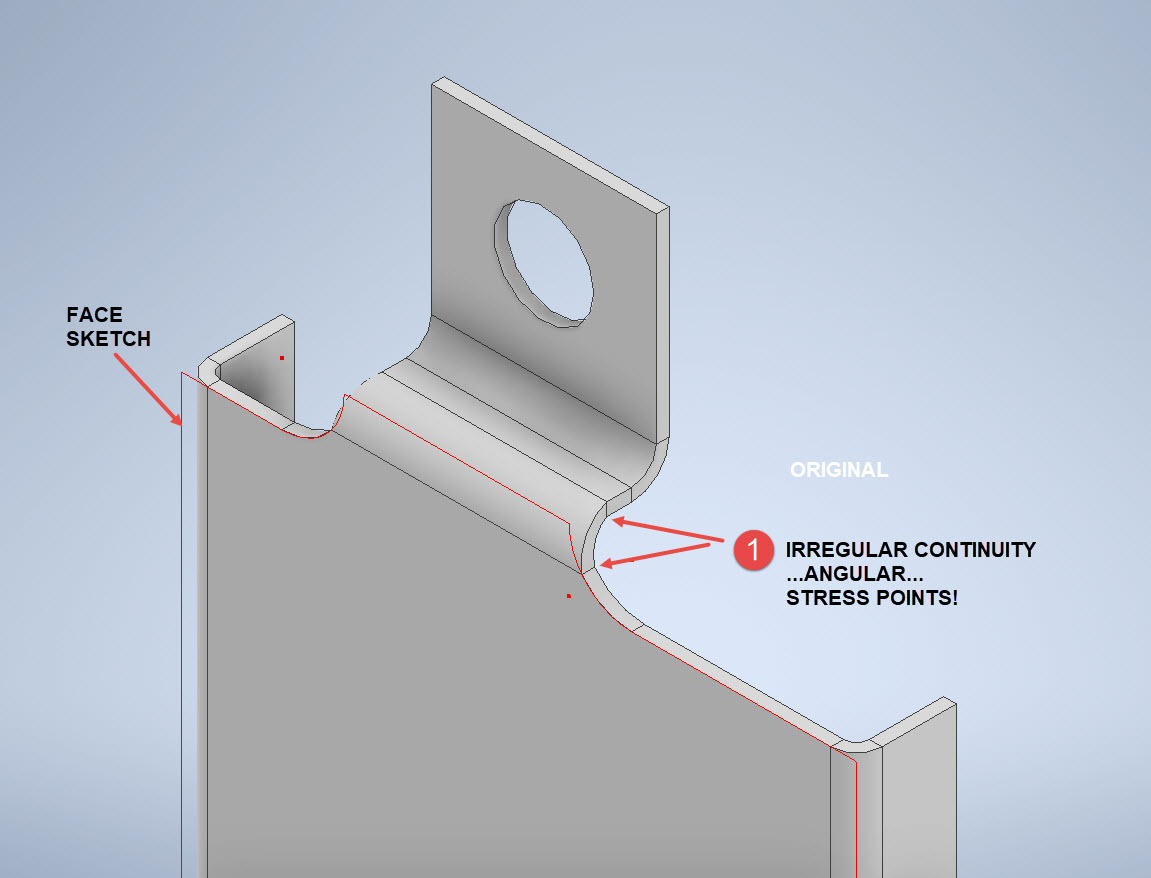
The part comprises 2 tabs, one on the top and one on the bottom. It is the fillet radius that I will focus on. The first bend is offset from the edge of the plate. The drawing specifies a 5/32″ (4mm) radius for the fillets at the intersection of the top tab and the main body which overlaps the sheet metal bend. The originator has taken this literally and attempted to create a finished fillet of 5/32″.

I suspect that the drawing is actually referring to a 5/32″ radius as it would be for the developed flat pattern because doing so otherwise; due to the bend being offset as illustrated on the cad model; this introduces stress points.

The images show the irregular continuity which creates angular edges that essentially become focussed stress points. It is often best to try to achieve smooth continuity both for bending purposes and of course when in use. What they did was sketch a face profile; which included the specified radius (#1)and then proceeded to adopt the standard commands to build the flanges. Technically it is not wrong but as the manufacturer’s drawing does not contain a developed flat pattern it is often misinterpreted…the radius should perhaps be applied to the pattern before bending.

Similarly, at the bottom tab, we also have irregular continuity as shown at #2.

I rebuilt this model to address these issues and you can see how a small change in modelling technique can obviate some of these issues.

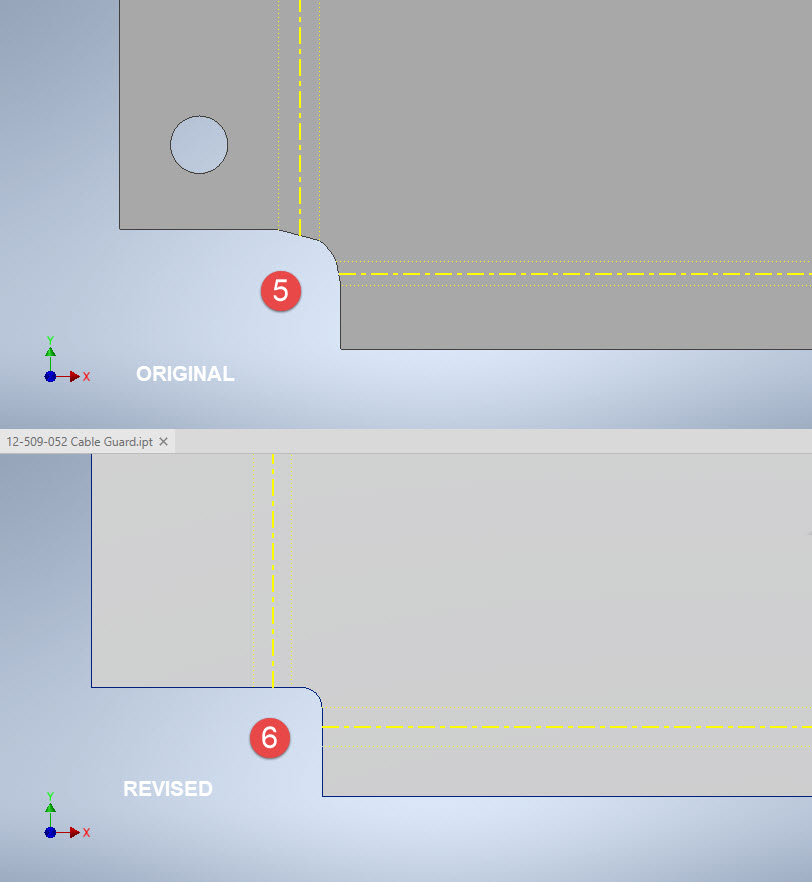
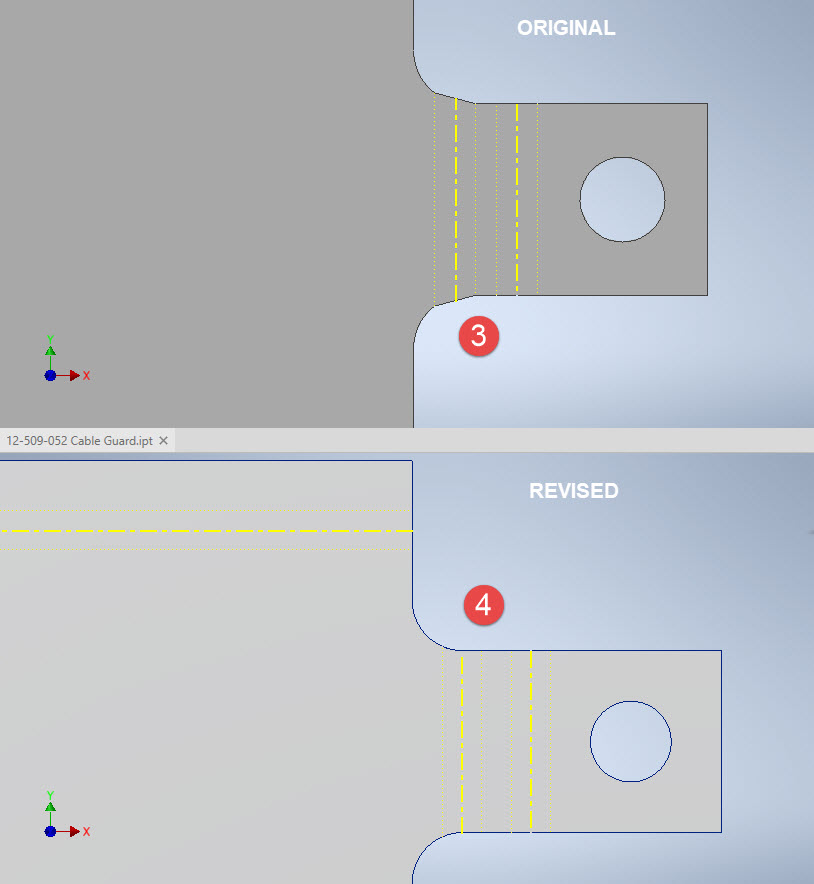
The images show the developed pattern with the original cad model on the top and the new version on the bottom. At #3 the outline of the tab would be difficult to cut with the small taper before the fillet, whereas the lower profile at #4 is easier to cut with no stress points. Similarly for the base tab at #5 and #6. I should note that the bottom tab radius is not specified so I opted for the default minimum which fits nicely before the bend lines.

There are several ways to do this with the easiest being accomplished by using the Unfold command on a square flange and then applying the fillet before refolding. The option I have used here is first to draw an extended flange as part of the initial face sketch, create the first part of the model as a Face then apply the 5/32″ fillet before bending along a predetermined bend line sketch.

The sketched tab outline is a lot bigger than is required which of course can be trimmed once the tab is complete. You can see the extents of the tab on the initial sketch…you only need to add a plane at that point to trim. The resulting fillet is a smooth continuity with no obvious stress points.

Understandably the designers wished to increase the amount of material at the bend to maximise strength so it is advised to try to achieve those goals. As I said before, for a cover like this it is probably not too critical if we only applied a small fillet but for framing and structural elements, it may be critical.

One quick note on the 2 vertical flanges…the drawing specified an internal radius of 5/32″ which to be honest is unworkable as the resulting bend would overlap the bottom tab…in this case, I opted for the minimum specified.

At the end of the day, it is down to the interpretation of the designer intent. For the majority of sheet-metal drawings, they often do not include developed flat patterns but may contain information that is actually applicable to the flat pattern and not necessarily the finished folded profile.

Grumman F4F Wildcat: Aileron:

Grumman F4F Wildcat: Aileron:

Having made good progress on the ordinate set for the Grumman F4F/FM2 I decided to put the spreadsheets to one side and do some modeling to verify the dataset. Normally this would not be required to such an extent but I needed to do this to check the relationship between the components and aircraft datums.

I was spoiled with the P-39 project where virtually every component has reference dimensions to the ship center line or thrust lines so positioning was a breeze. However, the F4F drawings sadly lack this reference information on many of the key drawings so developing the 3d cad model is the only sure way to ascertain this data.

F4F Aileron Render

The above model is the left-hand Aileron modeled in Inventor and rendered in Keyshot. Keyshot is a very good renderer, even for a novice like myself; in which you can generate acceptable renderings very quickly. The real-time rendering is very good and will continue without glitches even on a modestly specced system (unlike some of the alternative products). The user interface is logically set out with a good library of materials and textures. I would highly recommend this product.

Getting back on subject; the Aileron ordinates took a long time to complete for various reasons; requiring constant checking and verifying. Once this was done, the modeling was reasonably straightforward except for the small trimming tab. The drawing dimensions are slightly out, so I extracted the neighboring rib profiles to create the template for a finished model.

I also decided to create a few scrap drawing views as a matter of record that will be useful when I eventually move onto modeling the wings themselves.

F4F Aileron 4

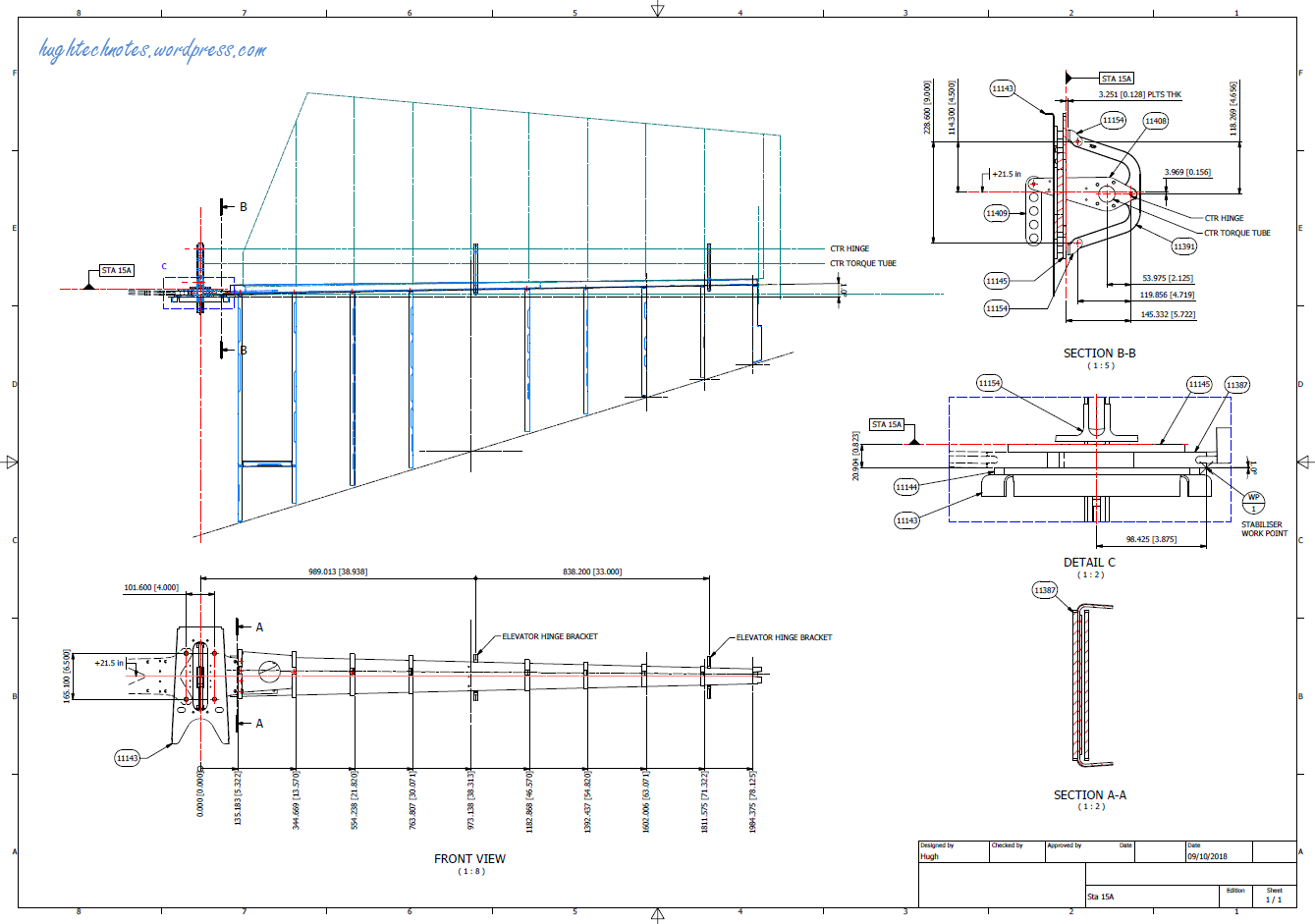
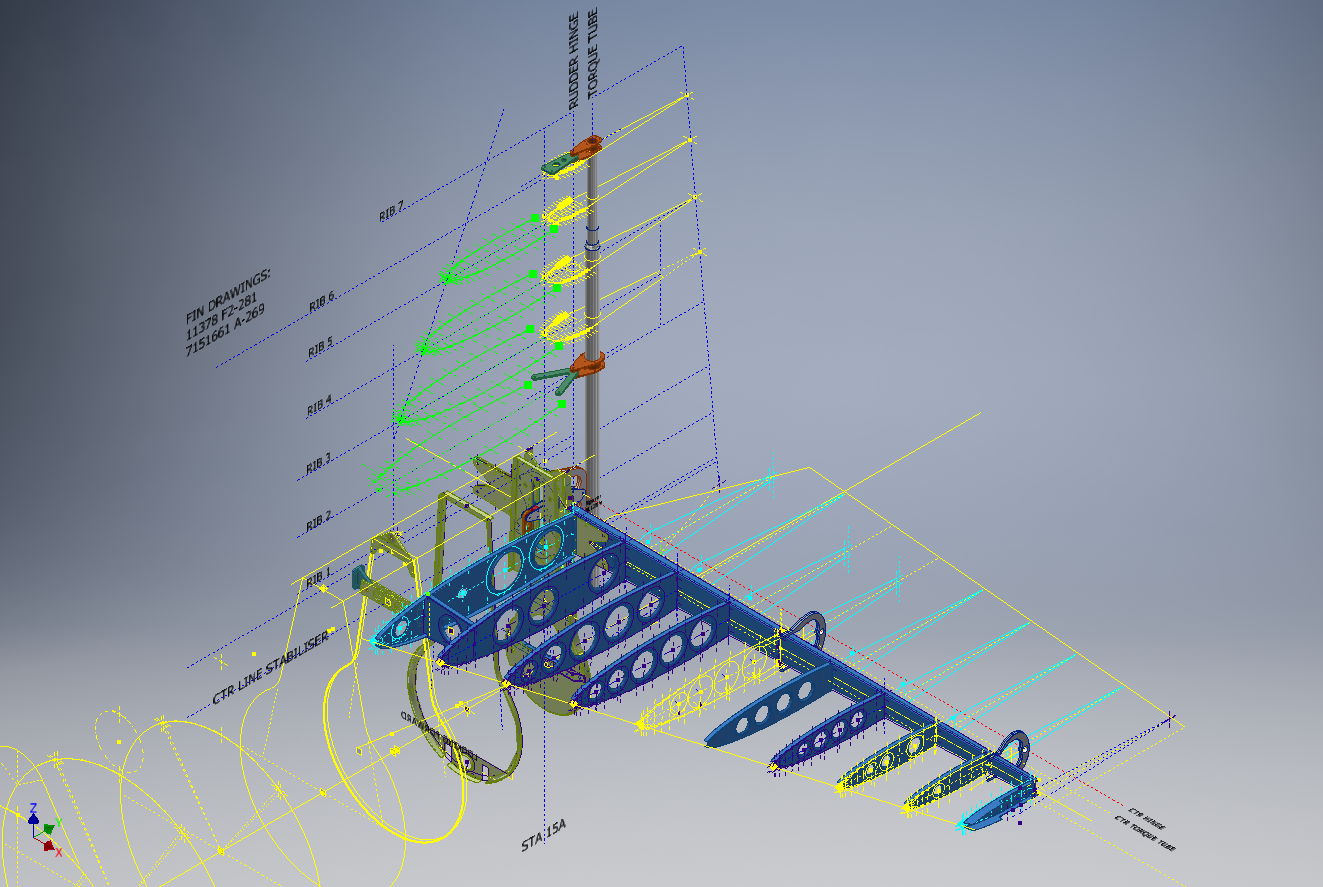
For reference; the following image shows the Ailerons attached to the wing assembly. Hinge positions checked and verified with hinge brackets (orange) fitted achieving a planar variation of less than 0.04mm.

2018-10-07_22-29-40

There are still a few items required to complete this model but this is not a priority for me right now. My next objective is to develop the ordinates and perhaps some modeling for the vertical and horizontal stabilizers.

Horizontal Stabiliser & Elevator:

Grumman F4F-FM2 Horiz Stabiliser

F4F Stabiliser

f4f rear fuselage

Tail Fin & Rudder:

F4F FIN RUDDER

F4F FIN RUDDER 01

Fuselage Frame 3:

F4F Wildcat Frame 3a

If you are interested in obtaining my research data for this aircraft then please send me an email. At the moment this is an unfinished project but the available drawings (12) are fully dimensioned which will help you with establishing correct datums and station frame associations along with a few spreadsheets. HughTechnotes@gmail.com


HiRise data and WRL Conversion.

HiRise data and WRL Conversion:

It has been a while since I last posted an article due to being busy with other projects. During some research activites, I came across a number of subjects that may be of interest, two of which I would like to share.

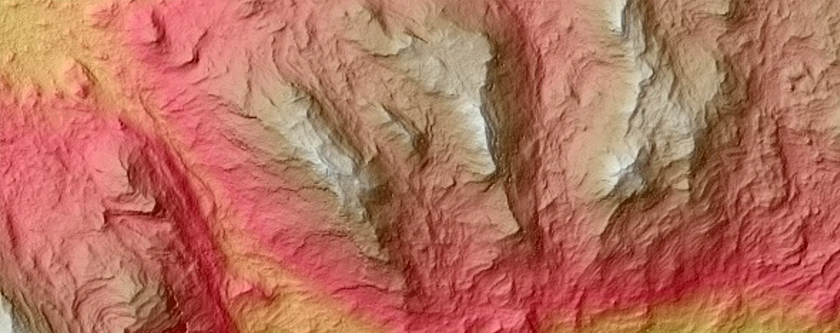
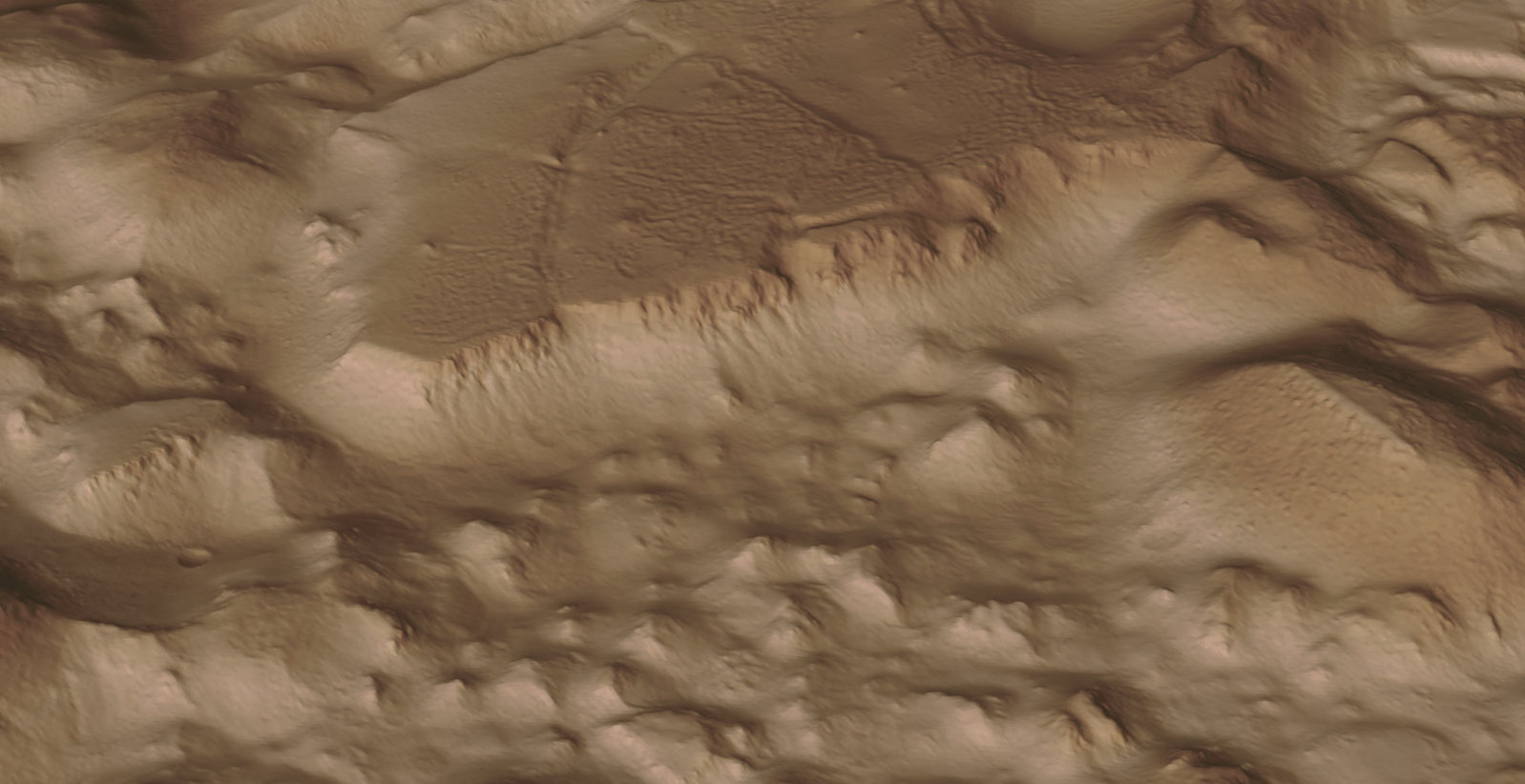
The first one is the HiRISE Digital Terrain data models on the University of Arizona website. The website contains datasets that are digital extractions of surface terrain scans of the planet Mars. The DTM datasets are publicly available for research and modeling of geological processes.

PSP_007100_1520

Naturally curious I decided to investigate the possibilities of modeling and rendering of these datasets from which I produced a few preliminary 3d terrain models using Blender and rendered in Keyshot…Gorgonum Chaos:

mars10The technique I used is described in this video on Youtube, clearly explaining the process. To me, this is incredible stuff and thanks to the University of Arizona for all their dedicated work in developing these datasets. So have a look and check it out for yourselves.

The next subject is WRL. WRL is a file extension for a Virtual Reality Modeling Language (VRML) file format often used by browser plug-ins to display virtual reality environments. VRML files are known as “worlds,” which is what WRL stands for.

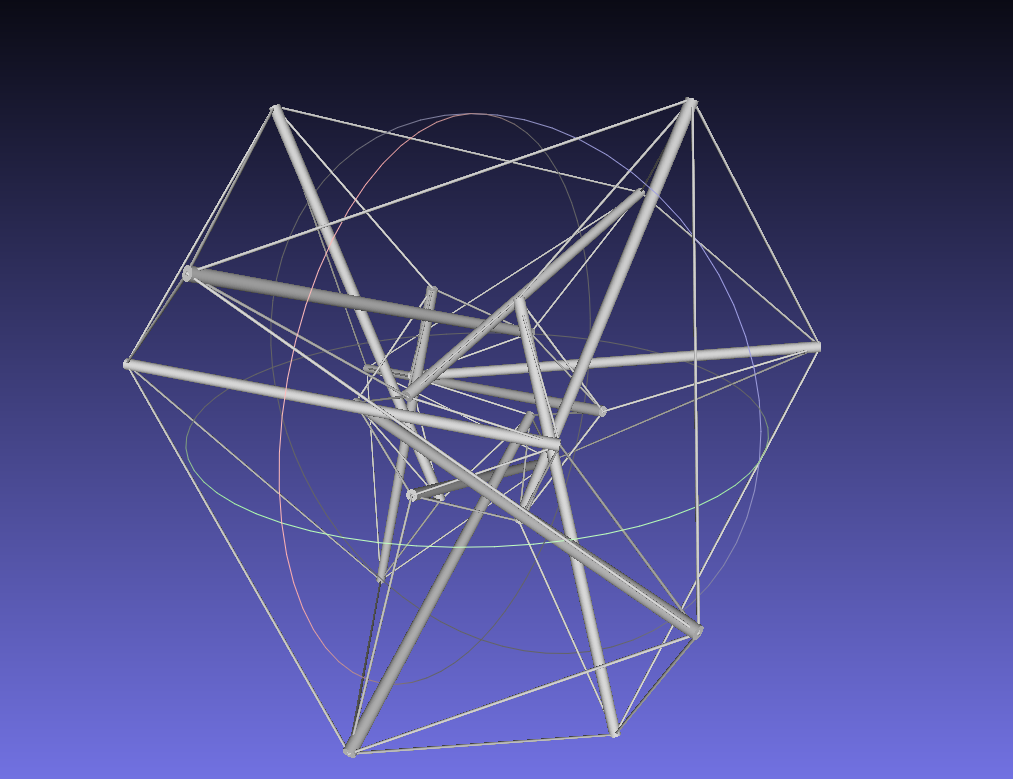
One of my many interests is Tensegrity, a structural form of tension and compression members first developed by a chap called Kenneth Snelson. The internet is full of examples of this structure concept inspiring many variations from fairly simple to very complex designs. I have developed a few of my own.

delta

Many of the practitioners in this field make datasets available for personal use and one particular format they use is the VRML (WRL) so you can view the design in 3d.

For the simple structures similar to this image the design and construction are not that difficult, however when it comes to developing your own version of the more complex examples it can be a real headache. Although some datasets include actual point cloud data the process of matching pairs of points to reconstruct the design can be a nightmare.

The obvious solution would be to convert the WRL model into something usable that could be used as a guide for developing a 3d cad model. I tend to favor Meshlab for doing this as it is one of the few programs that will accurately convert the imported data.

meshlab

The WRL model is converted into a series of mesh objects that we can export as an OBJ or STL file and then import into Inventor.

Once in Inventor, it is simply a case of selecting each of the compression struts and “Fit Mesh Face”. Select the “Auto Fit” option for each member and it will create a surface from each mesh representing the struts.

The tension wires are then created as a 3d sketch using the background mesh model as a guide. At this stage, the model is a workable composite but may require micro adjustment for the tension wires to ensure the finished item is properly constrained. I would reverse engineer this model and reconstruct as an assembly and apply the microdimensional adjustment to the groups of tension wires to ensure the absolute accuracy of the final design.

It is beyond the scope of this article to go into the detail of every step, but if you require information on any of the topics please feel free to drop me a line.

Tensegrity Conv

I hope you find this article interesting and have fun.

Technote: Inventor LT BOM!

Technote: Inventor LT Bill of Material.

I normally use Inventor Professional but recently I decided to have a look at a common issue with Autodesk Inventor LT which is a part only product. Essentially the “lite” version of Inventor with limited functionality that excludes sheet metal, vba, ilogic, assembly mode and Bill of Material!. Technically the BOM capability is not a function of Inventor LT which I suspect is due to the fact it has no assembly environment but there is a workaround.

I should note that Inventor LT is a very capable modeling product which is ideal if you are mainly developing parts and if you do require an assembly environment to check the alignment of mating parts then you can use the derived function as explored in a previous post to assess this.

Whilst the product may be limited it does have a lot of functionality that can be exploited to overcome some of the limitations and the BOM is just one example of a situation that the forums, in general, described as something that cannot be done!

For this example we will continue with one of the parts from the previous article: the Bell P-39 Airacobra Centre Bulkhead fixing bracket.

2017-07-31_14-31-28

What I wish to do is have this part fully dimensioned on a drawing that also contains a basic table of properties that may be useful to the chap responsible for buying the raw material. Okay, I accept that the following image is not fully dimensioned but my primary interest is the generation of the BOM.

2017-07-31_15-32-56

Inventor LT like its bigger brother contains a lot of part data which is accessible via the iProperties and Parameters, which we will utilize by using the iPart feature.

Normally iParts are used where a single part may come in varying sizes or configurations that share the same basic features; for example bolts! In this case we are creating only one version of the part. By adopting the capabilities of iParts we will create a table of selected data within the part file that we will later use as a data source for our BOM.

2017-07-31_15-59-16

I won’t go into the technicalities of creating an iPart, there are many online resources that go into this in detail. Generally speaking, when creating an iPart you have access to all available data including parameters, model hierarchy data, and iProperties as shown above and it is simply a case of selecting the data you want.

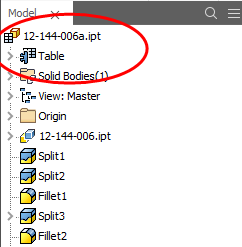
2017-07-31_15-52-34This creates a Table which appears in the model browser. It is usually a good idea to give parameters meaningful names as I have done here for the Length, Width and Height.

The Description values are from the iProperties whereas the Length value is from the parameters.

This table can be further edited within Inventor LT or externally as an excel spreadsheet.

In the drawing environment, you select the General table option, Select View and then Column Chooser, add required columns, select OK and insert the table into your drawing.

2017-07-31_16-04-53

…and there we have it…a BOM in an Inventor LT part drawing.

Part Quantities:

I have not mentioned part quantities which of course would be a prerequisite for any purchasing decision. You can, of course, create a parameter in the model file for quantity and include that in the table, but if this part serves a number of different assemblies then the quantity will vary accordingly.

Given a typical scenario where you are the manufacturer of components working collaboratively with other companies on a project how do you track quantities when you are using LT and the other guys are using Inventor and building assemblies.? You could, of course, just phone them or email them but as production schedules are critical you need a way of immediate notification of quantity changes.

I faced a similar dilemma when I developed a modular solution for a power distribution company for design of sub stations. This resulted in vastly reducing the design time by over 60% which meant the procurement chaps had to up their game to keep on top of things.

Modular Approach to Sub-Station Design

The solution gave access to all project material BOMs without needing to bother engineers to create structured BOM extractions.

Briefly what we had was a top level assembly BOM which was interrogated by a custom database application to read the Part Name column and then search a folder of extracted cad model BOMs with the matching name and multiplying the quantity column in the part BOM with that of the assembly.

2017-07-31_17-22-30

For example, the database would open the top level database above, read the columns Name & Descr (to be sure we were only looking for modules) and then import the corresponding data files with those names into the database. In this case, we only have 1 quantity per part, but that could be anything and the associated part file would be multiplied accordingly.

This is a very basic overview of what was done and beyond the scope of this blog to describe in detail. We have already demonstrated how to create and extract tables in LT and the main point here is though you may only have Inventor LT there are many options for creating data-sets in tables that can be shared and used productively in a collaborative environment.

Incidentally, the database I created was another of those instances where something could not be done!

Technote: Inventor Sketch Datum

Technote: Inventor Sketch Datum Point.

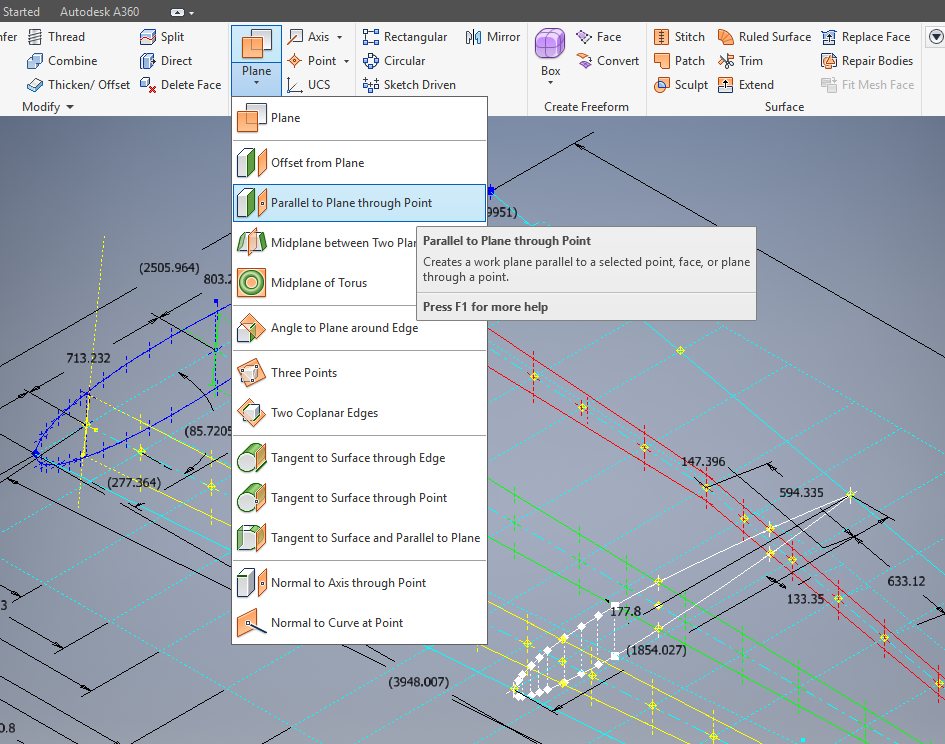
This is one of those instances where you do something on a regular basis and don’t really appreciate the significance of the process. What I am referring to is when you create a sketch Plane using the option “Parallel to Plane Through Point”.

2017-07-27_00-33-25

It transpires that this selected point becomes the datum for the particular sketch created on this plane. For this example, for a P-39 wing rib, we have selected a point for the Plane location along the wing leading edge as shown.

P39 wing1

The Bell P-39 and similarly for the P-51 Mustang the wing ordinates are set out from the leading edge of the wing so it makes sense that the rib sketch is setup with a suitable datum point. You can tell the location of the temporary datum in the sketch applied to this plane by the position of the main axis.

This is the really interesting part, when you now import a set of points from the Ordinate spreadsheets it will recognize this sketch datum and import the points relative to this point irrespective of the model origin.

2017-07-27_00-35-12

2017-07-27_00-39-42

This is very useful particularly for these aircraft projects as we tend to use a lot of ordinate data for the outline geometry.

Another Quick Tip:

To automatically apply a tangent constraint to a sketch line just select and drag the line from an existing line and the tangent constraint will be applied.

2017-07-27_01-14-56

Technote: P-39 Inventor Facedraft

Technote: Bell P-39, Inventor FaceDraft

Draft angles is actually a common requirement when working with aircraft components, particularly forgings, and it is surprising that I haven’t written an article on this before now.

Facedraft in Inventor is a feature that allows adjusting the face or faces of an object to a specified angle. A more detailed overview is described in this Autodesk article Face Draft feature

Occasionally the implementation is not quite so straightforward as noted therein and some outside the box thinking is necessary. Thus was the case when I was building the forging component for the P-39 Landing Gear Nosewheel Scissor.

To build this component I created 2 separate solid bodies, one for the cylinder item and one for the fork. The fork is split about the X,Y plane with only the outline of the top half being modeled to facilitate the initial face draft.

2017-07-23_00-00-14

For the first option, I selected the X,Y plane and then for the Faces I selected the automatic face chain option and placed the cursor close to the top edge as shown. If you required the face angle to originate from the bottom edge then you would select the faces close to this edge.

I then trimmed out the inside profile of the fork and applied a face draft as above.

2017-07-23_00-08-00

Now it was only a matter of mirroring the fork solid to complete this portion. Notice the solids are still separate items which will be combined as one after inclusion of the central web component.

2017-07-23_00-12-51

There is an option for the Facedraft feature to Draft using a parting line, either a 2d or 3d sketch. The draft is normally applied above and below this parting line. In most circumstances, the Parting Line option works well but occasionally the model may be too complex to achieve the desired result thus the solution described here provides an alternative approach.

Forgings or castings commonly have a draft angle on all faces which is normally 7 degrees and occasionally 5 degrees. The Face Draft feature is ideal for applying the drafts with an extensive range of options. The model of the forging would then be derived into a separate part file and then machined according to the finishing requirements similar to the process described here Derived Parts.

2017-07-23_11-47-28

2017-07-23_11-46-40

For more information on the Bell P-39 Airacobra project: Bell P-39: Project

Hoppers: Surface Model for Mass Containment

Hoppers: Surface Modelling for Mass Containment:

Although not directly associated with aircraft design there are inherent modelling techniques equally applicable to many aspects of aviation. The techniques relate to surface modelling for the containment of a known mass or volume. In each case, the criterion is the specified volume or mass that ultimately defines the size and shape of the container.

hopper-1

This particular hopper is for a Transfer car used to feed Steel Plant Coke Ovens with coal. The development of this hopper combines surface and solid objects in a single multi-part model that is configurable via a dialogue populated wth the key parameters. Surface modelling can be used for various purposes; some of which I have covered in previous articles for the creation of sheet metal flanges, trimming solids and providing a boundary for extrusion or as a containment for a solid component; as I have used here.

hopper-master-01

This type of hopper is fed from an overhead bunker and releases the fill material through an aperture in the base. The mass volume is modelled according to industry specifications that define the slope of the poured coal defined by the size of the top bunker opening.

The surface represents the containment boundary which has zero volume and zero mass therefore by definition will ensure that the only properties recorded for mass and volume in the 3d model relate only to the fill material. The image above shows some of the key parameters used to model this hopper as a part file with an ilogic form to make it easier to adjust the parameters to suit the project design.

2013-09-17_121727

The gray values for the Coal Volume and the Centre of Gravity are the results calculated from the physical dimensions of the coal mass and the containing surface model. Once the correct dimensional and mass properties are determined the surface objects are extrapolated using the “Make Component” command in Inventor which creates a separate derived part file and also (optional) includes the part file in an assembly placed at the original coordinates. In the surface part file we simply thicken the surface to generate the solid plate material that will form the structural body of the finished hopper.

hopmaster01assemblya

This is a very basic introduction to using surfaces where the mass or volume of a fill material is the critical component. On some forums, similar questions have been asked for complete hoppers where programmed solutions are offered to subtract all the structural objects to derive the fill mass and volume. By using surfaces with zero mass and volume to contain the fill there is no need for any programming solutions. There are a few ilogic basic routines included in this example for formula calculations and shifting the location of the bunker output. Another example just for reference is the casing for a screwfeeder:

400 - Streams 1 & 3.png

Surfaces are extraordinarily versatile with many applications, only some of which have been mentioned in this blog. For this example, we could extend the technique to modelling fuel tanks, hydraulics and oil tanks where the volume and mass are critical.

Sopwith Pup:Wing Brackets

SopwithPup: Wing Brackets

This was not meant to have been a study in its own right, but out of curiosity I couldn’t help but wonder if there was enough information to actually build an accurate 3D model.

I was also curious why I had received a number of help request emails from my friend about this particular aircraft…so I decided to have a closer look. His latest query was regarding brackets similar to the one I mentioned in my previous post but specifically the centre section connecting brackets to the wings.

The left bracket belongs to the centre section and the right bracket is the connecting bracket for the wing that slots into the centre section bracket.

sp-009

The bracket dimensions are such that the centre bracket sits proud off the centre spar whilst the wing bracket is embedded in the wing spar, so technically they should just fit into one another without too much problem!! That’s the theory but the reality is it doesn’t quite align with expectations.

sp-03

This image shows the actual clear dimensions within the top and bottom rib flanges which replicate the perimeter dimensions of the wooden centre spar. In order for the centre section bracket to connect to the spar we would have to notch the top and bottom rib flanges to get it to fit. The horizontal dimension can vary (highlighted) but we will be restricted by the vertical dimension. I can’t imagine why anyone would want to notch the top and bottom flanges as this diminishes its strength. Plus there’s another issue with this…

sopwith-pup06

This preliminary model shows the problem where the centre spar is actually set back one inch to facilitate the incoming connecting bracket from the main wing. Ideally, we need to fully assemble the centre section and have it fitted to the aircraft and aligned prior to fitting the wings, but how can this be done if we can’t screw the rib flanges to the spar? I think in this instance I would shape the wooden spars in such a manner as to facilitate fitting of the flanges and mating with the wing spars.

I have done some research on this and it appears to be a known issue with some clever blokes just redesigning the connectors to make it work better or tapering the wing spar to good effect as shown below.

sdasmpup

It looks as though the wing spar is tapered with a smaller bracket sized to fit within the centre bracket. That would work and likely an improvement implemented in the workshop. A very rough preliminary study could look something like this…

…it does need a lot more work but I don’t have a lot of time to develop it further right now!

The design in many respects seems a little rough and ready, but we have to remember in those days they were under a huge amount of pressure to get these aircraft built and get them into the field. The life expectancy of these aircraft was only six weeks so replacements had to be shipped out in rather a quick time.

No disrespect either to Tom Sopwith and his engineers, these things actually flew rather well regardless of the vagaries of the design and what may seem to be annoyances to us may well be things they would naturally deal with in the workshop without any hassle.

It is very tempting to continue developing the Sopwith Pup but to do so efficiently would require setting out the basic geometry for the entire aircraft, identifying the anomalies and determining suitable resolutions as close as possible to the original design intent. I’m not sure I have the time nor the inclination to do so.

This has been a welcome distraction from the P-39 Airacobra project and will likely feature in a few more posts as I will surely continue to receive help requests from my good friend.