Grumman F6F Hellcat: Wing Ordinates

Grumman F6F Hellcat: Wing Ordinates

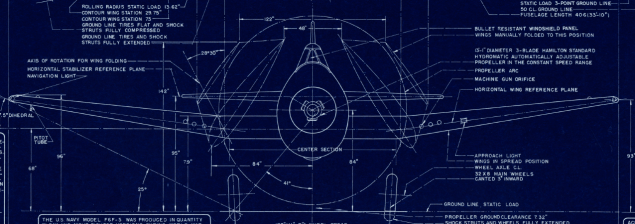
I wrote an earlier article on my work with the F6F fuselage ordinates which I have recently updated. Whilst revisiting the archive I also came across the Grumman wing ordinate drawings and decided to develop those as well. I was reluctant to do this as the original drawings were not that great.

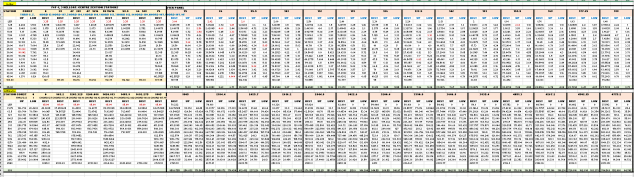
Thankfully it was not as bad as I first suspected, though it has taken me over 7 hours to painstakingly enter each ordinate manually to tabulate the ordinates in Excel.

F6F Wings

I still have to interpolate the data to generate the appropriate X, Y, Z coordinates; set out from the 35% chord; which I will endeavor to do over the next few days.

F6F wings 2

To verify the ordinate dimensions the following equations are applied. The chord length is for any wing chord whilst the LER is only applicable from station 75 to station 252.

f6f calcs2

To be honest the F6F Hellcat was not even on my to-do-list but a conversation with a colleague about the F6F performance characteristics prompted me to have a closer look at the archive. Surprisingly it is very possible that this archive may have sufficient information to generate an entire aircraft ordinate set, which is quite rare.

f6f

I will update this post when the wing model is complete, so come back soon.

Update August 23:


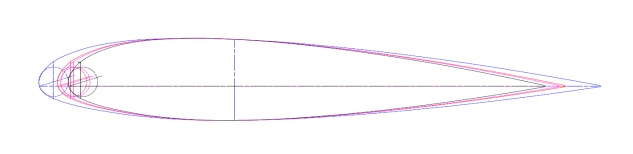
I have checked the Centre section profile for accuracy and noticed one point out of alignment by 2mm towards the leading edge. Removing this point allowed the natural curvature of the spline to define an acceptable profile as shown. The curvature check shows that this curve now matches the Leading Edge Radius.

The trailing edge extends beyond the 100% Chord by 5/8th inch on the centre section (Station 0) which tapers to zero at Station 252. Drawing a straight line segment from the Trailing Edge Radius results in perfect alignment with the spline.

Centre Section Stations:

f6f ctr section

Outer Panel Stations:

F6F outer wing

It is not unusual to have a few rogue points from the tabulated ordinate data which is why it is important for a detailed analysis like this.

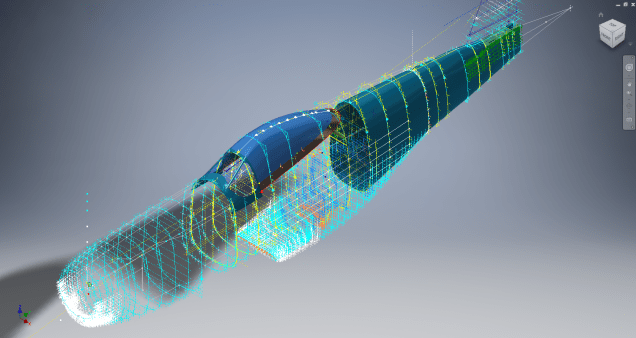
And here, at last, the complete wing assembly:

f6f wing assembly

Technote: Inventor LT BOM!

Technote: Inventor LT Bill of Material.

I normally use Inventor Professional but recently I decided to have a look at a common issue with Autodesk Inventor LT which is a part only product. Essentially the “lite” version of Inventor with limited functionality that excludes sheet metal, vba, ilogic, assembly mode and Bill of Material!. Technically the BOM capability is not a function of Inventor LT which I suspect is due to the fact it has no assembly environment but there is a workaround.

I should note that Inventor LT is a very capable modeling product which is ideal if you are mainly developing parts and if you do require an assembly environment to check the alignment of mating parts then you can use the derived function as explored in a previous post to assess this.

Whilst the product may be limited it does have a lot of functionality that can be exploited to overcome some of the limitations and the BOM is just one example of a situation that the forums, in general, described as something that cannot be done!

For this example we will continue with one of the parts from the previous article: the Bell P-39 Airacobra Centre Bulkhead fixing bracket.
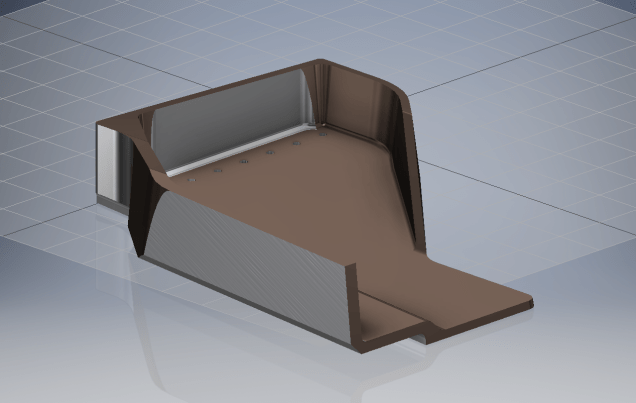
2017-07-31_14-31-28

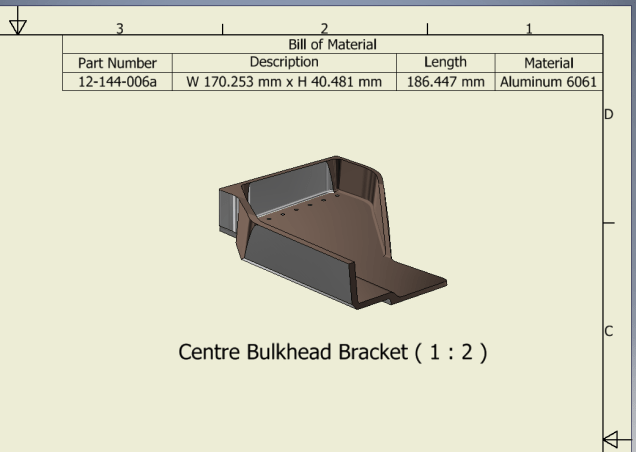
What I wish to do is have this part fully dimensioned on a drawing that also contains a basic table of properties that may be useful to the chap responsible for buying the raw material. Okay, I accept that the following image is not fully dimensioned but my primary interest is the generation of the BOM.
2017-07-31_15-32-56

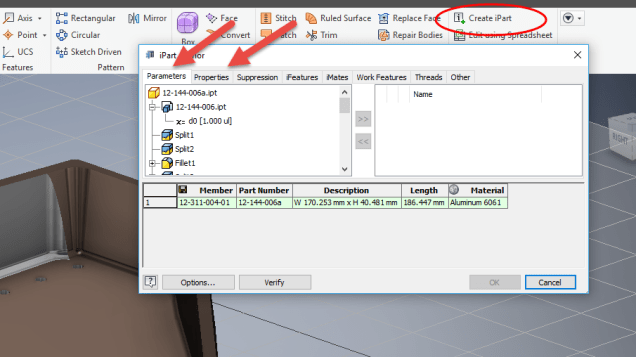
Inventor LT like its bigger brother contains a lot of part data which is accessible via the iProperties and Parameters, which we will utilize by using the iPart feature.

Normally iParts are used where a single part may come in varying sizes or configurations that share the same basic features; for example bolts! In this case we are creating only one version of the part. By adopting the capabilities of iParts we will create a table of selected data within the part file that we will later use as a data source for our BOM.
2017-07-31_15-59-16

I won’t go into the technicalities of creating an iPart, there are many online resources that go into this in detail. Generally speaking, when creating an iPart you have access to all available data including parameters, model hierarchy data, and iProperties as shown above and it is simply a case of selecting the data you want.

2017-07-31_15-52-34This creates a Table which appears in the model browser. It is usually a good idea to give parameters meaningful names as I have done here for the Length, Width and Height.

The Description values are from the iProperties whereas the Length value is from the parameters.

This table can be further edited within Inventor LT or externally as an excel spreadsheet.

In the drawing environment, you select the General table option, Select View and then Column Chooser, add required columns, select OK and insert the table into your drawing.

2017-07-31_16-04-53

…and there we have it…a BOM in an Inventor LT part drawing.

Part Quantities:

I have not mentioned part quantities which of course would be a prerequisite for any purchasing decision. You can, of course, create a parameter in the model file for quantity and include that in the table, but if this part serves a number of different assemblies then the quantity will vary accordingly.

Given a typical scenario where you are the manufacturer of components working collaboratively with other companies on a project how do you track quantities when you are using LT and the other guys are using Inventor and building assemblies.? You could, of course, just phone them or email them but as production schedules are critical you need a way of immediate notification of quantity changes.

I faced a similar dilemma when I developed a modular solution for a power distribution company for design of sub stations. This resulted in vastly reducing the design time by over 60% which meant the procurement chaps had to up their game to keep on top of things.

Modular Approach to Sub-Station Design

The solution gave access to all project material BOMs without needing to bother engineers to create structured BOM extractions.

Briefly what we had was a top level assembly BOM which was interrogated by a custom database application to read the Part Name column and then search a folder of extracted cad model BOMs with the matching name and multiplying the quantity column in the part BOM with that of the assembly.

2017-07-31_17-22-30

For example, the database would open the top level database above, read the columns Name & Descr (to be sure we were only looking for modules) and then import the corresponding data files with those names into the database. In this case, we only have 1 quantity per part, but that could be anything and the associated part file would be multiplied accordingly.

This is a very basic overview of what was done and beyond the scope of this blog to describe in detail. We have already demonstrated how to create and extract tables in LT and the main point here is though you may only have Inventor LT there are many options for creating data-sets in tables that can be shared and used productively in a collaborative environment.

Incidentally, the database I created was another of those instances where something could not be done!
NAA P-51D: Master Lines Plan

NAA P-51D Mustang: Master Lines Plan

The P-51D project is progressing well with further developments on the fuselage frame profiles. I now have a comprehensive Master Lines Plan incorporating additional information obtained from mathematical analysis, drawings, reference documentation and geometric developments. I have updated and remodeled the underside Oil Cooler Air intakes, canopy, windshield, rear fuselage and fuselage tail-end. As part of the remodel the groups of ordinates for each frame for the Oil Radiator Duct, Coolant radiator Duct and Removable Scoop are now contained on their own respective work-planes. This will make it much easier to micro manage the final mold lines.

Fuselage Master Lines Plan (P-51D overlaid on P-51 B/C):

2017-07-01_14-32-09

Test Lofts and developments:

2017-07-01_14-30-24

Front Views (note the Canopy Profile update from the previous article):


A month ago I was not sure how much could be achieved given the limited amount of information at hand but with due diligence and detailed research, it is quite amazing what can be accomplished.

With this template, it is now technically possible to accurately develop a CAD model for the entire fuselage structure and mechanical components for the P-51D, which would be great; but I often wonder what the value of such an undertaking would achieve, other than being a darn interesting thing to do and a test of CAD modeling skills.

Having achieved this significant milestone the time is right to conclude the work on the Mustang P-51D and P-51 B/C projects. I may continue with the P-39 project but as always I am keen to explore the options for the more obscure extinct aircraft as described in Operation Ark.

2017-07-01_00-15-20

If you are planning on developing your own Master Lines plan a good place to start would be with the 1000’s of ordinates points cataloged and recorded on the spreadsheets here: Mustang P-51B/C Ordinates which also includes the wing ordinates for the P-51D and vertical stabilizer.

2D Draughting to 3D Models

2D Draughting to 3D Conversion

2d to 3dTechnical drawings, detailing the specifics of your design can be critical for the communication both internally and externally. We can transform your 2D CAD or fully dimensioned legacy paper drawings to 3D Models using our experienced engineers to ensure drawings are 100% accurate and adhere to the most relevant standards and protocols.

3D Cad models will be fully inclusive of manufacturing tolerances as specified. New 2D drawings will be derived from the 3D model, dimensioned and denoted as original.

Attributes and BIM IFC data can be incorporated according to your engineering and company standards for Structural, Mechanical, Building Services and Equipment projects.

We normally use the Autodesk Inventor but are equally capable with all the Autocad based products from which we can provide native format model files or various other formats to suit your requirements, including DWG, IFC, STEP and STL.

We can provide CAD modelling services for your restoration project, adhering to all appropriate standards and design specifications.exit

TechNote: MS Excel Drawing Register P-51

TechNote: MS Excel Pivot Tables: Drawing Register P-51

The drawing archive collection for the Mustang P-51 includes an NAA Document register in PDF that lists all the Scan Index Numbers, Drawings Number, Aircraft Type and Change (Revision)Number.

To make sense of this large archive; containing thousands of scanned images; it is necessary to first transpose the comprehensive NAA document register into a spreadsheet in order to analyse and filter the data according to requirements.

My requirements are simply to be able to group the data per content; Fuselage, Wings, Equipment etc; and per aircraft type; P-51A, P-51B, P-51C etc.

Further breakdown of data would involve isolating the main assemblies and then parts or sub assemblies belonging to each.

2015-06-12_22-06-44From Adobe Acrobat I extracted the pages of data as spreadsheet tables to which I added a Drawing Description and grouped the data sets together by “Content”…that took a long time to do as the extracted data first had to be checked and then sorted accordingly.

The drawing descriptions came from an index already created by Norman Meyers at Chanute Air Museum, so it was relatively easy to enter this data into my spreadsheet. Its a real pity I had not had access to Normans data earlier; could have saved me a lot of work.  My thanks to Norman Meyers.

2015-06-12_23-39-41After sorting the data and inserting descriptions I now have separate worksheets for the content similar to this one.

What I really want now is to identify and organize the drawings belonging to each type of aircraft. For this exercise I use the Pivot Table function in Excel. Pivot Tables are great for organizing and summarizing data according to specific criteria.

2015-06-12_22-34-13Here I have initiated the Pivot Table function and selected the entire data-set of information relating to the Fuselage; as you can see we have a large number of drawings just for this one area!

When working with large data-sets it is good practice to select a new worksheet for inserting this new table.

2015-06-12_22-38-07What we end up with is a new worksheet with the pivot table outline on the left and a selection box on the right. We now select from the latter the columns of data we want…in this case all the main ones plus the P-51D; which will populate the outline table on the left.

Pivot tables by default include a summary row under each entry; I suspect this is more useful for statistics than organizing a document register; which we don’t want.

2015-06-12_22-49-34To remove the summary from the table we just need to select each column in turn using the small arrow as highlighted and turning off this option in “Field Settings” and select “None”.

The final step is to filter the data according to the required criteria; in this case I want all the drawings that have an “X” value in the P-51D column.

2015-06-12_22-54-42This is done by selecting this value from the header drop-down options; which lists by default the unique values in each column from the master table.

We now have a list of all the fuselage drawings and their location in the archive belonging to the P-51D aircraft.

The next step would be to extrapolate all the “assembly” drawings and from there the components that make up each assembly…but that’s for another day.

Pivot Tables are great for this type of job.

  • 846 fuselage drawings for the P-51A
  • 890 fuselage drawings for the P-51B
  • 833 fuselage drawings for the P-51C
  • 923 fuselage drawings for the P-51D
  • 950 fuselage drawings for the P-51H

Many drawings of course are a shared resource for all variants. This drawing register has recently been updated with hyperlinks to all the drawings listed. See this post for details.

For further information on any of these projects please feel free to drop me a line via my contact page or email me at hughtechnotes@gmail.com

FW 190 & Ta152: Ordinates

FW190 & Ta152H: Ordinate Study

1-Ta-152H-captured-FE112-Germany-1945-01

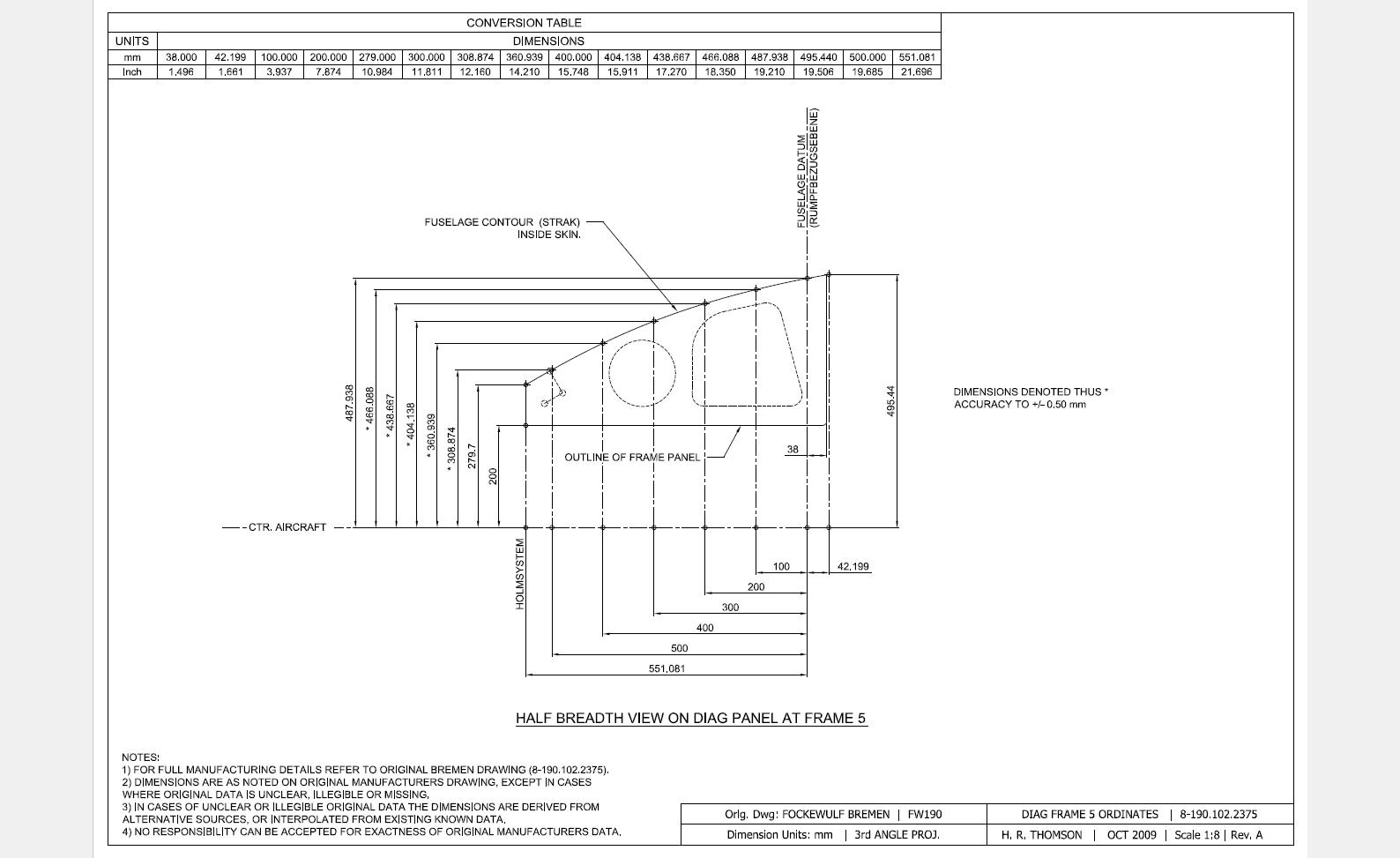
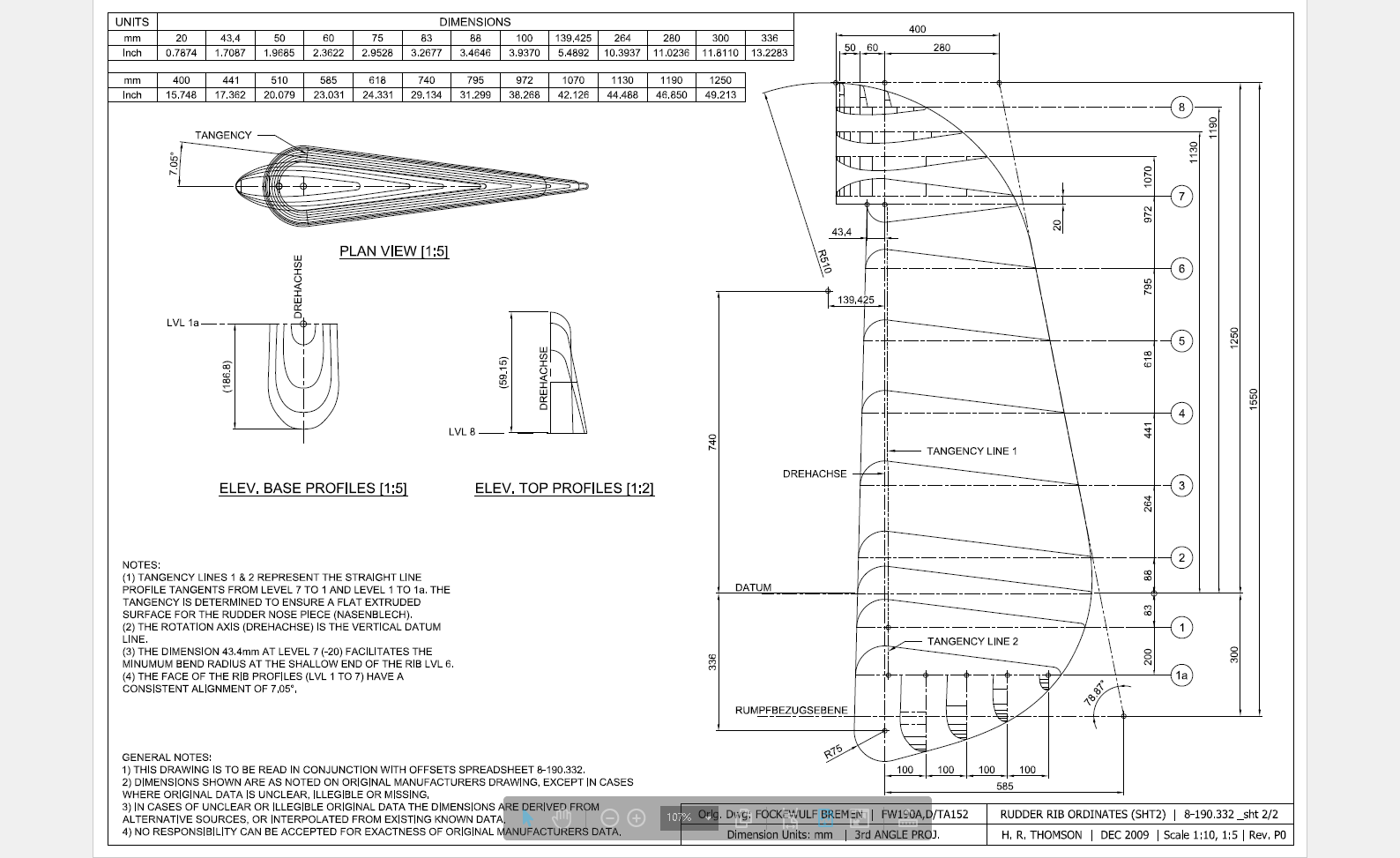
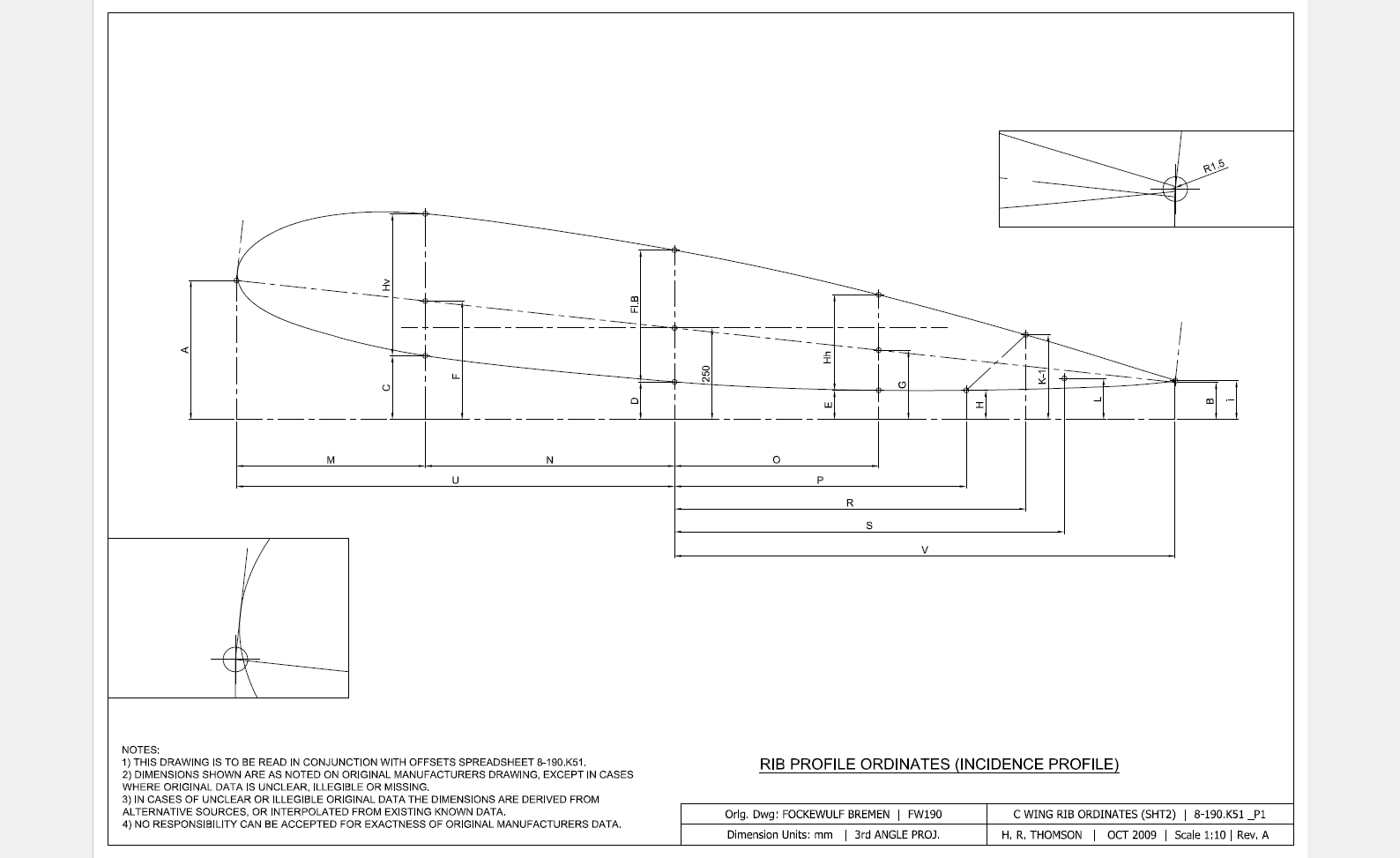
The FW190 & Ta152 was a very intensive project as I delved into the intricacies of the fuselage, wing and rudder ordinates for both aircraft; a study accumulating a mass of data.

In preparing the models I adopted a modular approach to the development breaking the assemblies down into manageable chunks of information that align with the Bremen construction assembly documents.

Every aspect of the available manufacturers data, specifications and third party resources have been very carefully scrutinized and incorporated into this build. Cross-referencing of even the smallest detail drawings can yield surprising, almost minuscule amounts of information, that can have an impact on the finished product.

Aviation Projects Drawing Comments  2015-05-31_21-46-45  2015-05-31_21-45-522015-05-31_21-45-27

It may seem inconceivable to attempt to build a model of this type down to an accuracy better than actual manufacturing tolerances. However; as I have probably mentioned before; working with SolidWorks or Inventor this level of accuracy is critical to a successful build.

These illustrations give you some idea of the progress I made with this study. Of course, the data sets for this aircraft are incomplete so a degree of interpolation based on the best available information was used where required.

Ta152 Ordinate Spreadsheet package for wings and fuselage available:

Ta-152 Wing Ordinates

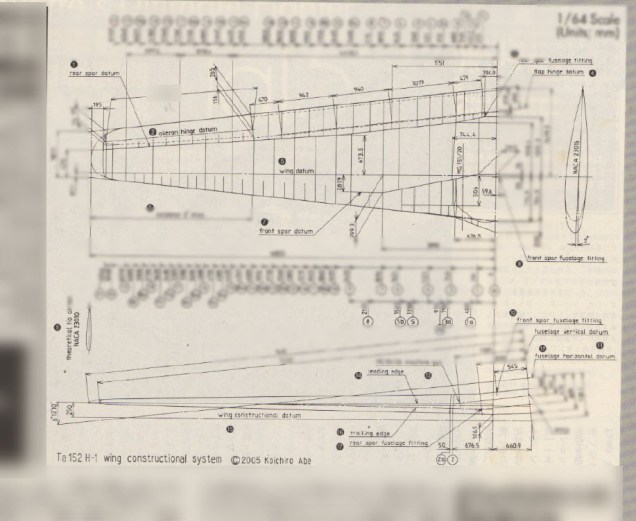
Ta152H Wing Layout:

2019-02-09_13-55-38