Grumman F4F Wildcat: Wing Ribs:

Grumman F4F Wildcat: Wing Ribs:

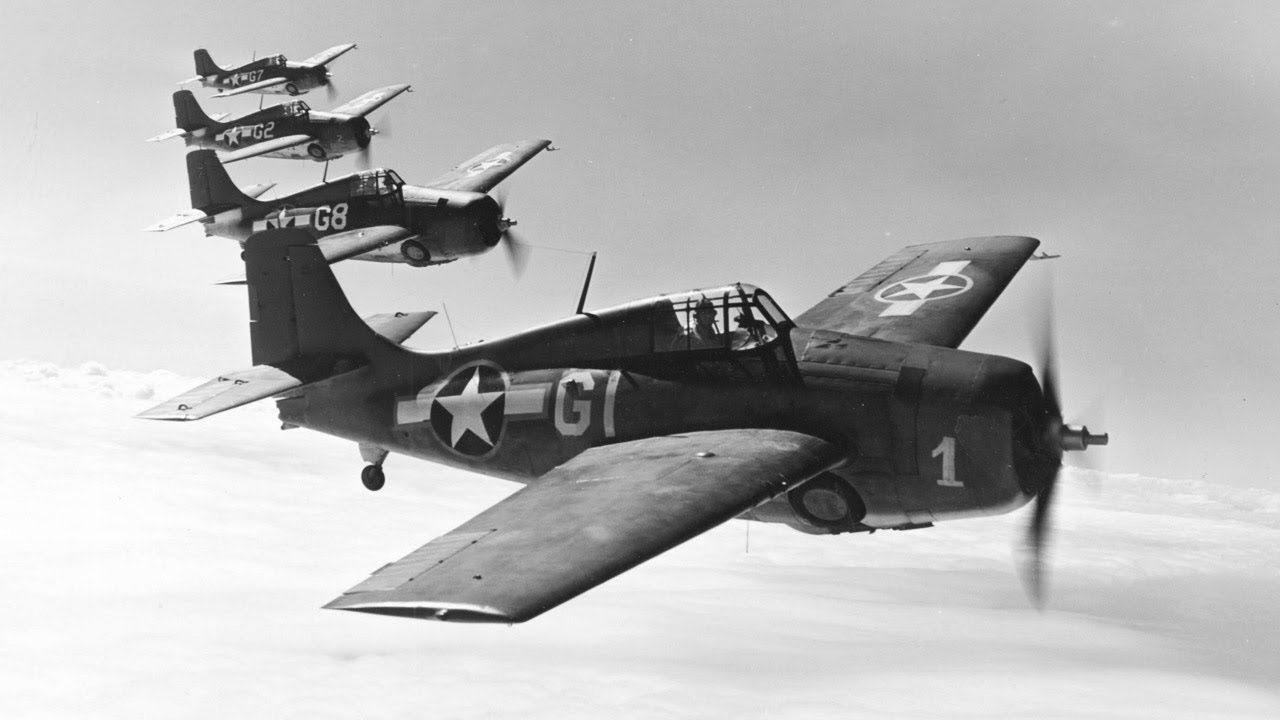
Recently I received an email asking if I had done any work with the Grumman F4F Wildcat. As I do have an archive for this aircraft it was indeed on my to-do list. This inquiry prompted me to have a closer look at the archive to see what information was available to derive a working ordinate dataset.

F4F Wildcat

Similar to the P-39 the archive does not contain tabulated data but the part drawings do have the ordinate dimensions. Working to derive an ordinate dataset from part drawings as you can imagine is quite intensive work as you first have to collate the drawings and then develop the profiles in CAD and then extract the point data to a spreadsheet. A complete reversal of the normal process.

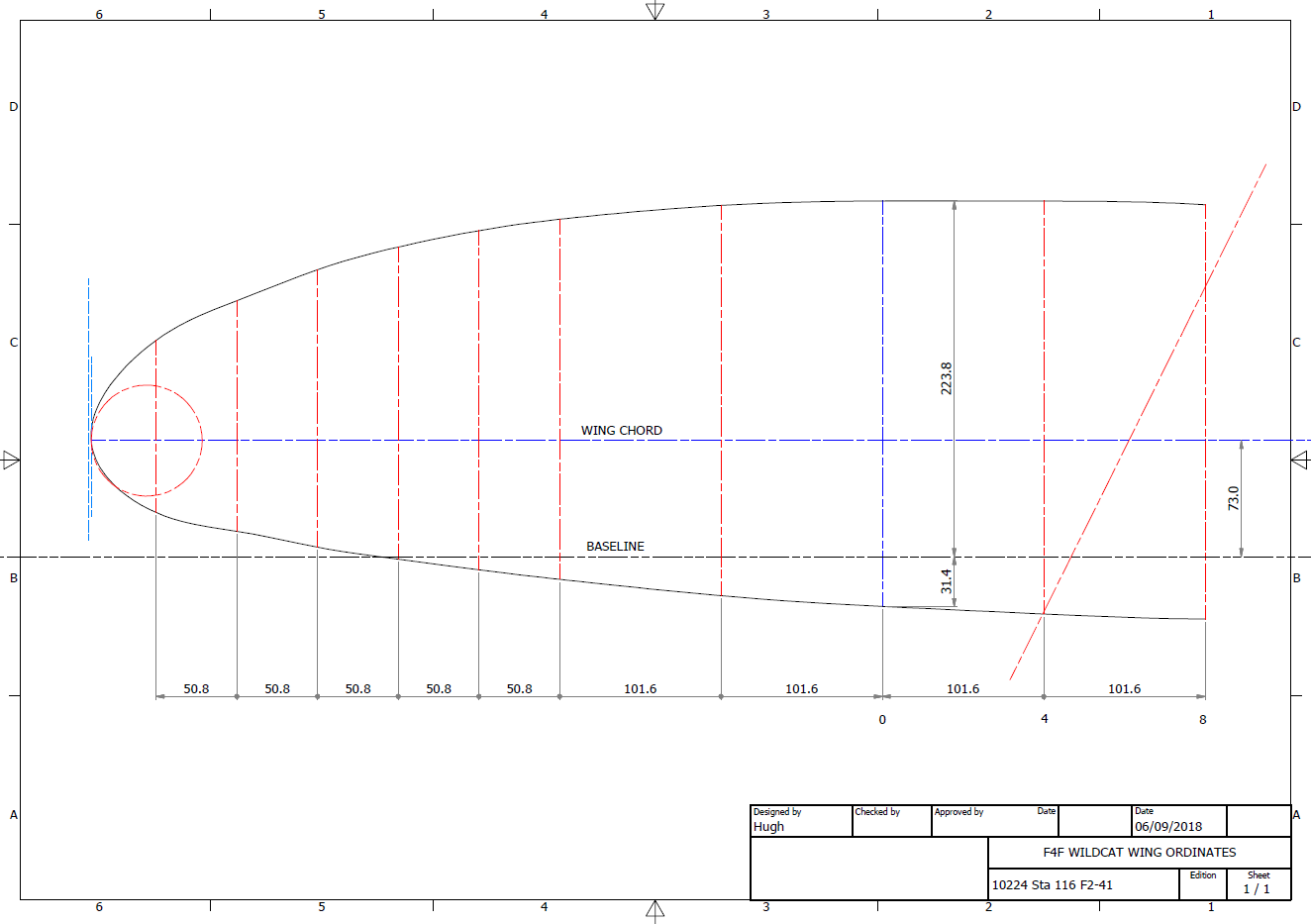
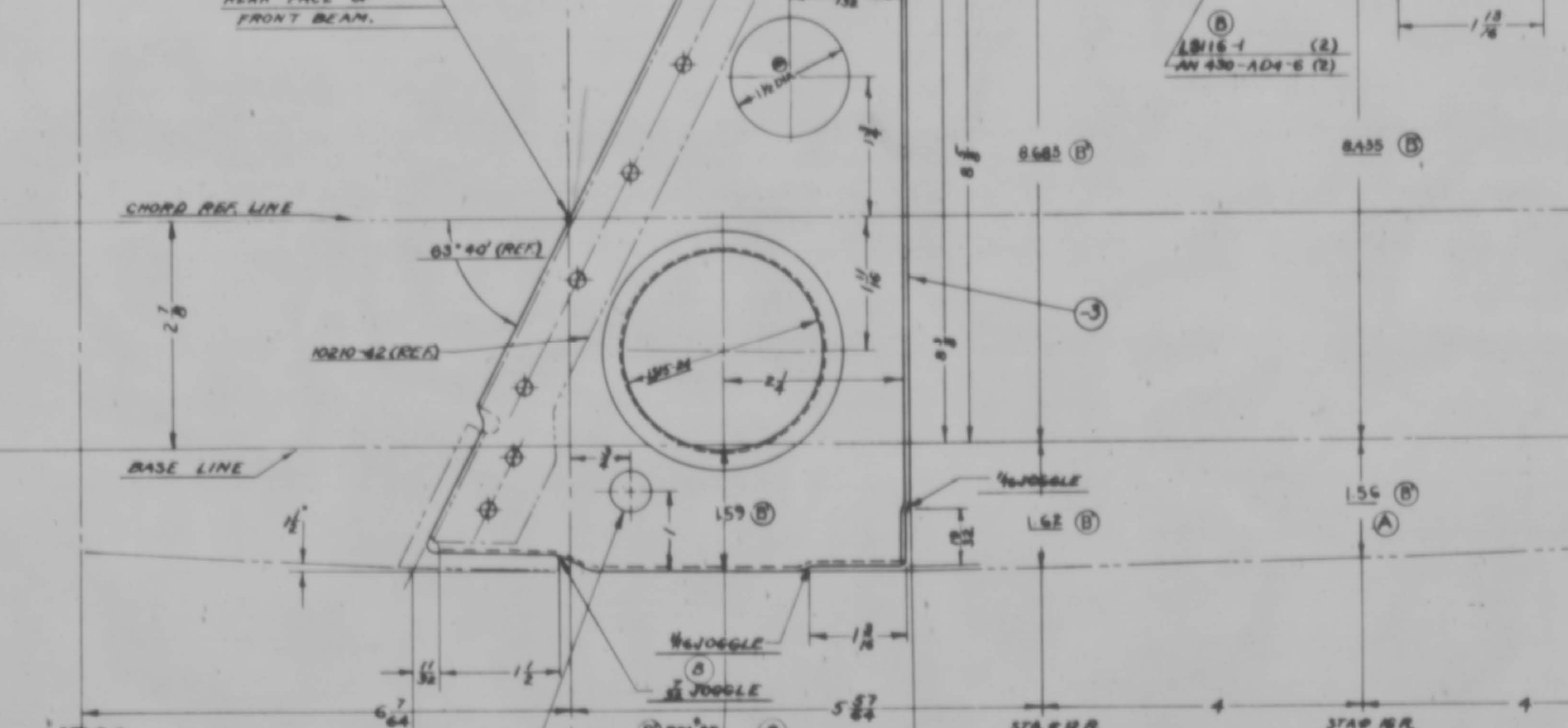
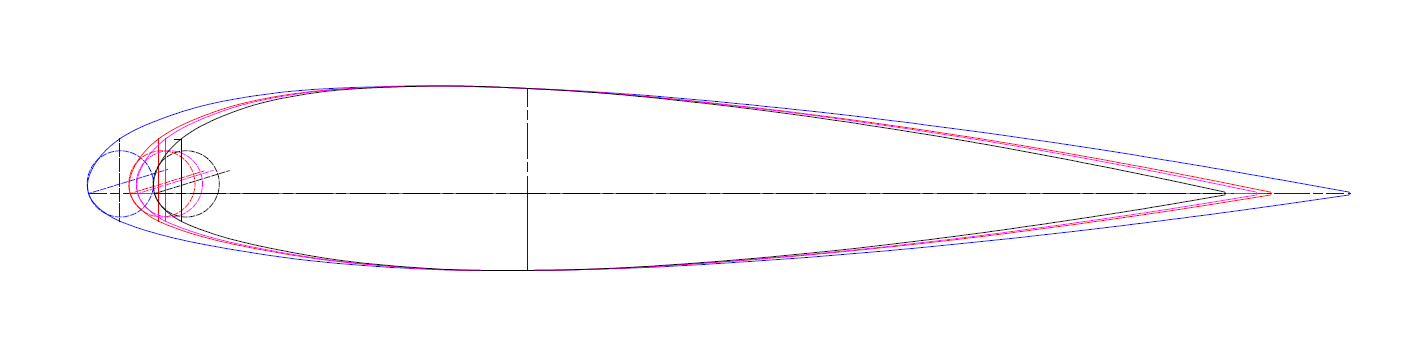
The work I was doing for the F6F Hellcat previously was not a priority task so I decided to do some development on the F4F Wildcat, starting with the wings. This threw up a few surprises as the wing rib dimensions were not relative to the wing chord as you would normally expect, instead, they were from a Base datum line. I had not seen this before and it transpires that the reason for this is because the wing ribs are actually not perpendicular to the wing chord. They are in fact perpendicular to wing datum line.

F4F Wing Ribs

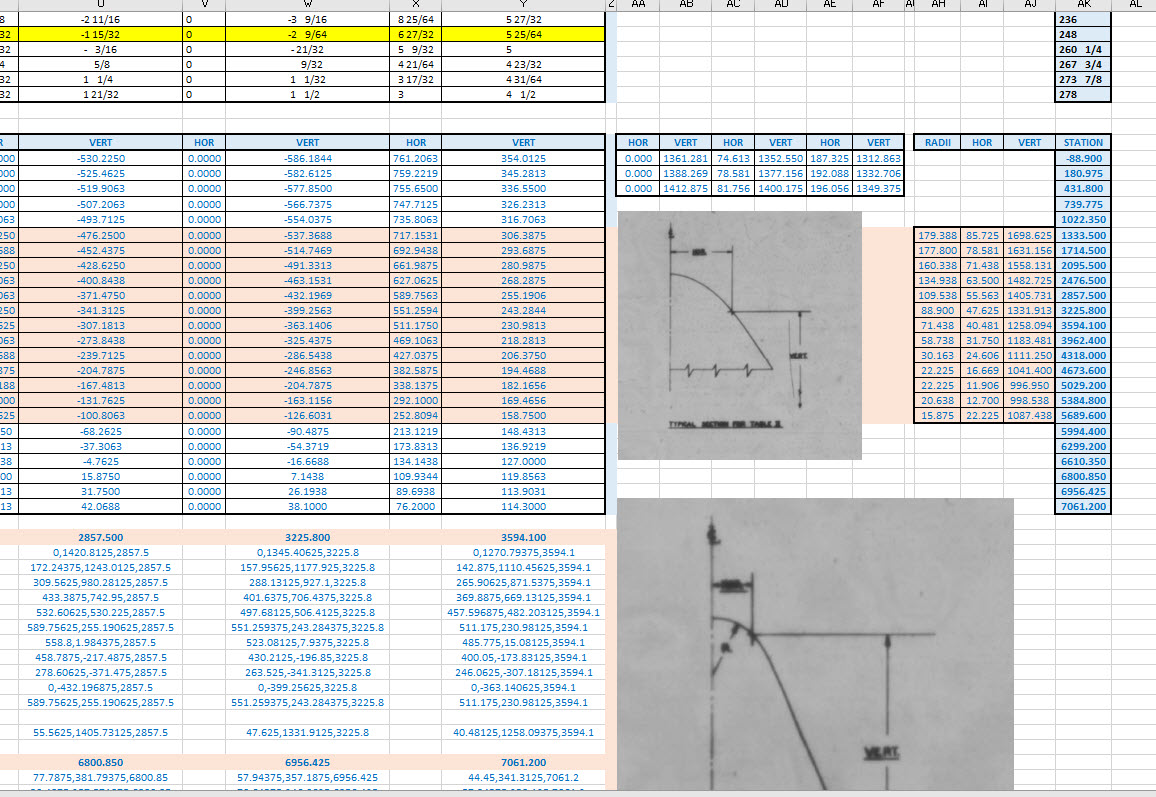
This next image shows a simplified sketch of how the dimensions are shown on the Grumman drawings. Note also that the vertical divisions are dimensions fore and aft of the “0” line (which I take to be the vertical datum) and not percentage breakdown of the cord length as expected.

F4F Wing Ribs2

This raises all sorts of questions as to why Grumman designed the wing structure in this manner. I cannot think of any performance or manufacturing benefit in doing so. You can also see in this scrap view from an actual Grumman drawing how the dimensions are to the baseline and not the chord line.

F4F Wing Ribs3

I posted a similar question on the WW2 Aircraft forum, so hopefully, someone will enlighten me on this unusual design feature.

Update: Solved!

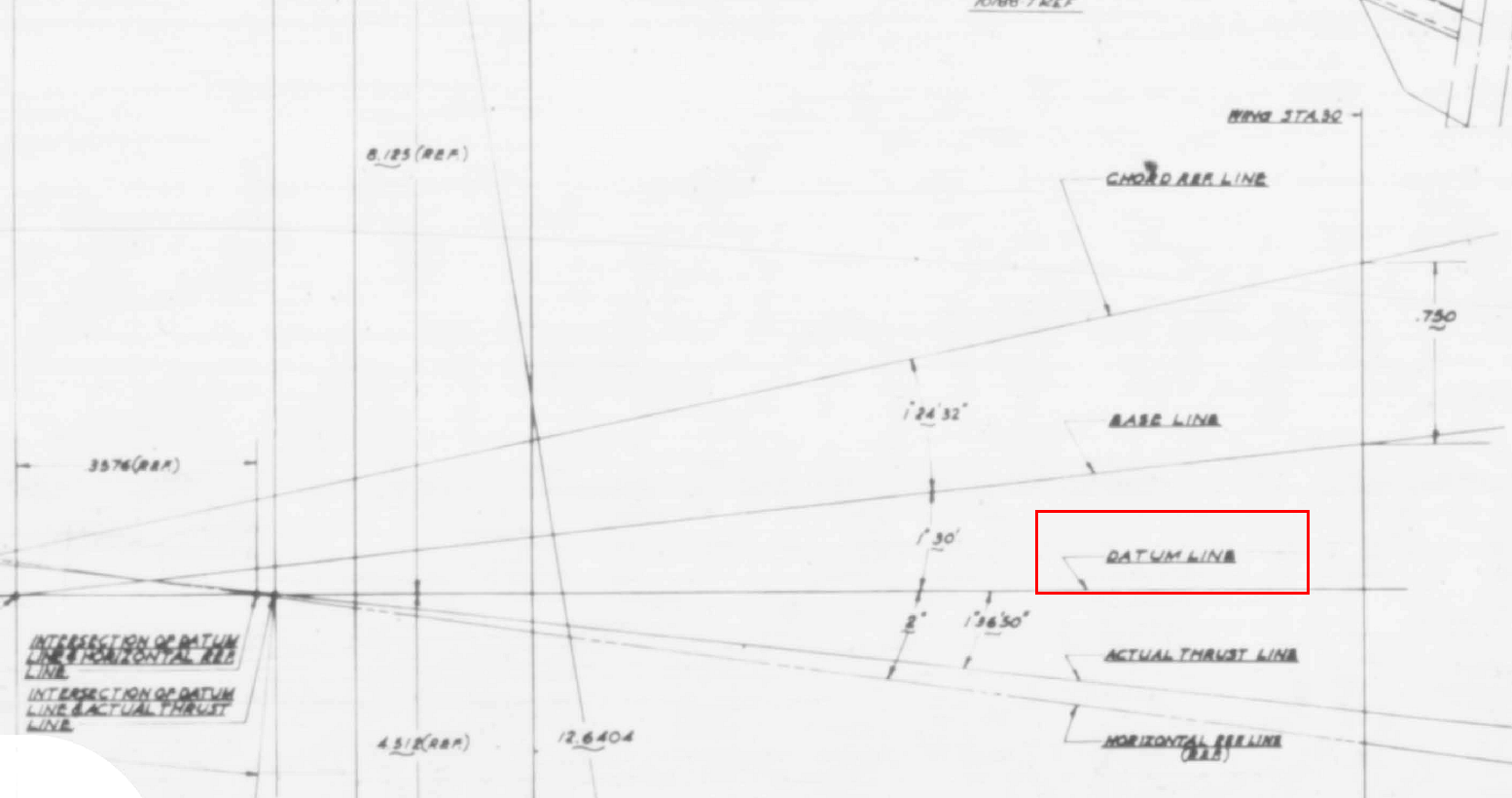
The wing ribs are perpendicular to the Wing Datum line, which is 1.6 degrees from the Thrust Line (essentially the design horizontal axis) that aligns with the fuselage Thrust Line. It transpires that the various wing components are dimensioned relative to any one of 5 different datums depending on their function.

2018-09-16_01-23-03

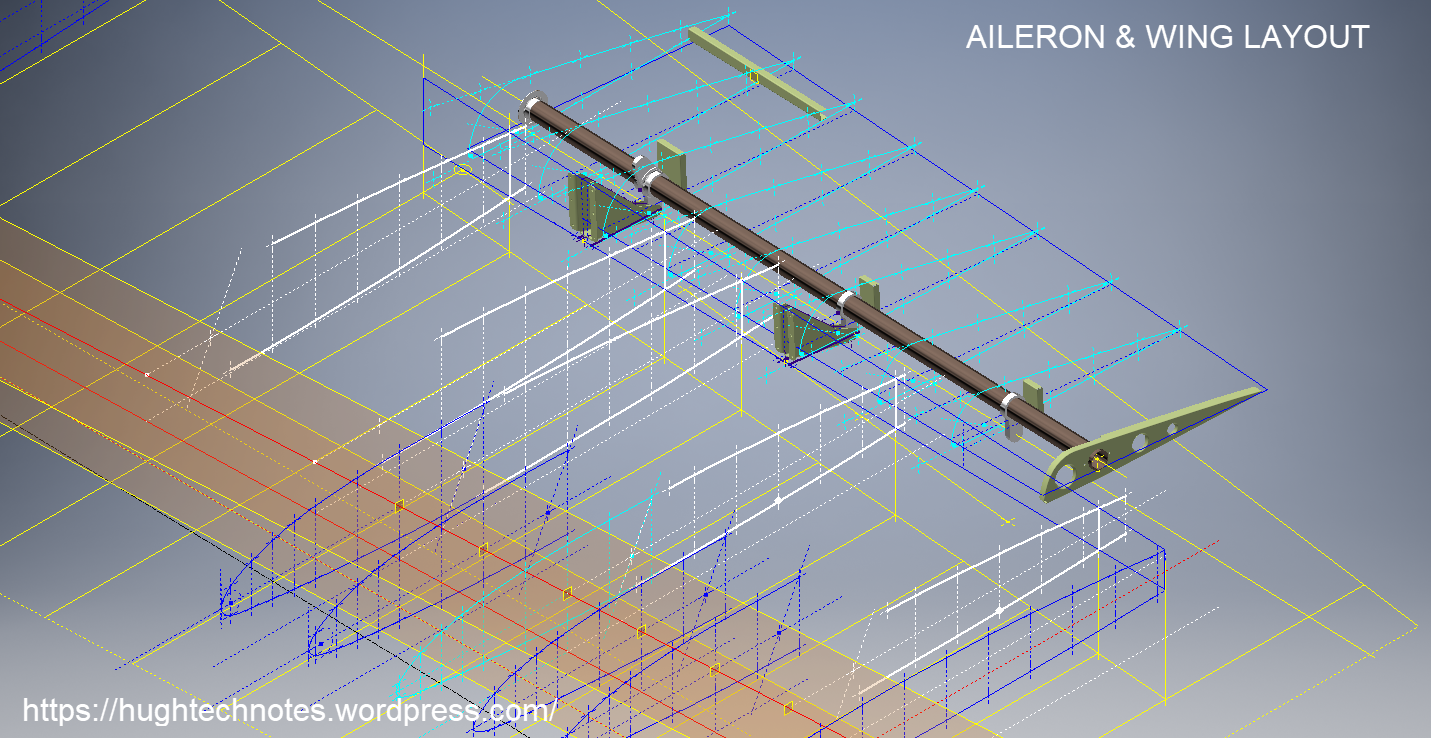
Update Sept 2018: Work in Progress:

F4F Aileron 2

2018-10-06_19-18-41

Grumman F6F Hellcat: Cowl Ordinates

Grumman F6F Hellcat: Cowl Ordinates:

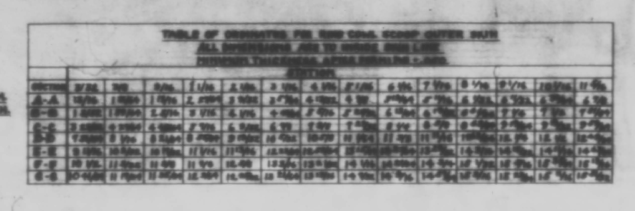
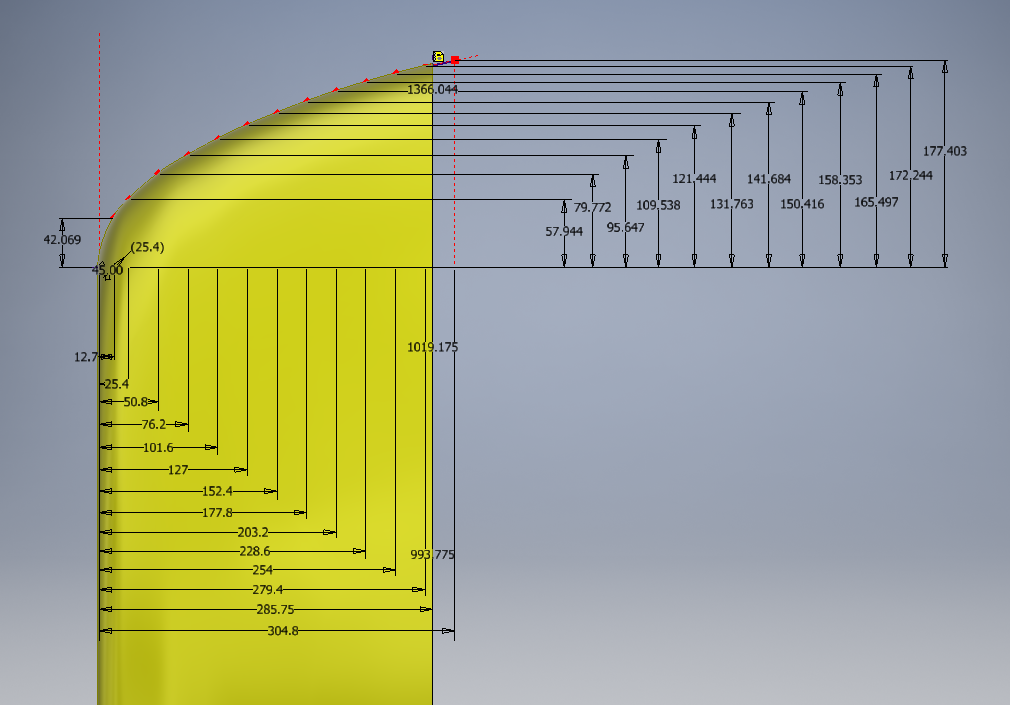
I may have been a tad over-optimistic in my previous article on the F6F ordinates when I mentioned there was a good chance the Grumman ordinate data would be complete. The one exception is the cowl, although there is an ordinate drawing for the cowl the table itself is just a black blob, completely illegible. However, I checked the part drawings that make up the cowl which is quite well detailed so I made a start on the nose spinner ring.

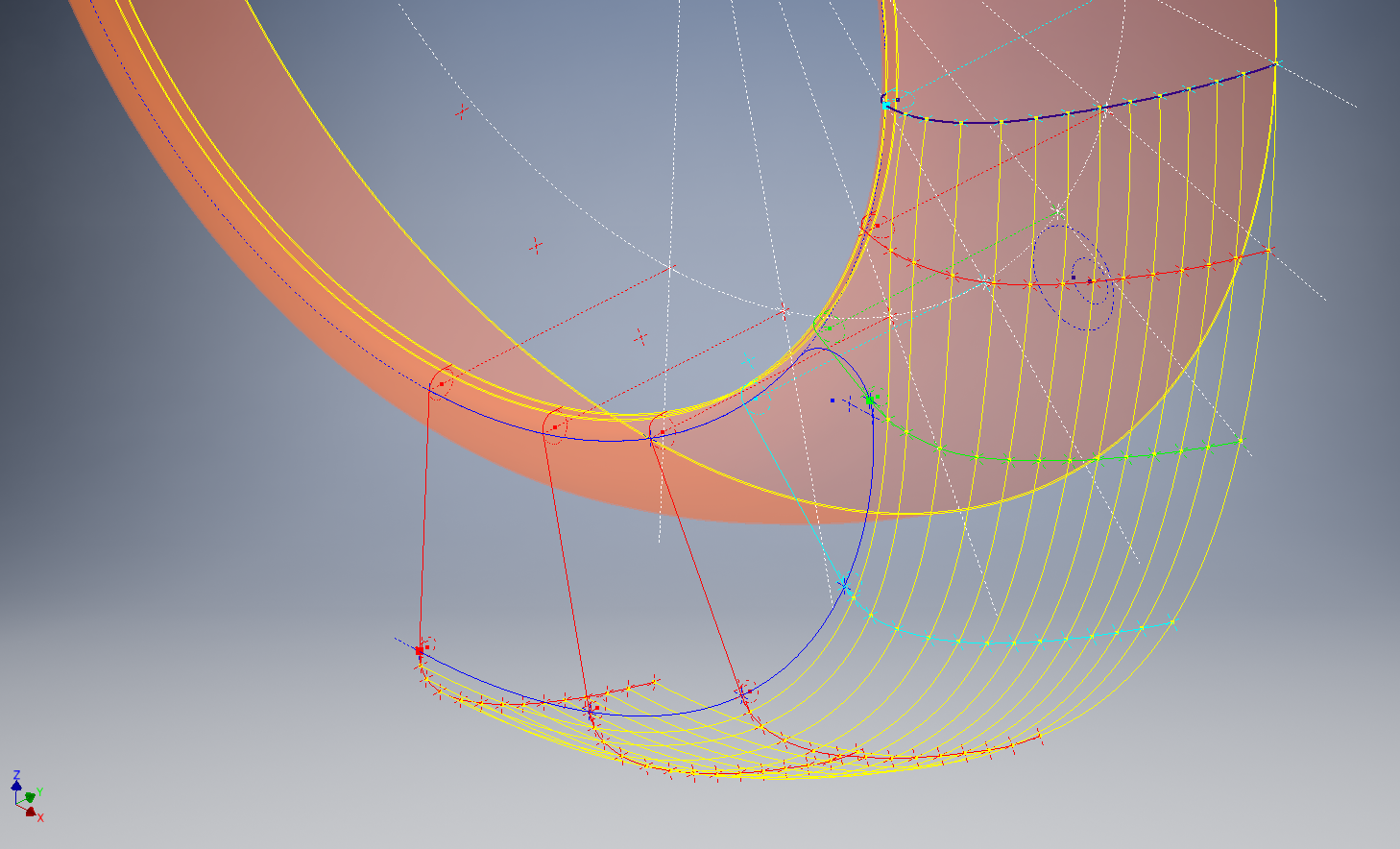
The spinner ring main model is fine and here it is derived into the air scoop construction model. The construction requires numerous contour lines as each ordinate needs to be manually checked due to the poor quality of the original Grumman drawing scan.

Cowl nose ring3

This ordinate drawing is not deliberately blurred by me, this is how it actually looks like. The main dimension is almost legible just the fractions that are problematic. The process will require evaluating each contour line and curvature check, both horizontal and vertical as shown in the above image.

I am hopeful of achieving a good result with this model which will probably take a few days to complete.

Update 27th August:

F6F Cowl Nose Ring2

I have now determined the correct ordinates for each of the seven profiles. Notice the lower profiles have been artificially extended to the center ring, which will give me better results when lofting. After lofting a surface the plan then is to remove the mouth of the air scoop (blue) and apply the finishing flange to the inner edge.

F6F Cowl Nose Ring80

The ordinates are recorded in a spreadsheet with the x,y,z coordinates extrapolated as I previously did for the wings and fuselage.

Update: 12 Sept 2018:

Cowl Ring Cowl Nose setout dimensions verified.

F6F Ring Cowl Nose

Ordinate Dataset Completed: Wings, Fuselage and Front Air Scoop.

The F6F archive of scanned Grumman documents comprises over 7000 drawings in PDF.

Grumman F6F Hellcat: Wing Ordinates

Grumman F6F Hellcat: Wing Ordinates

I wrote an earlier article on my work with the F6F fuselage ordinates which I have recently updated. Whilst revisiting the archive I also came across the Grumman wing ordinate drawings and decided to develop those as well. I was reluctant to do this as the original drawings were not that great.

Thankfully it was not as bad as I first suspected, though it has taken me over 7 hours to painstakingly enter each ordinate manually to tabulate the ordinates in Excel.

F6F Wings

I still have to interpolate the data to generate the appropriate X, Y, Z coordinates; set out from the 35% chord; which I will endeavor to do over the next few days.

F6F wings 2

To verify the ordinate dimensions the following equations are applied. The chord length is for any wing chord whilst the LER is only applicable from station 75 to station 252.

f6f calcs2

To be honest the F6F Hellcat was not even on my to-do-list but a conversation with a colleague about the F6F performance characteristics prompted me to have a closer look at the archive. Surprisingly it is very possible that this archive may have sufficient information to generate an entire aircraft ordinate set, which is quite rare.

f6f

I will update this post when the wing model is complete, so come back soon.

Update August 23:


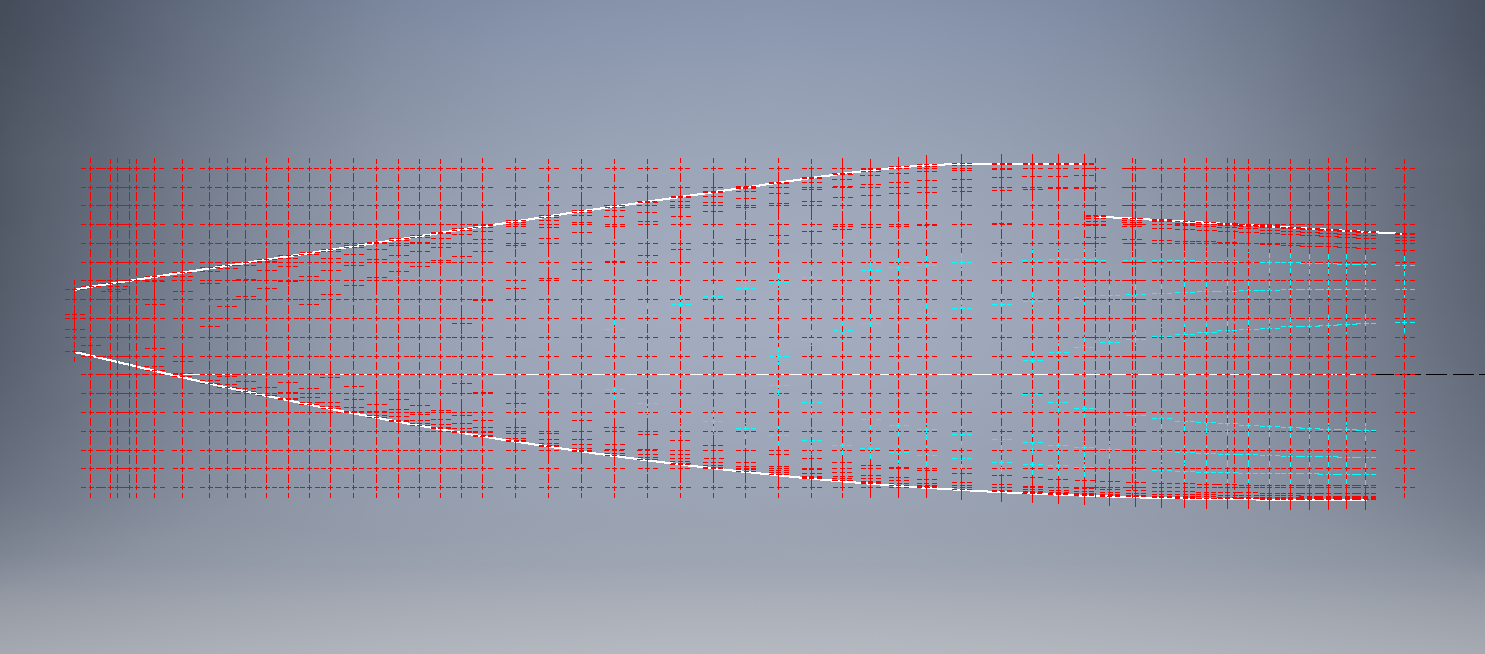
I have checked the Centre section profile for accuracy and noticed one point out of alignment by 2mm towards the leading edge. Removing this point allowed the natural curvature of the spline to define an acceptable profile as shown. The curvature check shows that this curve now matches the Leading Edge Radius.

The trailing edge extends beyond the 100% Chord by 5/8th inch on the centre section (Station 0) which tapers to zero at Station 252. Drawing a straight line segment from the Trailing Edge Radius results in perfect alignment with the spline.

Centre Section Stations:

f6f ctr section

Outer Panel Stations:

F6F outer wing

It is not unusual to have a few rogue points from the tabulated ordinate data which is why it is important for a detailed analysis like this.

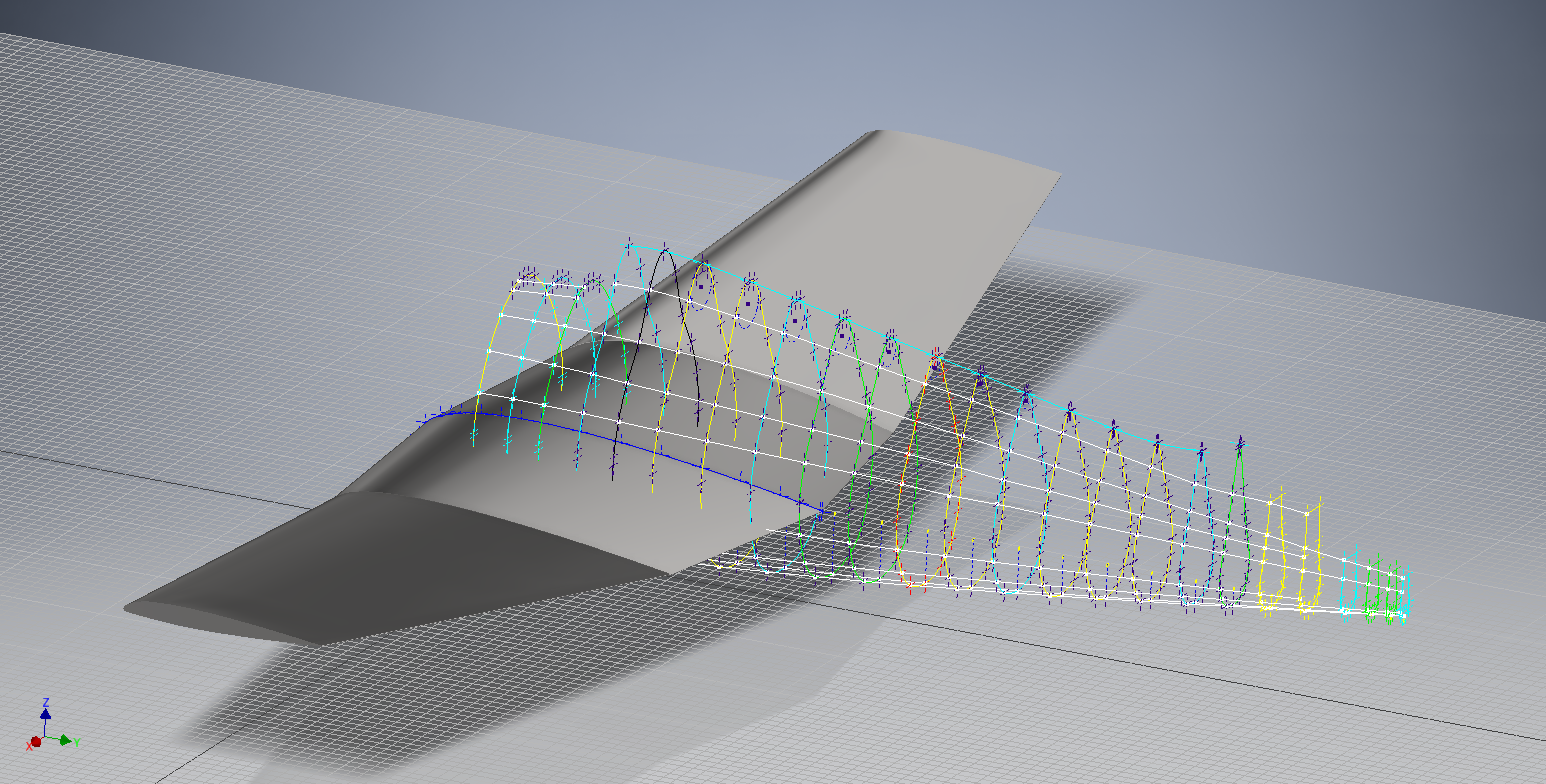
And here, at last, the complete wing assembly:

f6f wing assembly

Vought F4U Corsair: Ordinate Data

Vought F4U Corsair: Ordinate Data;

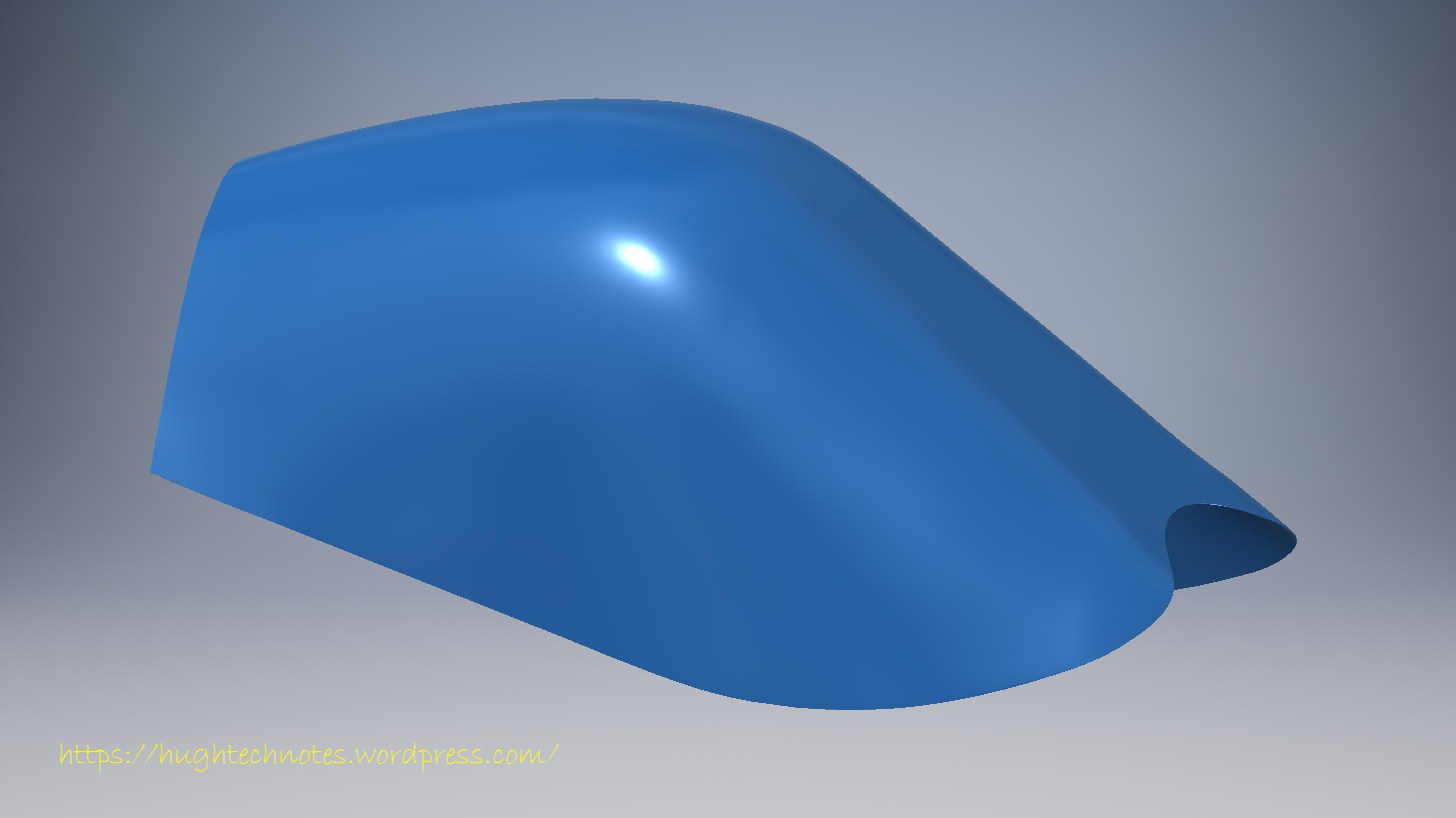
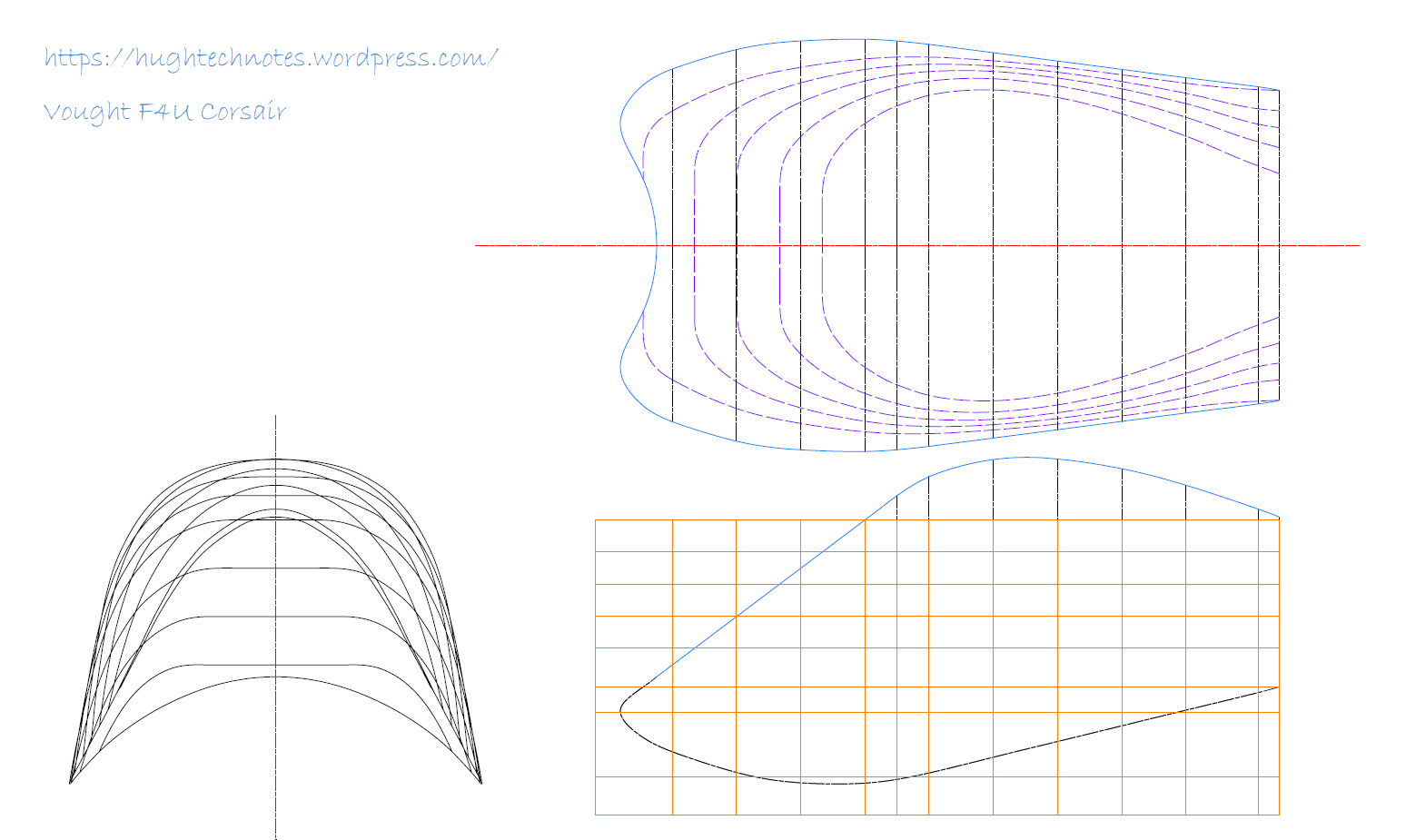
About 6 months ago I received an ordinate dataset from a good friend Gary Henry for information purposes. It is a very comprehensive set for the fuselage comprising over 2800 points to define in excess of 1930 individual ordinates.

Vought_F4U_Corsair_(USMC)

I have recently updated my data processing procedure utilizing new features in MS Excel particularly the “TEXTJOIN” command which makes it a lot easier to extrapolate the X,Y,Z ordinates from large datasets. This dataset was ideal to work with the new process.

F4U Corsair Ordinates

The Textjoin function allows you to predefine a delimiter and then select either an array of data or individual cells using the Control/Mouse combination. You can see I have locked in the selected column and the top row. The units shown are inches but can easily be converted to millimeters.

F4U Corsair RevB

Due to the nature of the dataset, there is a very distinct central plane on the zero vertical plane, which of course I would filter out if I decided to progress this further as a CAD model. I don’t have enough of the manufacturers’ original drawings to develop this aircraft at this time but it sure is interesting working with other datasets.

F4u-1 sideview

The dataset is actually very good only 3 points not quite in alignment. I profiled the top and bottom contours and the contours either side of the fuselage centerline; all 4 curvatures were very smooth.

Update Oct 2018:

Recently received some new data that has allowed me to progress this project with the development of the Cabin ordinates as shown below.

F4U Cabin

F4U Corsair2

HiRise data and WRL Conversion.

HiRise data and WRL Conversion:

It has been a while since I last posted an article due to being busy with other projects. During some research activites, I came across a number of subjects that may be of interest, two of which I would like to share.

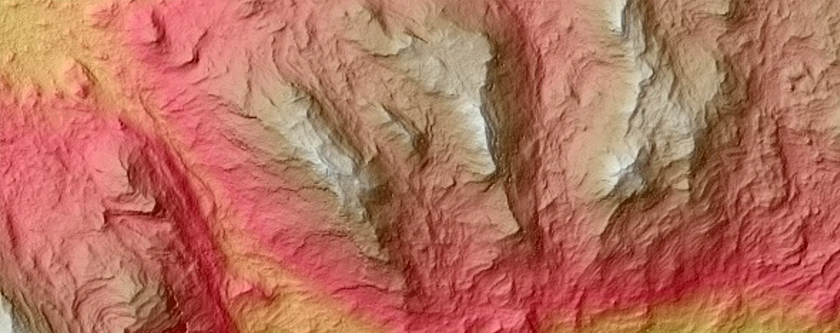
The first one is the HiRISE Digital Terrain data models on the University of Arizona website. The website contains datasets that are digital extractions of surface terrain scans of the planet Mars. The DTM datasets are publicly available for research and modeling of geological processes.

PSP_007100_1520

Naturally curious I decided to investigate the possibilities of modeling and rendering of these datasets from which I produced a few preliminary 3d terrain models using Blender and rendered in Keyshot…Gorgonum Chaos:

mars10The technique I used is described in this video on Youtube, clearly explaining the process. To me, this is incredible stuff and thanks to the University of Arizona for all their dedicated work in developing these datasets. So have a look and check it out for yourselves.

The next subject is WRL. WRL is a file extension for a Virtual Reality Modeling Language (VRML) file format often used by browser plug-ins to display virtual reality environments. VRML files are known as “worlds,” which is what WRL stands for.

One of my many interests is Tensegrity, a structural form of tension and compression members first developed by a chap called Kenneth Snelson. The internet is full of examples of this structure concept inspiring many variations from fairly simple to very complex designs. I have developed a few of my own.

delta

Many of the practitioners in this field make datasets available for personal use and one particular format they use is the VRML (WRL) so you can view the design in 3d.

For the simple structures similar to this image the design and construction are not that difficult, however when it comes to developing your own version of the more complex examples it can be a real headache. Although some datasets include actual point cloud data the process of matching pairs of points to reconstruct the design can be a nightmare.

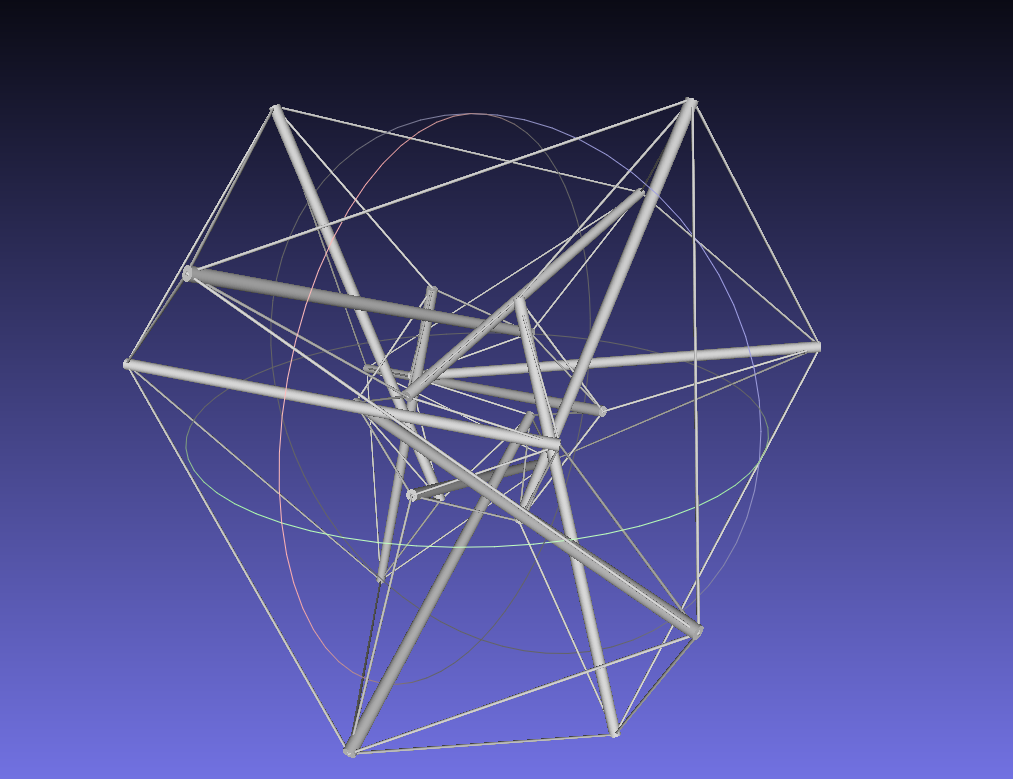
The obvious solution would be to convert the WRL model into something usable that could be used as a guide for developing a 3d cad model. I tend to favor Meshlab for doing this as it is one of the few programs that will accurately convert the imported data.

meshlab

The WRL model is converted into a series of mesh objects that we can export as an OBJ or STL file and then import into Inventor.

Once in Inventor, it is simply a case of selecting each of the compression struts and “Fit Mesh Face”. Select the “Auto Fit” option for each member and it will create a surface from each mesh representing the struts.

The tension wires are then created as a 3d sketch using the background mesh model as a guide. At this stage, the model is a workable composite but may require micro adjustment for the tension wires to ensure the finished item is properly constrained. I would reverse engineer this model and reconstruct as an assembly and apply the microdimensional adjustment to the groups of tension wires to ensure the absolute accuracy of the final design.

It is beyond the scope of this article to go into the detail of every step, but if you require information on any of the topics please feel free to drop me a line.

Tensegrity Conv

I hope you find this article interesting and have fun.

Restoration Project: Corsair F4U-1

Restoration Project: Corsair F4U-1

This is great news; a good friend of mine has just acquired the wreckage remains of a Corsair F4u-1.

IMAG1368

The long-term plan is to restore this Corsair to its original specification as a standing exhibit. It would be wonderful to restore to flying condition but the projected cost as it stands is quite overwhelming and to achieve flight status would probably double that.


IMG_4038.JPG

P1060200.JPG

We will be setting up a dedicated blog and website to record progress on this restoration. Part one of the project is to develop a master lines plan which will be used to design the jigs required to rebuild the fuselage and wings.

Any contributions to the project, regardless of how small will be greatly appreciated.

Technote: Inventor LT BOM!

Technote: Inventor LT Bill of Material.

I normally use Inventor Professional but recently I decided to have a look at a common issue with Autodesk Inventor LT which is a part only product. Essentially the “lite” version of Inventor with limited functionality that excludes sheet metal, vba, ilogic, assembly mode and Bill of Material!. Technically the BOM capability is not a function of Inventor LT which I suspect is due to the fact it has no assembly environment but there is a workaround.

I should note that Inventor LT is a very capable modeling product which is ideal if you are mainly developing parts and if you do require an assembly environment to check the alignment of mating parts then you can use the derived function as explored in a previous post to assess this.

Whilst the product may be limited it does have a lot of functionality that can be exploited to overcome some of the limitations and the BOM is just one example of a situation that the forums, in general, described as something that cannot be done!

For this example we will continue with one of the parts from the previous article: the Bell P-39 Airacobra Centre Bulkhead fixing bracket.

2017-07-31_14-31-28

What I wish to do is have this part fully dimensioned on a drawing that also contains a basic table of properties that may be useful to the chap responsible for buying the raw material. Okay, I accept that the following image is not fully dimensioned but my primary interest is the generation of the BOM.

2017-07-31_15-32-56

Inventor LT like its bigger brother contains a lot of part data which is accessible via the iProperties and Parameters, which we will utilize by using the iPart feature.

Normally iParts are used where a single part may come in varying sizes or configurations that share the same basic features; for example bolts! In this case we are creating only one version of the part. By adopting the capabilities of iParts we will create a table of selected data within the part file that we will later use as a data source for our BOM.

2017-07-31_15-59-16

I won’t go into the technicalities of creating an iPart, there are many online resources that go into this in detail. Generally speaking, when creating an iPart you have access to all available data including parameters, model hierarchy data, and iProperties as shown above and it is simply a case of selecting the data you want.

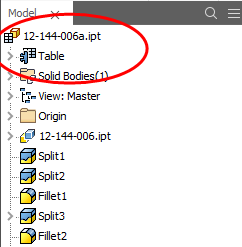
2017-07-31_15-52-34This creates a Table which appears in the model browser. It is usually a good idea to give parameters meaningful names as I have done here for the Length, Width and Height.

The Description values are from the iProperties whereas the Length value is from the parameters.

This table can be further edited within Inventor LT or externally as an excel spreadsheet.

In the drawing environment, you select the General table option, Select View and then Column Chooser, add required columns, select OK and insert the table into your drawing.

2017-07-31_16-04-53

…and there we have it…a BOM in an Inventor LT part drawing.

Part Quantities:

I have not mentioned part quantities which of course would be a prerequisite for any purchasing decision. You can, of course, create a parameter in the model file for quantity and include that in the table, but if this part serves a number of different assemblies then the quantity will vary accordingly.

Given a typical scenario where you are the manufacturer of components working collaboratively with other companies on a project how do you track quantities when you are using LT and the other guys are using Inventor and building assemblies.? You could, of course, just phone them or email them but as production schedules are critical you need a way of immediate notification of quantity changes.

I faced a similar dilemma when I developed a modular solution for a power distribution company for design of sub stations. This resulted in vastly reducing the design time by over 60% which meant the procurement chaps had to up their game to keep on top of things.

Modular Approach to Sub-Station Design

The solution gave access to all project material BOMs without needing to bother engineers to create structured BOM extractions.

Briefly what we had was a top level assembly BOM which was interrogated by a custom database application to read the Part Name column and then search a folder of extracted cad model BOMs with the matching name and multiplying the quantity column in the part BOM with that of the assembly.

2017-07-31_17-22-30

For example, the database would open the top level database above, read the columns Name & Descr (to be sure we were only looking for modules) and then import the corresponding data files with those names into the database. In this case, we only have 1 quantity per part, but that could be anything and the associated part file would be multiplied accordingly.

This is a very basic overview of what was done and beyond the scope of this blog to describe in detail. We have already demonstrated how to create and extract tables in LT and the main point here is though you may only have Inventor LT there are many options for creating data-sets in tables that can be shared and used productively in a collaborative environment.

Incidentally, the database I created was another of those instances where something could not be done!

Technote: Inventor Sketch Datum

Technote: Inventor Sketch Datum Point.

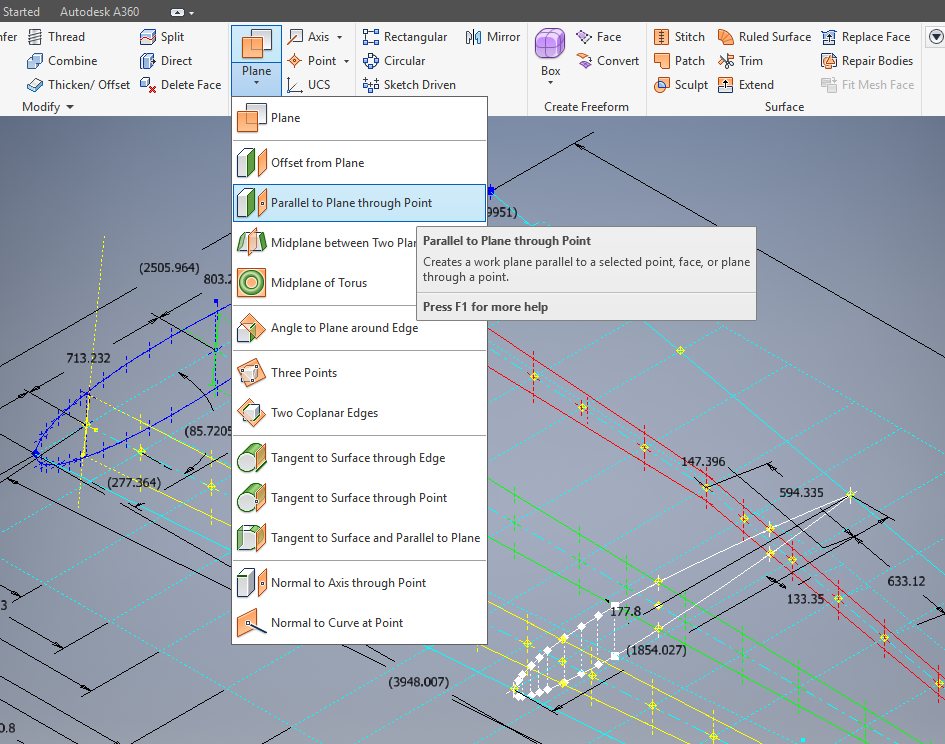
This is one of those instances where you do something on a regular basis and don’t really appreciate the significance of the process. What I am referring to is when you create a sketch Plane using the option “Parallel to Plane Through Point”.

2017-07-27_00-33-25

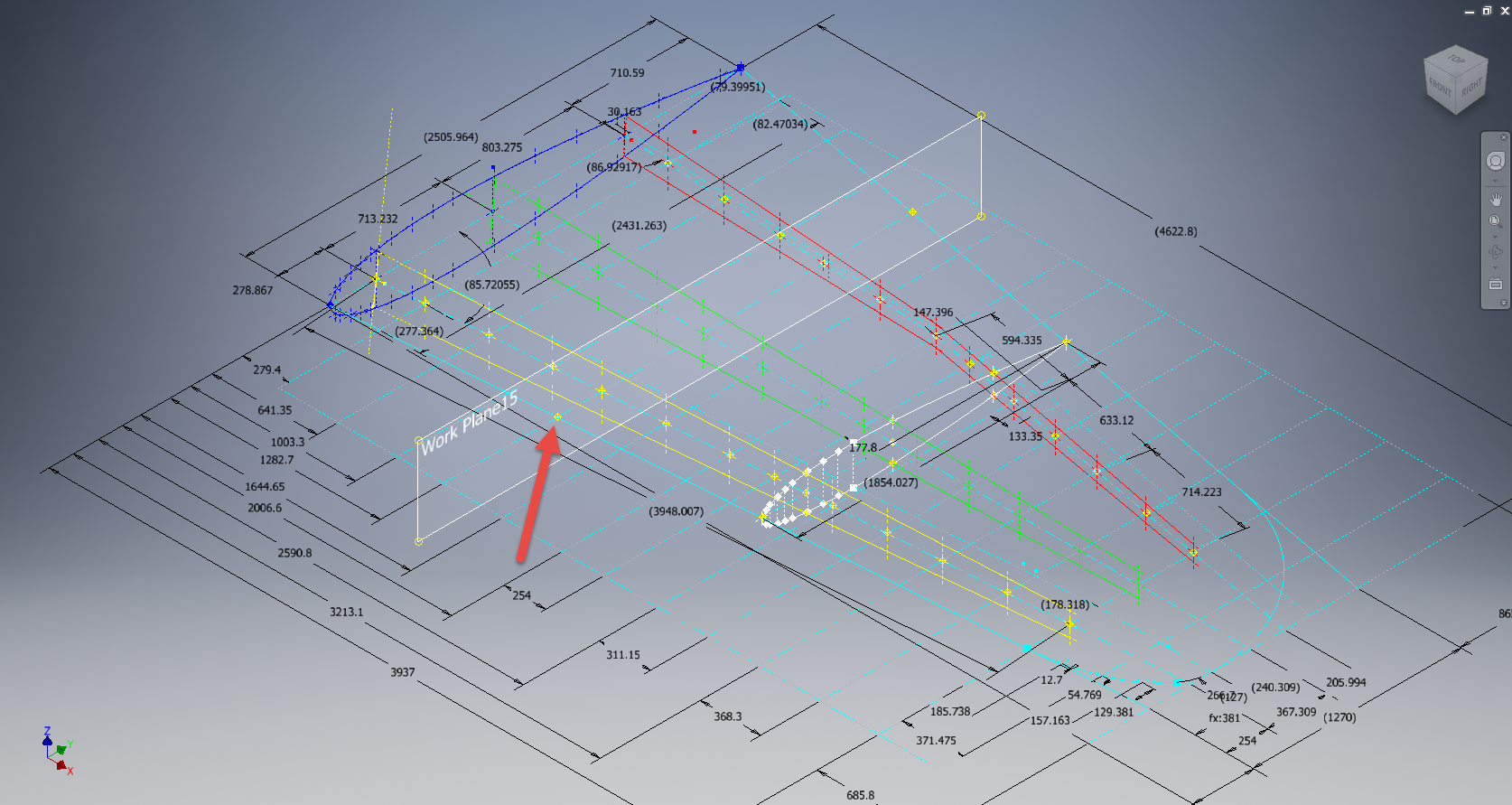
It transpires that this selected point becomes the datum for the particular sketch created on this plane. For this example, for a P-39 wing rib, we have selected a point for the Plane location along the wing leading edge as shown.

P39 wing1

The Bell P-39 and similarly for the P-51 Mustang the wing ordinates are set out from the leading edge of the wing so it makes sense that the rib sketch is setup with a suitable datum point. You can tell the location of the temporary datum in the sketch applied to this plane by the position of the main axis.

This is the really interesting part, when you now import a set of points from the Ordinate spreadsheets it will recognize this sketch datum and import the points relative to this point irrespective of the model origin.

2017-07-27_00-35-12

2017-07-27_00-39-42

This is very useful particularly for these aircraft projects as we tend to use a lot of ordinate data for the outline geometry.

Another Quick Tip:

To automatically apply a tangent constraint to a sketch line just select and drag the line from an existing line and the tangent constraint will be applied.

2017-07-27_01-14-56

Technote: P-39 Inventor Facedraft

Technote: Bell P-39, Inventor FaceDraft

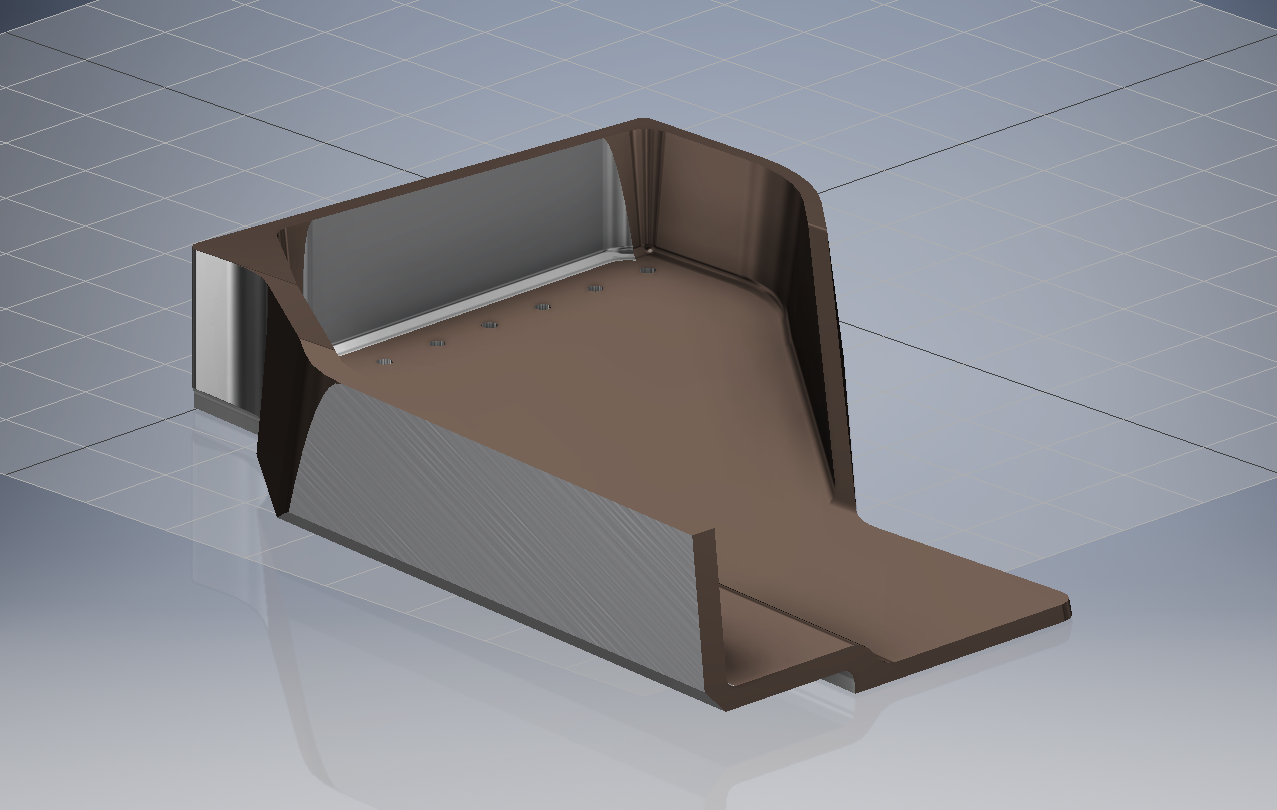
Draft angles is actually a common requirement when working with aircraft components, particularly forgings, and it is surprising that I haven’t written an article on this before now.

Facedraft in Inventor is a feature that allows adjusting the face or faces of an object to a specified angle. A more detailed overview is described in this Autodesk article Face Draft feature

Occasionally the implementation is not quite so straightforward as noted therein and some outside the box thinking is necessary. Thus was the case when I was building the forging component for the P-39 Landing Gear Nosewheel Scissor.

To build this component I created 2 separate solid bodies, one for the cylinder item and one for the fork. The fork is split about the X,Y plane with only the outline of the top half being modeled to facilitate the initial face draft.

2017-07-23_00-00-14

For the first option, I selected the X,Y plane and then for the Faces I selected the automatic face chain option and placed the cursor close to the top edge as shown. If you required the face angle to originate from the bottom edge then you would select the faces close to this edge.

I then trimmed out the inside profile of the fork and applied a face draft as above.

2017-07-23_00-08-00

Now it was only a matter of mirroring the fork solid to complete this portion. Notice the solids are still separate items which will be combined as one after inclusion of the central web component.

2017-07-23_00-12-51

There is an option for the Facedraft feature to Draft using a parting line, either a 2d or 3d sketch. The draft is normally applied above and below this parting line. In most circumstances, the Parting Line option works well but occasionally the model may be too complex to achieve the desired result thus the solution described here provides an alternative approach.

Forgings or castings commonly have a draft angle on all faces which is normally 7 degrees and occasionally 5 degrees. The Face Draft feature is ideal for applying the drafts with an extensive range of options. The model of the forging would then be derived into a separate part file and then machined according to the finishing requirements similar to the process described here Derived Parts.

2017-07-23_11-47-28

2017-07-23_11-46-40

For more information on the Bell P-39 Airacobra project: Bell P-39: Project

Technote: Inventor Export Sketches

Technote: Export Sketches

The Inventor product has an option to export part Sketches to either an Autocad DWG or DXF format directly from the model environment. This is very useful if you are needing to share development information with someone else who is working with a different CAD product.

It is simply a case of highlighting the sketch as shown in the example below and selecting the “Export Sketch as…” option.

Inventor export sketch

A dialogue box pops up asking for the file format DWG or DXF and location for saving. I would recommend the DWG for the format as this replicates the Splines more accurately.


In this example the left image is for the Mustang P-51 rear fuselage, showing the outer profile for the P-51 B/C and the inner profile is for the P-51D. The image on the right is the fuselage tail-end.

I plan on extracting all the fuselage curves that include P-51D data to DWG format as a reference until such time as I can add the point data to the already comprehensive set of ordinates available here.

Mustang P-51 B/C Ordinates