NAA P-51B/C/D Mustang: Radiator Coolant Mount

NAA P-51B/C/D Mustang: Radiator Coolant Mount

I discussed in my last post the development of a comprehensive drawing register for the P-51 and my rather ambitious intent to derive the list of parts associated with each sub assembly and main assemblies.

This could indeed be quite a task as for example on the P-51C alone we have 348 assemblies listed, some are sub assemblies and some are top level assemblies. The challenge is organizing the drawing parts list according to their assembly and retain the order of links on my filing system as per the main document register.
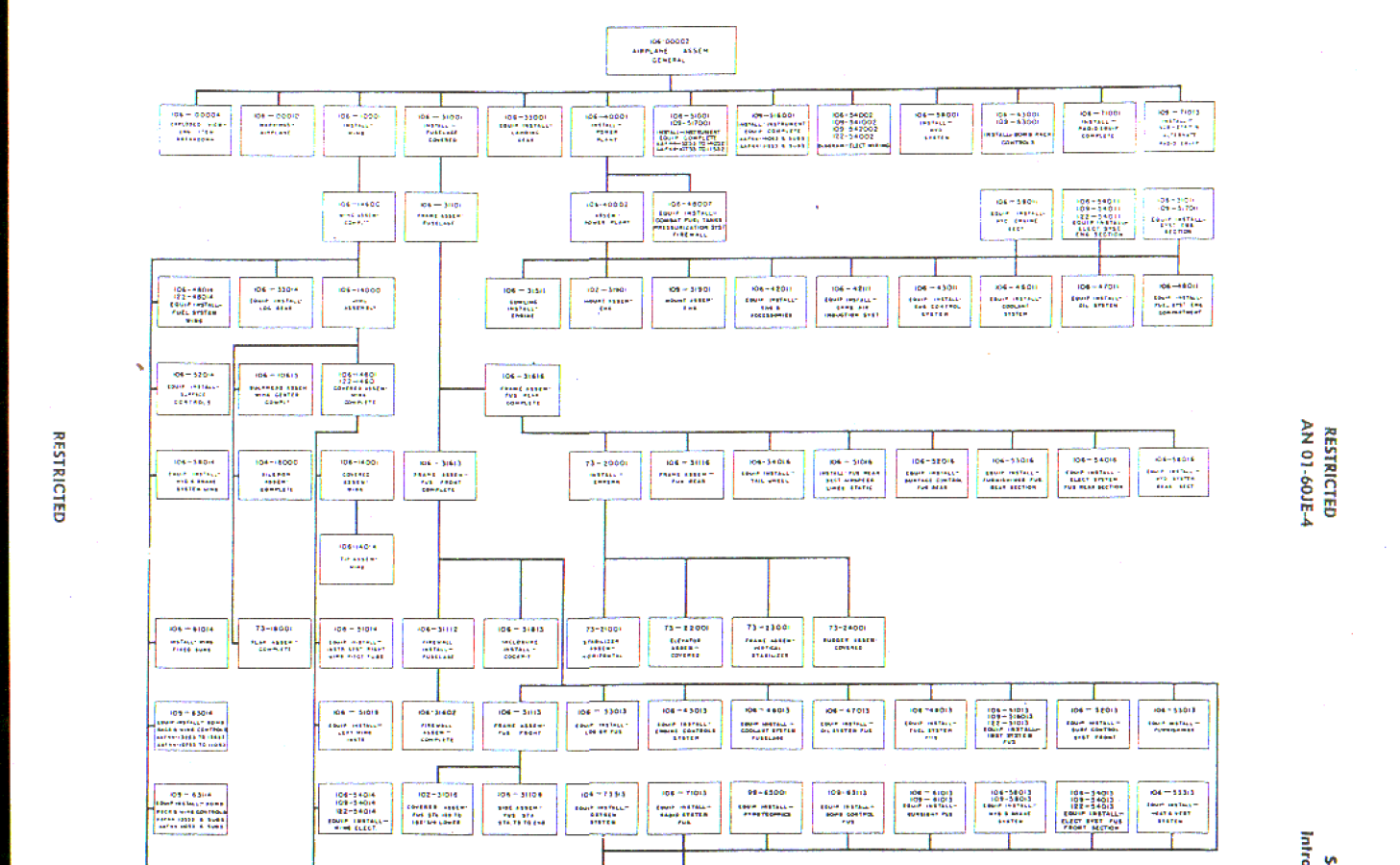
2015-06-15_18-18-30The NAA Numerical part lists (AN01-60JE-4 Section 2) give us some idea of how this data can be collated but the chart lists the top level assemblies and does not follow the hierarchy to the individual part. The individual parts though are listed in subsequent chapters of the parts list.

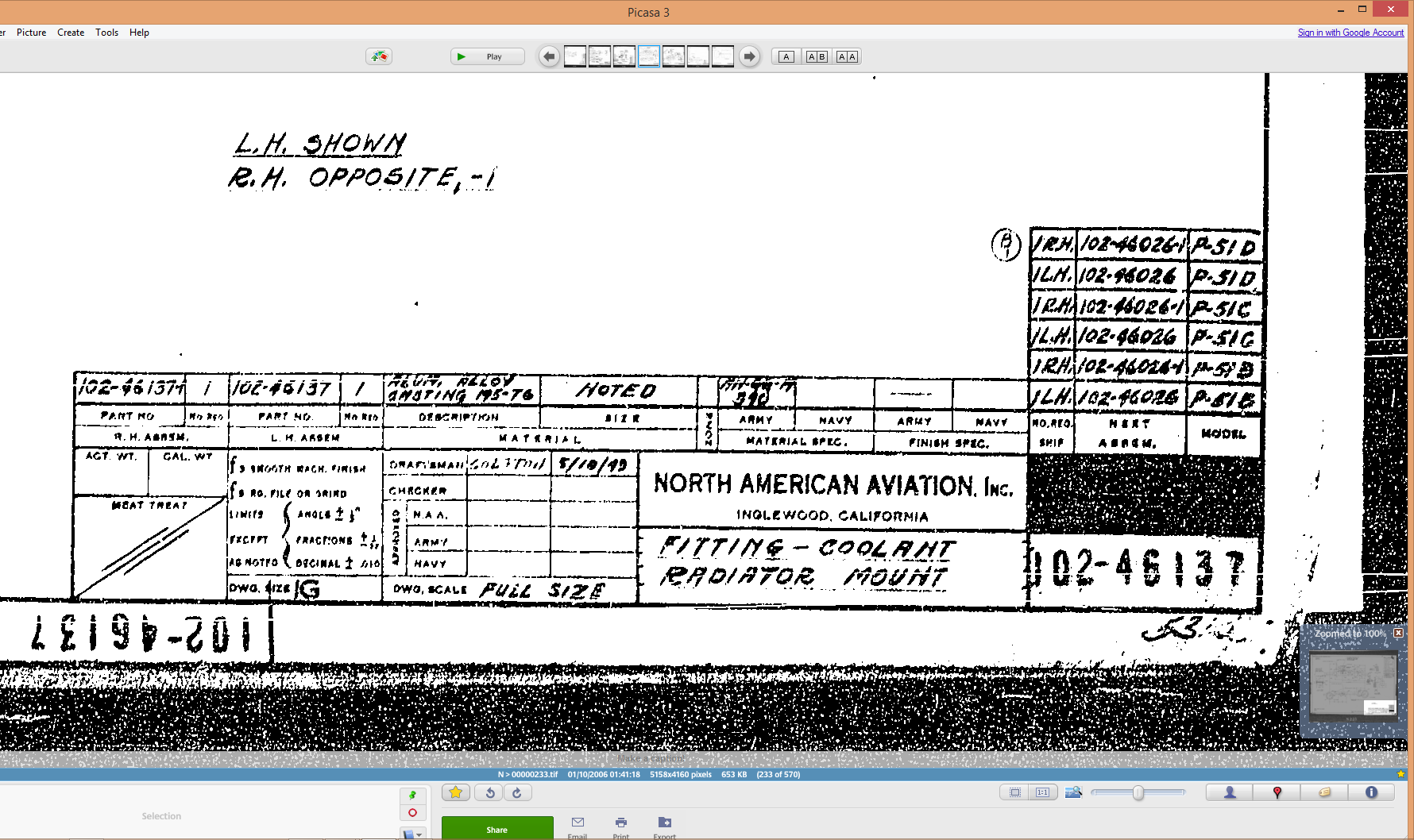
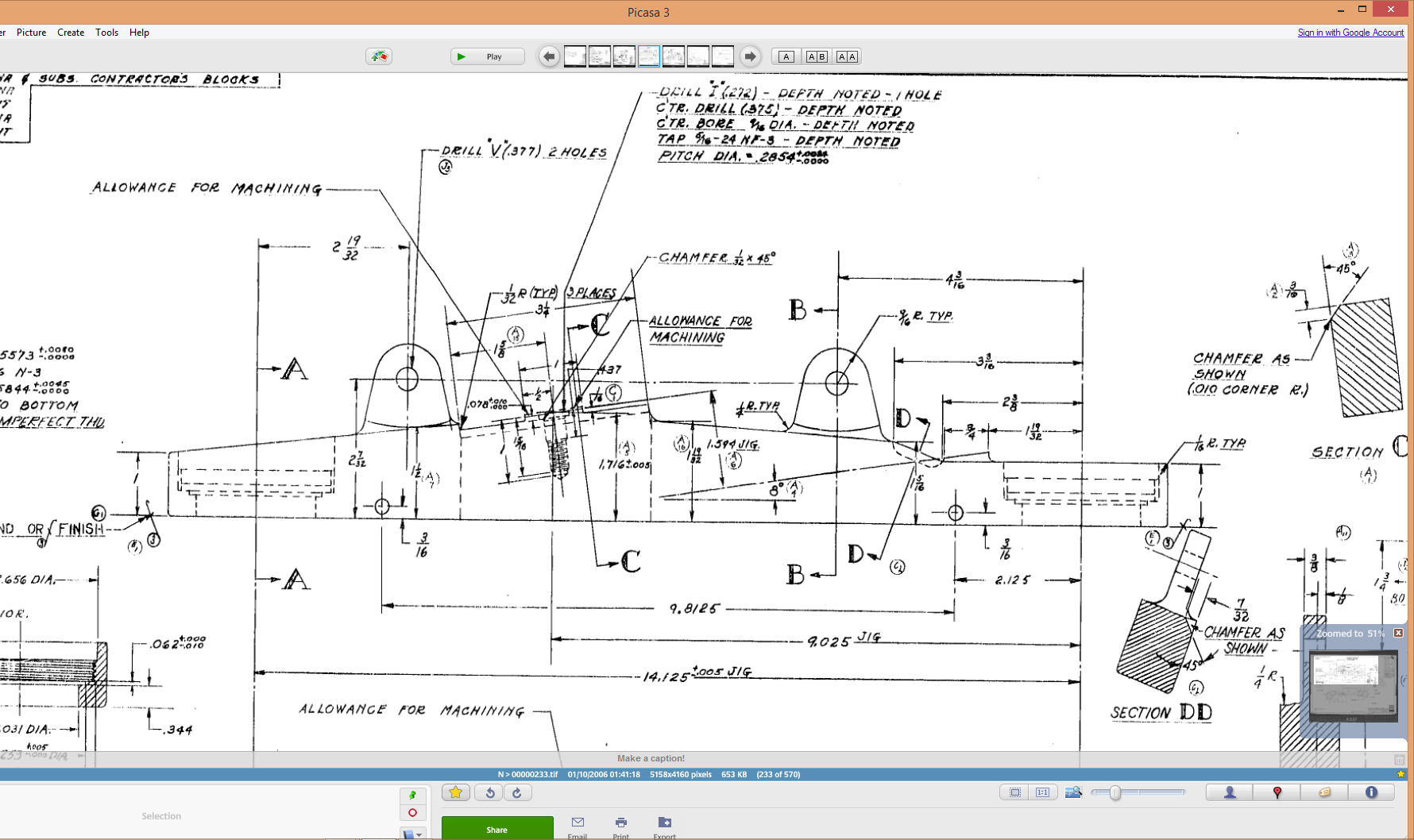
The part files themselves also contain information to assist with establishing the hierarchy of assembly; similar to the following for the Radiator Coolant Mount.
2015-06-15_01-15-12    2015-06-15_00-46-18

As you can see from the scans this part drawing typically lists the associated next level assembly, quantity and the aircraft variants to which they belong.

2015-06-15_01-19-41This image on the left is the next level assembly (sub assembly) which shows the inclusion of fittings and bushings and again lists another next level assembly.

Typically this is how the hierarchy works and its great that we can track the target assembly from the individual part drawings.
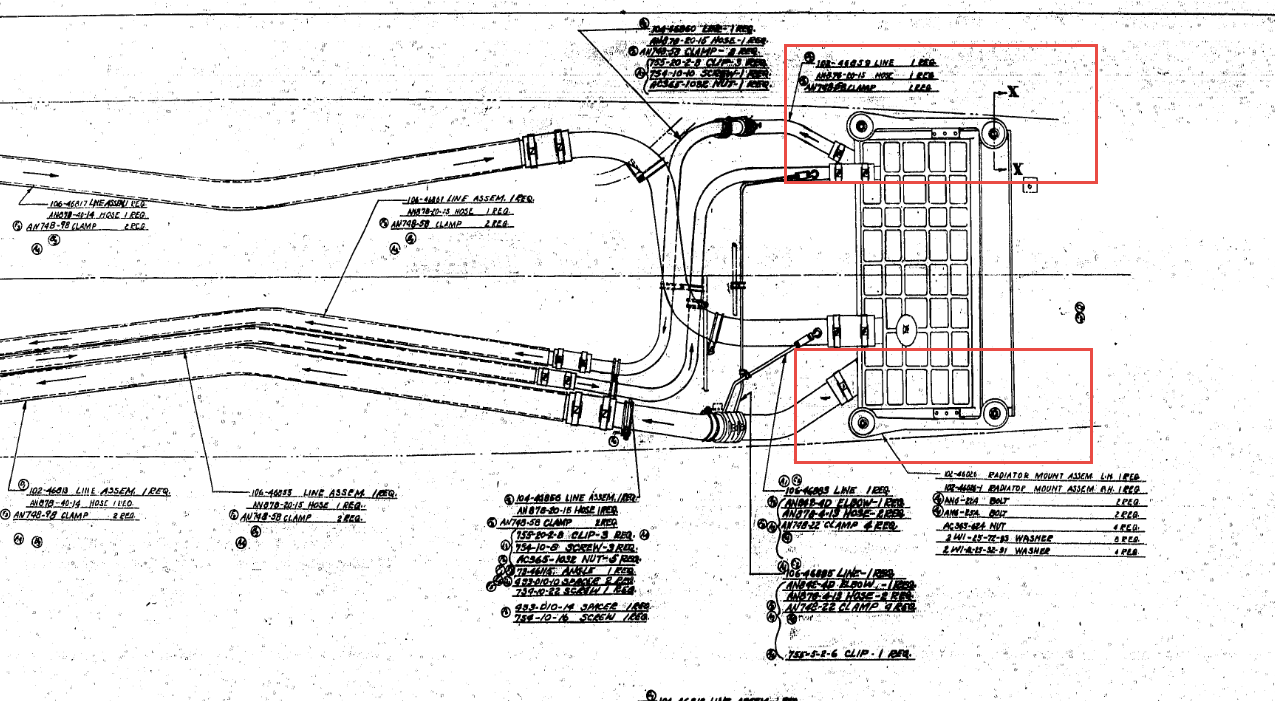
2015-06-15_00-56-52This is the top level assembly as noted in the above drawing. Our Coolant Radiator Mounts are highlighted in red.

In this example we don’t have all the drawings for the parts listed and though it would seem unlikely to be able to build this assembly with incomplete information it may be possible to interpolate sufficient data from what we know to develop the parts that are not available.

This is typical of these types of projects as the majority of scan drawing sets are incomplete and many parts can only be developed from physical examples or interpolated where we have the requisite data from other sources.

This approach is similar to how I plan to tackle this document register in identifying the links between the part files and the assemblies. We have the NAA register; which is a great starting point; and the part and assembly files themselves. There may be instances where the information from the drawings or the NAA register is unclear, in which case I would refer to other drawings in the series that may reference this information in the notes or comments.
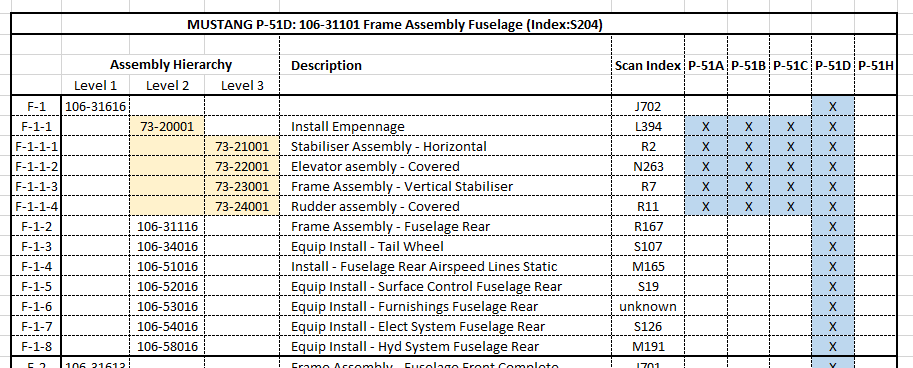
2015-06-15_23-39-34At this stage I have transposed the NAA register assembly chart (noted above) into a spreadsheet format so that I can add additional key information.

The image shown here is a partial screenshot of how the fuselage data has been organised, showing the hierarchy level of the main assemblies according to their respective position in the NAA chart.

The first column is a reference number I use for hierarchical lists of this nature. There is still a lot of work to be done to collate the parts associated with these assemblies; hopefully most of which I will be able to transpose from the NAA scanned register.

In the interim I shall continue to develop some of these part drawings into accurate 3d cad models.
2015-06-15_00-48-28

TechNote: MS Excel Drawing Register P-51

TechNote: MS Excel Pivot Tables: Drawing Register P-51

The drawing archive collection for the Mustang P-51 includes an NAA Document register in PDF that lists all the Scan Index Numbers, Drawings Number, Aircraft Type and Change (Revision)Number.

To make sense of this large archive; containing thousands of scanned images; it is necessary to first transpose the comprehensive NAA document register into a spreadsheet in order to analyse and filter the data according to requirements.

My requirements are simply to be able to group the data per content; Fuselage, Wings, Equipment etc; and per aircraft type; P-51A, P-51B, P-51C etc.

Further breakdown of data would involve isolating the main assemblies and then parts or sub assemblies belonging to each.

2015-06-12_22-06-44From Adobe Acrobat I extracted the pages of data as spreadsheet tables to which I added a Drawing Description and grouped the data sets together by “Content”…that took a long time to do as the extracted data first had to be checked and then sorted accordingly.

The drawing descriptions came from an index already created by Norman Meyers at Chanute Air Museum, so it was relatively easy to enter this data into my spreadsheet. Its a real pity I had not had access to Normans data earlier; could have saved me a lot of work.  My thanks to Norman Meyers.

2015-06-12_23-39-41After sorting the data and inserting descriptions I now have separate worksheets for the content similar to this one.

What I really want now is to identify and organize the drawings belonging to each type of aircraft. For this exercise I use the Pivot Table function in Excel. Pivot Tables are great for organizing and summarizing data according to specific criteria.

2015-06-12_22-34-13Here I have initiated the Pivot Table function and selected the entire data-set of information relating to the Fuselage; as you can see we have a large number of drawings just for this one area!

When working with large data-sets it is good practice to select a new worksheet for inserting this new table.

2015-06-12_22-38-07What we end up with is a new worksheet with the pivot table outline on the left and a selection box on the right. We now select from the latter the columns of data we want…in this case all the main ones plus the P-51D; which will populate the outline table on the left.

Pivot tables by default include a summary row under each entry; I suspect this is more useful for statistics than organizing a document register; which we don’t want.

2015-06-12_22-49-34To remove the summary from the table we just need to select each column in turn using the small arrow as highlighted and turning off this option in “Field Settings” and select “None”.

The final step is to filter the data according to the required criteria; in this case I want all the drawings that have an “X” value in the P-51D column.

2015-06-12_22-54-42This is done by selecting this value from the header drop-down options; which lists by default the unique values in each column from the master table.

We now have a list of all the fuselage drawings and their location in the archive belonging to the P-51D aircraft.

The next step would be to extrapolate all the “assembly” drawings and from there the components that make up each assembly…but that’s for another day.

Pivot Tables are great for this type of job.

  • 846 fuselage drawings for the P-51A
  • 890 fuselage drawings for the P-51B
  • 833 fuselage drawings for the P-51C
  • 923 fuselage drawings for the P-51D
  • 950 fuselage drawings for the P-51H

Many drawings of course are a shared resource for all variants. This drawing register has recently been updated with hyperlinks to all the drawings listed. See this post for details.

For further information on any of these projects please feel free to drop me a line via my contact page or email me at hughtechnotes@gmail.com

Autocad Inventor: Splines

Spline Technote:

Splines are an absolute necessity when developing the finished profiles from the ordinate points; which occasionally throws up some unexpected results.  Invariably at some point we need to manage the curvature of the splines in order to achieve the desired result.

2015-06-09_10-15-47

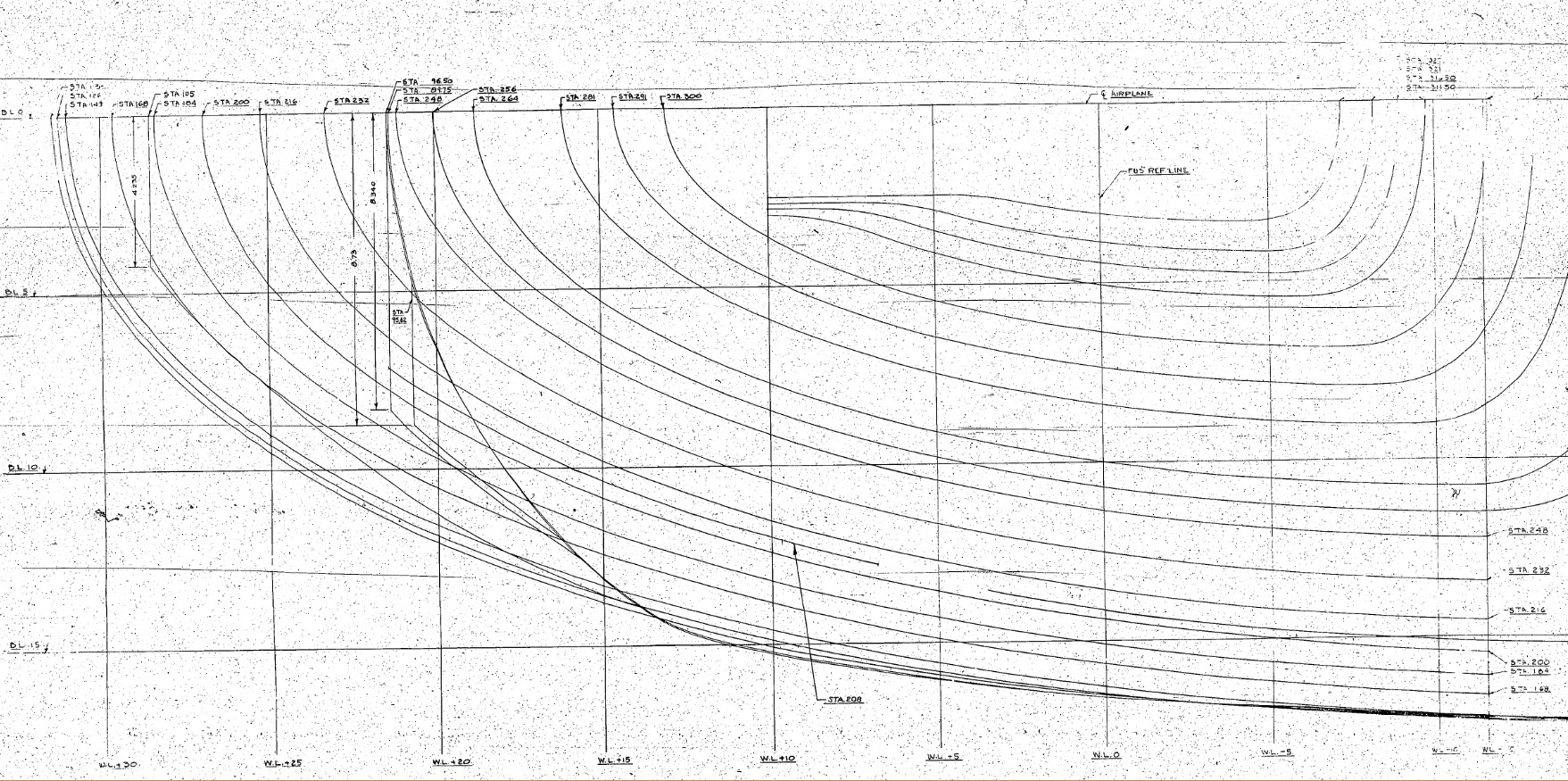
The image shown here is a screenshot from the NAA P-51 fuselage station profiles, which shows clearly the ideal curvature for each station.

This image can be overlayed in CAD to serve as an aid to achieve the correct spline curvature.

Actually manipulating the curvature of a spline needs to be done in a manner that achieves symmetrical results on both sides of the fuselage station profile.

I was working on the tail-end profiles, which were giving me grief as the ordinates points were not sufficient to achieve anything close to the curvature I needed on the lower section.

2015-06-09_13-26-35

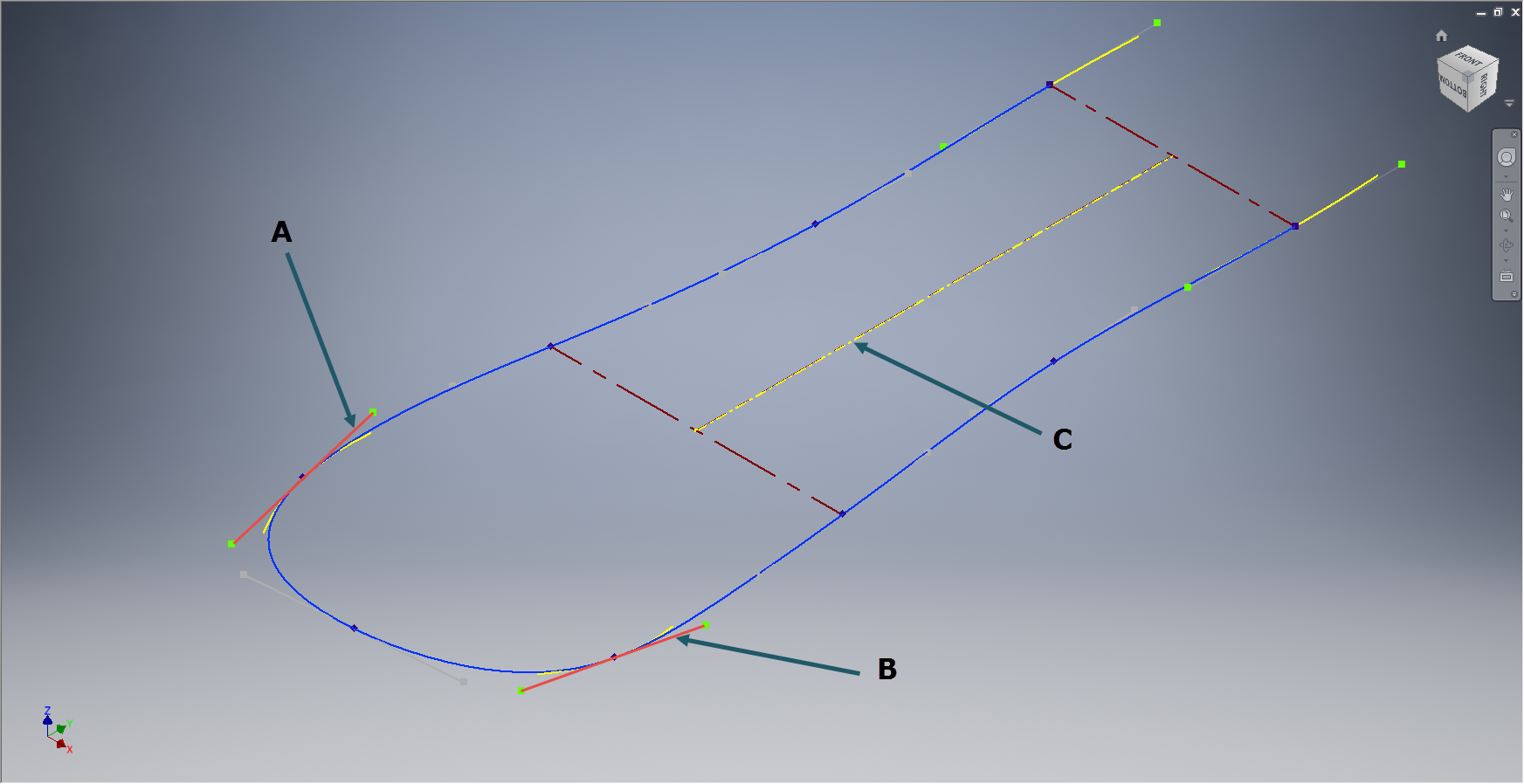
In Inventor we have constraints for symmetry, which are normally applied when working on a sketch to ensure that changes on one side of a model are reflected exactly in the other.

Using this same technique I activated the spline curvature handles (A&B) on each of the  points I wanted to be symmetrical (about center at C) and applied the constraint accordingly to the handles (red).

2015-06-09_17-29-44Now when I adjust one side of the curve the other side automatically reflects the changes.

I should note that the majority of curves generated from the ordinate points are usually very good; requiring very small if any adjustments; so its quite practical to spend some time in the areas where they are not so good.

At some stage the profiles will be lofted as a surface which would then be analysed to verify curvature and alignments.

North American P-51 Mustang: Air Scoop

North American P-51 Mustang: Air Scoop

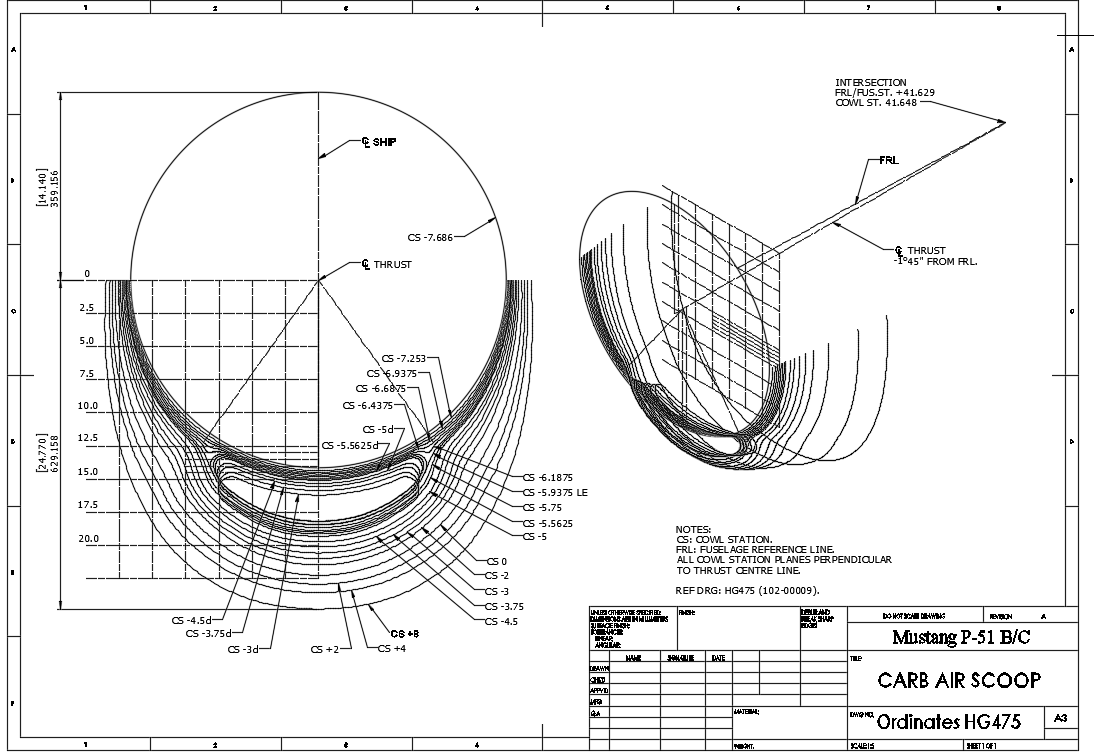
Working with ordinates from these archive drawings can be a very time intensive operation. To give some idea of the content of this work I have just started working through the vast amounts of ordinate data for the Air Scoop and Oil Cooler.

2015-06-04_12-23-12 This is a scrap view of the original NAA drawings showing the main ordinates for the Air Scoop.
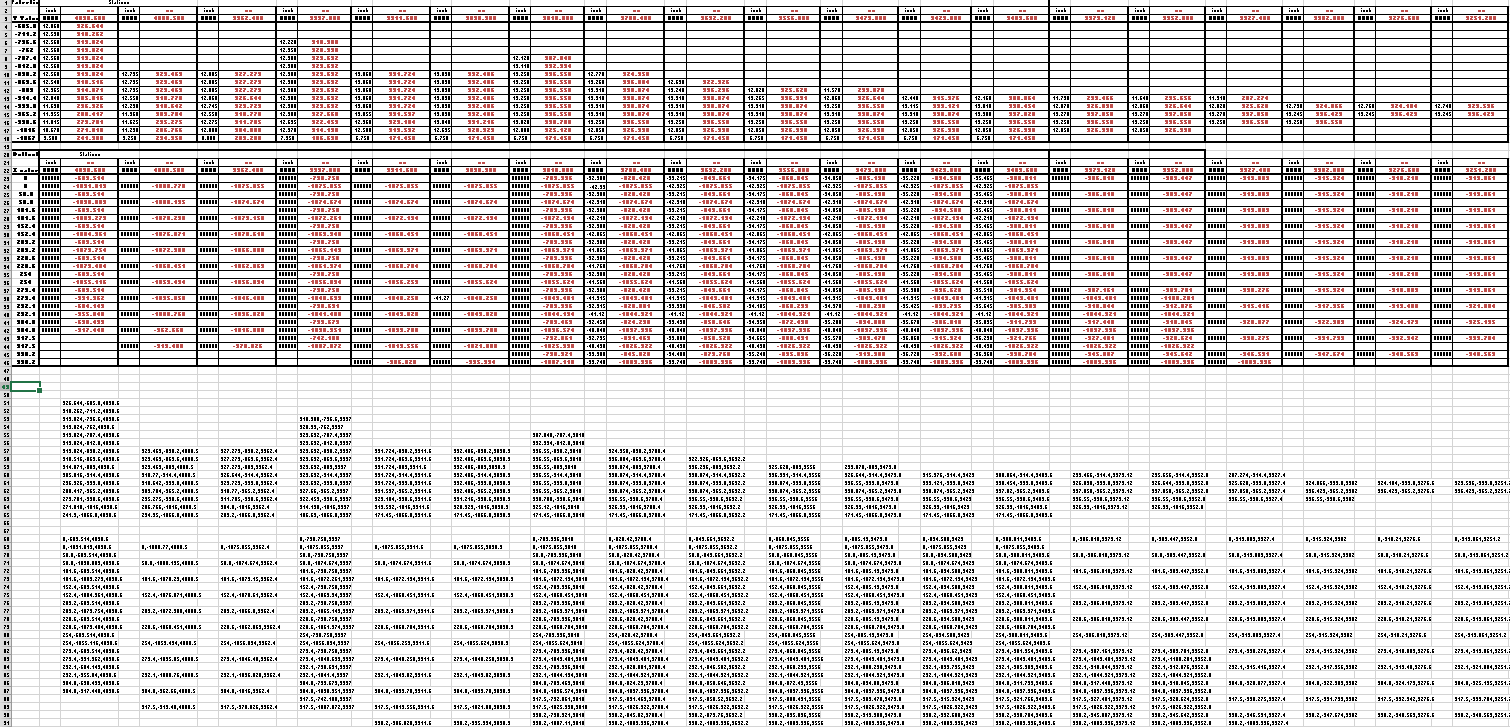
This drawing shows 2 tables, one of which is the listing for the external contours and the other the internal contours.

The external ordinates comprises a total of 664 points and the internal ordinates comprise a total of 928 ordinate points.

Each point is manually entered into a spreadsheet which lists the Inch dimensions and then converted to Millimeter dimensions.  The data has 3 values for the Station location, the Waterline (value along a horizontal axis relative to the ship ctr line at set intervals) and the Buttock line (value along a vertical axis relative to Frame Ref Line ).

2015-06-04_10-19-41       2015-06-04_10-17-50

These values are then processed using the concatenate function in Excel to extrapolate the required X,Y,Z coordinates.

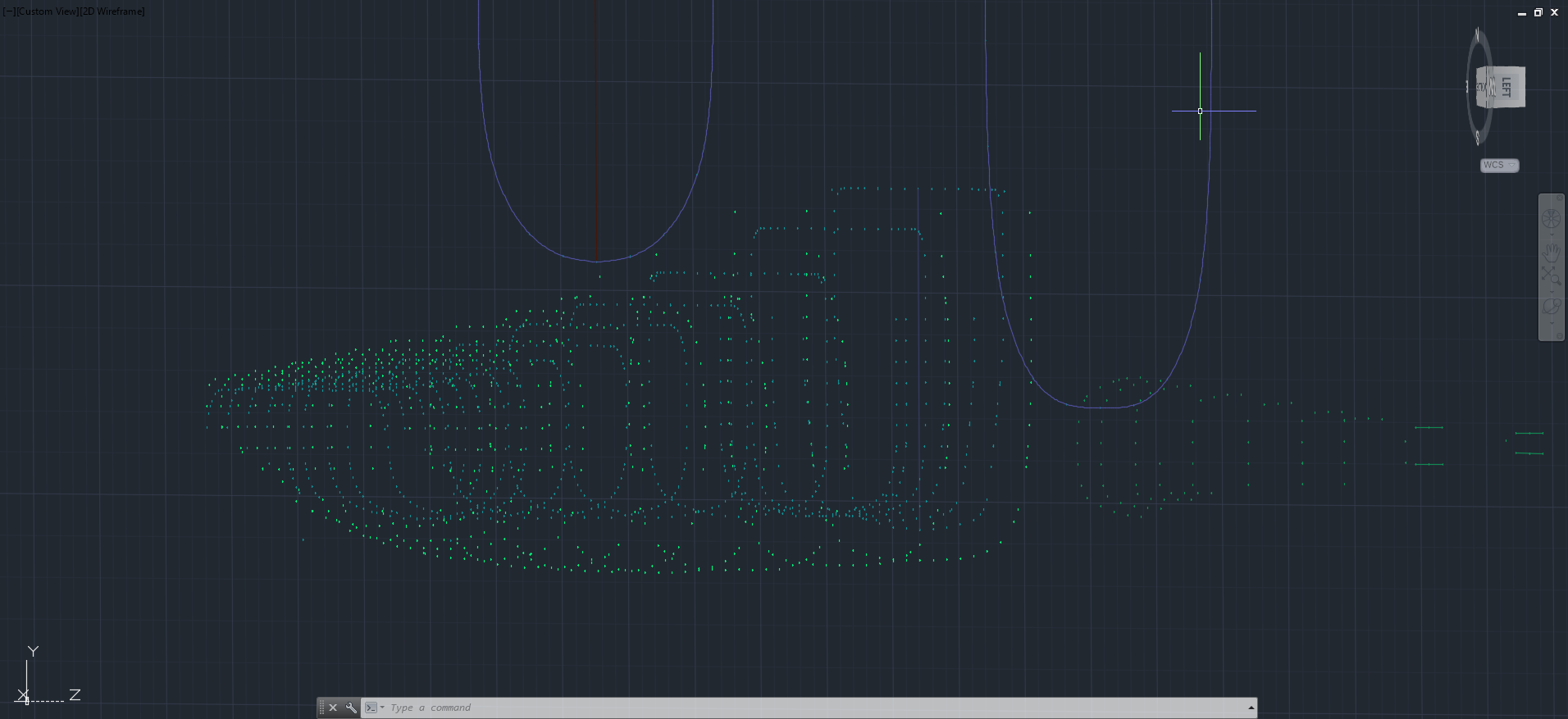
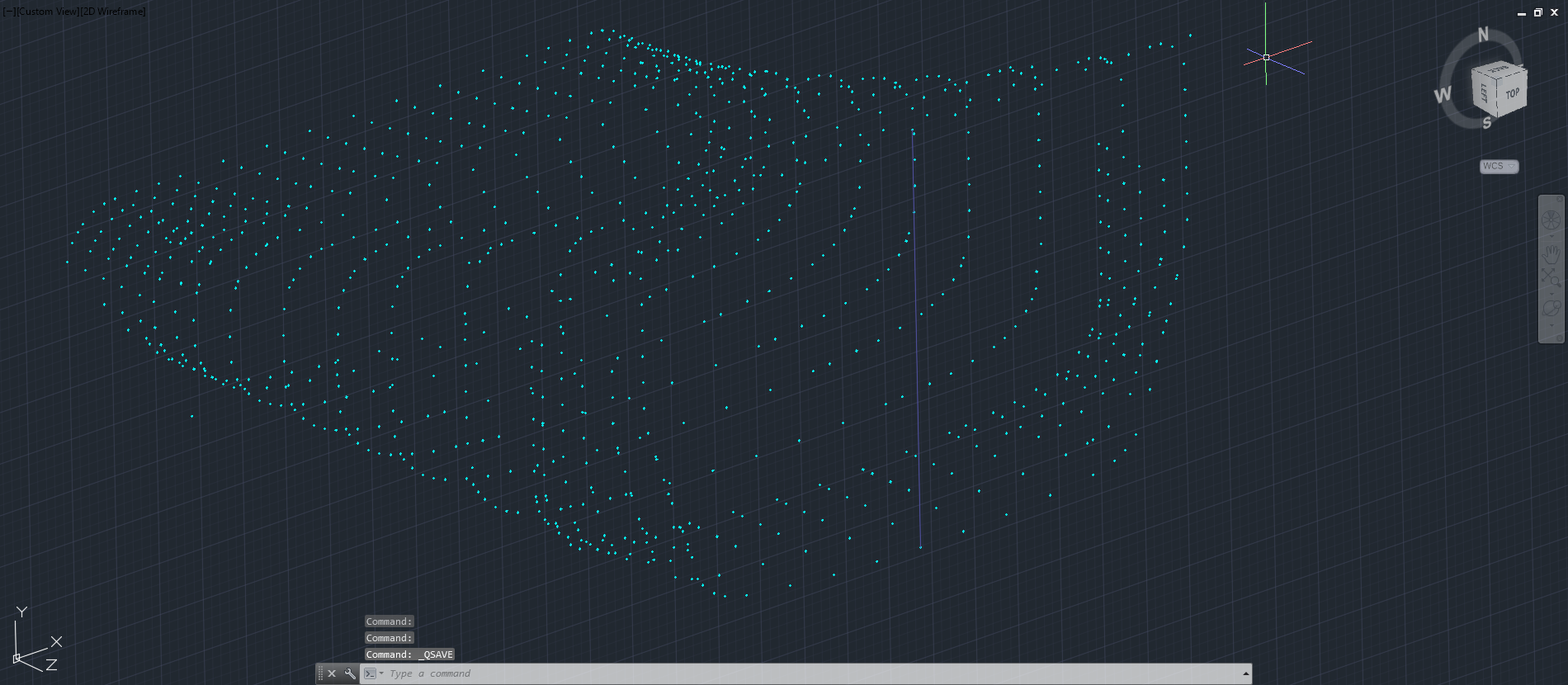
The points are then grouped and imported into Autocad to derive a point cloud.

2015-06-04_16-57-59 2015-06-04_11-04-09

The first screenshot is all points combined with the local fuselage contours shown for reference; the second screenshot is the internal point cloud. All these points would then be contoured in Autocad to determine suspect locations and any orphaned points.

The external point cloud had 6 points prominently out of sync with everything else which turned out to be an error in the original data set. This is not uncommon and is usually quickly resolved.

Once I have an initial dataset that satisfies these primary requirements I would then import this data into Inventor or Solidworks for evaluation as a surface in each case.

At this stage, I have spent about 3 days on the data preparation and would expect to spend at least a week to properly evaluate the surface definitions.

It can be very satisfying work when you see for the first time all these data points translated into something tangible as a 3D model depicting the end product first realized all those decades ago.

Update: Decided to pull out all the stops and complete the datasets and point clouds:       

North American P-51 Mustang: Fuselage

North American P-51 Mustang: Fuselage

The drawing archive I have contains quite a large selection of legible fuselage frame drawings which I am collating according to the Station reference on the fuselage. I have a spreadsheet that lists all the Mustang drawings including the original drawing number, the scan image number and location within the archive.

Each fuselage frame at each of the designated stations may comprise 3 or more elements, which unfortunately are scattered throughout the many rolls of scans thus requiring some exhaustive work with the spreadsheet data-sets to sort the numbers and folder locations in order to identify and collate the required frames for each assembly per aircraft type.

One such frame was at station 216 which I decided to model; partly due to the fact I was getting fed up looking at and sorting spreadsheet data.

2015-06-02_13-11-07 2015-06-02_00-03-52

There are several methods to modelling this and whilst I was subject to the vagaries and still limitations of the Inventor product (Solidworks has more options for working with splines) I developed a workflow that obviates some of these limitations and also how the end product is finished.

One way of doing this is to simply create a surface for the main plane and then project a flange line along the edge to create a”folded” surface and then apply thickness but this method gave some unusual iterations in the smoothness of the fillets at the end of the profile. I found that the best way is to create surfaces for all six faces; the splines inside and outside, the top and bottom planes and the ends, then sculpt to create a solid.

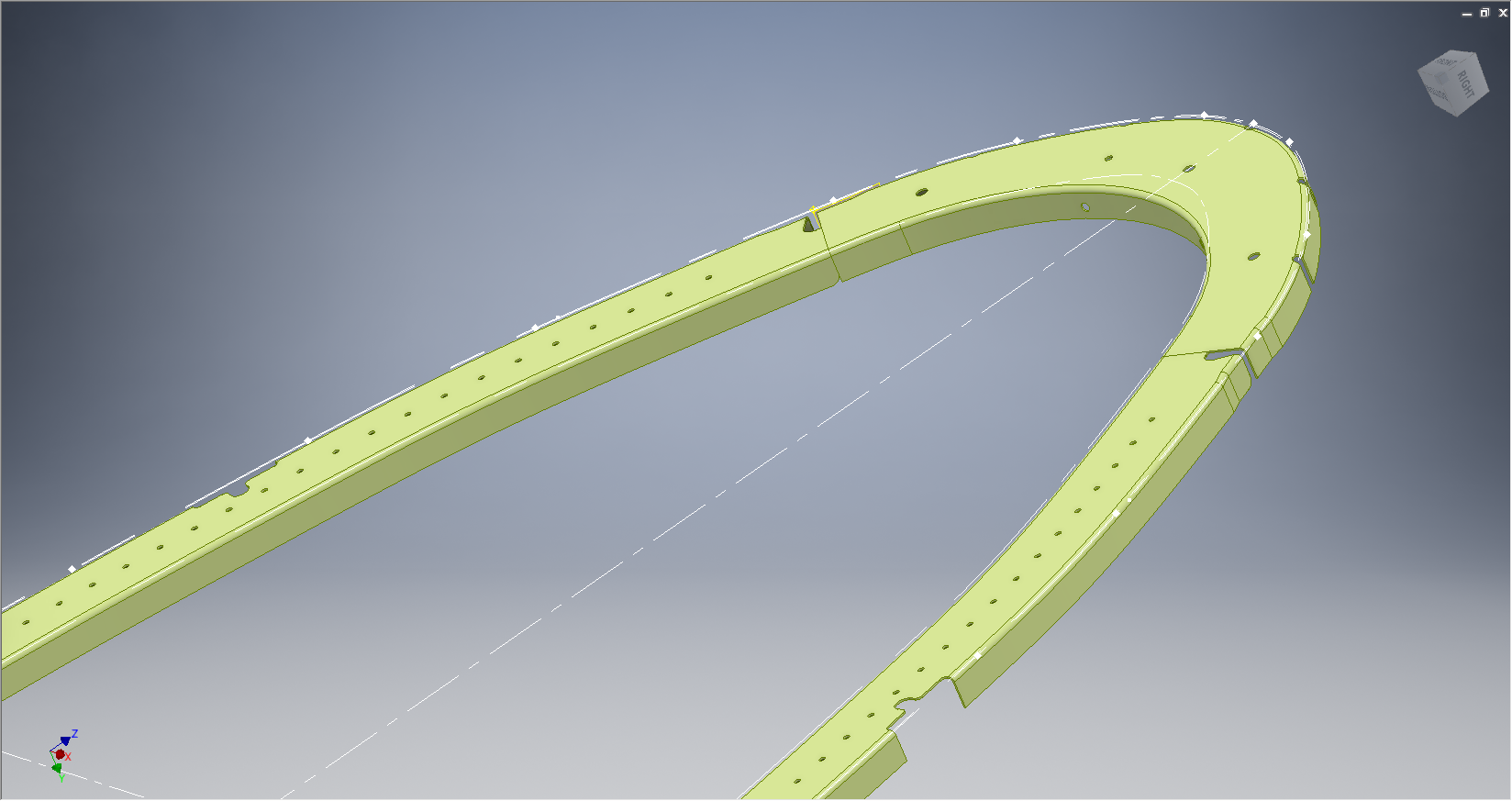
I would then go out about creating the notches and cutouts in the solid and then shell the solid to the required thickness. This works very well and ensures the integrity of the original spline ordinate lines (which would have to be split to do this any other way). This method also maintains better continuity of the end fillets and curvature (image 2).

The frame drawings reference the mold line ordinates, which I have for the P-51 B/C Mustang variants.The P-51D is similar with the exception of the ridgeback on the main rear fuselage that has been reduced above the +10″ W.L.

Techy stuff: I mentioned a limitation in the Inventor software which relates to creating a line perpendicular to a spline. In Solidworks you just sketch the line and constrain it perpendicular to the spline, but you cant just do it this way in Inventor (as far as I know). What I did was use sketch construction lines to define the point of intersection with the spline that I wanted the perpendicular line to start from. As I already had a surface projected from the mold frame spline (for above construction) all I had to do was create a new plane perpendicular to this surface at the selected point. It was then quite simple to create a further sketch to define the line I wanted perpendicular to the spline at the correct location.

North American P-51 Mustang: NAA Profiles

NAA P-51 B/C/D Mustang:

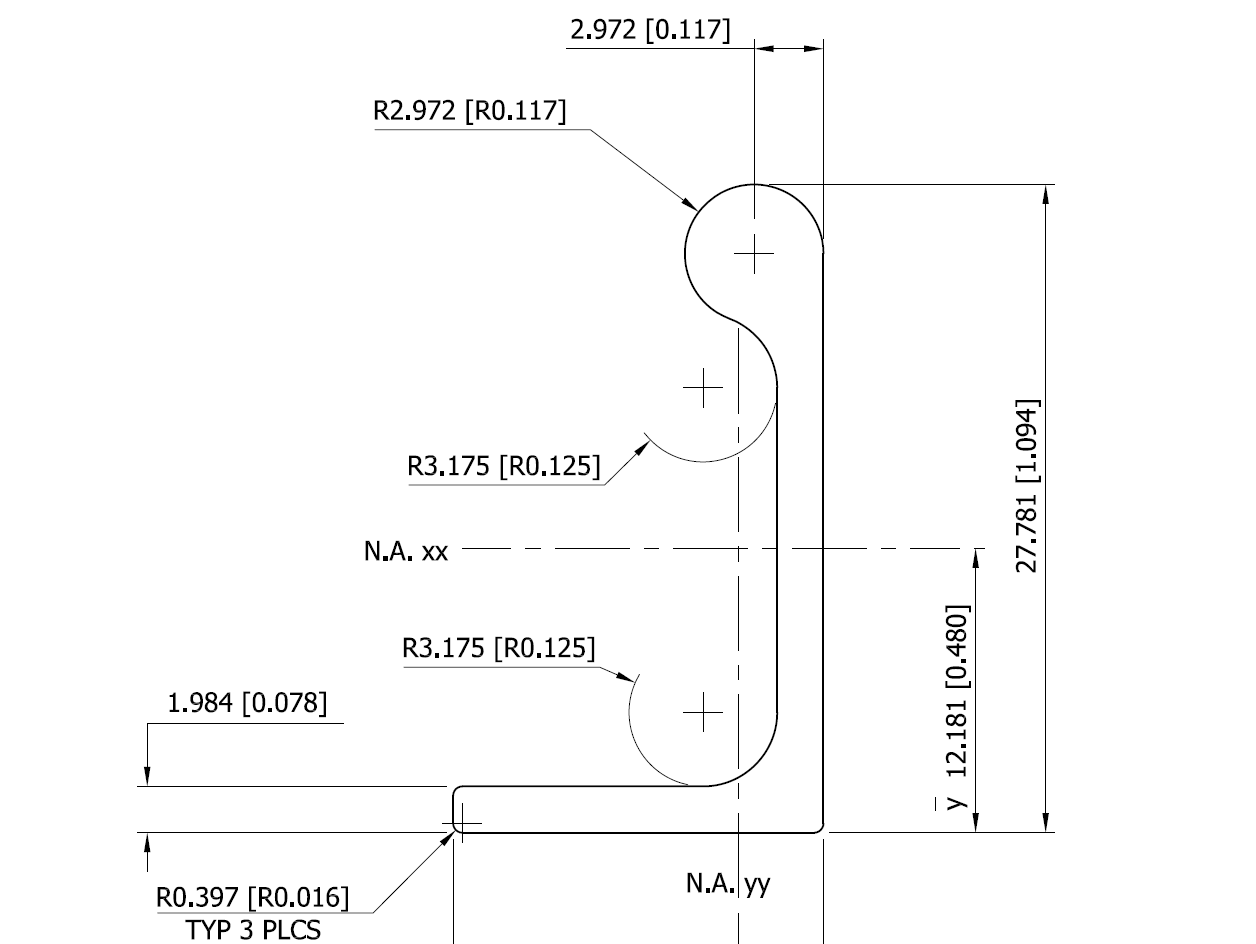
The majority of parts created for aircraft like the P-51 are derived from a library of standard section profiles, not unlike the steel and ship building industries. Fortunately for this project we have an extensive collection of these original NAA standard drawings, numbering 208 in total.

To facilitate the long term goal of recreating the P-51 part drawings as 3D models and associated 2D drawings I figured it may be prudent to first recreate the standard profiles as 2D CAD profiles for this purpose.

So far I have drawn the first 24 profiles exactly as shown on the original drawings but with dimensions in dual format inch & mm…many more to go!

NAA-1E1          NAA-1E1a

North American P-51 Mustang Parts

NAA P-51 B/C/D Mustang:

Ordinates interpretation, translation and development are an important part of my research work and rather essential to the development of the many part and frame components.

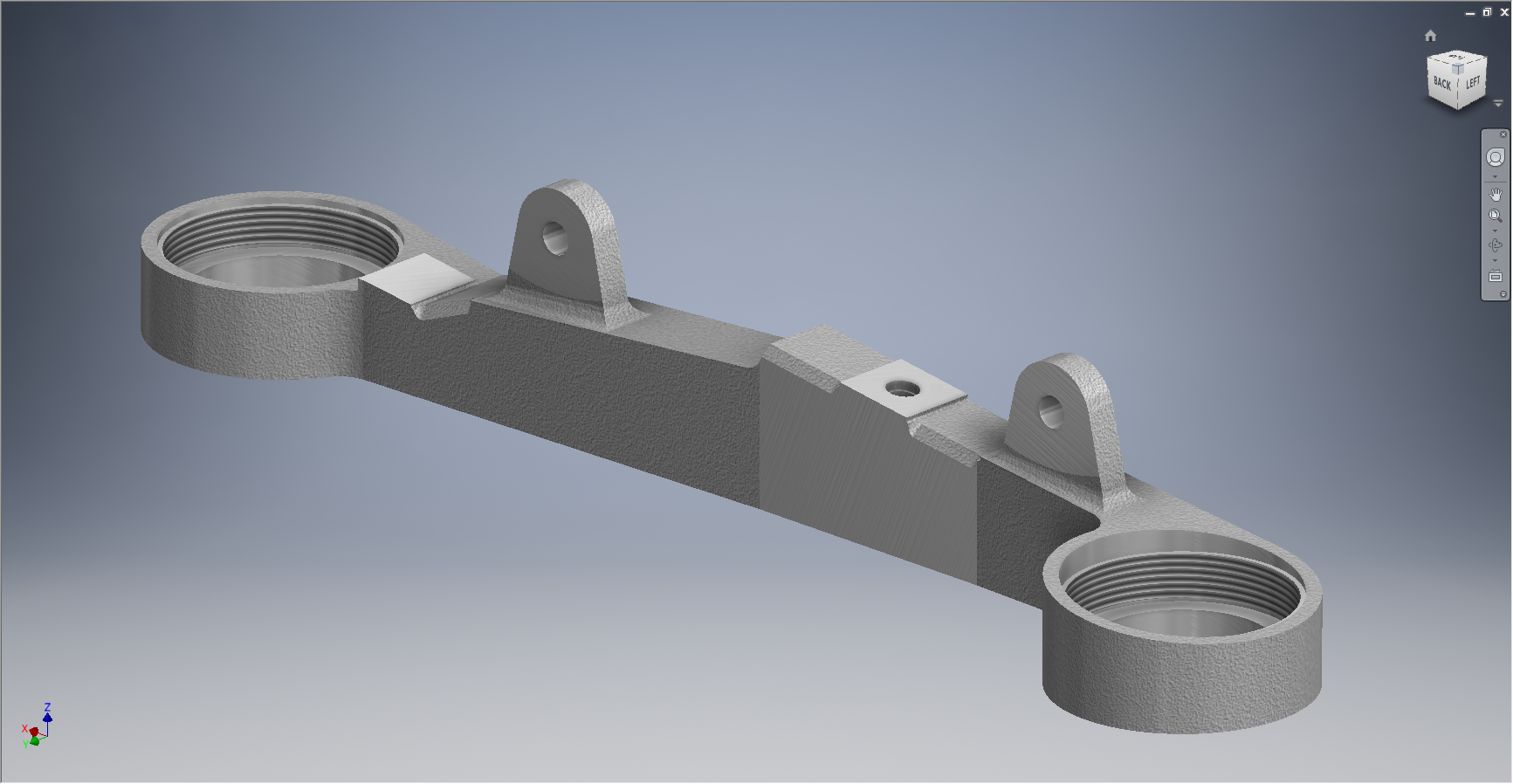
It would be great to be able to develop a full parts library for any of these aircraft projects in 3D CAD and recreate the original drawings. However the number of parts in any one aircraft is prohibitive to achieving this goal. I do though occasionally indulge in developing some of the part drawings; in 3D and 2D; if nothing more than a challenge to recreate something that was first designed 75 years ago!

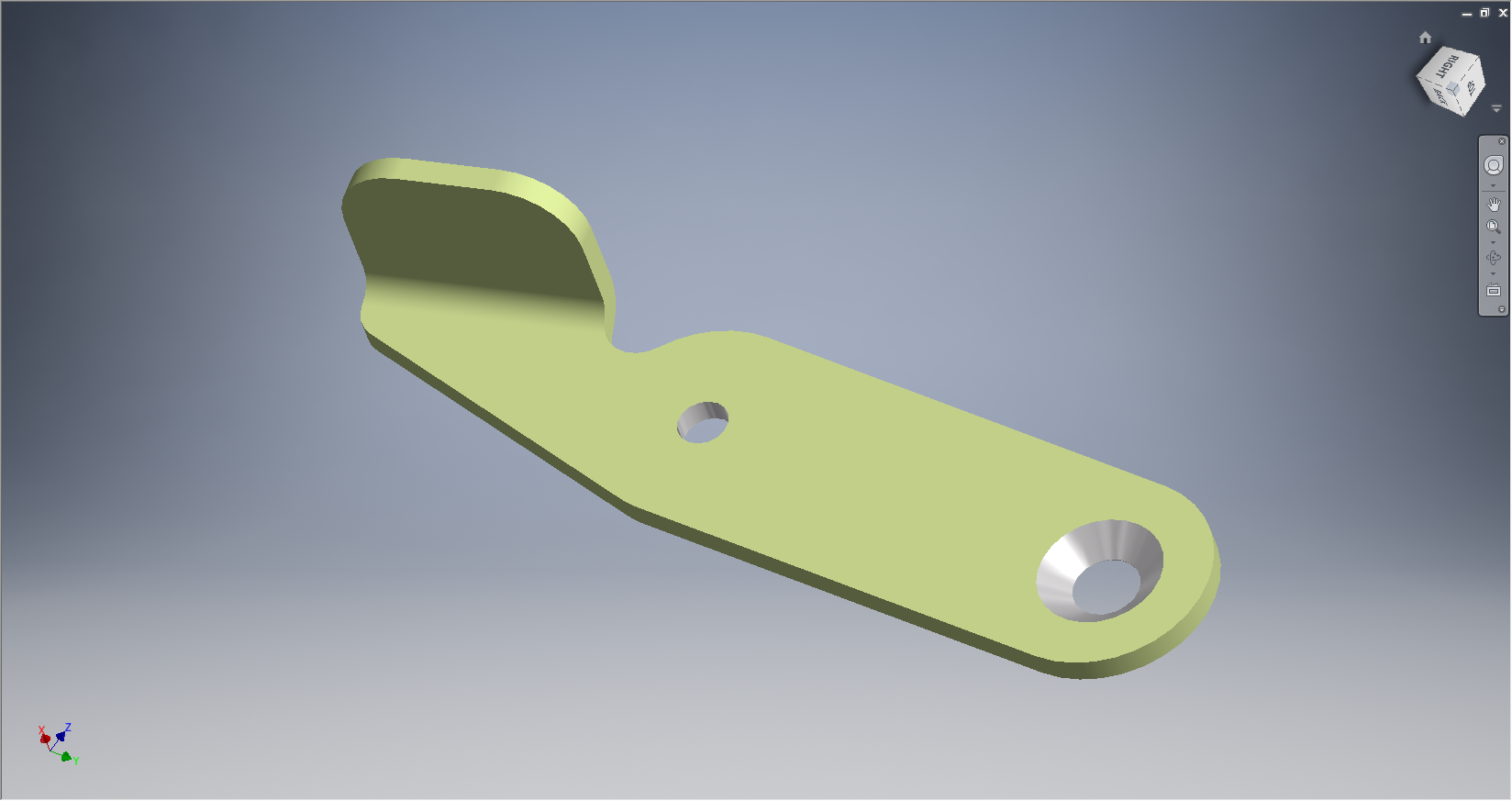
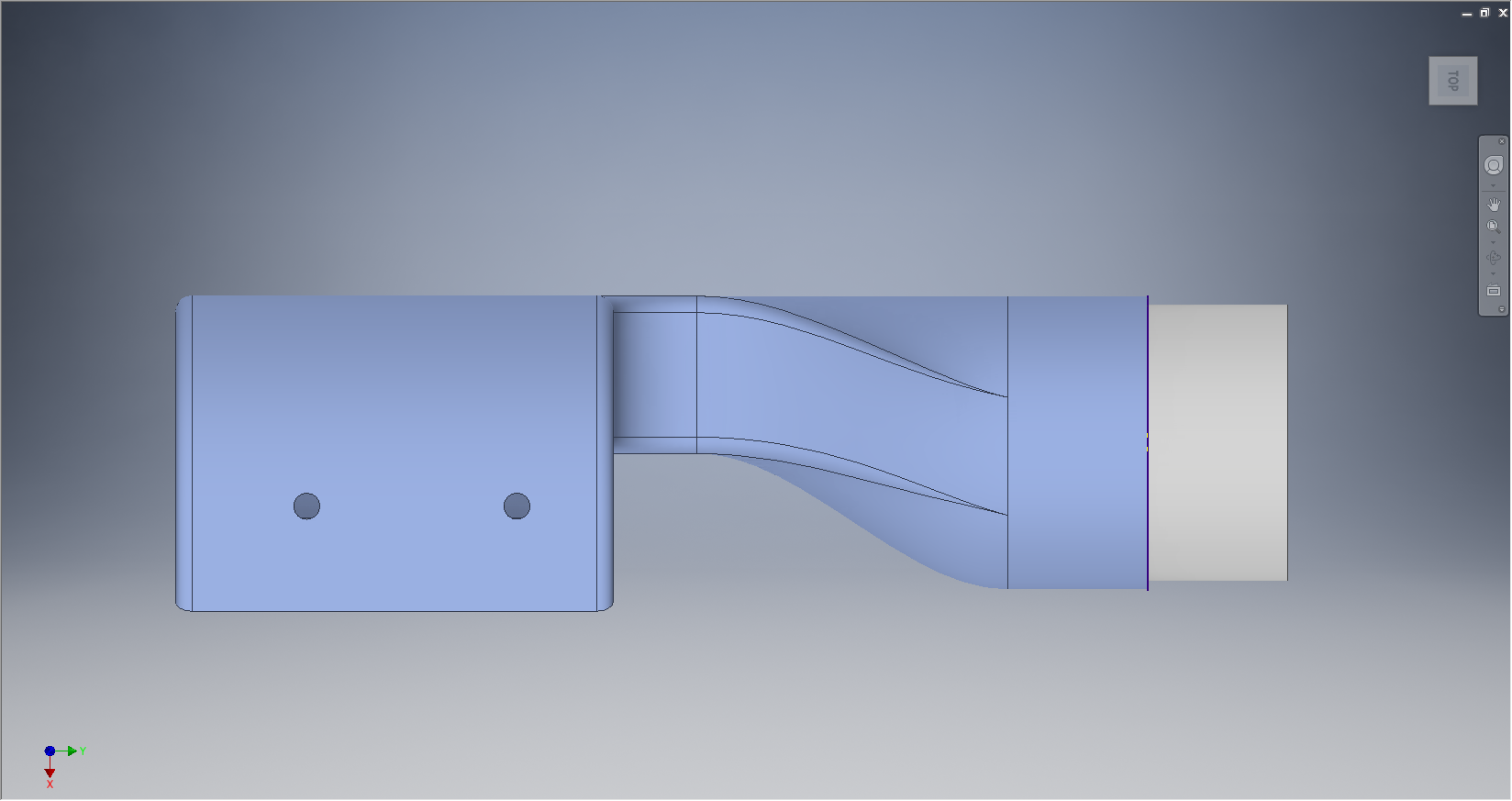
These are some of the parts modelled for the P-51 Mustang:

2015-05-31_00-14-57 2015-05-31_00-14-13

73-47058 Flange: Oil Tank Filler Neck               73-52144 Fitting: Aileron Control Stick

2015-05-31_00-20-39 2015-05-31_00-20-25

99-33463 Clip at Wing Station 56.625           99-318116 Link: Cockpit Encl Exit Hatch

2015-05-31_00-20-54 2015-05-31_00-14-31

99-318134 Bracket: Cockpit Enclosure               106-48343 Bracket: Fuel Valve Support

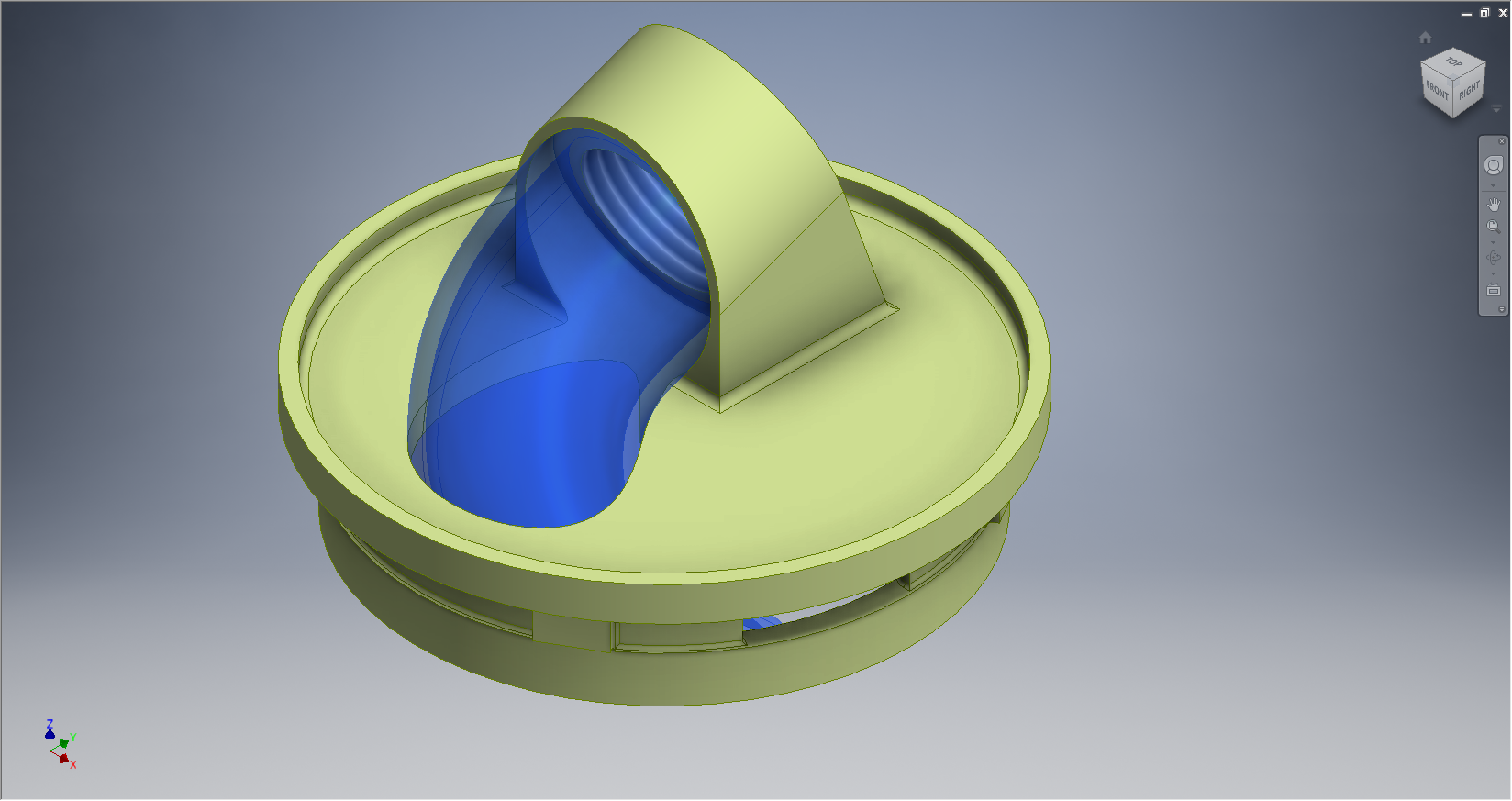
102-53391 Outlet Assy Haet Vent System Cockpit 2015-05-31_17-25-10

102-53391 Outlet Assembly: Heat & Vent Cockpit

2015-06-08_19-43-36 2015-06-08_19-46-35

102-33338 & 102-58181 Landing Gear Fairing Door Strut.

North American P-51 Mustang Project: Ordinates

NAA P-51 B/C/D Mustang

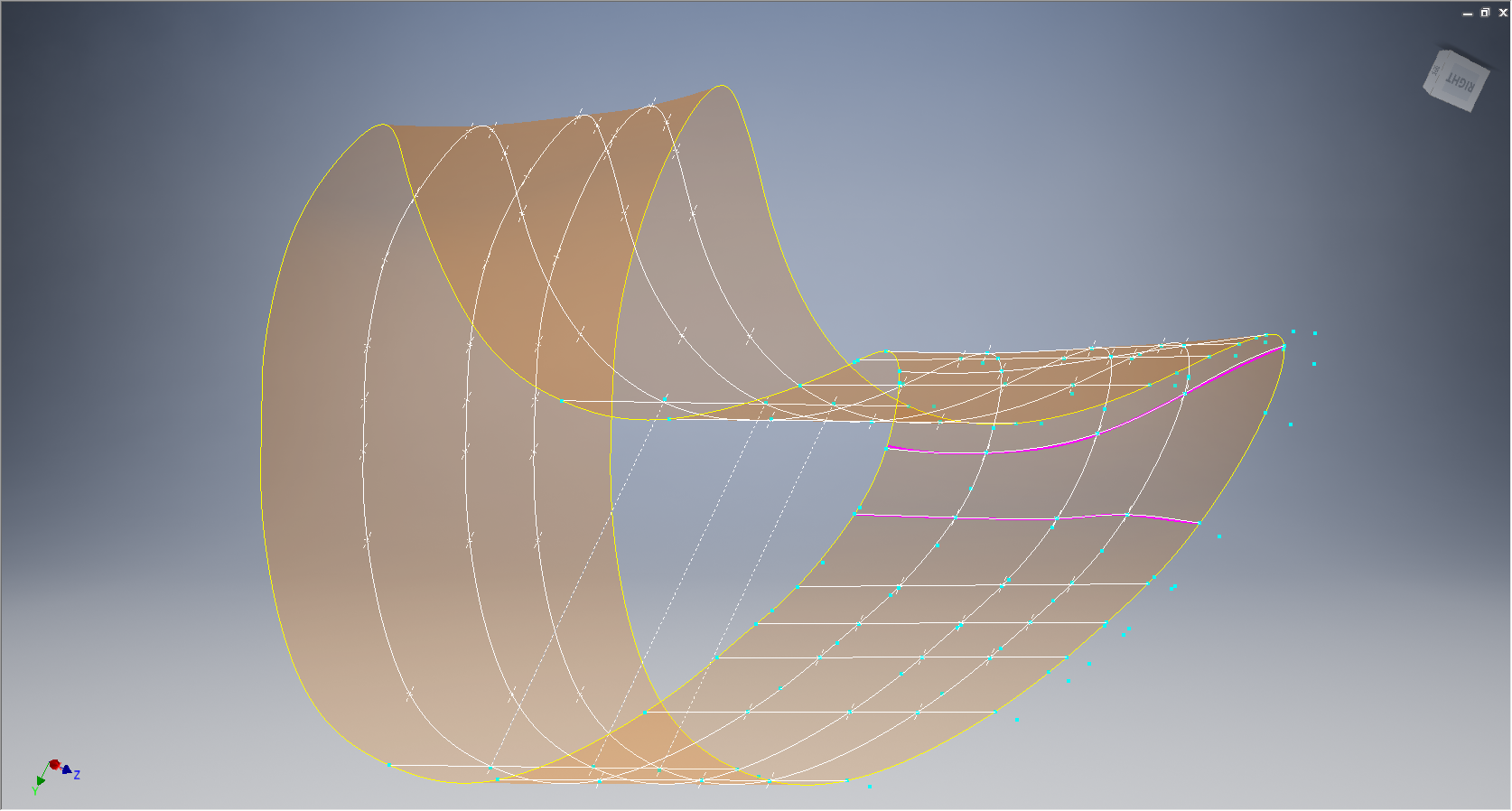
This is one of those projects that gets started and then for some reason gets put on the back-burner until now. One of the key reasons was due to the challenge of obtaining a good surface representation for the lower cowling for the P-51 B/C where I was having problems with the duct intake profile.

As usual I started with listing the ordinates in a spreadsheet and converting these to millimeters and extracting the X,Y.Z coordinates for further work in CAD.

I prefer to work in millimeters as I know that at so2015-05-30_19-31-32me stage the end profile may need micro adjustment which is so much easier to do using millimeter units.

This is a scrap view from the NAA drawing showing the ordinates table and the contours.

Thankfully for this part most of the ordinates were quite legible with only a few requiring interpolation; which would be done as a consequence of developing the data in CAD.

As it turns out there were a few orphaned ordinates that for some unknown reason did not align with the CAD developed surfaces; so these were simply ignored instead of trying to invent a purpose for them being there!

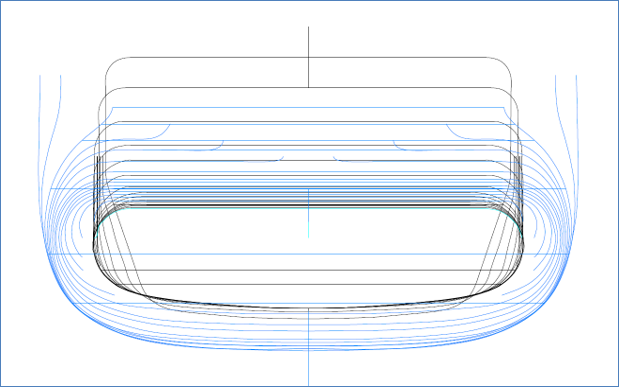
2015-05-30_20-39-59The drawing (right) shows the end result of transferring the spreadsheet data into a CAD product. This drawing is simply a record of the translation process and surmises the ordinates in relation to the Thrust line and Fuselage Reference line.

The main body of the cowling did not present any real problems but the intake duct portion did.

This area is less than 3 inches deep and is actually quite a complex surface; so any small deviation from exactness results in some crazy surface deformations. The original data tables are actually extremely good requiring only one small adjustment to get the result I was after…the trick was identifying which ordinates to use for the end profile and which ones we needed to check we have it done right.

After many (about a dozen) test developments of surface development and interrogation of the original data tables to ensure correct translations I eventually determined the correct ordinates and profiles to use to get this right.

2015-05-30_19-30-34

The resulting surface is based on the selected original ordinates with only one requiring micro adjust. In most cases the adjustment is simply an error in interpreting the sometimes indistinct values in the original data where a 6 could be an 8 or a 3 could be 5.

The 2 magenta coloured contours are generated profiles from a surface section cut overlayed on the ordinate controlled contours from the NAA tables which provides a check to ensure the surface conforms to the original design.

This surface will be converted to a T-Spline surface to facilitate final development.

It may be that this particular part does not warrant this level of exactness nor indeed the time expended in getting to this point. However it is a testament to the many fine designers of this era to be able to reproduce their work that was done to an extraordinary degree of accuracy.

Update Jan 2021: A comprehensive Ordinate/CAD package incorporating all known ordinate data points is now available for download. See this post for details.