Unlock Precision with Aircraft CAD/Ordinate Data:
The CAD/Ordinate datasets are designed to offer detailed documentation of the dimensional information pertaining to the core profiles of various aircraft components. This includes elements such as fuselage bulkheads, cowls, vertical stabilizers, horizontal stabilizers, wings, rudders, flaps, ailerons, and elevators. Essentially, these datasets provide all the dimensional information needed to develop the main profiles for aircraft construction.
The research studies were conducted to fill in important gaps in information and to clarify unclear details. Often, data on blueprints can be difficult to read, making it necessary to record and analyze the bulkhead or rib profiles in CAD. This process helps accurately determine the correct dimensions.


The examples of ordinate dimensions above are not necessarily the worst; in fact, there are truly poor examples that exist. To tackle these issues, we should start by recording the known dimensions in Excel and making educated guesses about the worst examples. Next, we can create each profile in CAD. This CAD profile will give us a clear visual representation of any anomalies in the curvature, which can be further analyzed through curvature analysis to identify low and high spots. This process is done for every rib and bulkhead profile where we have ordinate dimensions.


The spreadsheets above are typical examples of CAD/Ordinate datasets. The first spreadsheet contains the Ordinate record for the P-38, while the second one features the Aileron sheet for the FM2. You may notice a Linear Regression analysis table included in the FM2 sheet. Initially, determining the individual profiles of the ribs or bulkheads is just the first step; we now need to assess the assembly of all these components and check for proper alignment.
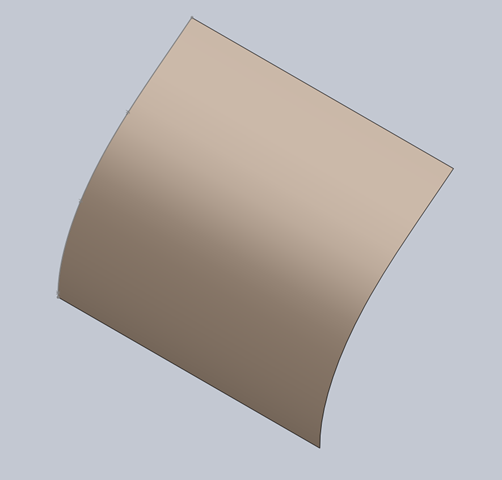
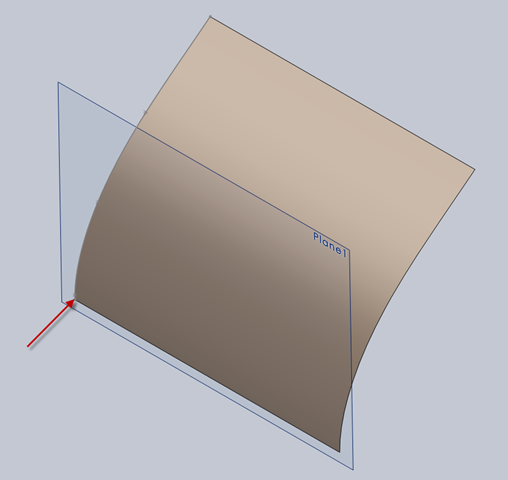
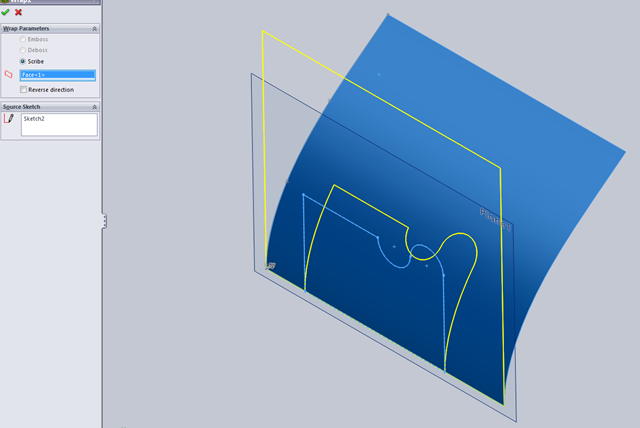
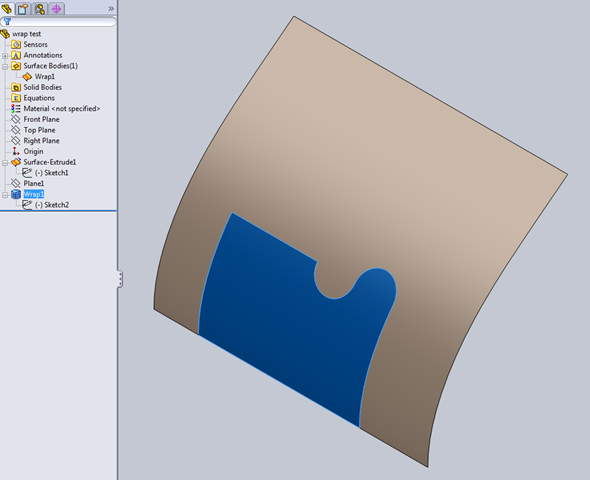
Each drawn sketch profile in CAD will serve as the border for containing a surface patch.
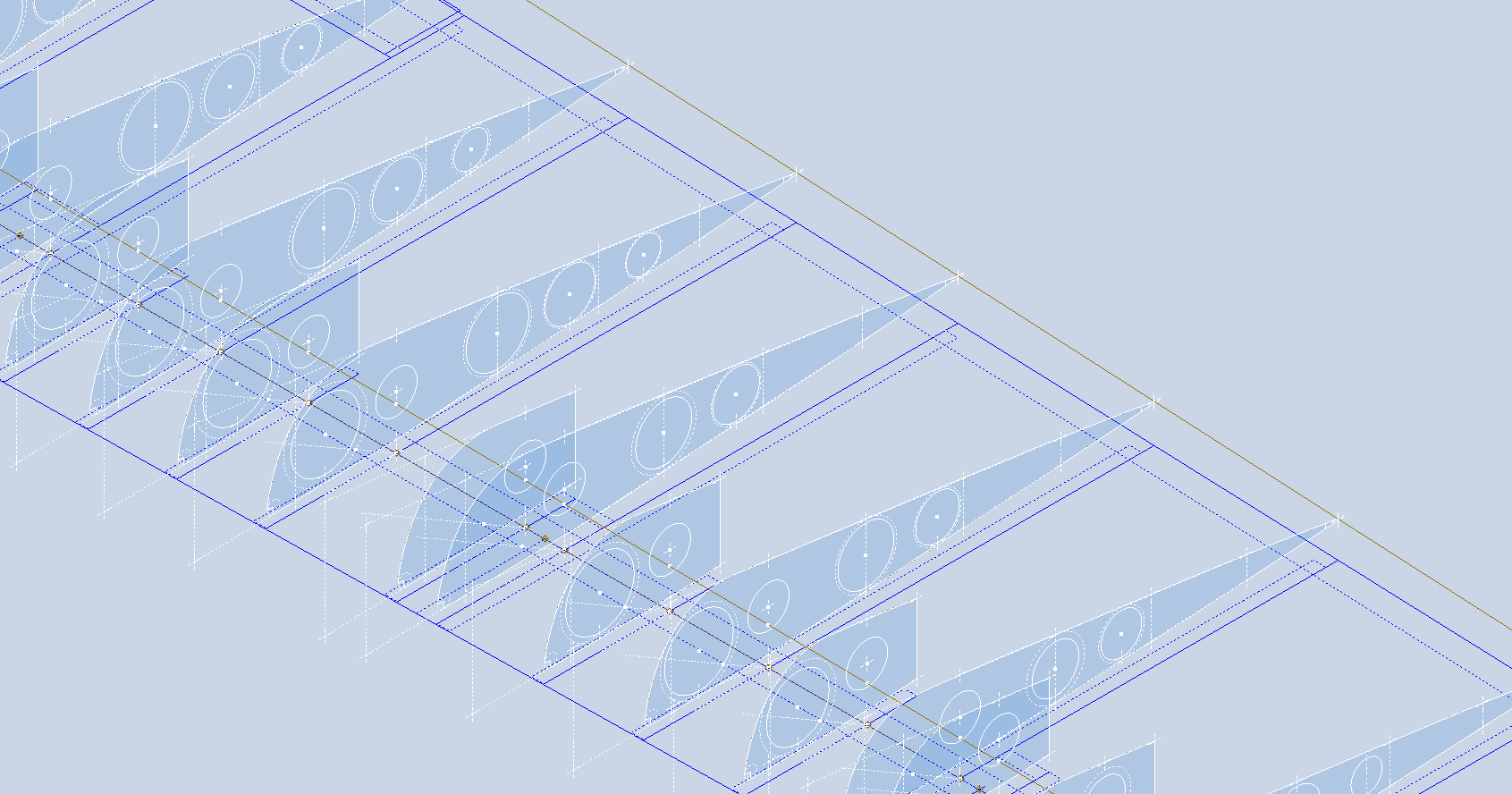

There are two primary reasons for doing this. First, it provides us with a plane that can be converted into a working surface, which can be utilized in any CAD product. Secondly, it provides us with a tangible element that we use to check assembly cross sections at key locations for alignment checks.

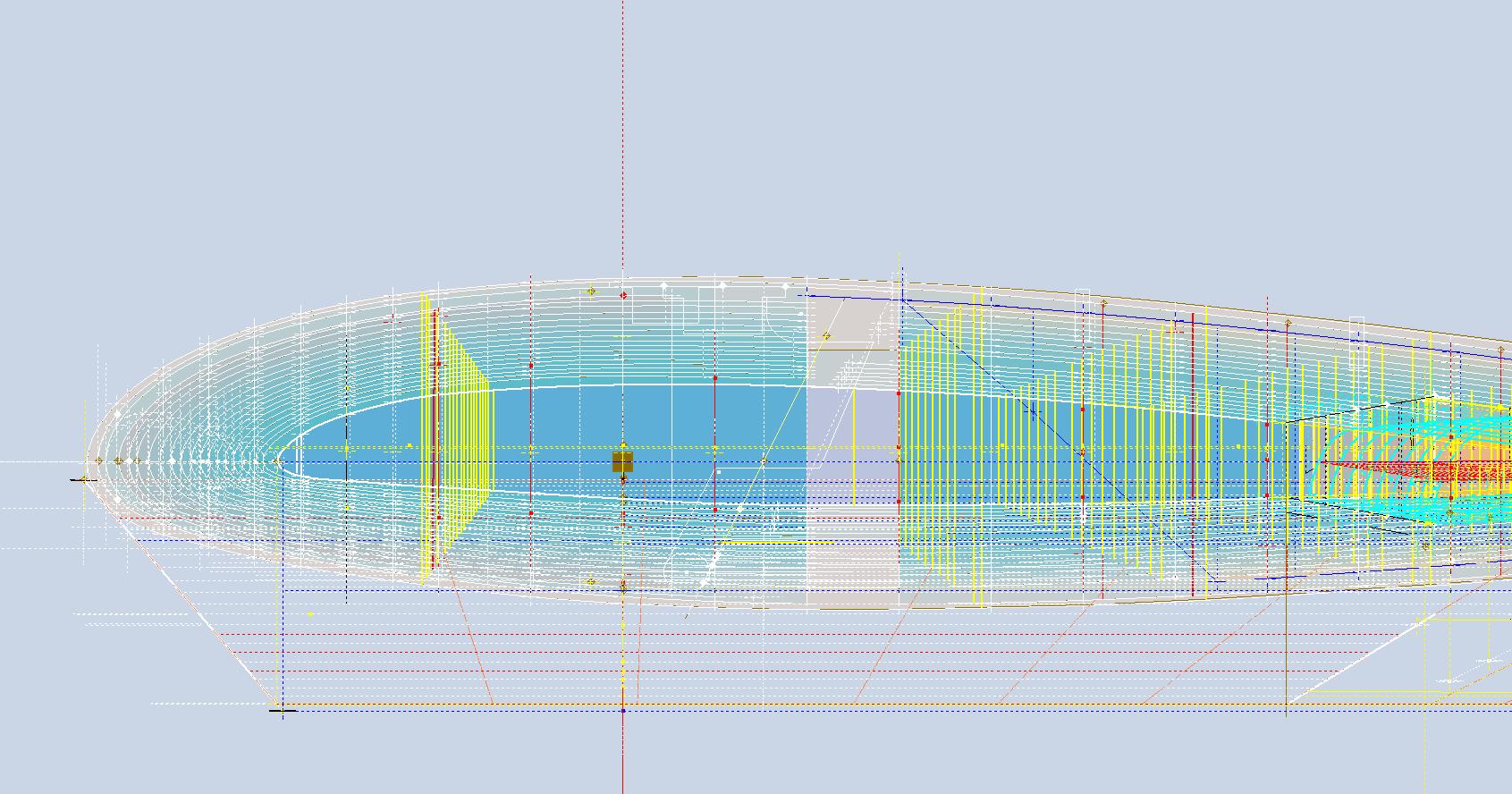
For example, consider the wing of the FM2. The wing assembly has been converted into a part file, and cross-section sketches were created at various chord locations: 30%, 60%, 70%, and 80%. Each sketch utilized the “Project Cut Edges” function to generate a cross-section of each rib. As shown in the second image, the array of lines representing the rib cross-sections provides a visual aid to identify high and low spots on the wing assembly. By creating a surface plane for each rib, we were able to generate these cross sections effectively. There were a few high and low points, which were double-checked and rectified.
If we require additional verification and strive for precision, we could use Excel’s Linear Regression to generate the coordinates for a Best Fit Line and make adjustments as needed. However, this approach may be excessive since our primary goal is to clarify the original blueprint data and apply it to identify appropriate rib and bulkhead profiles within acceptable parameters.

We can also use Linear Regression to give us an overview of how the ordinate profiles align with one another and to identify any discrepancies. Typically, acceptable parameters are within +/- 0.01 inches (or 0.254 mm), as specified by the dimensions on the blueprints, which usually only provide accuracy to two decimal places. Sometimes, as was the case with the P-51 and P-38, we had key design parameters that allowed us to calculate the exact profiles for each wing.
Validating dimensional data is crucial because the actual wing construction may not always match the accepted specifications. The design specifications for the FM2 call for a NACA 23015 airfoil at the root and a NACA 23009 airfoil at the tip. You might be surprised to learn that the NACA 23009 is a modified version of the standard 23009. Nothing is therefore assumed or taken for granted.
The CAD/Ordinate datasets are the result of extensive and thorough research and analysis, often taking many months of work, sometimes around the clock. These spreadsheets include every known ordinate dimension for various aircraft, gathered not only from blueprints but also from manuals, reports, and even correspondence. The CAD/Ordinate packages also include various 3D CAD models in various formats, including 3D DWG and fully dimensioned 2D DWG. All documents provided are fully editable so you can adapt the information to your work processes.
For more details on using the Ordinate spreadsheet data for your own CAD systems, see my earlier post here: Ordinate Overview

With over 45 years of experience in structural and mechanical engineering, my expertise influences everything I do.
In summary, the purpose of the CAD/ordinate datasets is the result of intensive work and research to provide the user with correct usable data that can be utilized in any CAD system.
When you buy CAD/Ordinate datasets and Blueprint collections from me, you support my ongoing research to provide the most comprehensive and probably the most accurate dimensional information about various aircraft. This blog and my research work would not be possible without your support.





 Aviation CAD TechNotes