P-51D Mustang: 3D Instrument Panels

P-51D Mustang: 3D Instrument Panels: Updated 11 June 2022

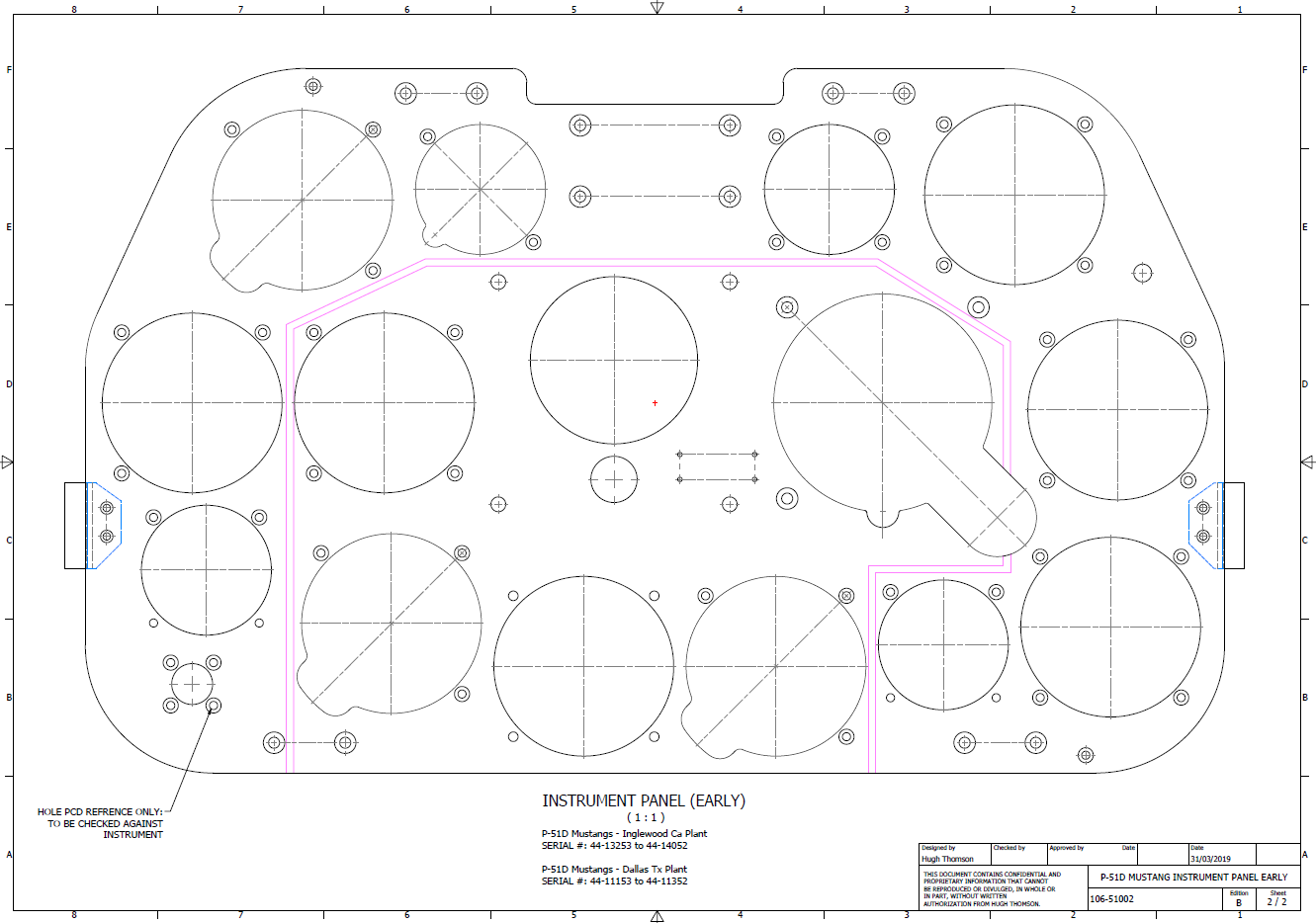
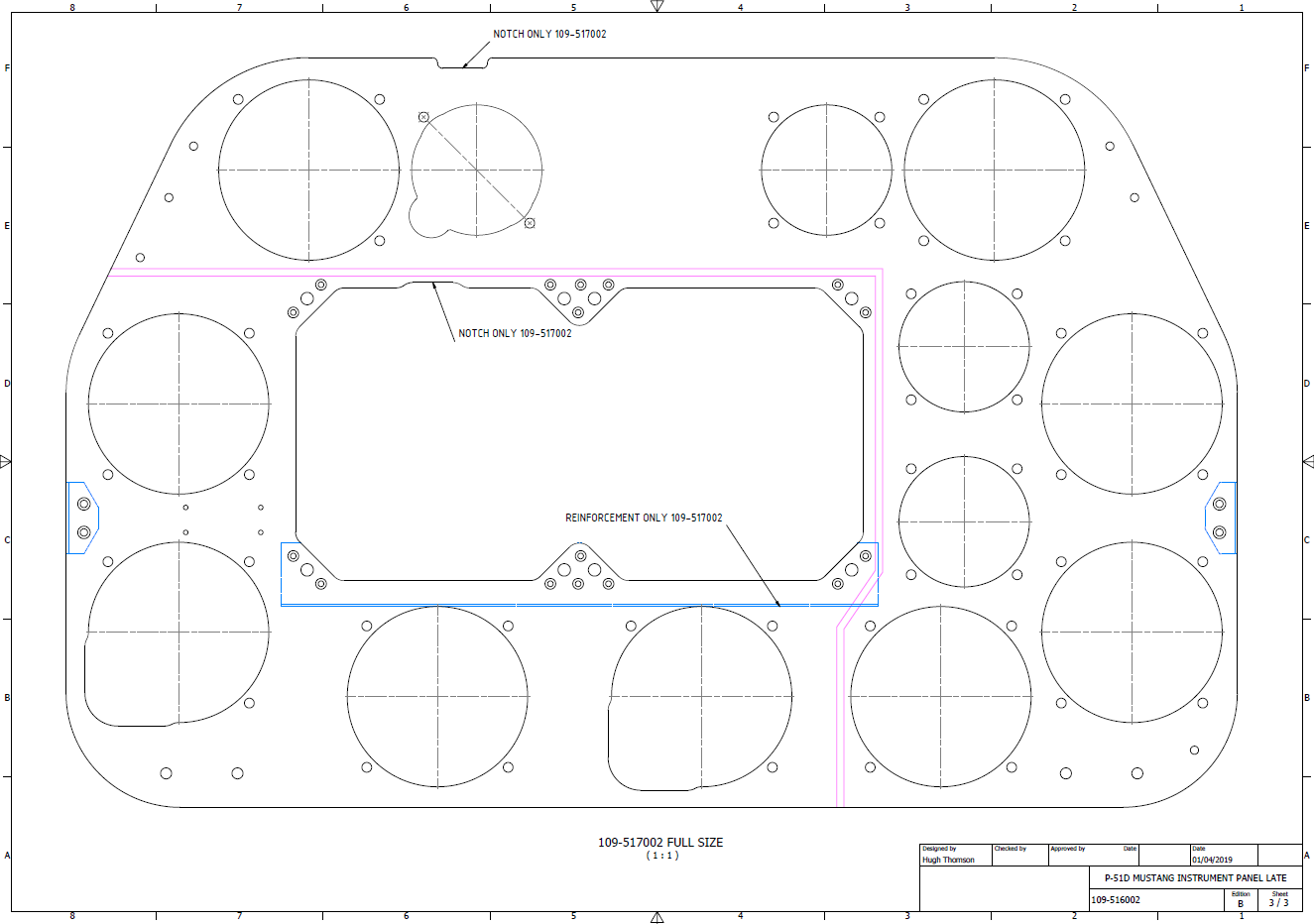
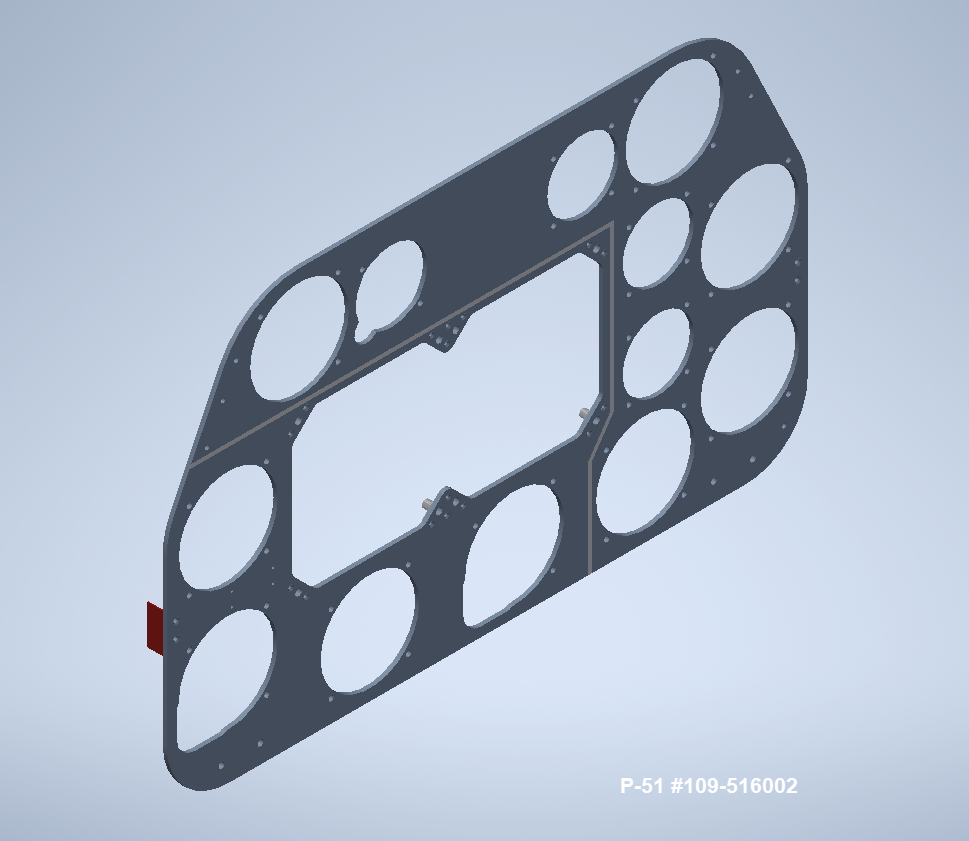
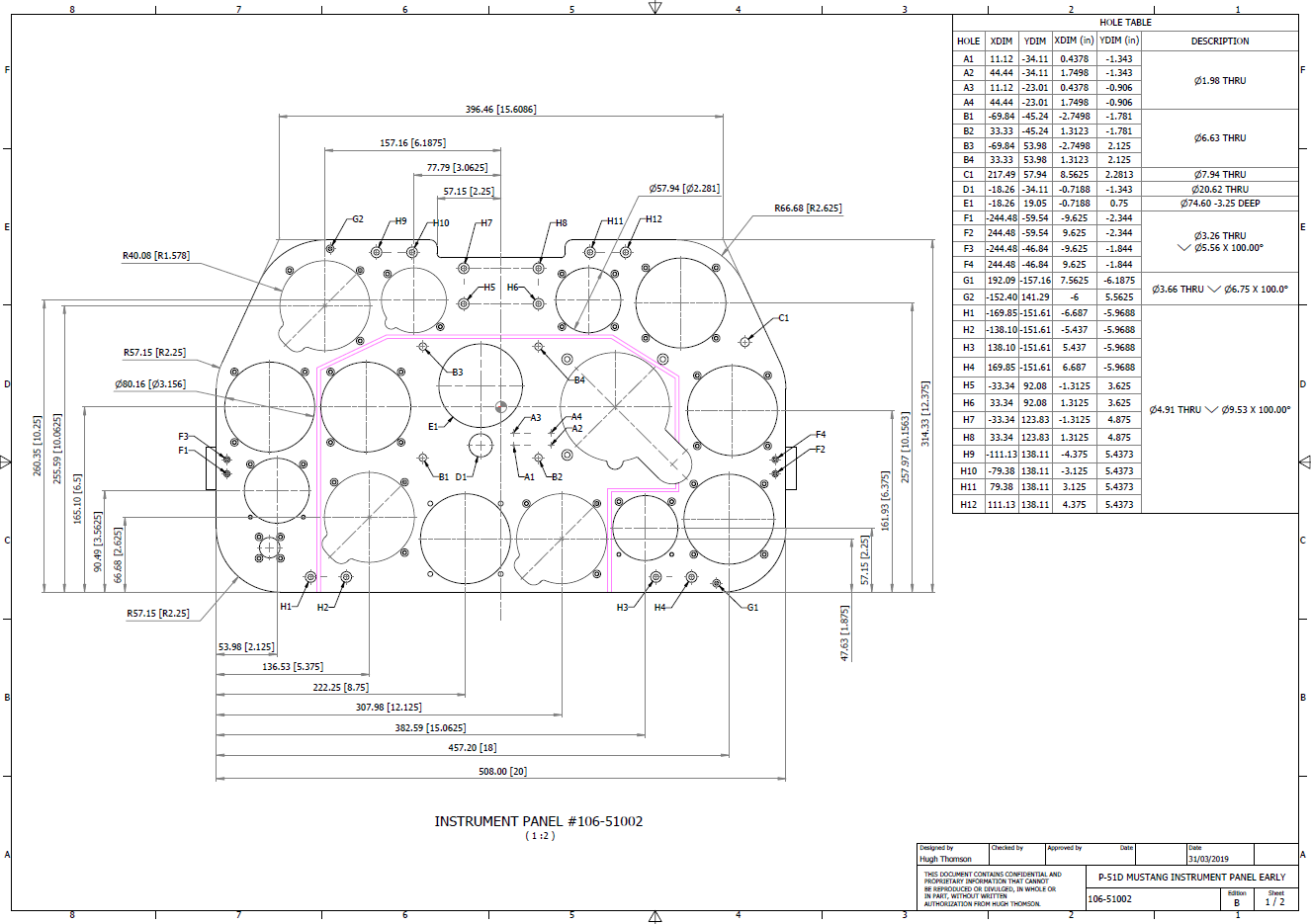
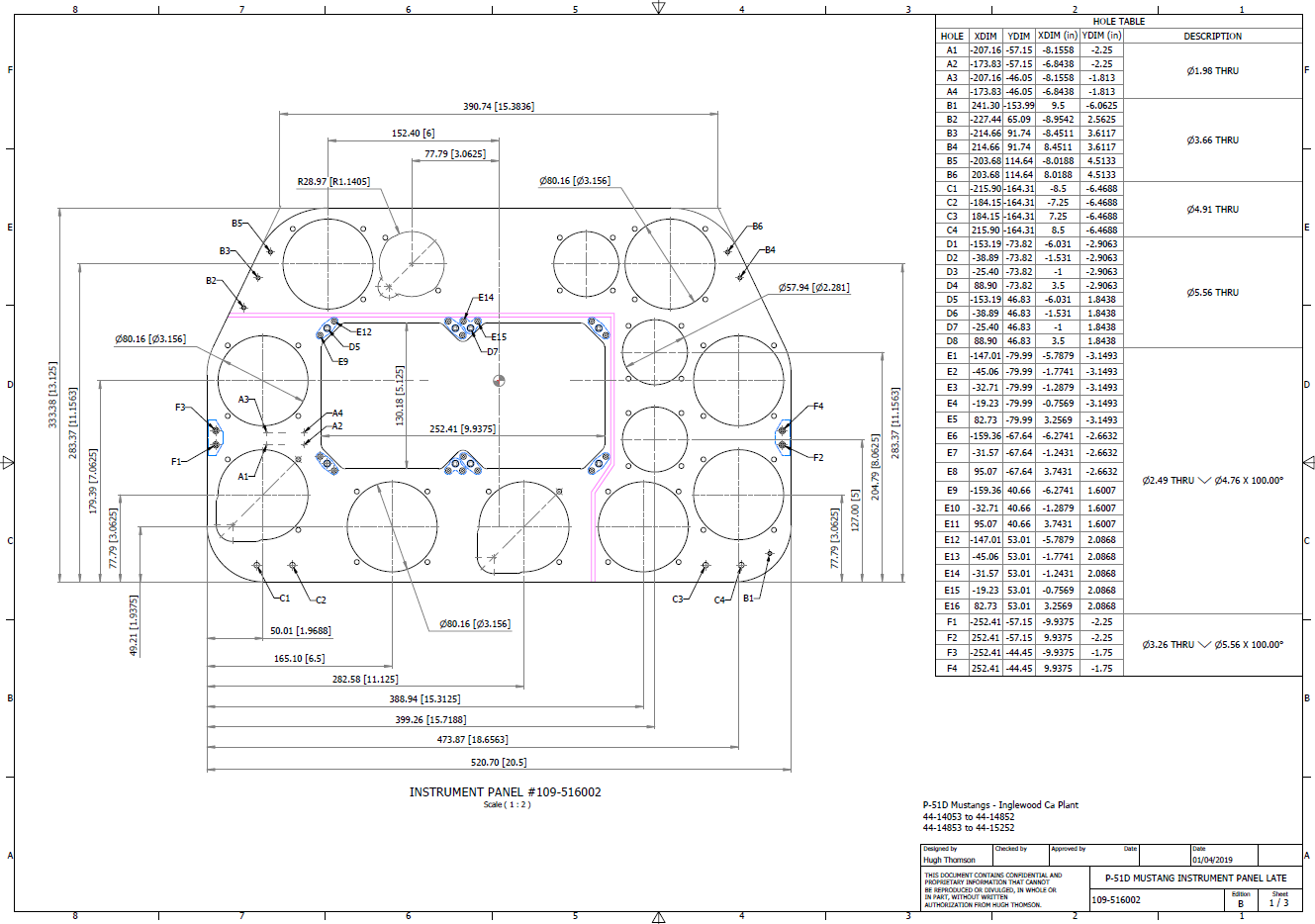
P-51 B and D Instrumentation Panels are now available online as a separate package. This package includes all below noted Instrumentation Panels 3D CAD models in STP, STL and 3D DWG formats with associated dimensioned 2D drawings and PDFs. Note the hole positions are listed in a tabulated form on the drawings which can be extracted for CNC work.

Also included is a copy of the original NAA instrumentation drawings for reference.

Update 20th June 2022: All Instrument panels now also include the Parasolid X_T format. The complete package is available for download, get in touch at hughtechnotes@gmail.com.

Early Version P51D: 106-51002
Later Versions: 109-516002, 109-517002
Update 15th Feb 2022

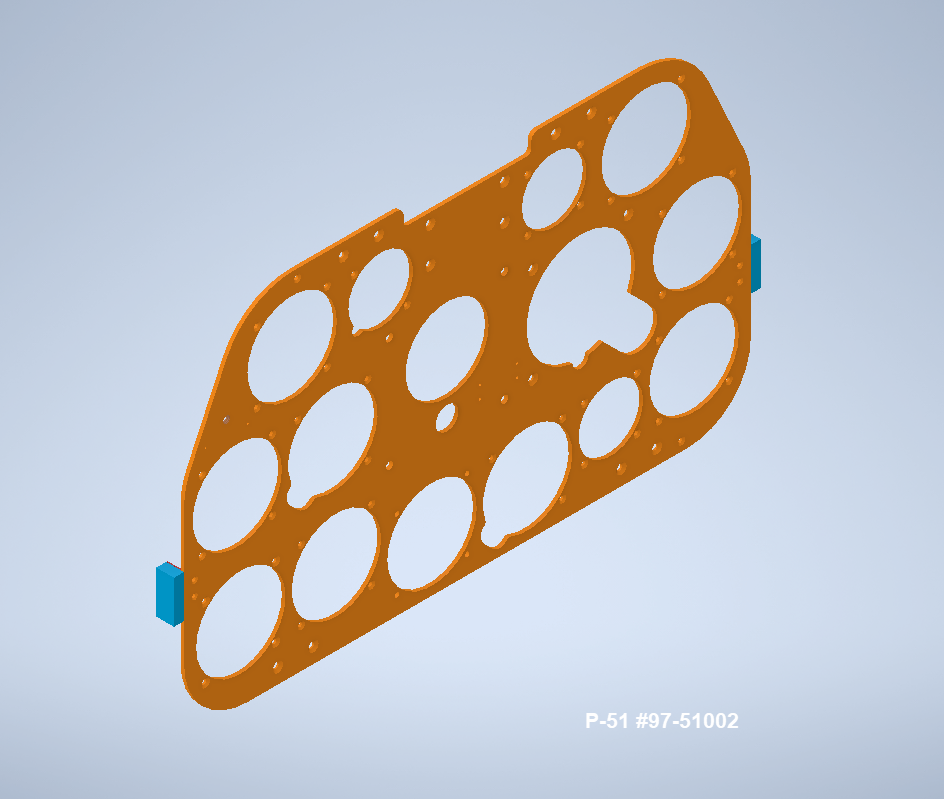
For P-51B Mustang: 97-51002

3D Model Views:
For further information drop me a line at hughtechnotes@gmail.com.

Technote: Text Emboss Problem

Technote: Text Emboss Problem:

Occasionally when trying to Emboss text in Inventor the command will fail. Most likely the problem will relate to intersecting lines for the font style..invariably it will tell you why it doesn’t work.

This can be very frustrating with few solutions other than reconstructing the font style would be apparent. However, there is a way to resolve this…well at least the particular font I am trying to use for the P-51 Mustang instrument panels. In a previous article, I had opted for an alternative to the MS33558 TTF as this font style is flawed.

I have now found something more compatible and it is called TGL0-17 ALT. This is actually very close to the MS font…however I have still encountered problems.

The solution is to first open the text editor in Inventor and select the font type, set the height, width and spacing. You may need to select Exact for the latter and type in a value to achieve the correct spacing instead of using the defaults. Once you are satisfied with the formatting close the text editor and try to emboss it. If the emboss fails move on to the next step.

Select and open the text editor again and this time highlight all the text, then copy and paste this into MS Word as Text Only. Refresh the font style by selecting an alternative and then select again the TGL0-17 ALT. Copy and paste back into the Inventor text editor, close it and voila now it will emboss.

Before you ask, I have absolutely no idea why this works only that it does in this case So next time you have a problem embossing text in Inventor try this workaround and see if that works for you.